Quotes like a Geek!
German video only, but you can use YouTube’s automatic translation and subtitling feature.
SPRYGGKLOPPA is a digital quote frame with an ePaper display inside an IKEA picture frame. It runs on batteries (but better on a power supply), has Wi-Fi so you can edit the quotes, and has an extremely high WAF value.
It also makes a great gift! I'll show you what you can do with it and how to put it together!
The key facts summarized for you
How the Digital Quote Frame Works
- The quotes are shown on a 7.5" ePaper display.
- You can edit the quotes on the picture frame via Wi-Fi. There is also an import function to upload lots of quotes at once.
- In the Wi-Fi portal you can freely set how often the quote should change.
- The quotes can change randomly or in sequence.
- Three different fonts, four different frame designs and a dynamic font size calculation make for a varied display.
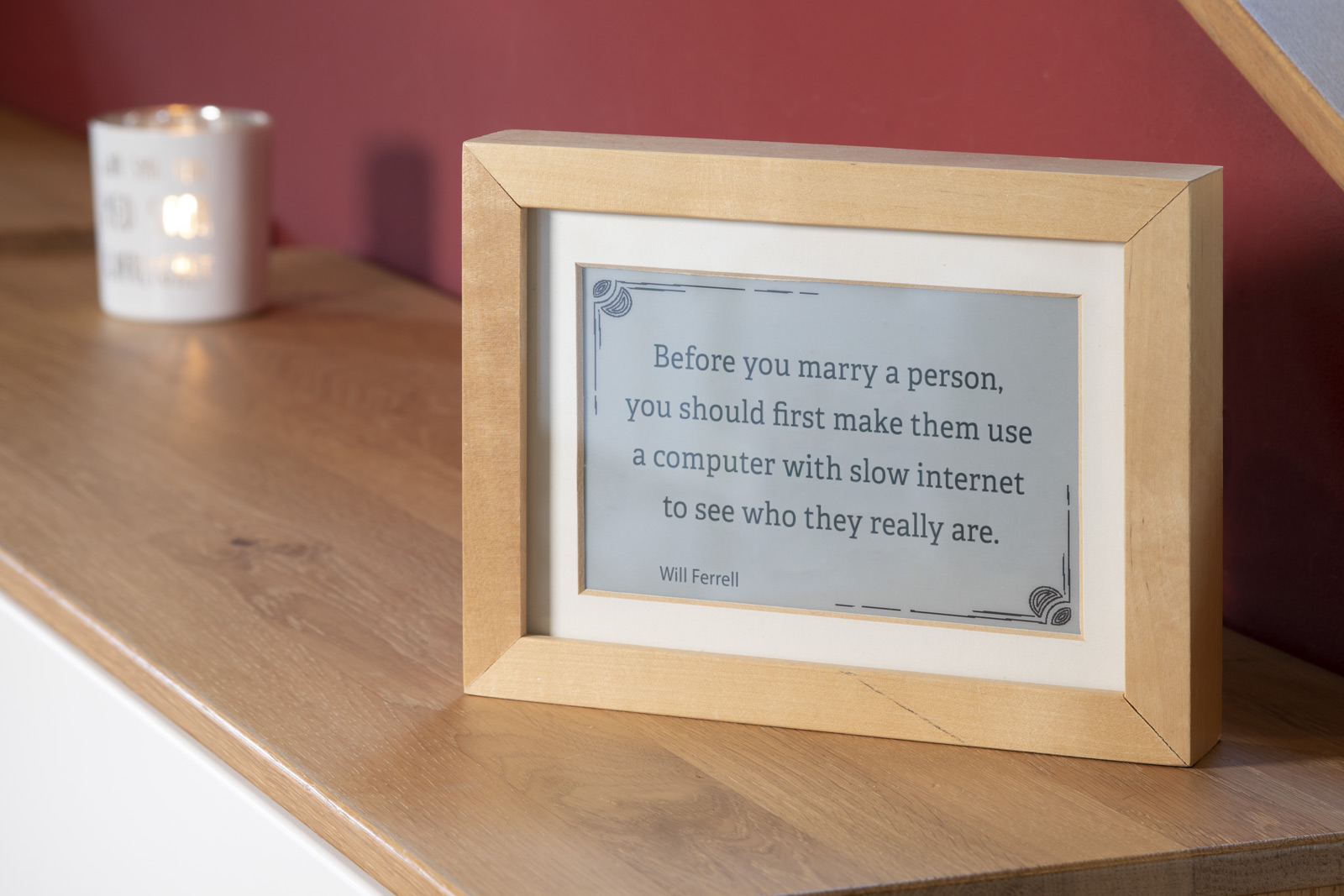
You can store the quote and, optionally, the author's name.

René Aye
Head of Short Circuits @ raydiy
Keeps his herd of microcontrollers supplied with power and lovingly crafted code.
RAYDIY Newsletter
Subscribe now
and get a free eBook!Intro
Today we're building something that makes a great gift for anyone who loves quotes, mottos, motivational sayings and the like. I showed a few examples in the video.
My wife likes to put up postcards with mottos and quotes all around the house. So I had the idea to expand her collection with a digital version. You load the quotes onto the frame and a different one is shown every day.
For Grandma
Maybe you've written down things your kids have said? Some of those are real gems. Now you can upload them all to this frame and nail it to grandma's wall.
Wedding Gift
Or how about a wedding gift: every guest has to upload a personal greeting to the frame. After the wedding, the bride and groom then get a new greeting from their friends and family every day. You probably know the game from the postcard suitcase.
Components
Basically, the whole thing consists of an IKEA Ribba picture frame, an ePaper display, an ESP32 and four LiFePo batteries as a power source. Add the usual bits like small screws, cables and so on. You'll find the exact parts list at the end of the article. The whole project is available for download on Github. Of course, you'll also find all the parts lists, source code, notes etc. there.
UPDATE: Unfortunately, the IKEA RIBBA picture frame is no longer available. I haven't found an alternative that fits exactly yet. If you want to use a different frame, you'll find notes on the dimensions further down in the text.
UPDATE: Powering it with batteries was a bit too ambitious. The Wi-Fi mode in particular draws a lot of power, so unfortunately the batteries only last a few days. That's why I now use a power supply instead.
Step 1
Get a Picture Frame and Passe-Partout
I used a RIBBA wooden frame from IKEA here. Of course, it's important that the case housing the electronics fits into the picture frame. If you have a RIBBA picture frame too, that shouldn't be a problem.
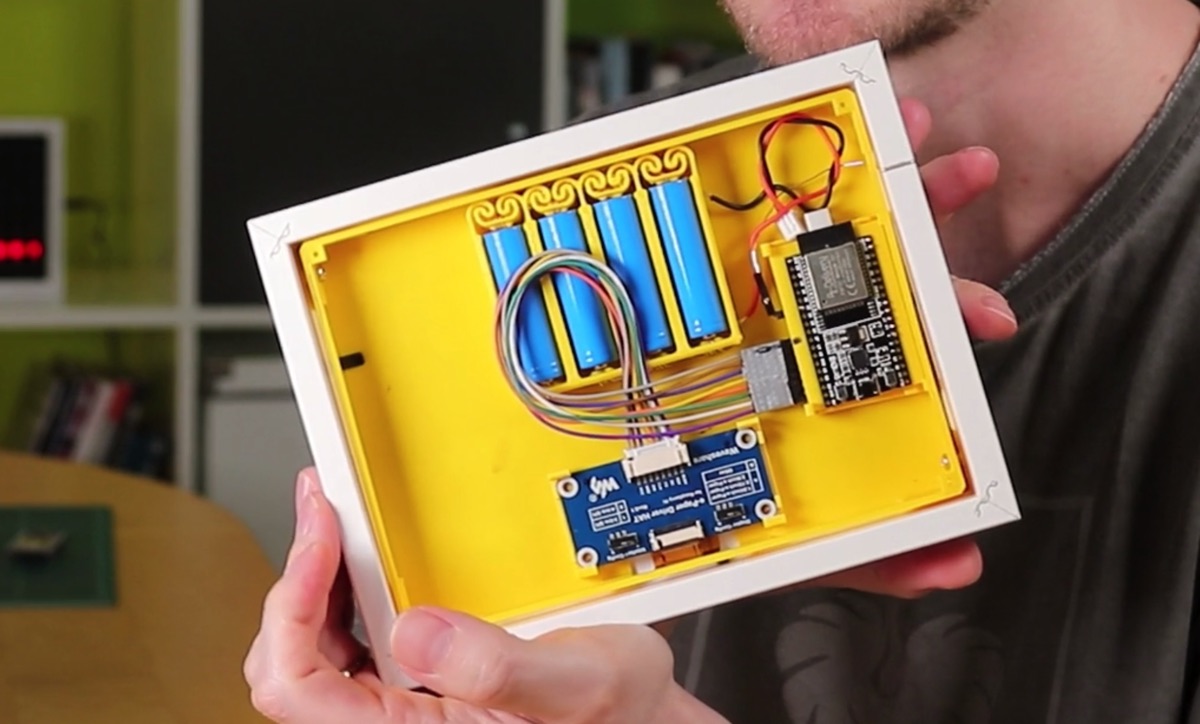
The finished assembly without the cover
If you use a different picture frame, you will most likely have to adjust the size in the CAD program. You'll find the Fusion 360 and FreeCAD files in the SPRYGGKLOPPA Git project.
The inside of the picture frame must be at least 181 x 135 mm. This is due to the ePaper display used.
With the glass and the passe-partout in the frame, there must be at least 26 mm of depth left, because the case is currently designed for this depth. Add a few millimeters for the heads of the screws that hold the cover. So the picture frame needs a certain depth.
Also keep in mind that the passe-partout has to fit. We need a centered cutout of 14 x 9 cm. The RIBBA frame already came with one. Otherwise, any framing shop can cut one for you, or you can make one yourself.
Step 2
Print the 3D Parts
Next, we need to print the 3D parts. You'll find all 3D parts in the STL folder of the GitHub project. These are:
- the holder for the ePaper display (Display_Mount.stl)
- the frame (Frame.stl)
- the back cover with the flap for the battery compartment (Cover.stl)
- the battery holder (not in the repo, but on Thingiverse)
- the board for the ESP (if you want to use it) (PCB_ESP32.stl)
- 4 PCB clips to mount the boards in the case, so the boards don't rattle around inside (PCB Clip ESP v12.stl and PCB Clip ePaper HAT v12.stl)
The battery holder comes in different sizes for different numbers of batteries. I used 4 here. 2 or 3 should work too, but then of course the batteries run out faster.
In addition to the board for the ESP32 microcontroller, there's also the HAT board of the ePaper display, which is mounted in the case. That's what the PCB clips are for. Of course, you can also mount the boards the classic way with spacers and screws. I've already made a video about the ways to mount boards with screws and my “clever” PCB clips.
The ePaper display often comes with another small board and a ribbon cable. This is basically an extension cable between the HAT board and the display, which I didn't use. I arranged everything so that the display can be connected directly to the HAT board. If you like, you can of course arrange the boards differently in the case, and then you might need this extension.
The 3D-printed board for the ESP isn't strictly necessary either. You can of course solder everything the classic way on a perfboard, as you can see here on my first prototype, or you can solder directly to the pins of the ESP32. That would be the easiest way.
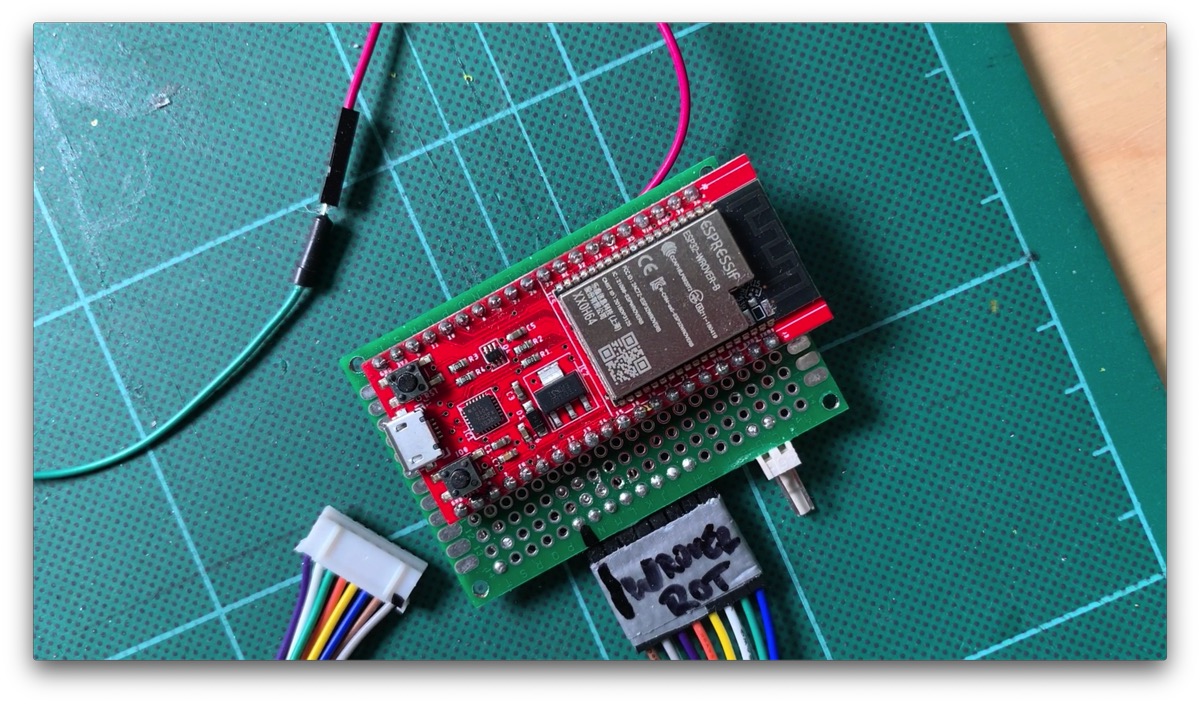
First prototype
AZDelivery ESP32 DevKit C*

Amazon Link*
*
This link is an affiliate link. As an Amazon Partner, I earn from qualified sales.
Waveshare 7.5 Inch E-Paper Display 800x480*

Amazon Link*
*
This link is an affiliate link. As an Amazon Partner, I earn from qualified sales.
Step 3
Glue the Display Frame
I've now printed and prepared all the parts. I've already covered the principle of the battery holder and the self-printed 3D printer board for the ESP32 (in German) in other videos. There I explain how to prepare these parts. So if you've printed the board and the battery holder, you'll need to watch those two videos to prepare both parts.
But as mentioned before: soldering the wires directly would be much less work. But if you enjoy tinkering, why not give the 3D-printed "board" a try.
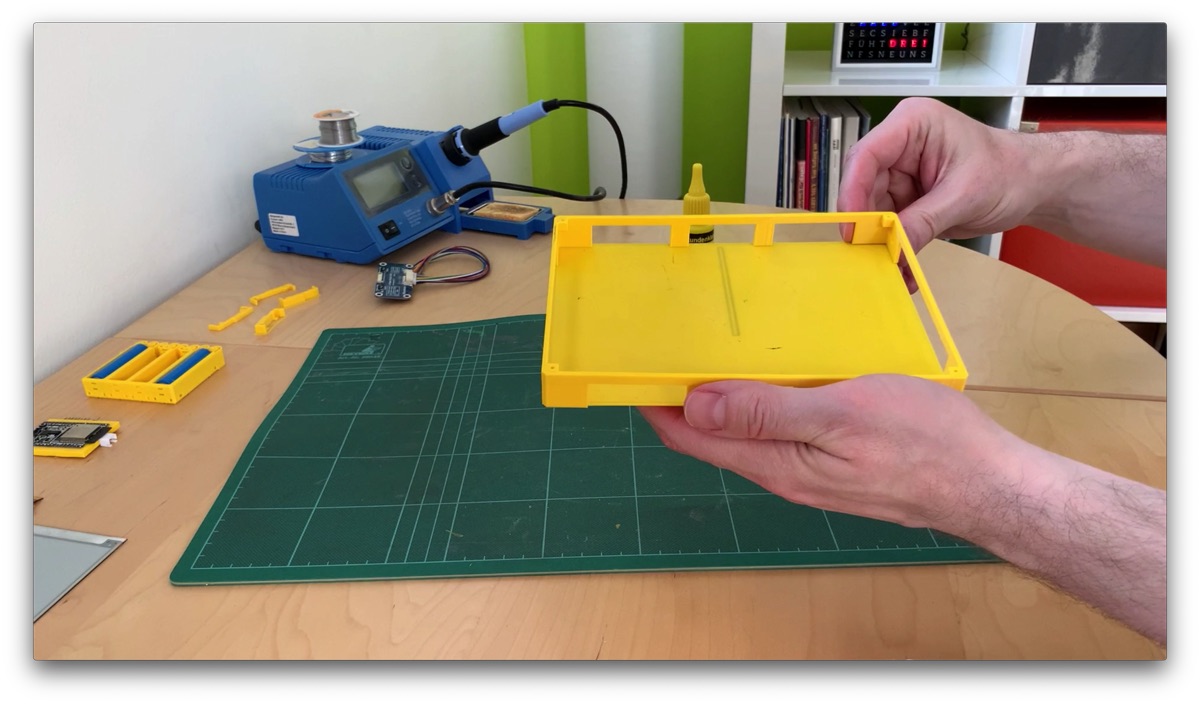
Once everything is prepared, it's time to assemble the case.
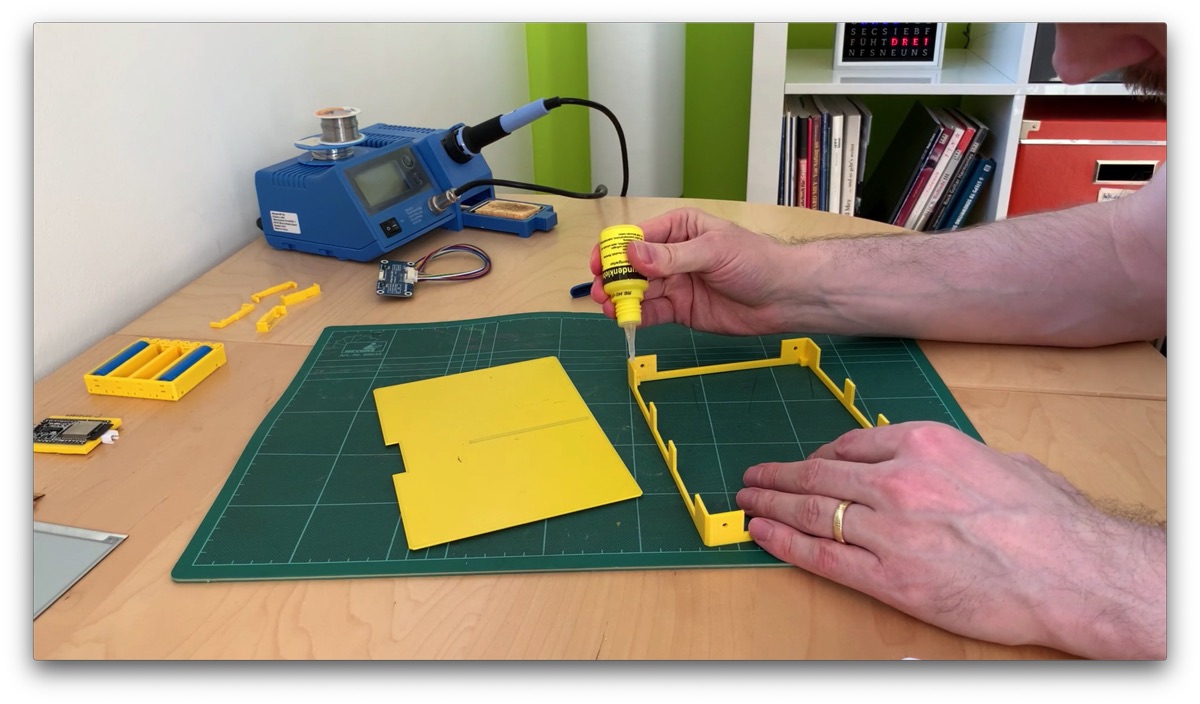
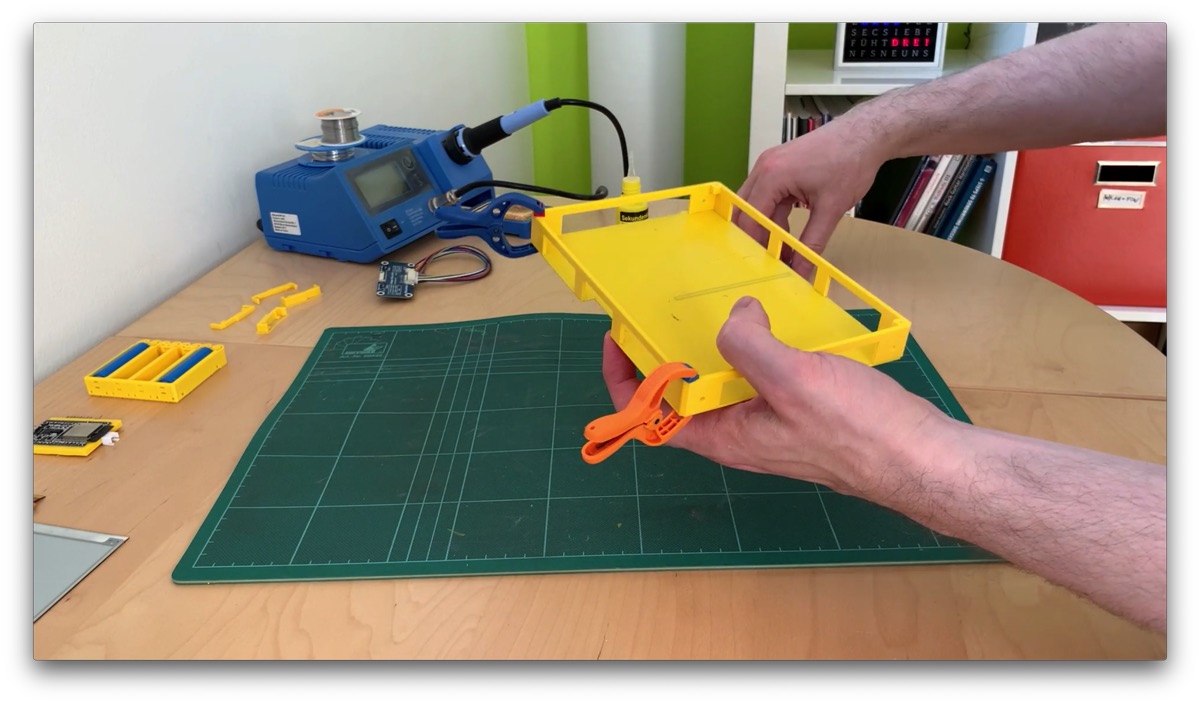
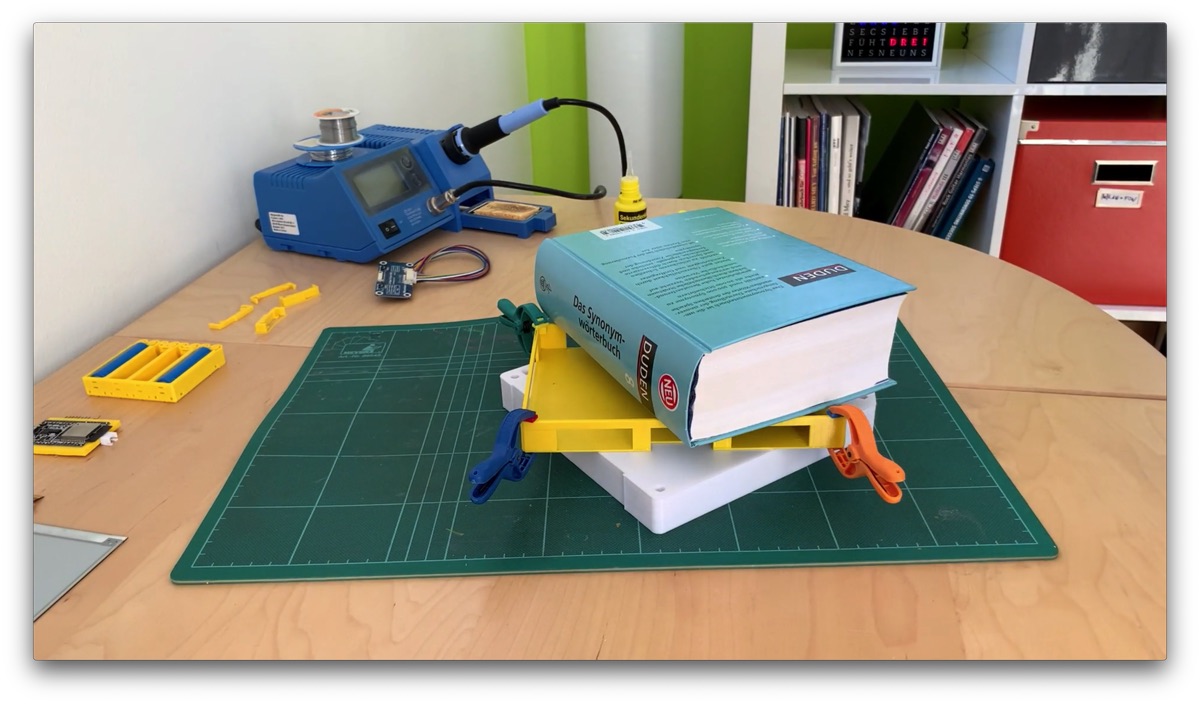
The display holder has to be glued onto the frame. Make sure the small corners for the display face down! As always, I use Top2Glue GEL superglue. With this glue you still have some time to position and fix the parts, but in return you have to let it dry longer, even though it says superglue. I'd definitely leave it alone for an hour or two.
Mini spring clamps like these are handy too. Put a thick book on top as well. What else are those tomes on your shelf for?
Top2Glue Superglue Gel, Waterproof, Heat-Resistant, Flexible*

Amazon Link*
*
This link is an affiliate link. As an Amazon Partner, I earn from qualified sales.
wolfcraft Mini Spring Clamps*

Amazon Link*
*
This link is an affiliate link. As an Amazon Partner, I earn from qualified sales.
Step 4
Glue In the Battery Holder
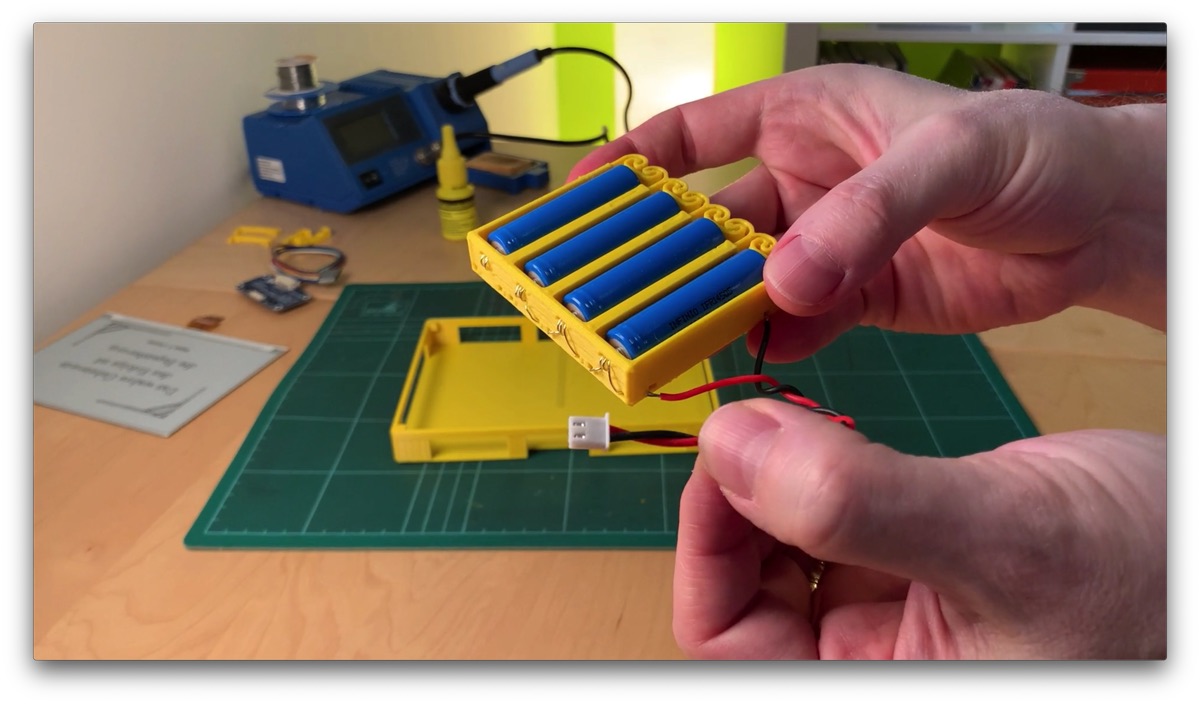
Next, we glue the battery holder in place. I'm assuming you've watched and followed the video on preparing the battery holder in step 3. I crimped a cable with JST connectors and soldered it to the battery contacts: the red wire to the positive terminal, black to the negative terminal.
If you want to learn how to make your own cables and crimp connectors, I have a tutorial video for you:
I put the batteries into the holder while gluing, because this stretches the springs and makes the holder larger. We have to take this expansion into account.
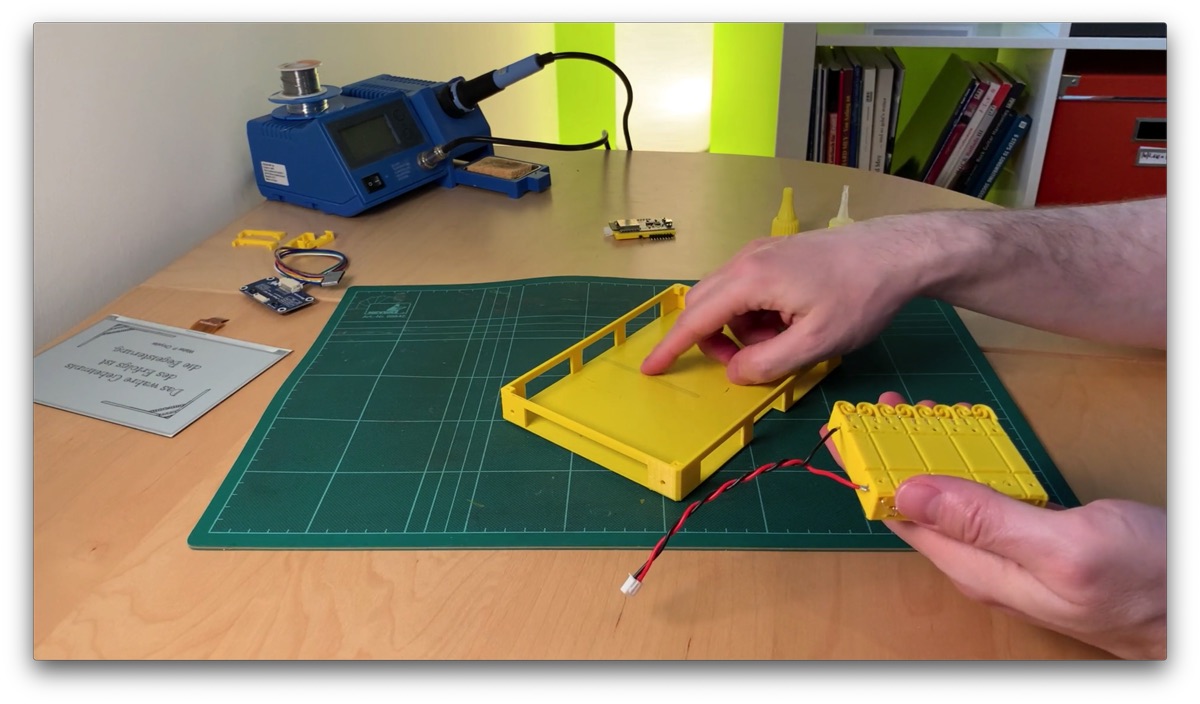
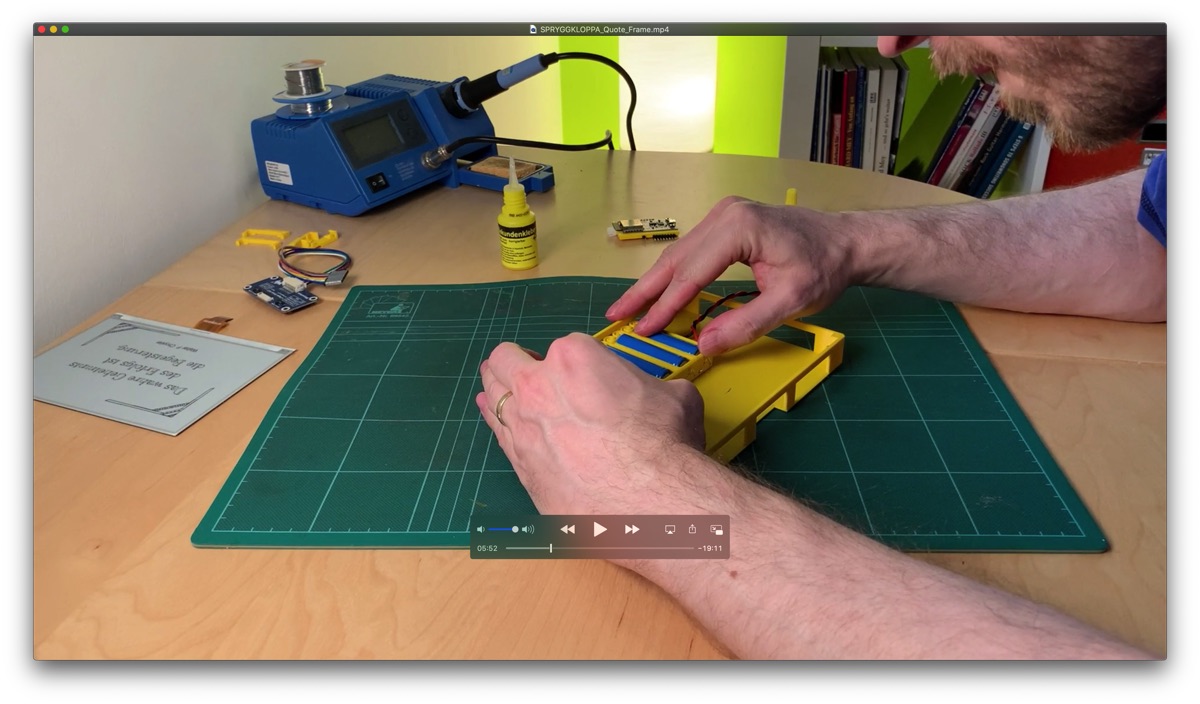
Now I position the holder with the springs facing the frame, on the side opposite the opening for the ribbon cable. Handy: this pattern on the bottom part marks the exact center line, so you can use it as a guide. The battery holder should be placed as centrally as possible so the frame doesn't hang crooked on the wall later.
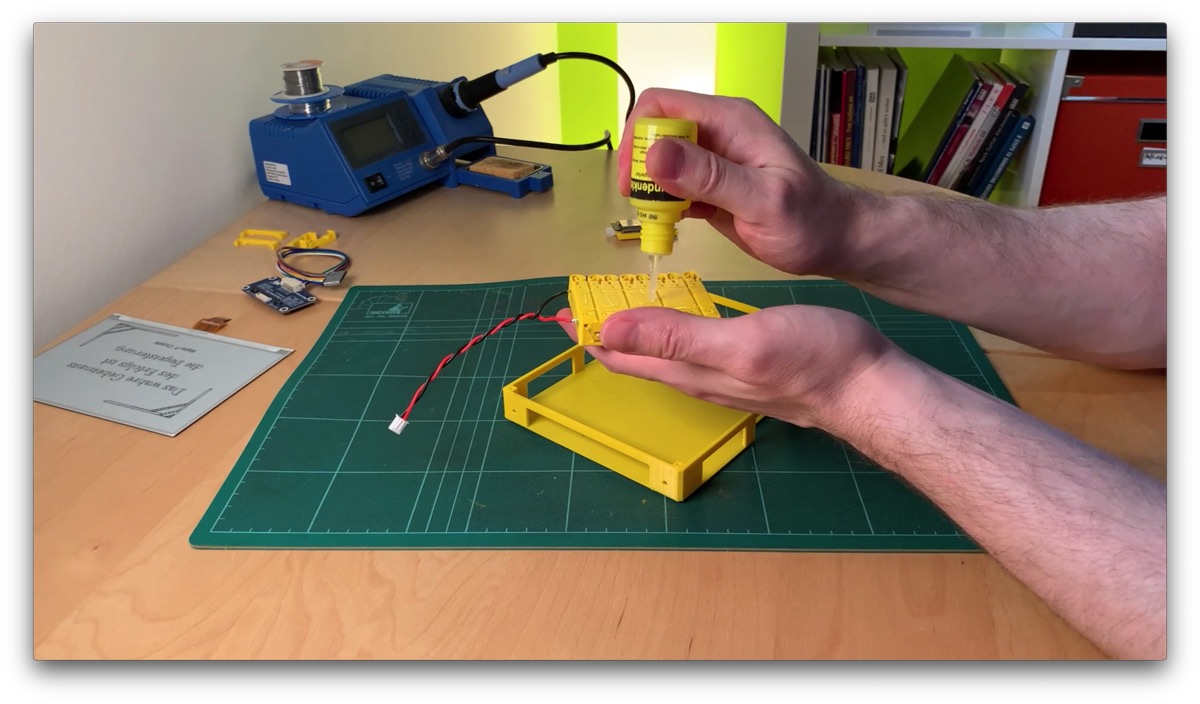
For gluing I use GEL superglue again. Apply a thin layer and press for 30 seconds. Then let it dry for another hour or two. If something comes loose after gluing, in my experience it's almost always because you were too impatient and put load on the glued part too early. So be patient!
Step 5
Glue In the PCB Clips
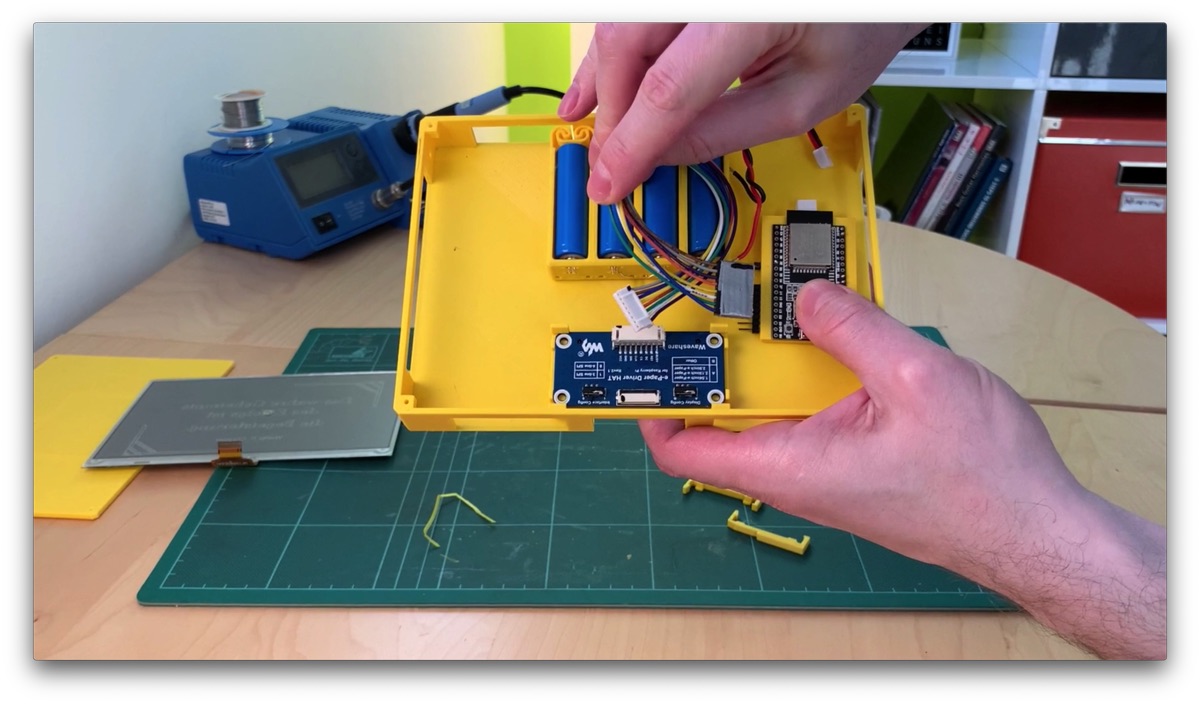
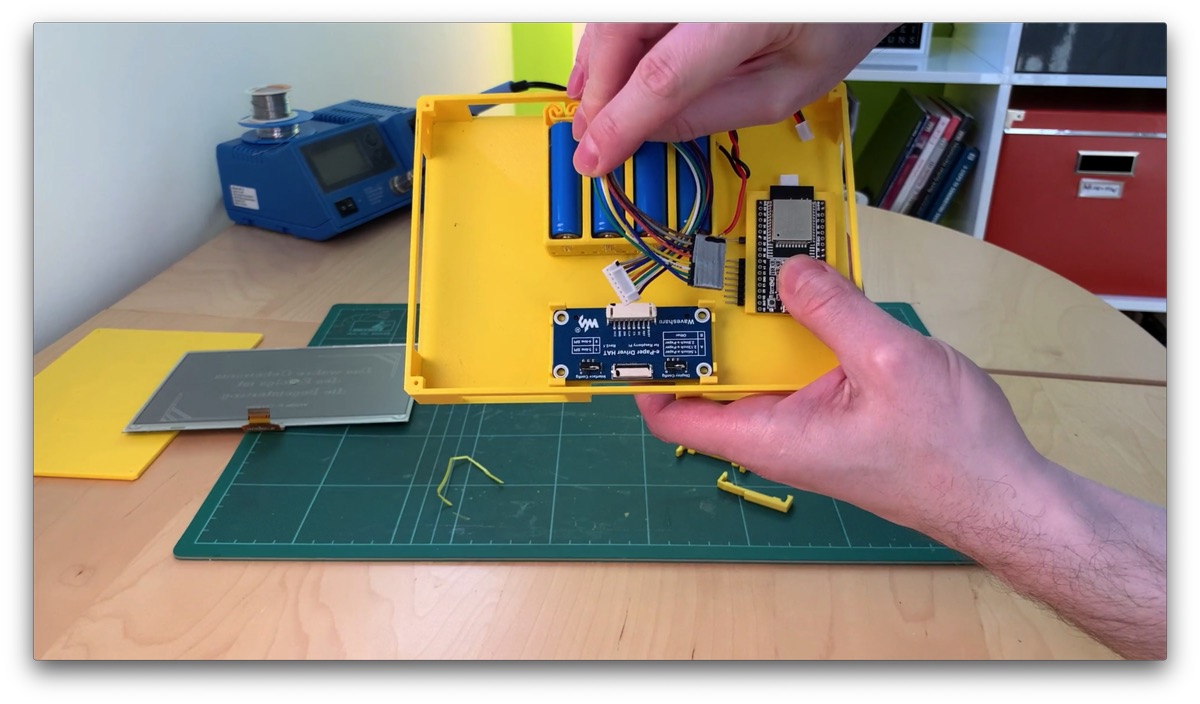
Next comes the mounting for the display's HAT board and the microcontroller board.
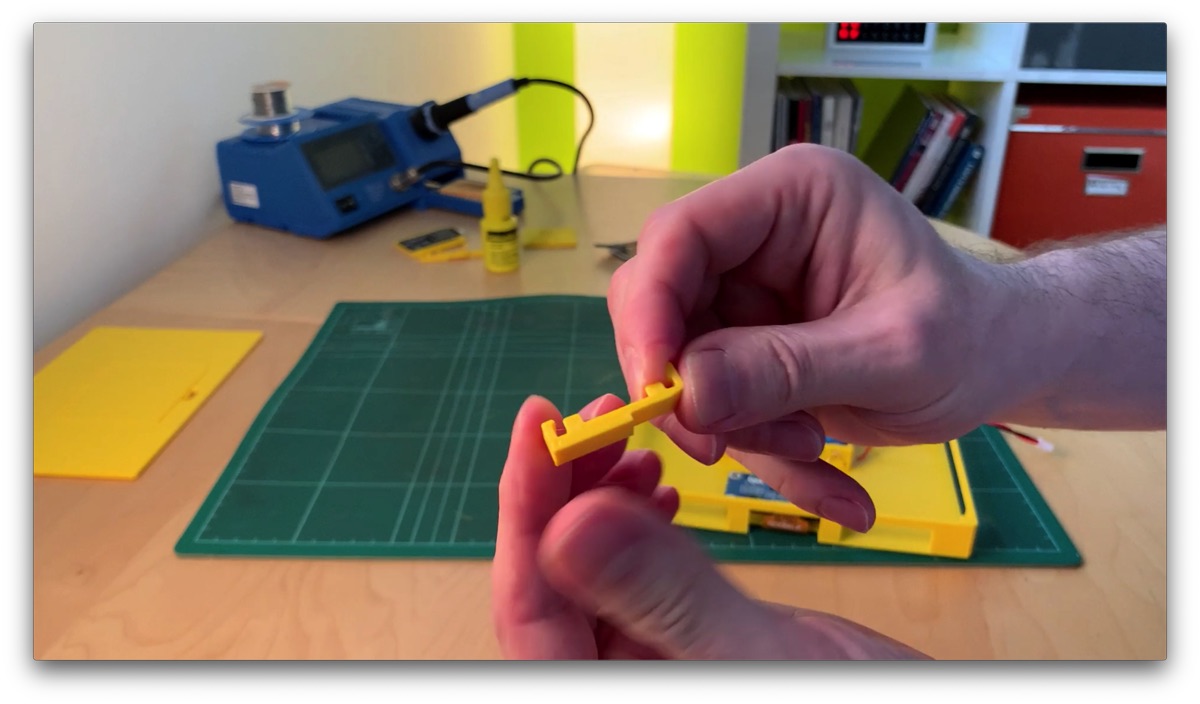
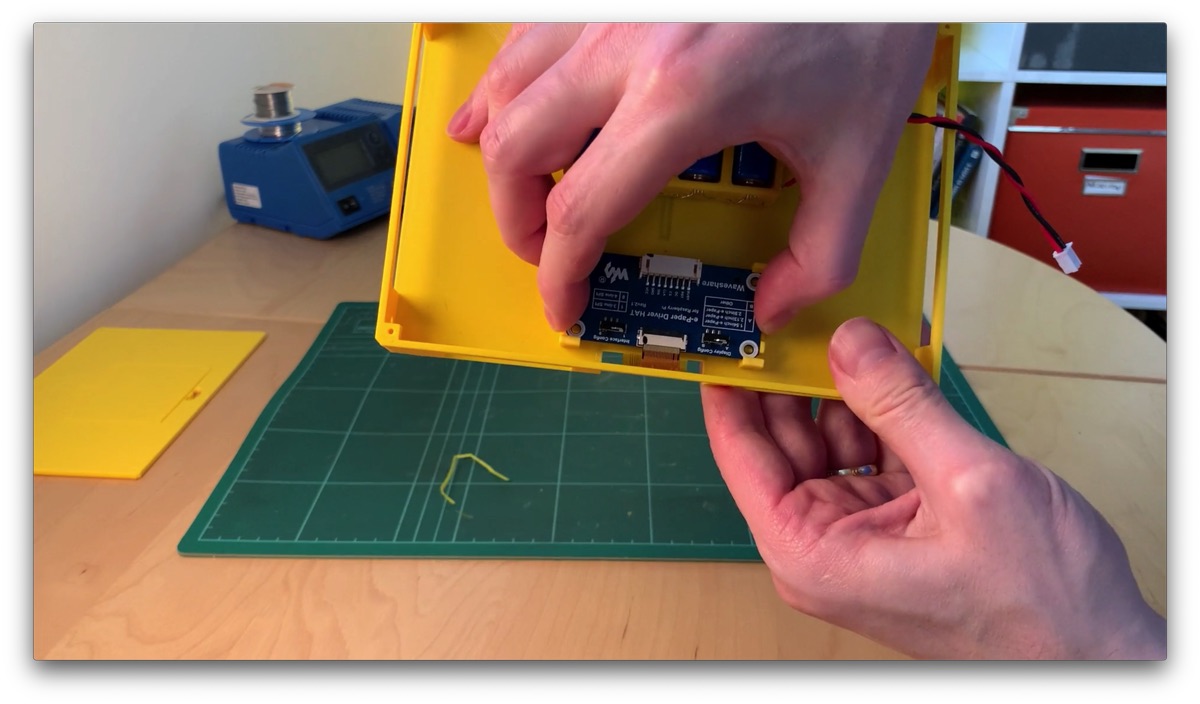
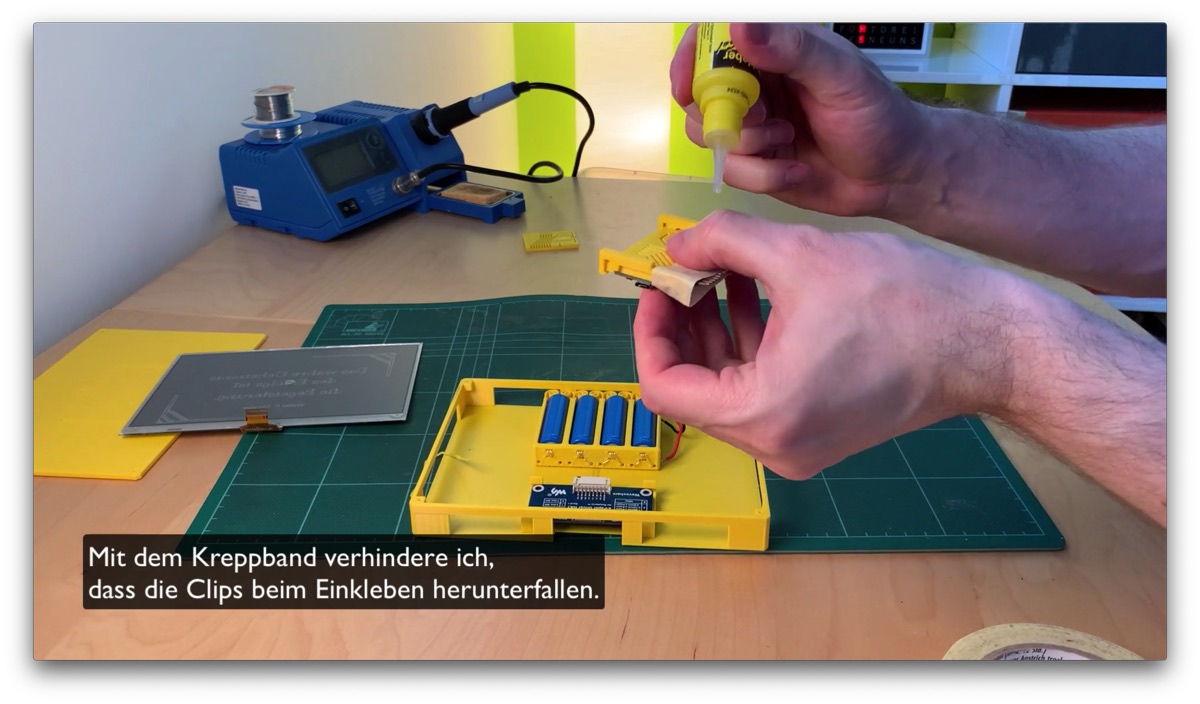
To save on screws here and to be able to remove everything more easily later, I came up with a clip system called PCB clips. These PCB clips are simply glued to the bottom of the case, clip in, done.
As I mentioned in step 2: there's a separate tutorial video about the clips, how to adapt them for other projects and how to glue them in.
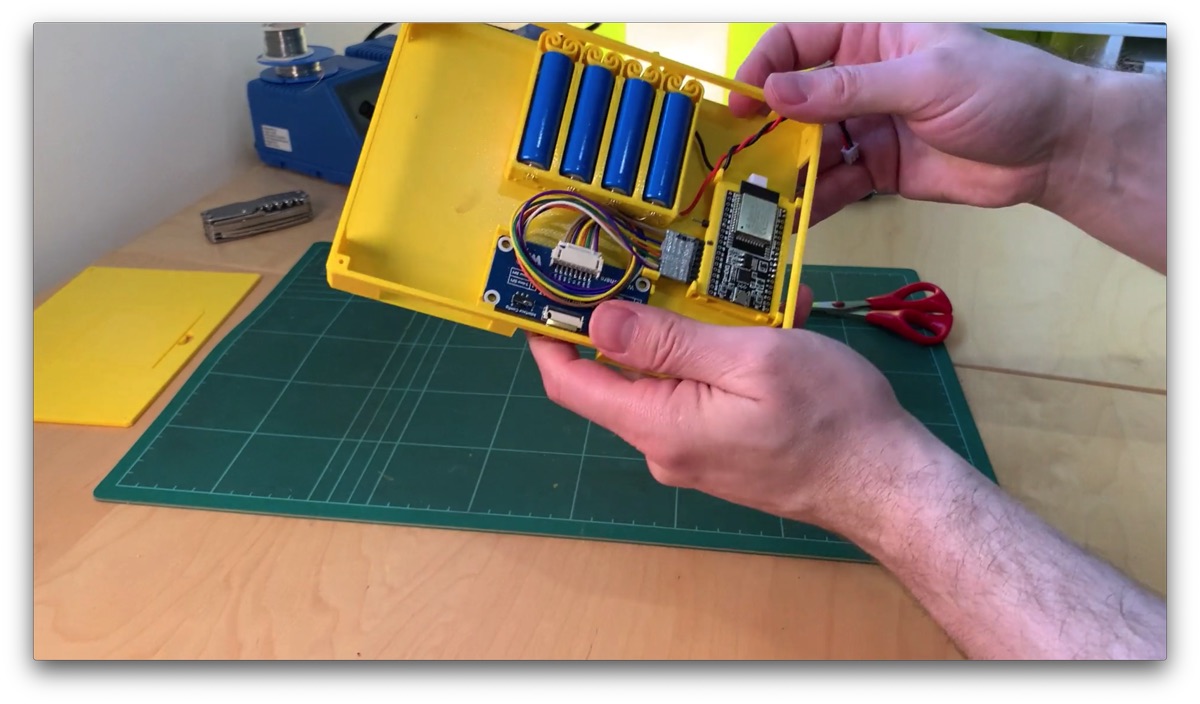
In the end, the boards should be arranged in the case as shown in the following pictures.
And again, my advice: give the glue enough time to dry!
Step 6
Install the ePaper Display
Now we can insert the display.
That's what the small corners on the underside are for.
Carefully press the display in here. Make sure the ribbon cable is on the side with the recess intended for it.
The corners of the holder are designed with a very tight fit. Depending on how precisely your printer prints and how coarse your print profile is, it may not fit. In that case, carefully shave a little off the corners until it fits, for example with a chisel or knife.
If necessary, cut off one or more corners completely.
I also fix the display with two strips of double-sided tape, which holds really well. If you ever want to remove the ePaper display again, carefully slide a spatula underneath.
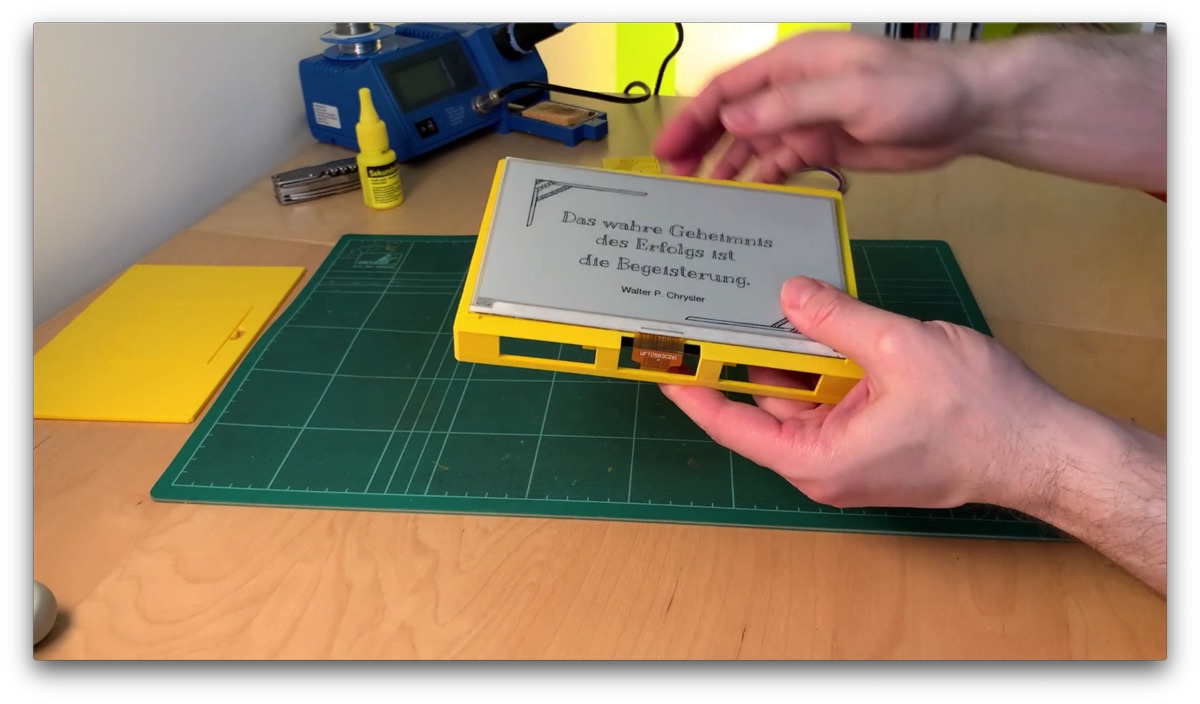
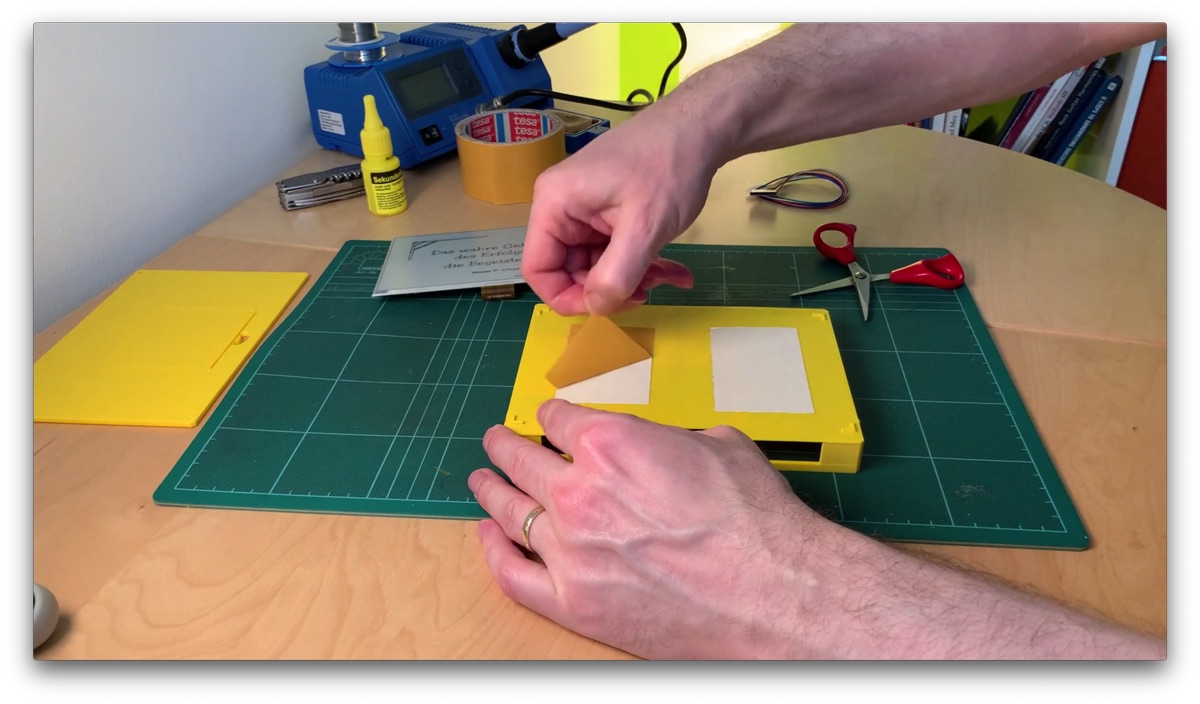
This one corner doesn't want to sit flush, but with a bit of pressure … everything goes to hell 😳
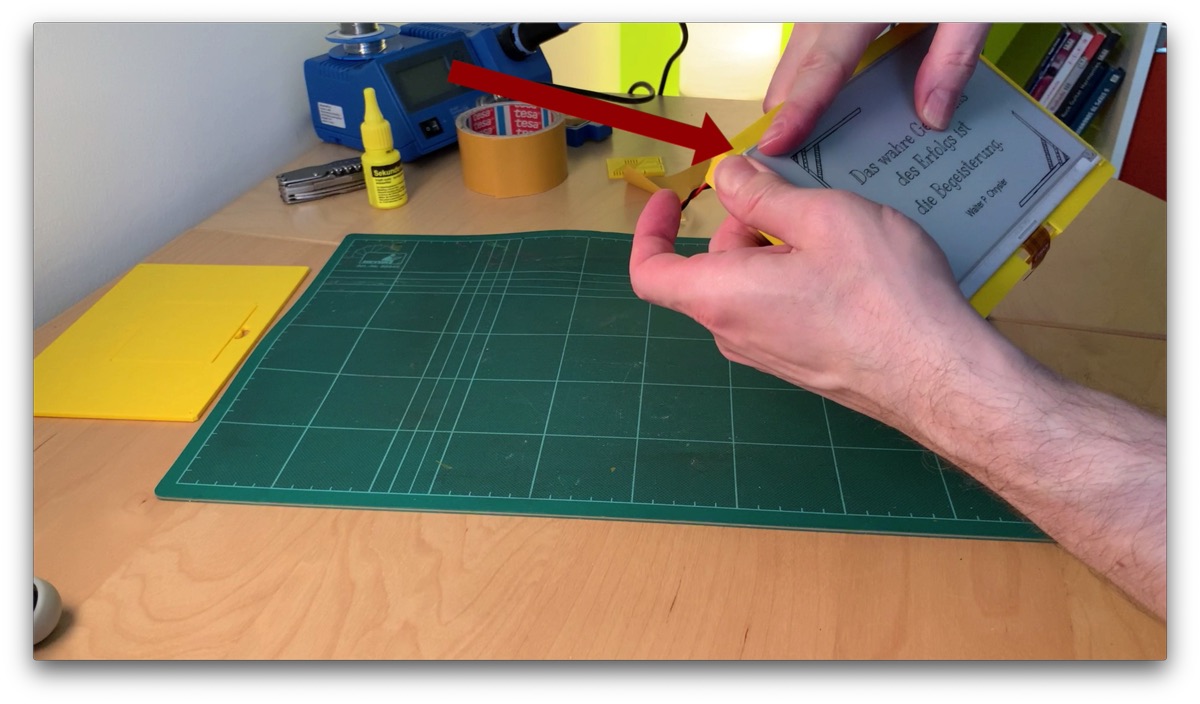
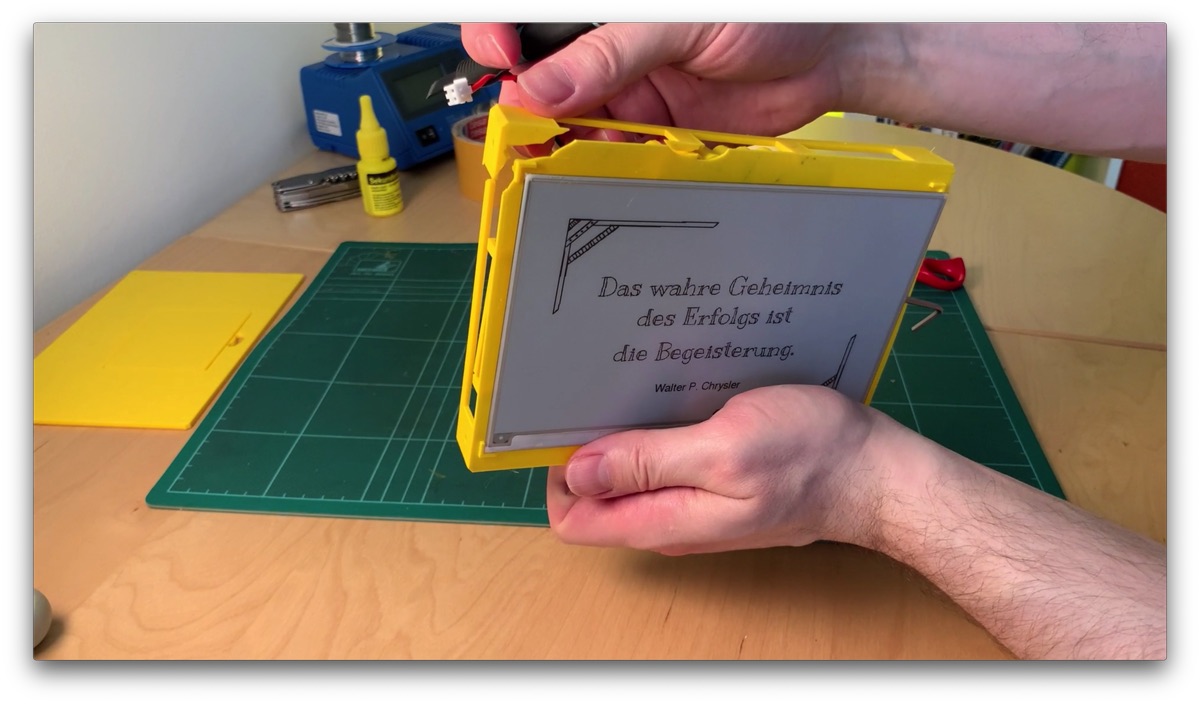
It would be boring if everything went smoothly. What happened? The corners of the display holder were designed too tight after all. One corner of the display just wouldn't go in. Force didn't help, of course, except to break the frame.
I fix it by cutting off this stubborn corner. The CAD files in the project should only have two corners left.
I repair the broken spots with my GEL superglue.
It didn't turn out pretty, and a small corner is missing too. But that doesn't matter, the corner disappears inside the picture frame anyway.
Lesson learned: never use force! If something doesn't fit, better cut something off.
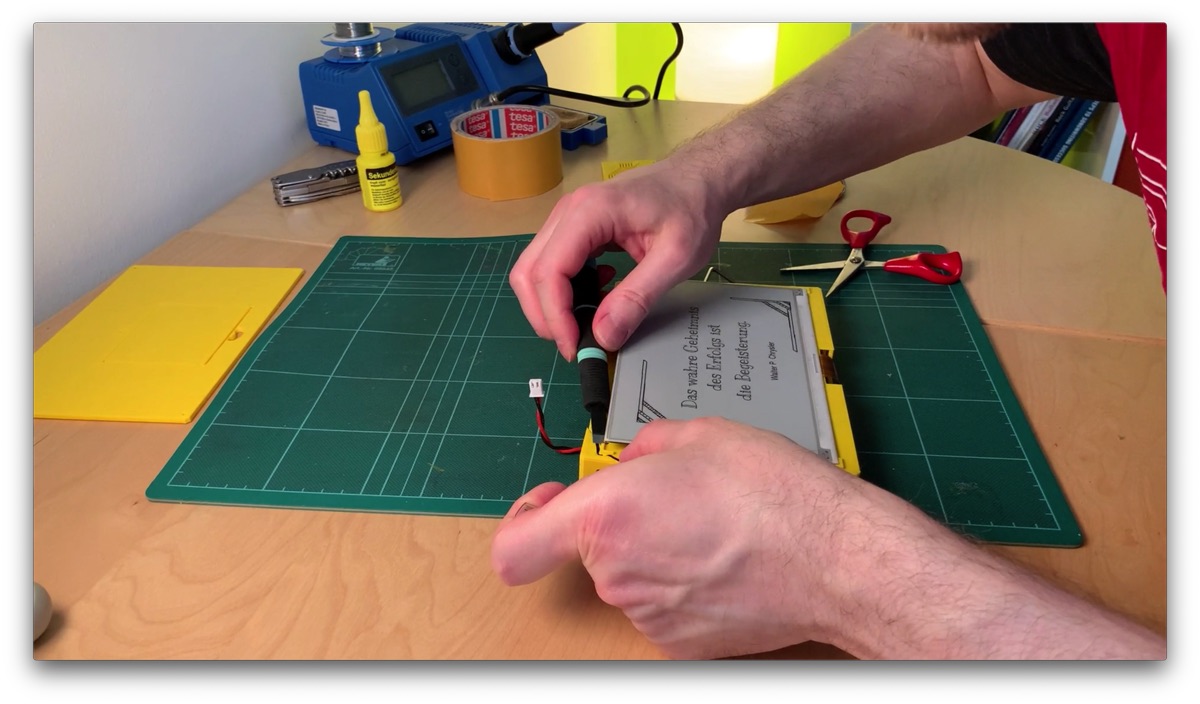
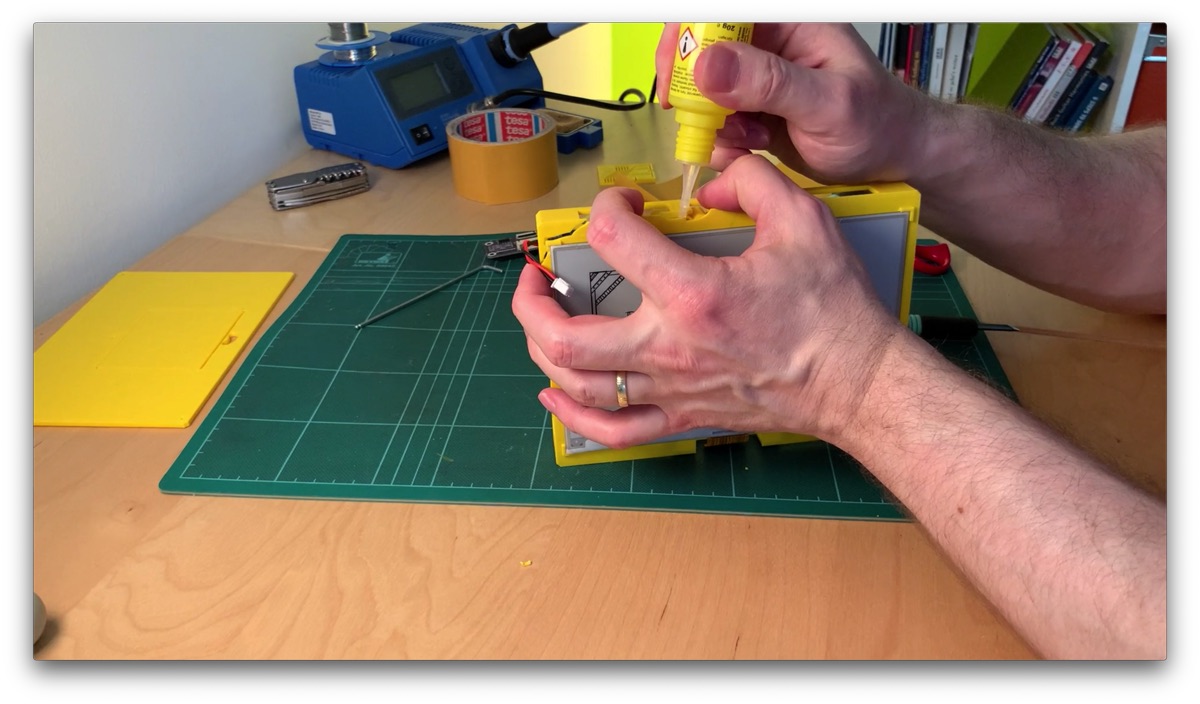
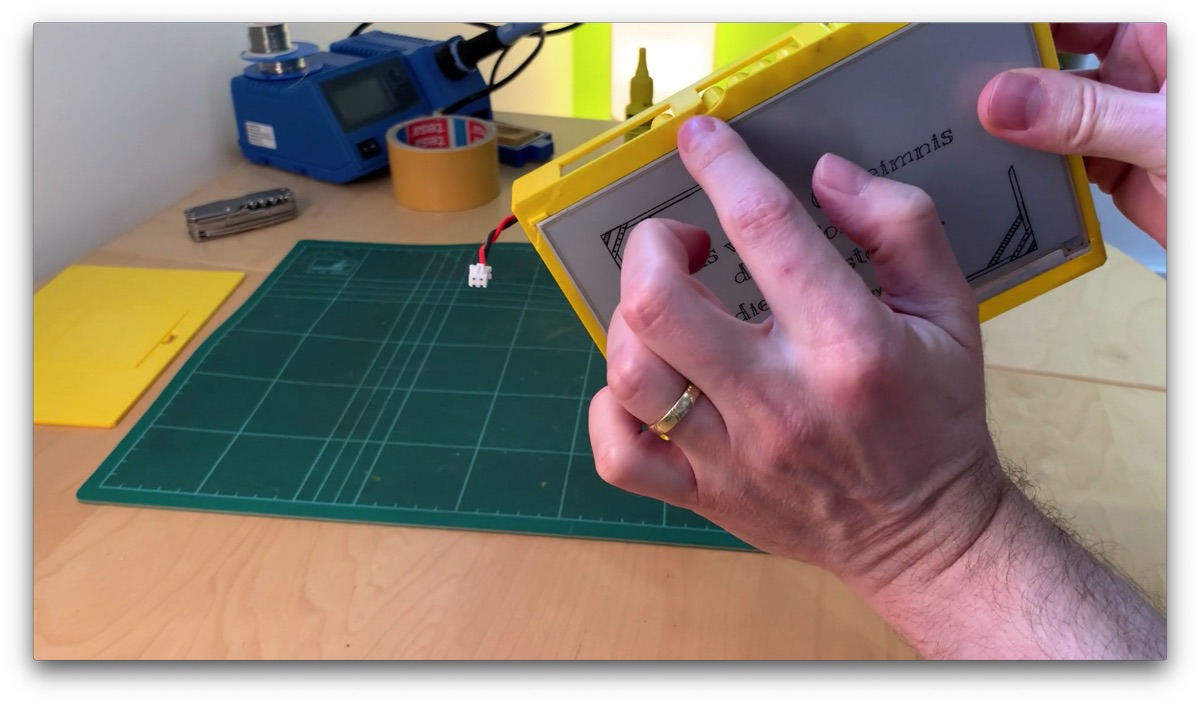
This small corner is missing, but it disappears inside the picture frame
Top2Glue Superglue Gel, Waterproof, Heat-Resistant, Flexible*
Amazon Link*
*
This link is an affiliate link. As an Amazon Partner, I earn from qualified sales.
Step 7
Connect the Display
To connect the display, I first take the HAT board and the microcontroller back out of the clips. That makes connecting much easier.
The ePaper display comes with two small boards that are connected with ribbon cables. In my setup I only use the larger HAT board.
Connect the short ribbon cable to the HAT board as shown here. To do this, first flip the plastic latch up. Then insert the ribbon cable and press the plastic latch back down. The side with the contacts always faces up.
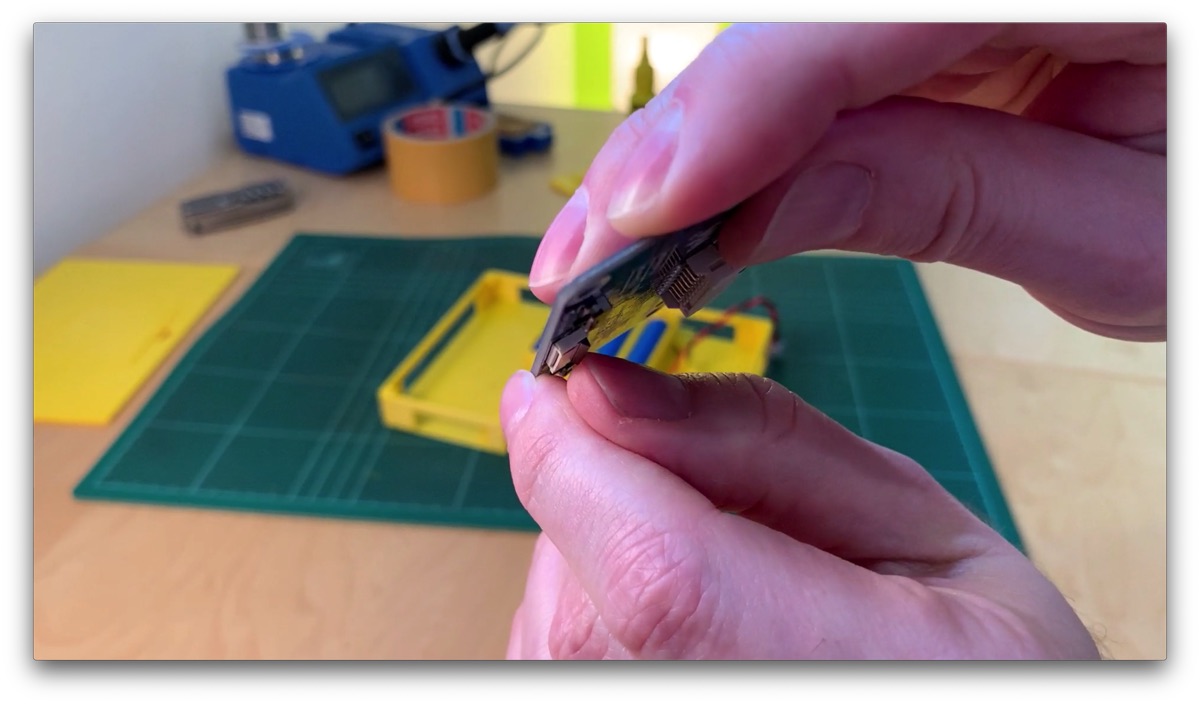
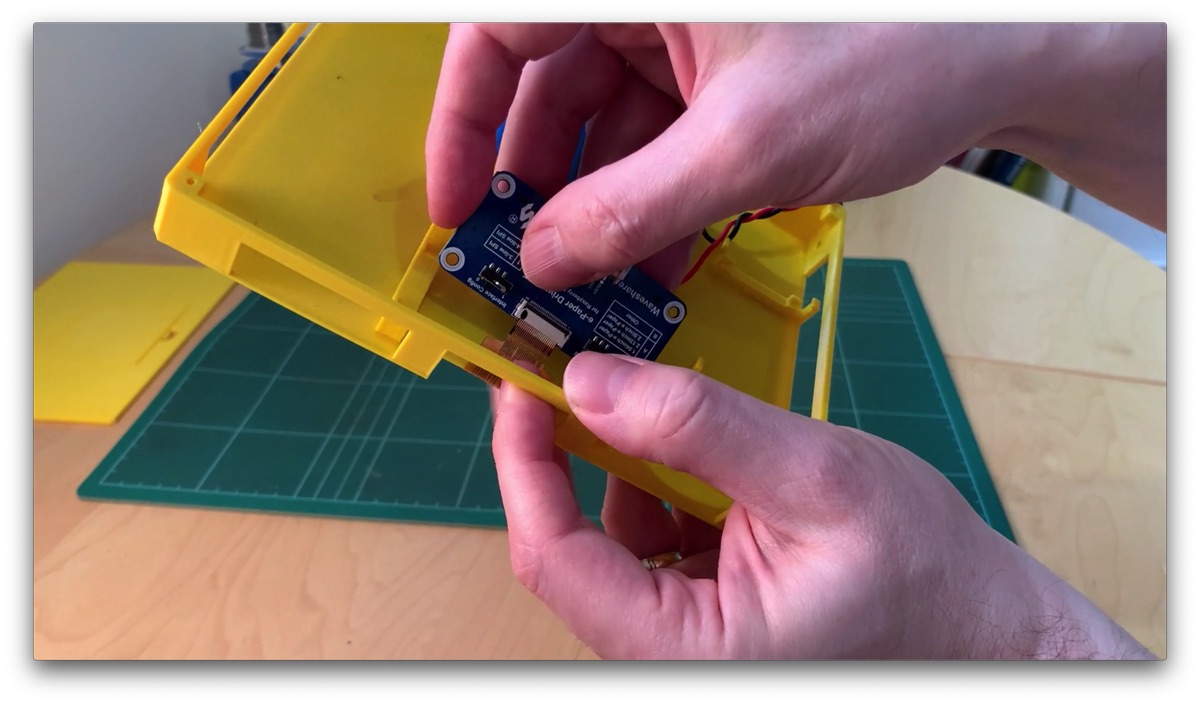
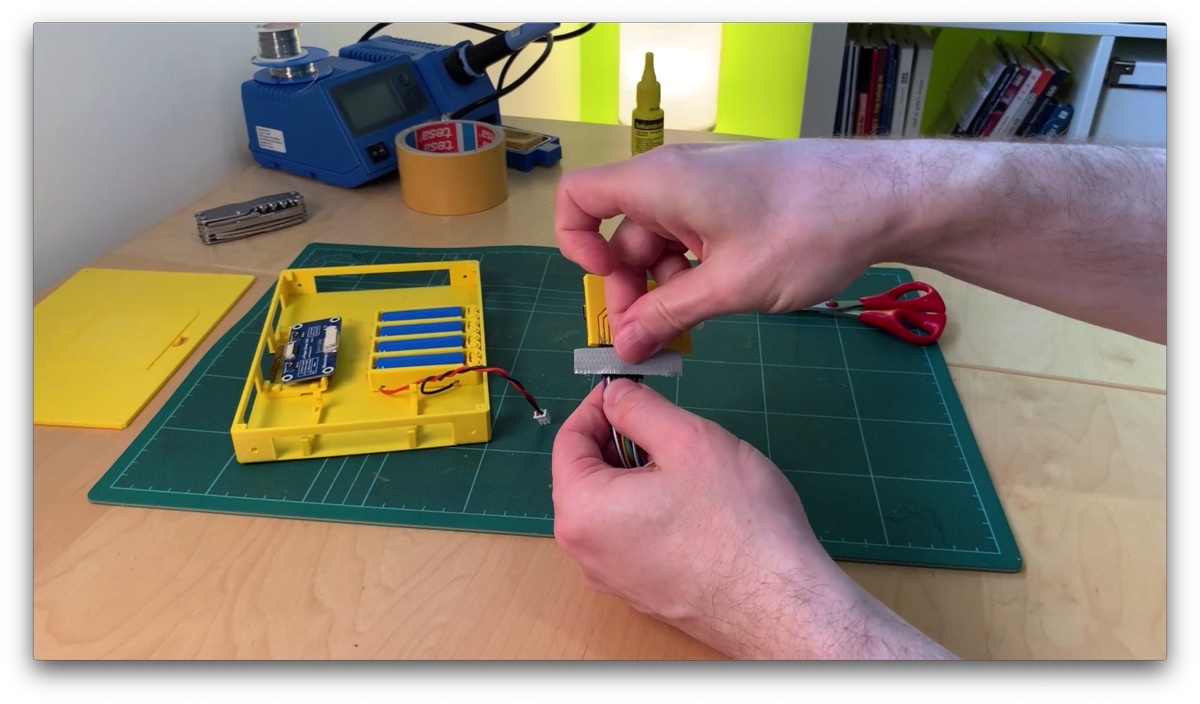
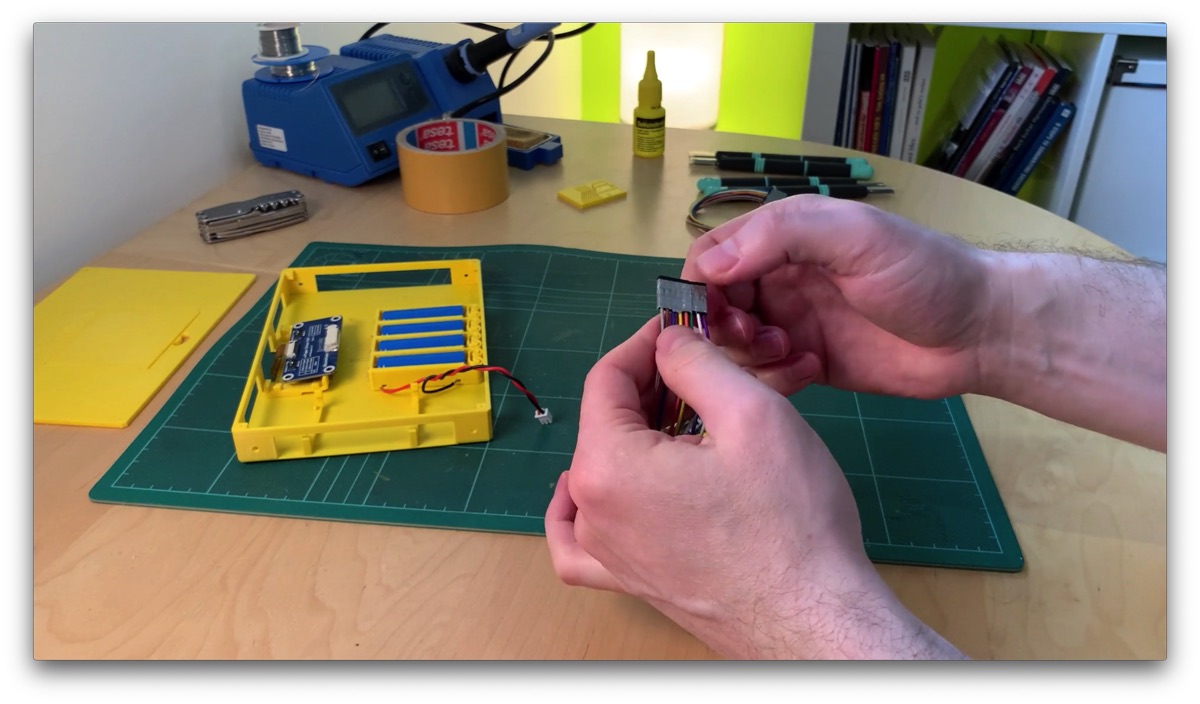
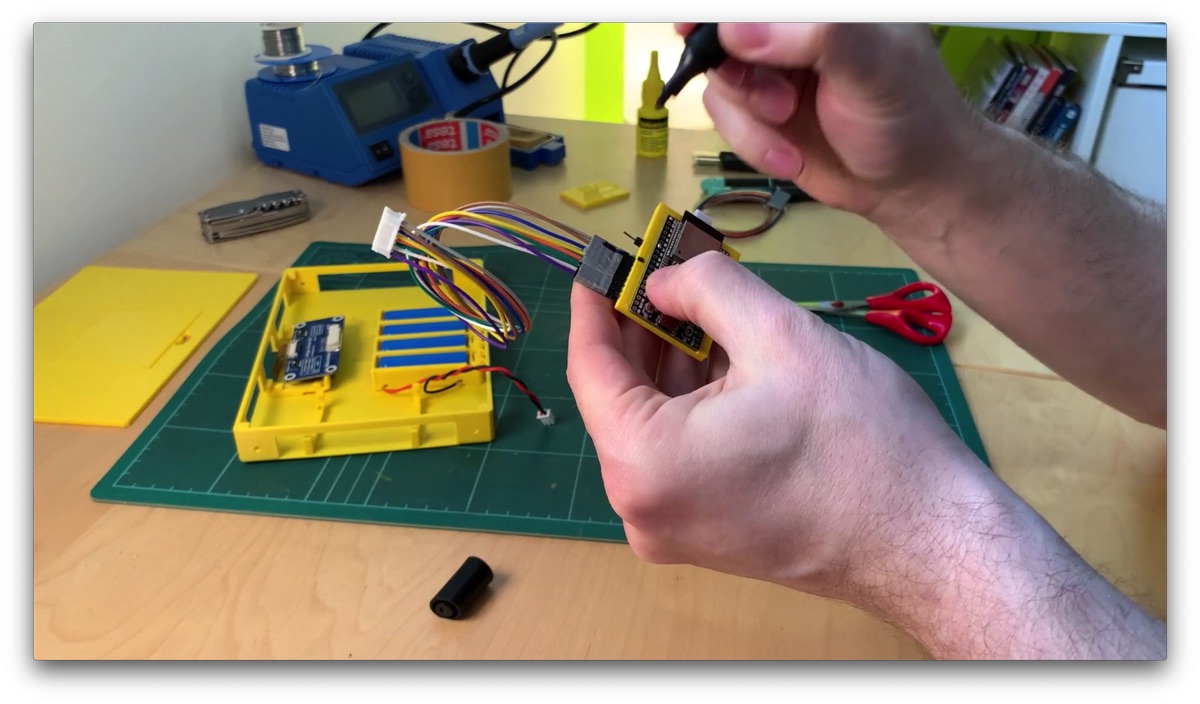
The display comes with an 8-pin cable for connecting to the ESP32 microcontroller. I taped the 8 individual pins together into a connector strip, with duct tape, of course. This makes it much easier to disconnect and reconnect the display. Of course, you have to pay attention to the correct pin order. The following graphic should make clear how to connect and tape the pins.
Of course, this only works if you soldered the ESP32 exactly the way I did here, or as I explained in the video on the self-printed ESP board (in German), and your connector strip has the same pin assignment as mine.
Mark how the connector has to be plugged in, done.
Now we can mount the HAT board and the ESP32 back in the PCB clips.
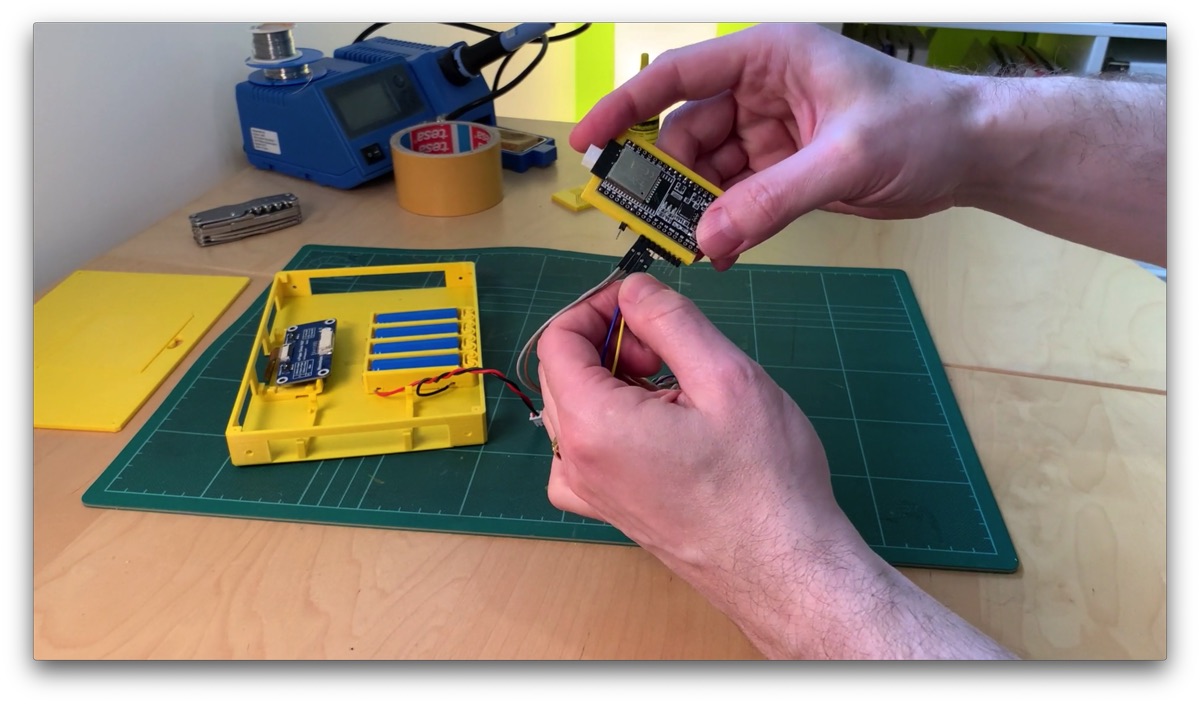
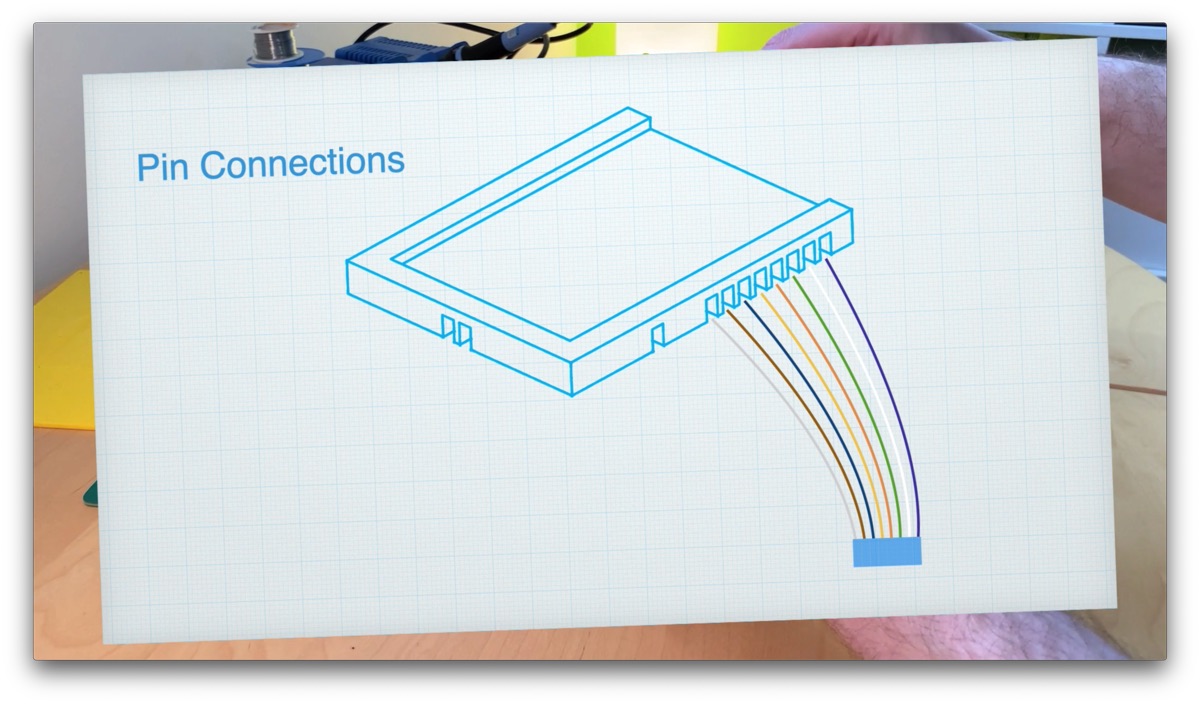
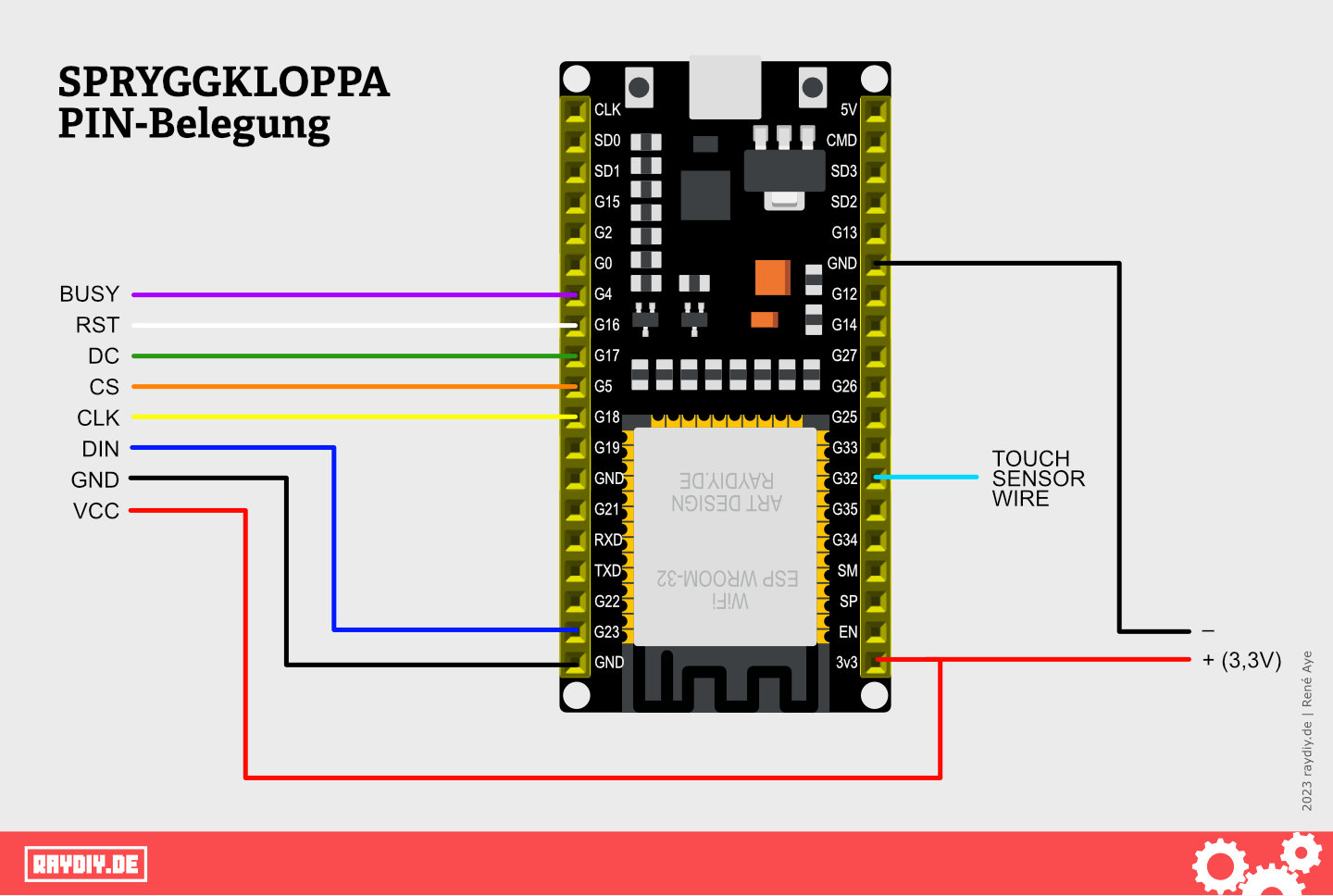
If you want to connect the ePaper display directly to the ESP32, you can use this pin assignment. The following pins are used in the code:
| PIN | Function |
| 4 | BUSY (ePaper) |
| 16 | RST (ePaper) |
| 17 | DC (ePaper) |
| 5 | CS (ePaper) |
| 18 | CLK (ePaper) |
| 23 | DIN (ePaper) |
| 32 | Touch sensor wire |
| GND | Power supply |
| 3v3 | Power supply |
Lorem ipsum color ...
Step 8
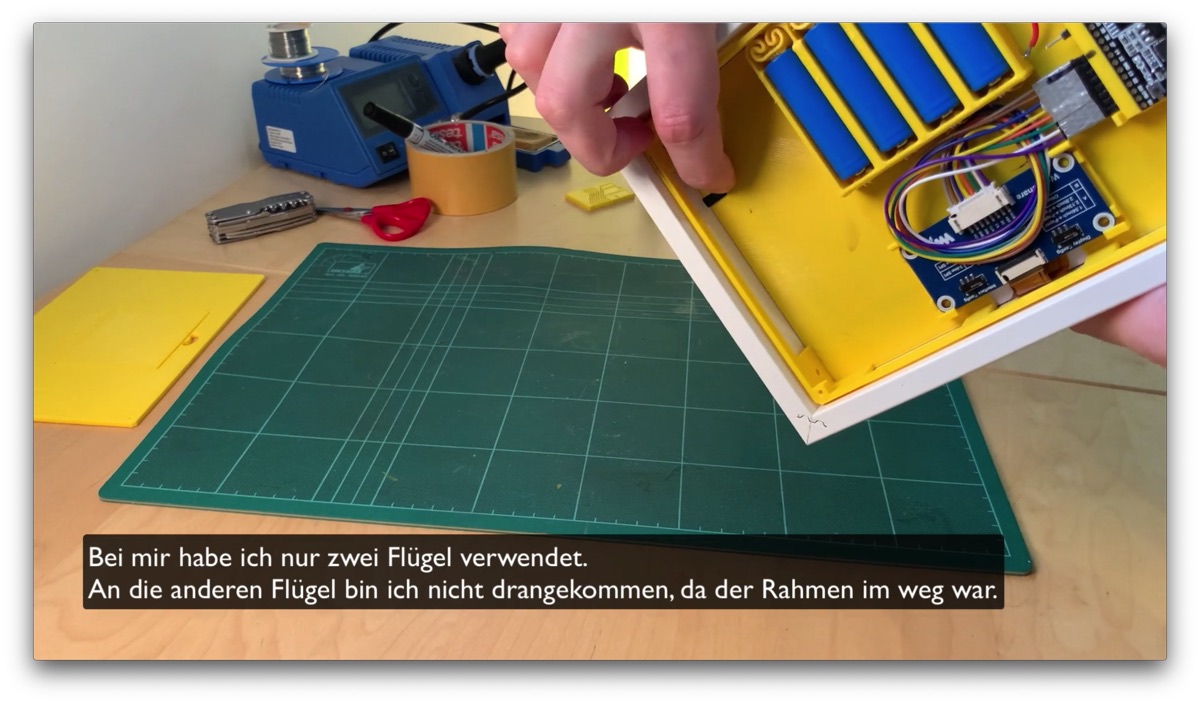
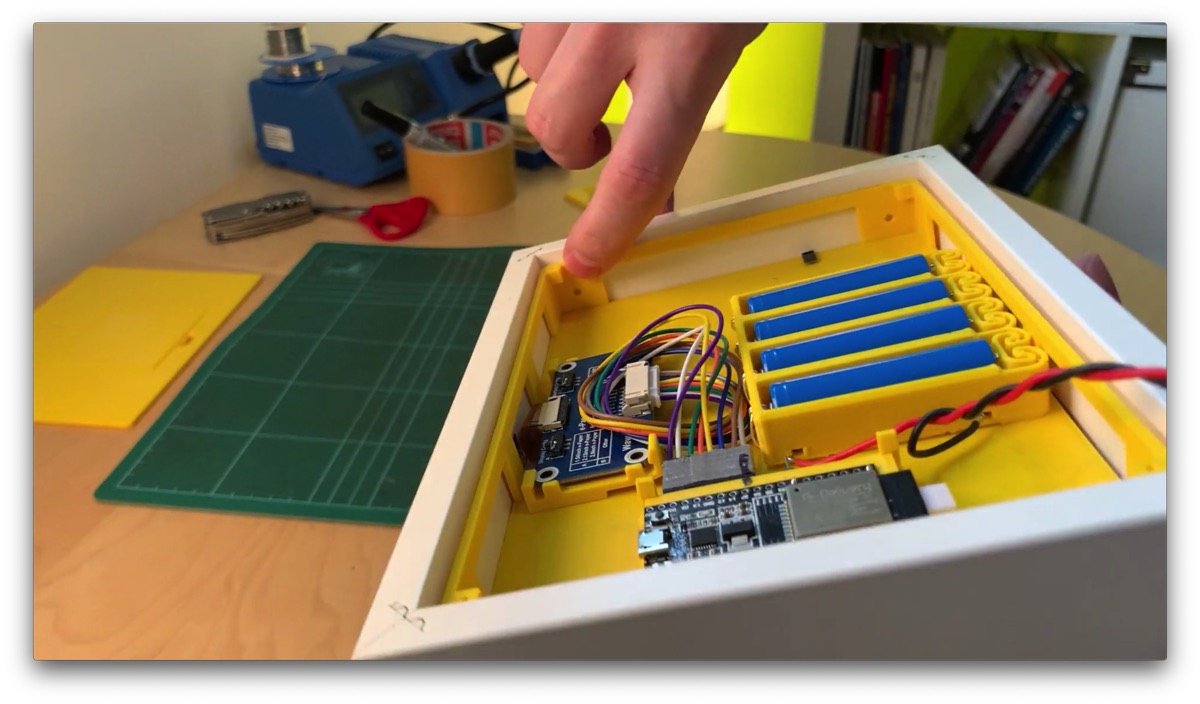
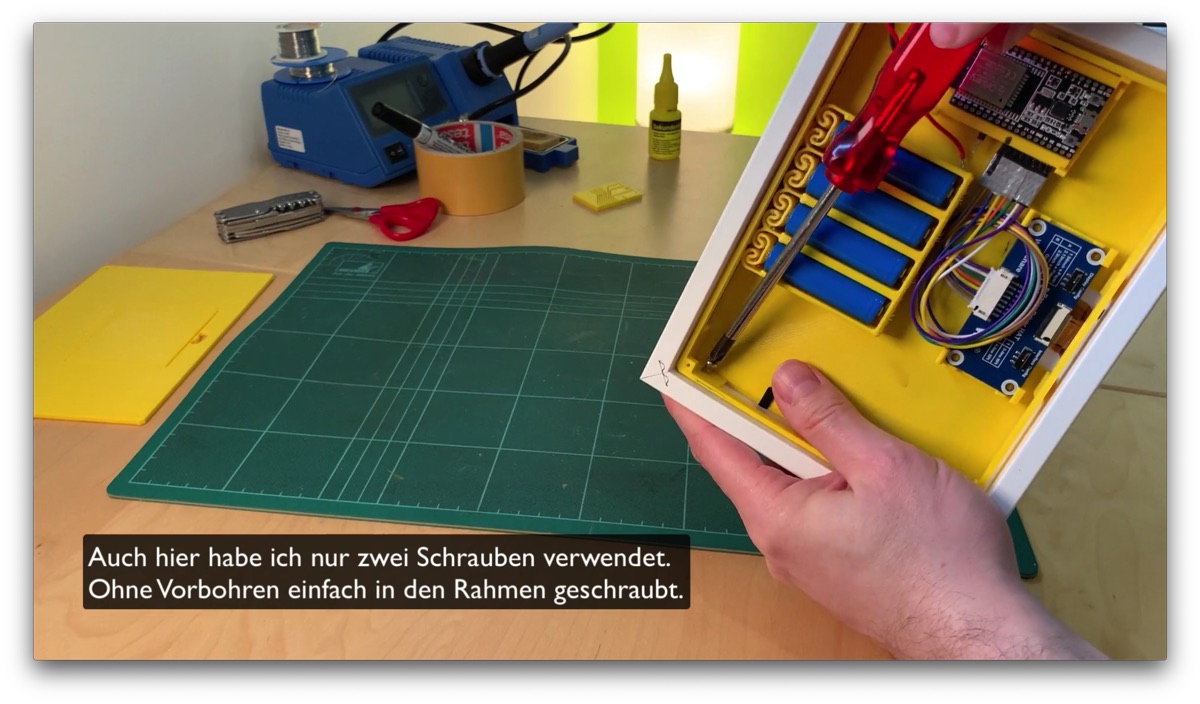
Insert the Case into the Picture Frame and Screw It in Place
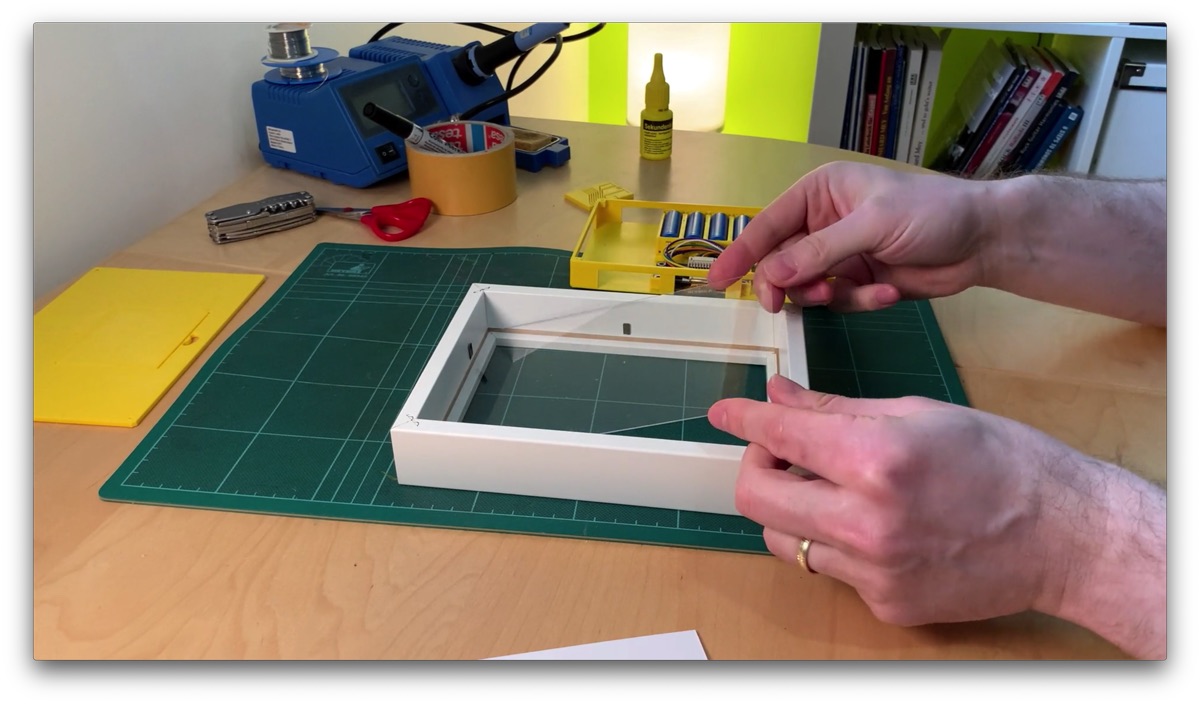
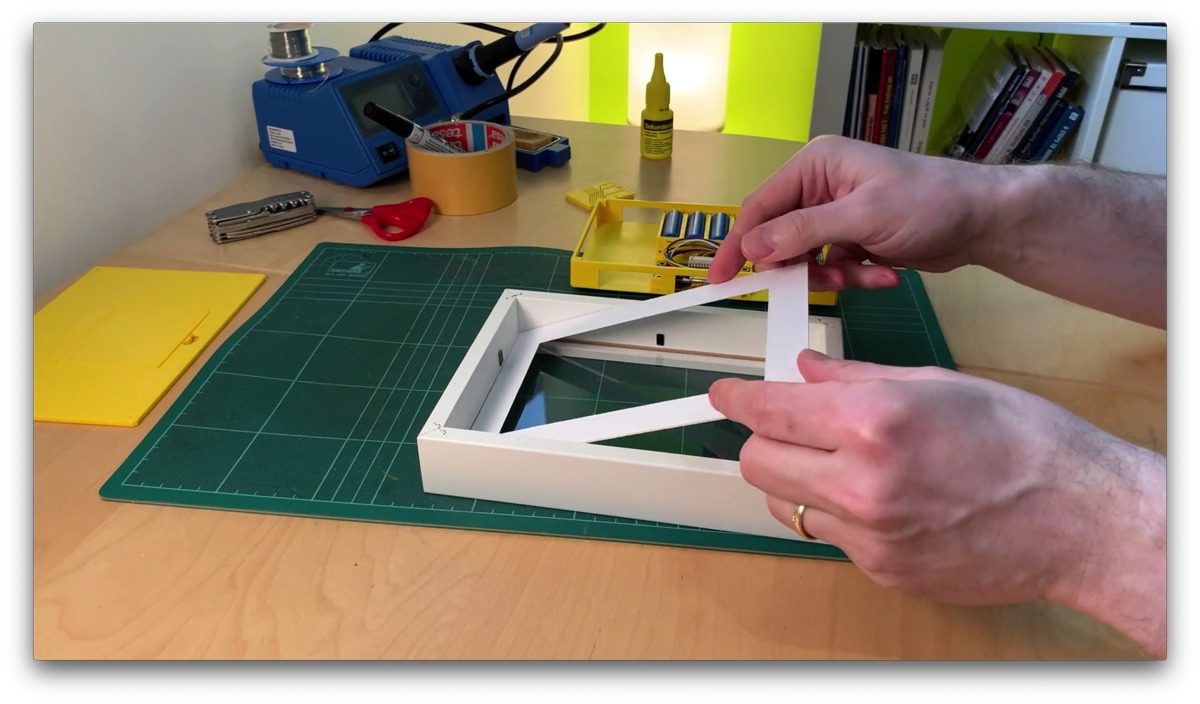
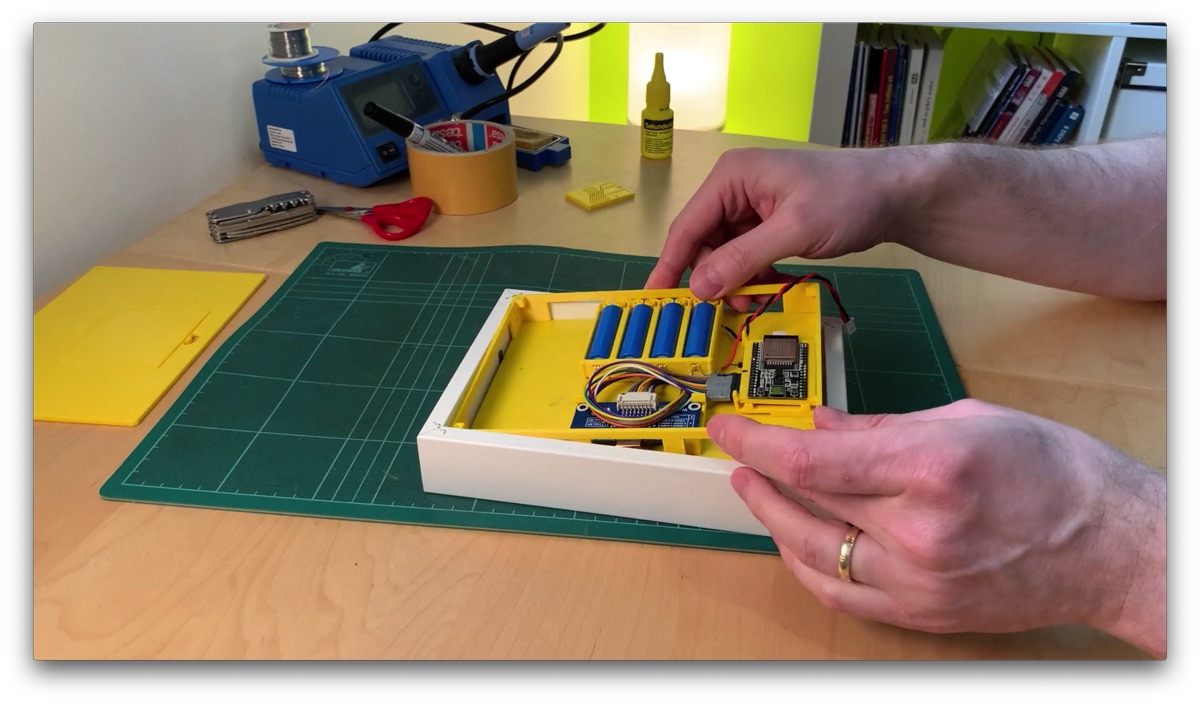
Now we can place the case into the picture frame with the display facing down.
If your picture frame has those metal tabs that fold down, you can use them to clamp the case in place. The case also has holes in the side walls, though. You should additionally secure everything with screws there. The 4 batteries in particular add some weight.
Waveshare 7.5 Inch E-Paper Display 800x480*
Amazon Link*
*
This link is an affiliate link. As an Amazon Partner, I earn from qualified sales.
Step 9
Install the Touch Sensor Wire
We still need to run a wire. It serves as a touch sensor that lets us start the configuration mode to edit the quotes.
I use an uninsulated silver wire for this, which I crimped onto a Dupont connector. In my frame, I sank the wire into a small groove. But you can also just run the wire along the side, without a groove. Maybe even shape it into something decorative. Little flowers or something …
We connect this wire to the single free pin on the board. Because the Dupont connector takes up more space than I expected, I bent the pin 90 degrees to the side.
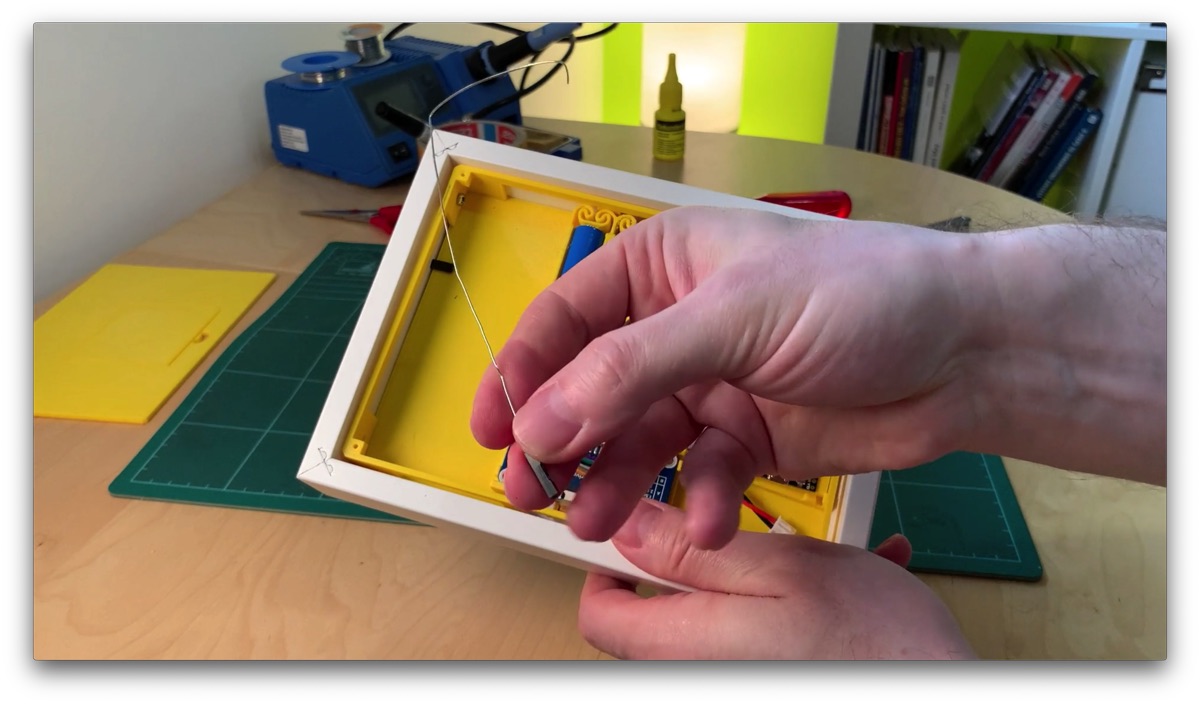
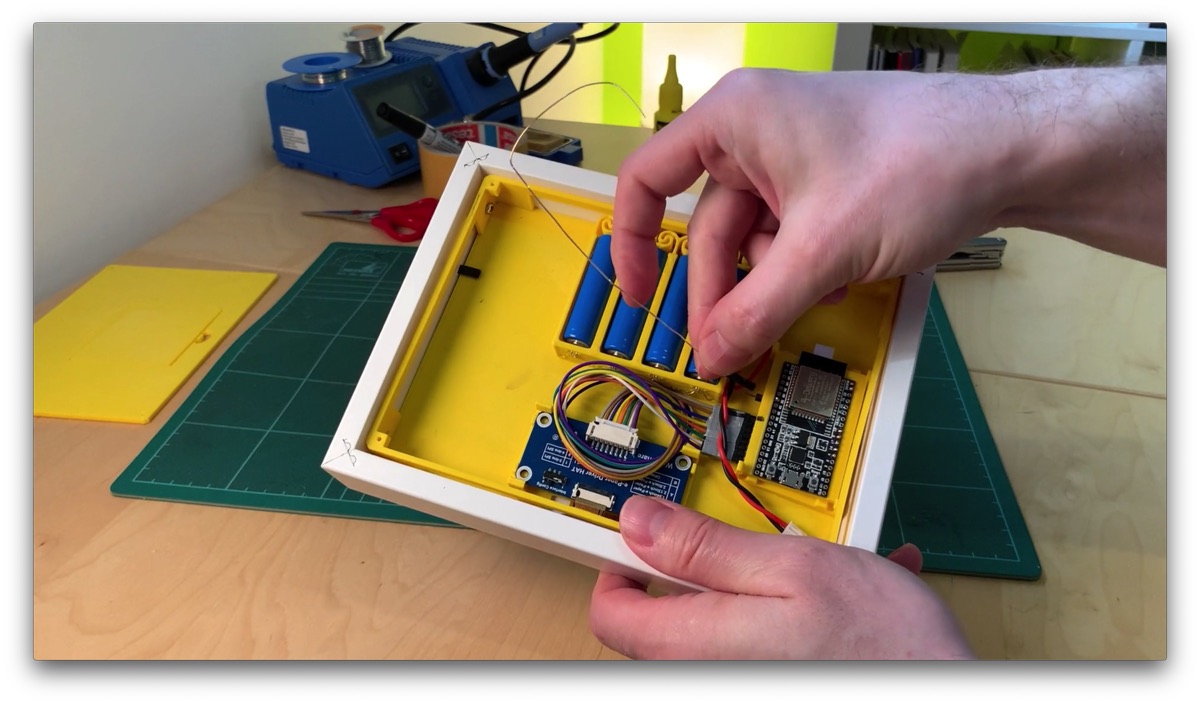
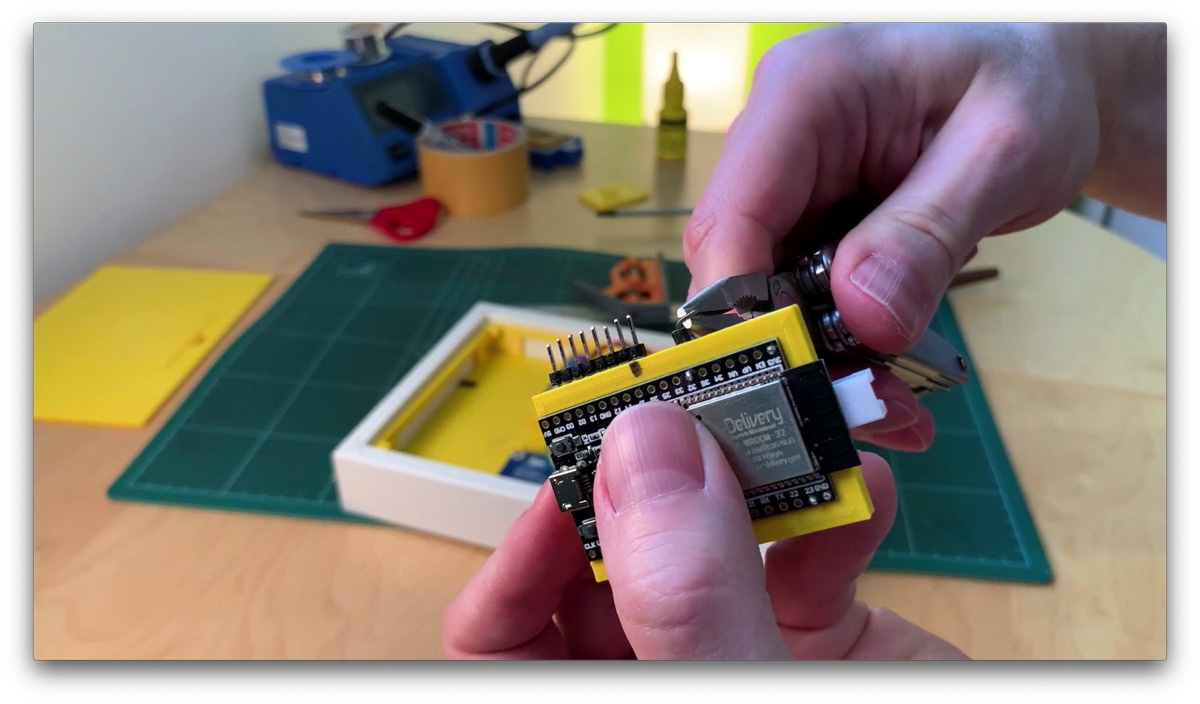
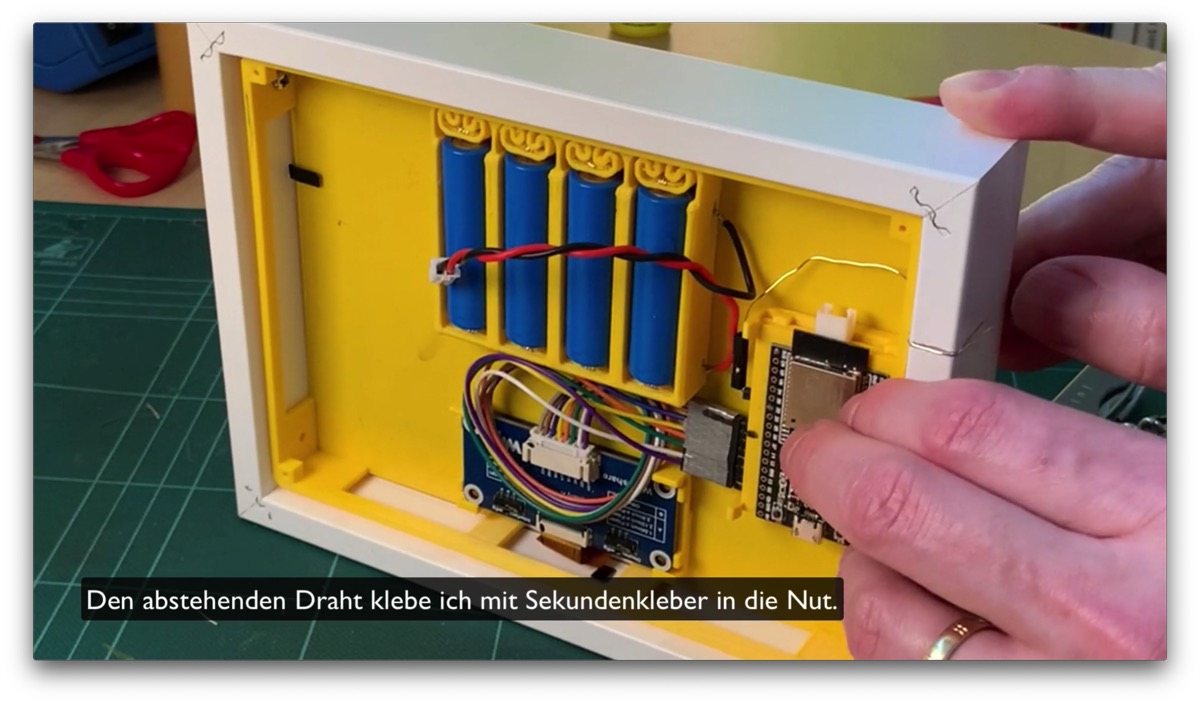
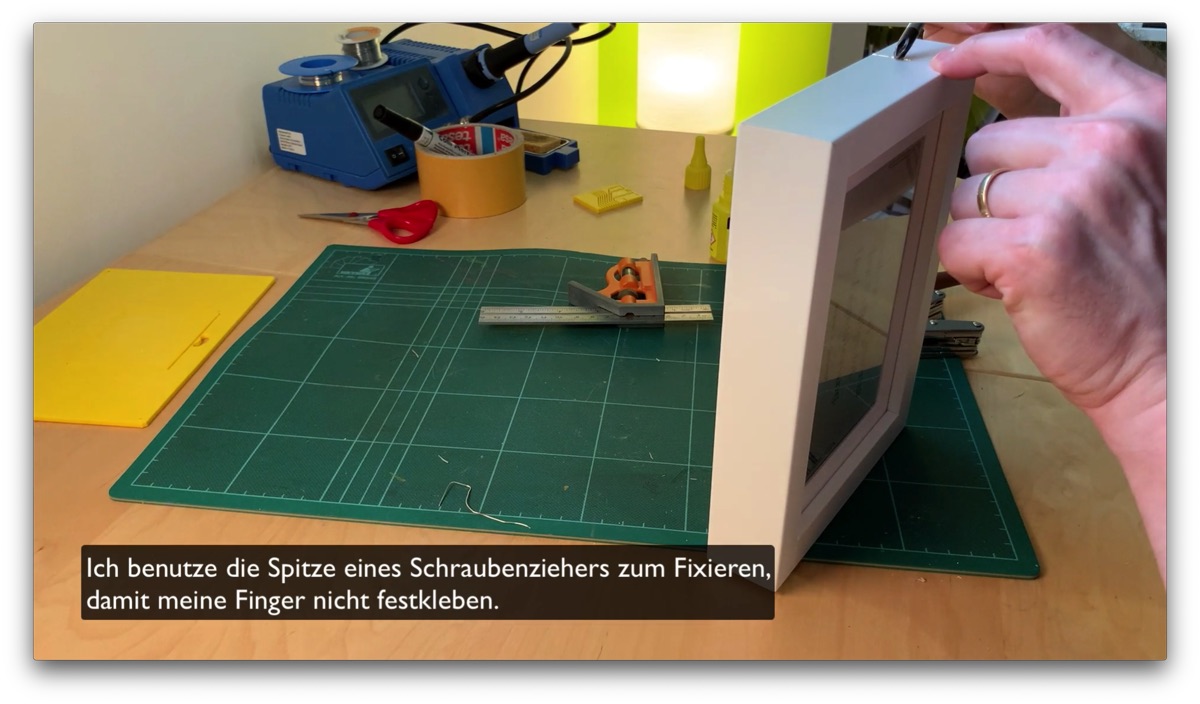
If we then touch this wire, the ESP32 restarts in configuration mode and creates a Wi-Fi access point.
As soon as you connect to this access point with your phone or computer, the configuration portal opens automatically … more or less. I'll come back to that later.
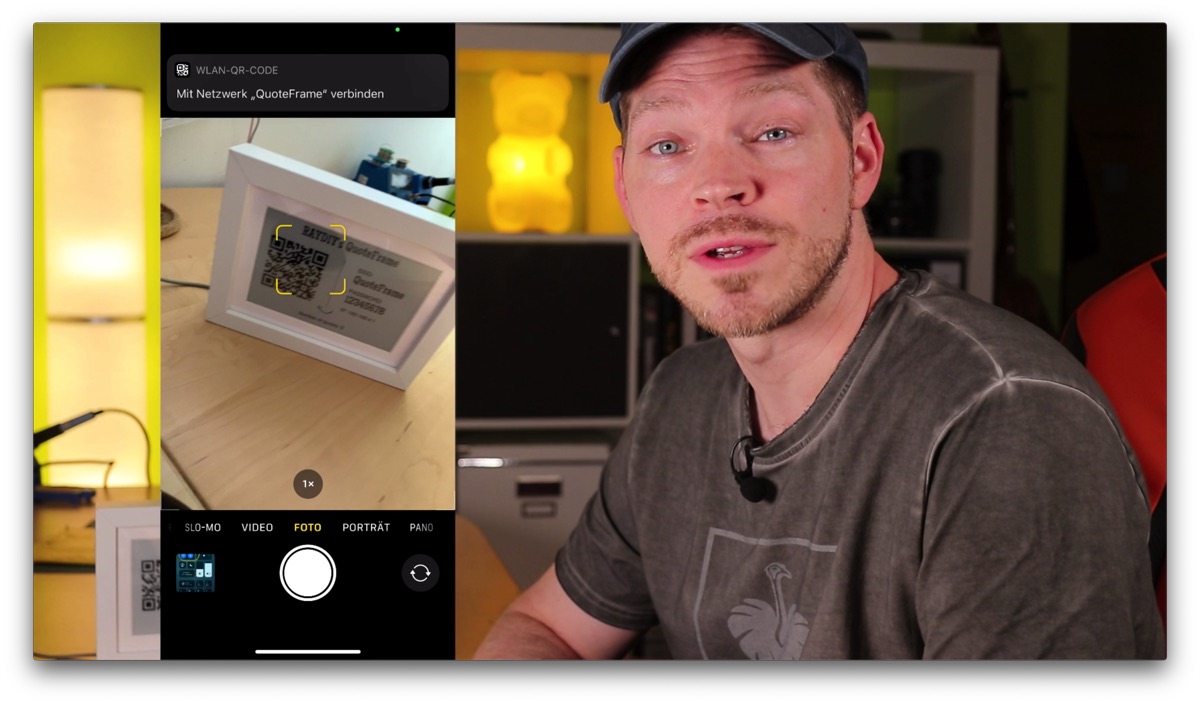
The display then also shows the name of the Wi-Fi network and a QR code with the access data. So you can also scan the QR code with your phone and connect directly to the picture frame's Wi-Fi.
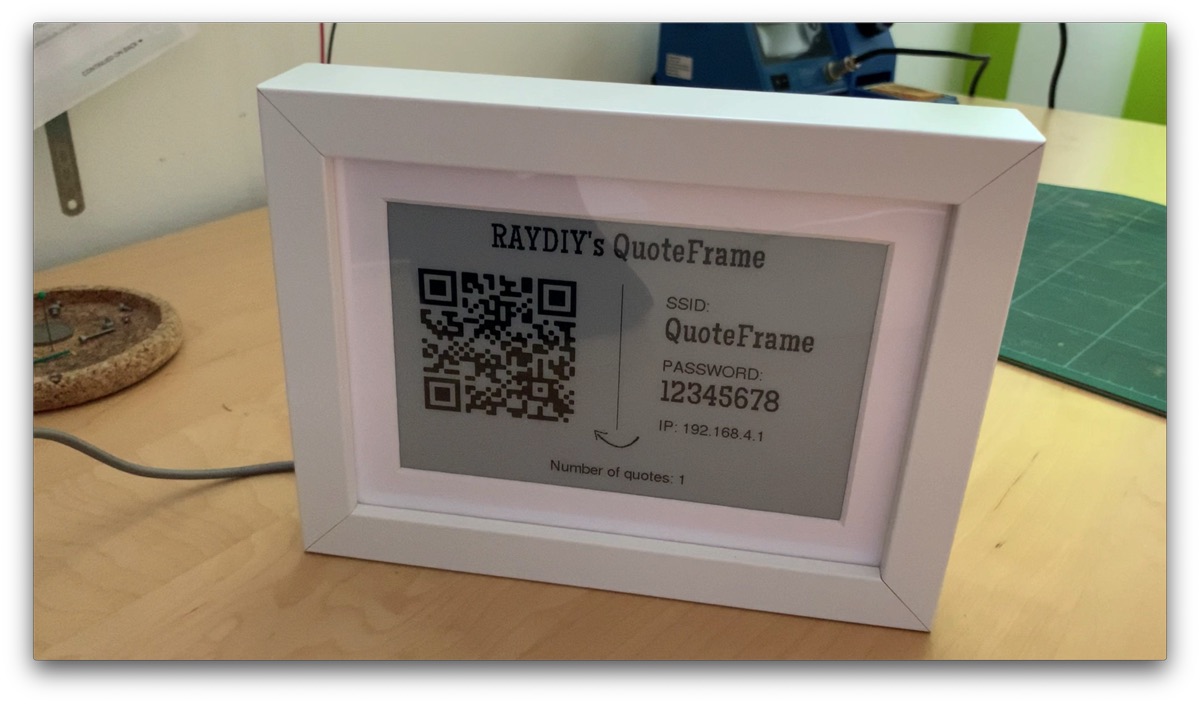
Access data for the configuration portal
Silver Wire with Copper Core*

Amazon Link*
*
This link is an affiliate link. As an Amazon Partner, I earn from qualified sales.
Step 10
Prepare the Back Panel
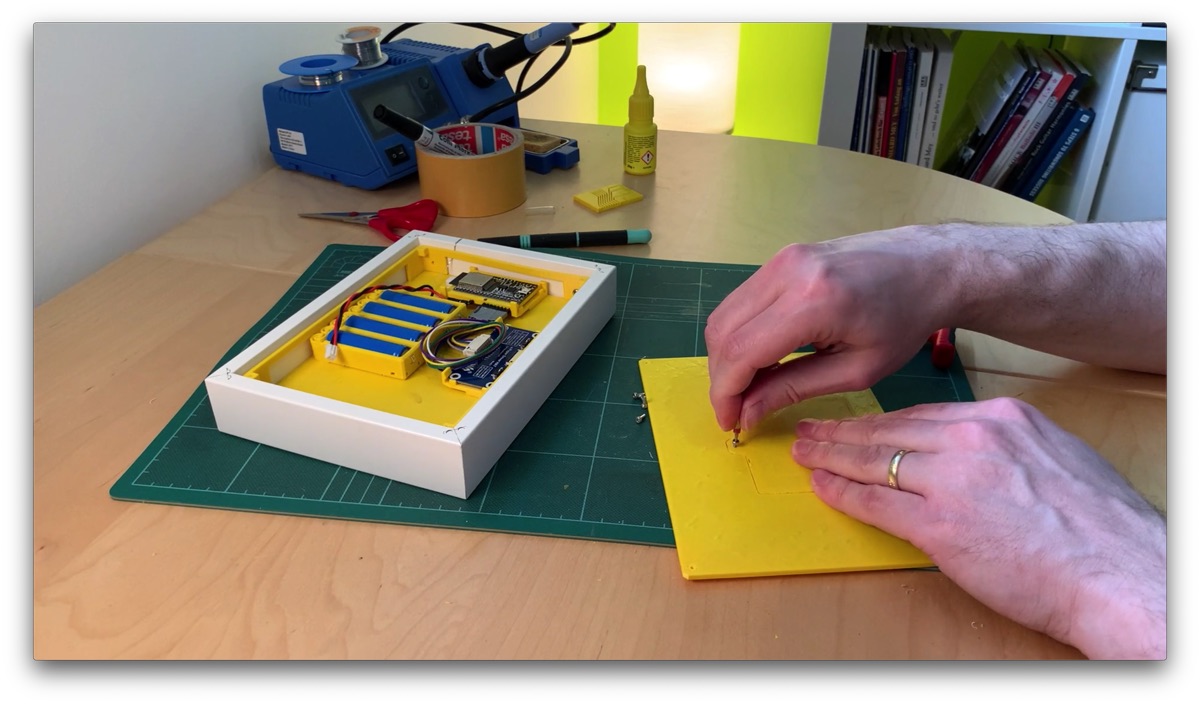
Finally, we prepare the lid. The battery hatch is designed in the 3D object so that it can be broken out. If this works, we get a very good fit for the hatch.
If you make two separate 3D models out of it, it is much harder to get a good fit, especially because holes and openings in the middle of a 3D print tend to come out larger or smaller than planned.
So let's carefully break out the hatch.
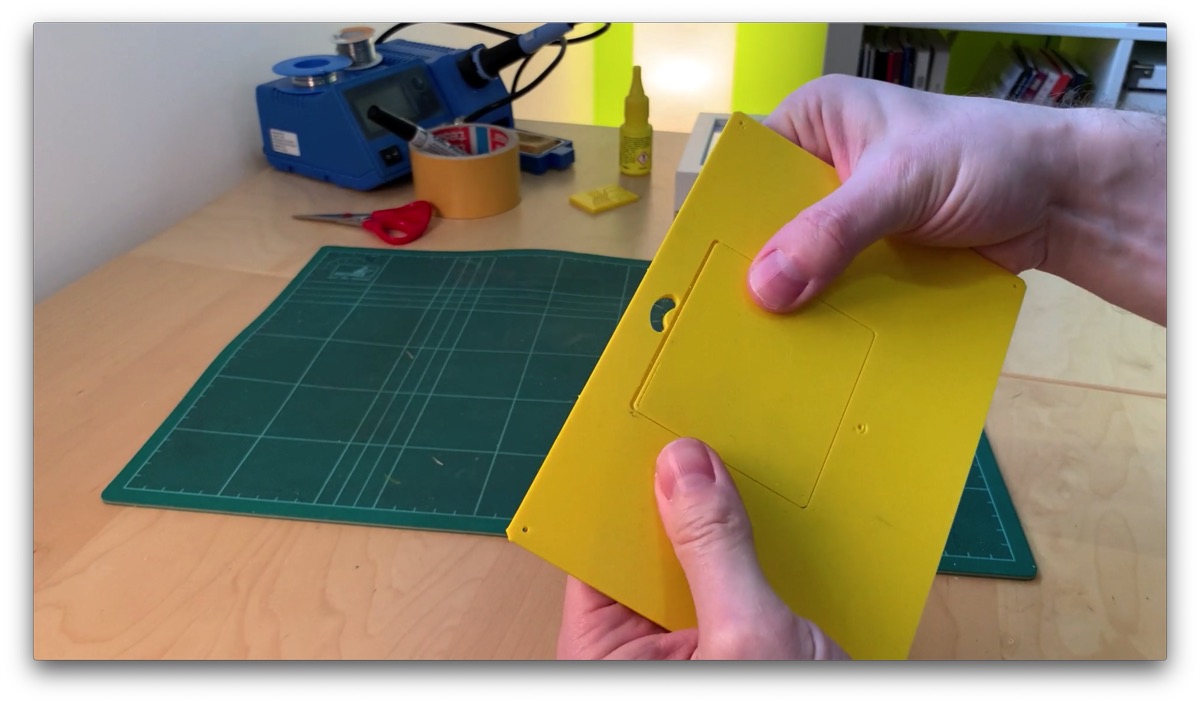
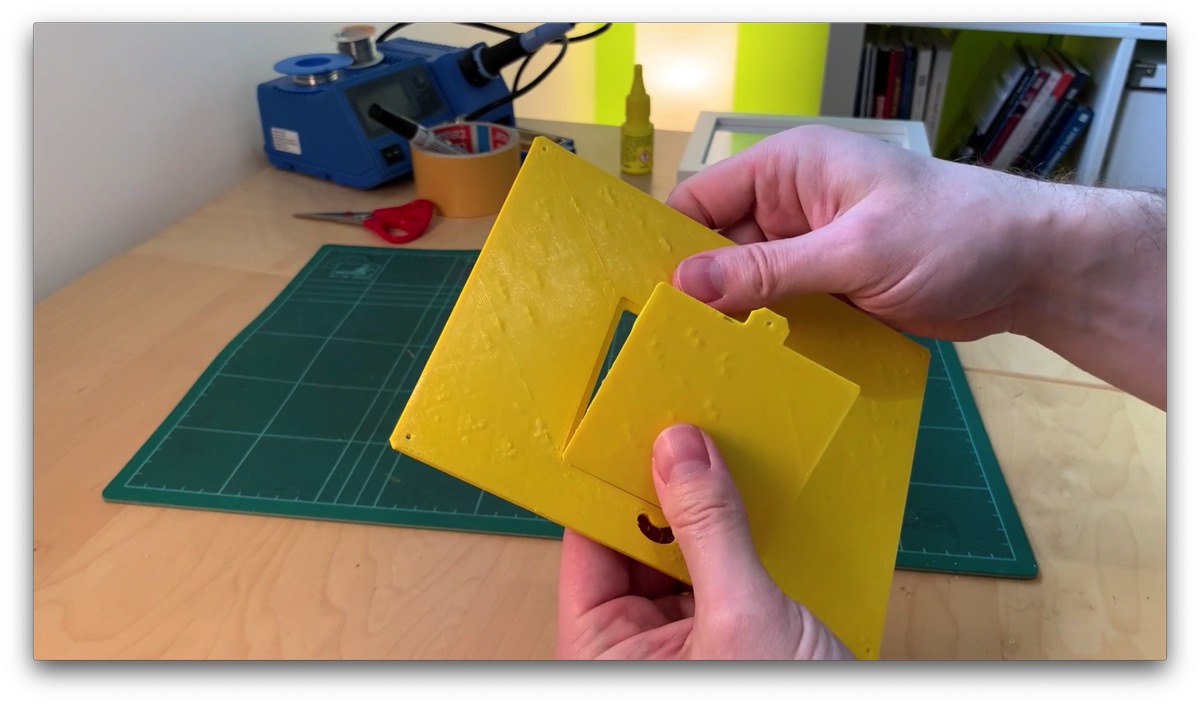
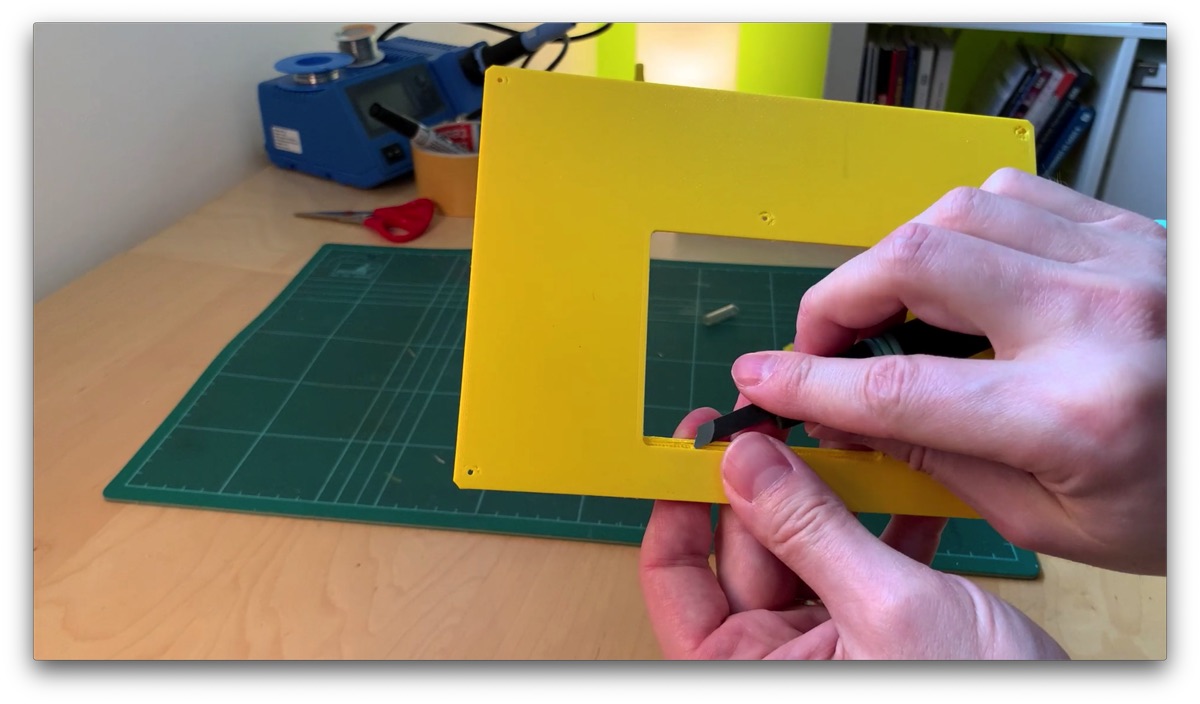
That works well. Now we can remove any burrs from the hatch and the opening and fix the hatch with an M2 screw, 4 mm long.
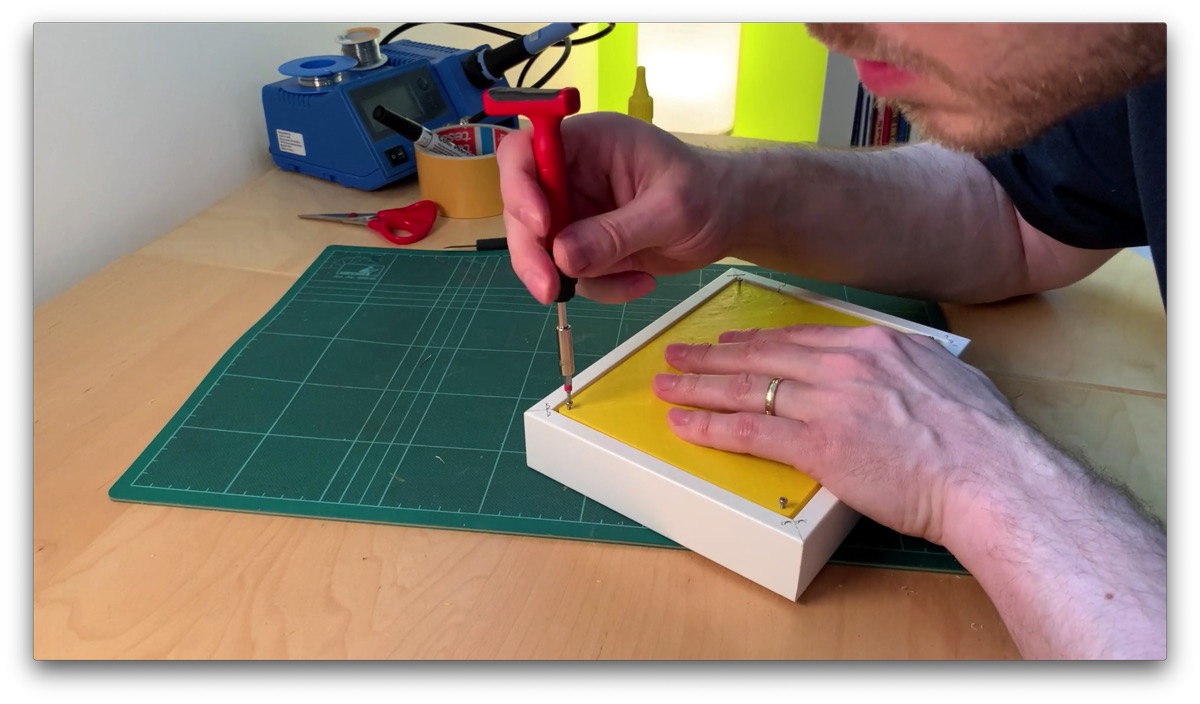
With four M2 screws, 6 mm long, I screw the lid to the housing.
Don't tighten the screws too much! The screw holes are designed so that the screws cut their own thread into the plastic, so they are not made for heavy loads.
Hardware Outro
That's it for the hardware part. Everything is nicely tidied up and closed. And we even have an inspection hatch for charging the batteries.
For the next step, we can unscrew the whole lid again right away, because we will load the software onto the microcontroller and need access to the USB port of the ESP32. Unfortunately, that is not possible without unscrewing the back panel. But you always need some room for improvement.
M2 M3 M4 Screw Kit, Various Lengths*

Amazon Link*
*
This link is an affiliate link. As an Amazon Partner, I earn from qualified sales.
Step 11.0
Upload the Software to the ESP32
Now let's upload the software to the ESP32. As I said, we first have to unscrew the lid again.
Important: if the batteries are connected to the microcontroller, you must disconnect them before you plug in the USB cable! At the moment there is no circuit built in that allows both power sources to be connected at the same time!
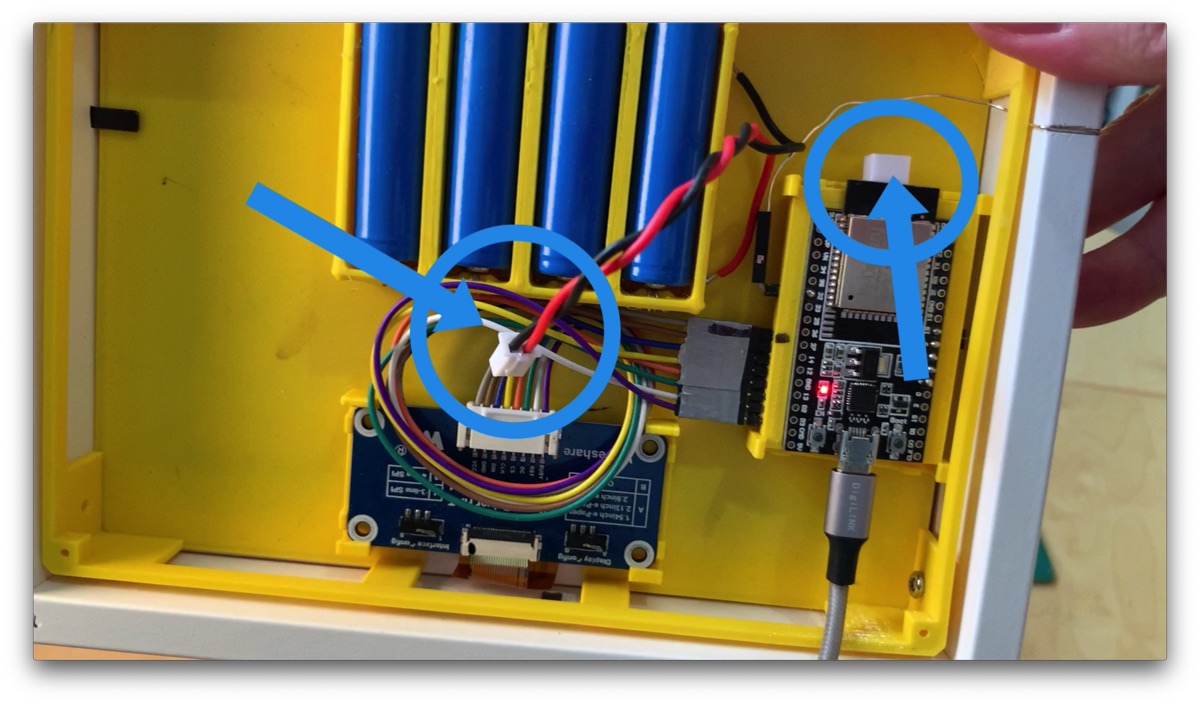
Disconnect the batteries from the ESP32
If you have never worked with PlatformIO before, I recommend watching my intro video about PlatformIO first. There I explain how to install PlatformIO, create a project and load programs onto the microcontroller. From here on I assume you have VS Code and PlatformIO installed.
You can download the whole project from GitHub. If you are familiar with Git or GitHub, you know what to do. But you can also simply download the whole project as a ZIP file and unpack it.
To do this, go to the latest release on the right side of the Git project page and click on release.zip. The download starts. Then unzip the ZIP file.
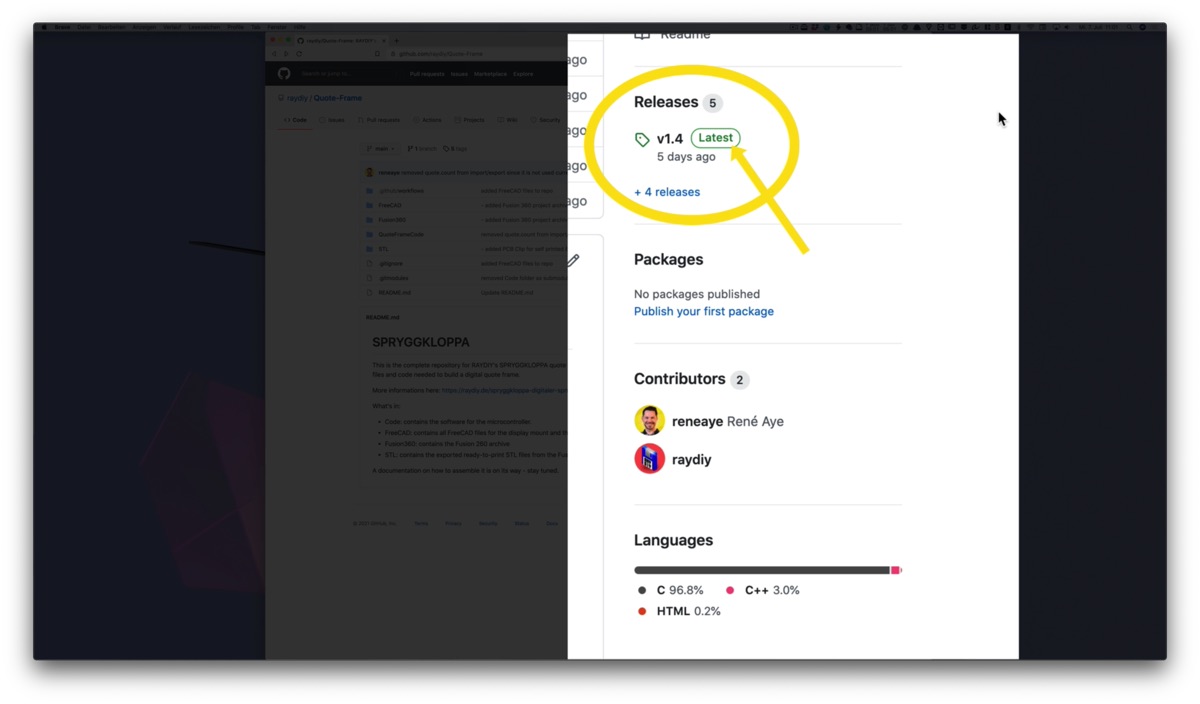
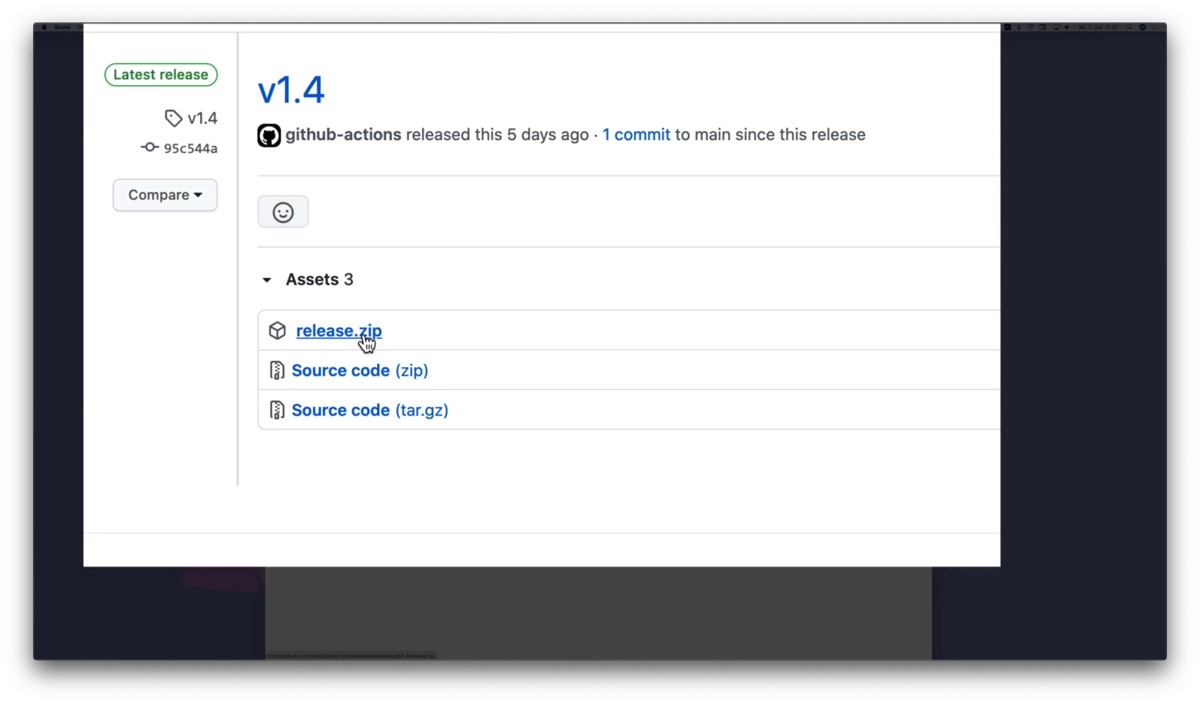
Make sure the microcontroller is connected via USB before you start VS Code. Otherwise the device often won't show up in the device list. If that happens, simply close VS Code completely and restart it.
Step 11.1
Add the Project to PlatformIO
In the project folder you will find the subfolder QuoteFrameCode. We now add this folder as a project to PlatformIO.
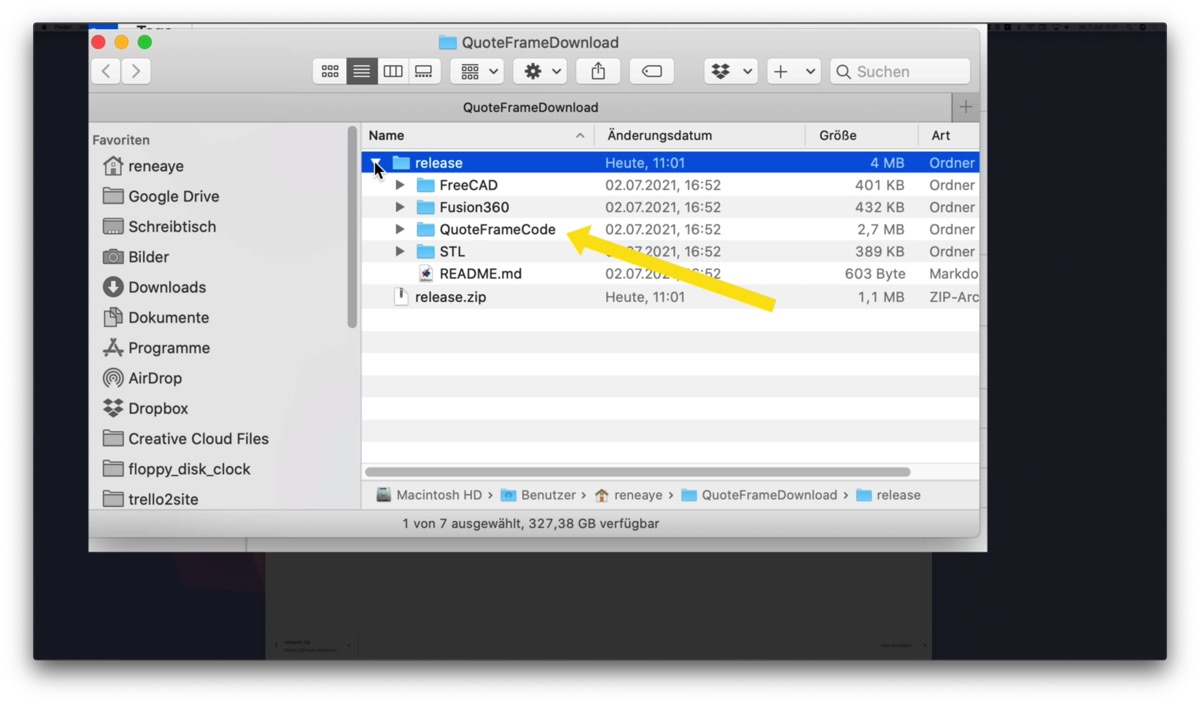
The QuoteFrameCode subfolder in the project folder
To do this, first start VS Code. Click on the alien head and, in the PlatformIO Quick Access panel, on PIO Home > Projects & Configuration.
Here we click on Add Existing, because we don't want to create a new, empty project but add an existing one.
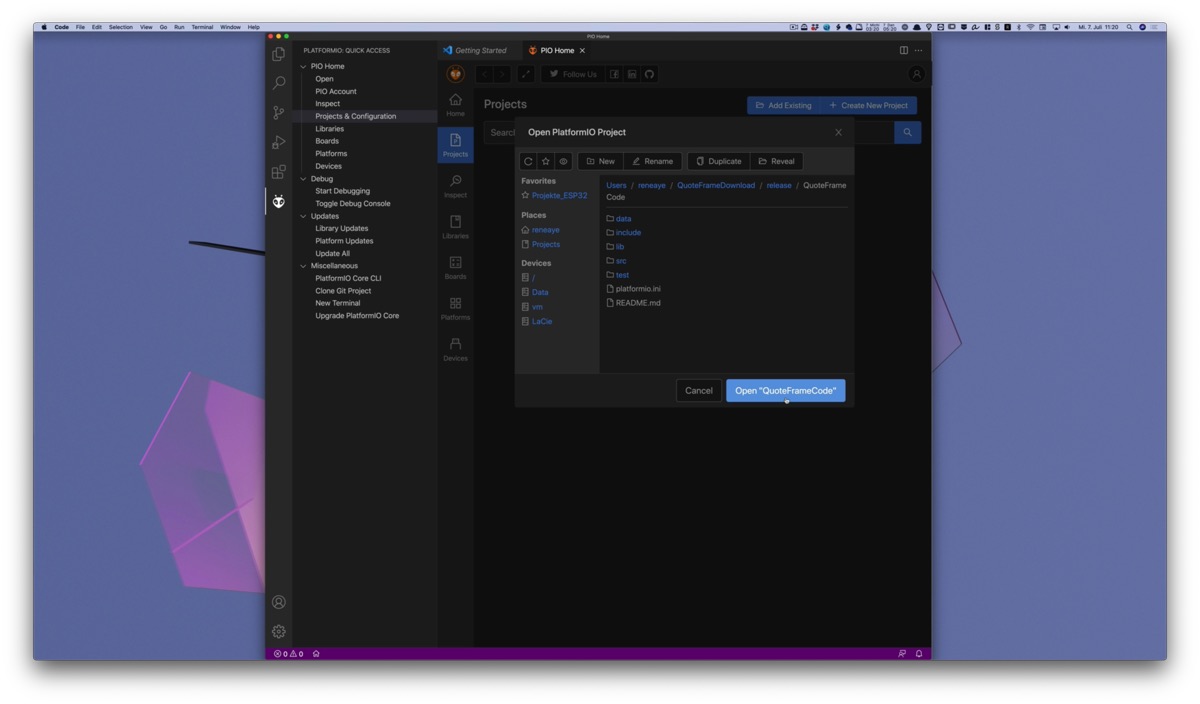
Find the QuoteFrameCode folder in the unzipped release archive and add it as a project by clicking Open.
The project now appears in the list of PlatformIO projects.
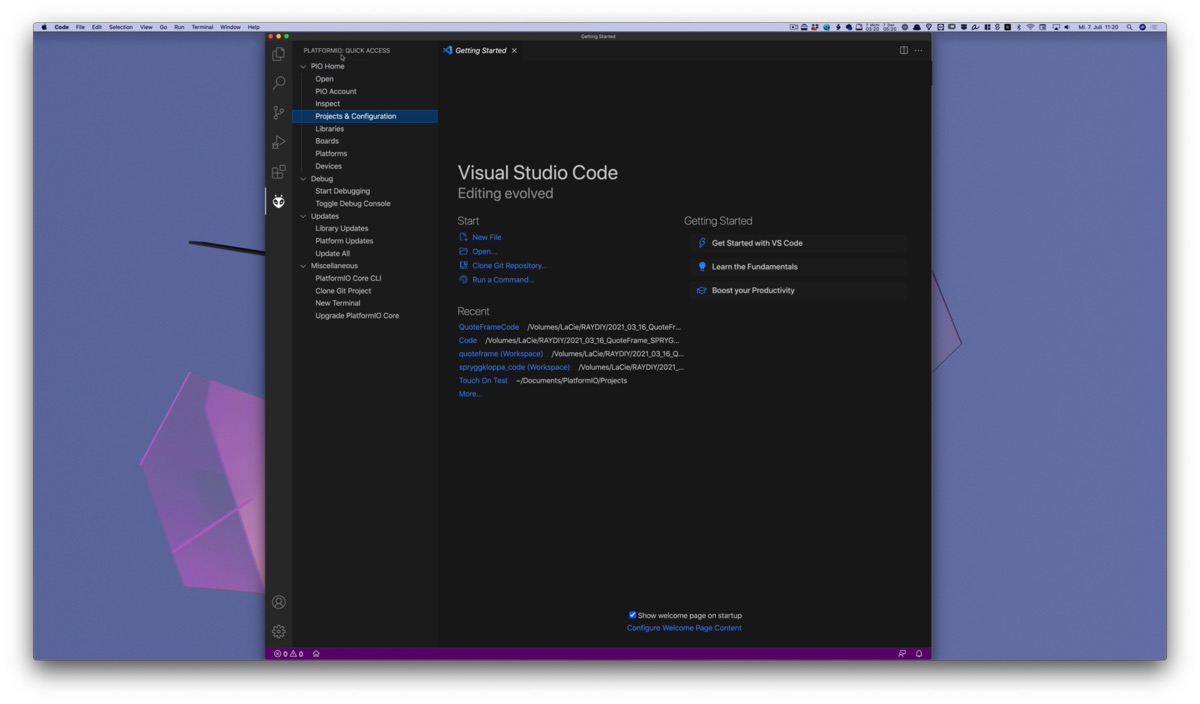
Step 11.2
Adjust the Project Settings
Now we first go to the project settings and check whether the USB port and the microcontroller board are correct, otherwise PlatformIO can't upload anything.
To do this, click on Configure.
At the top you can see two tabs: PIO Configuration and esp32.
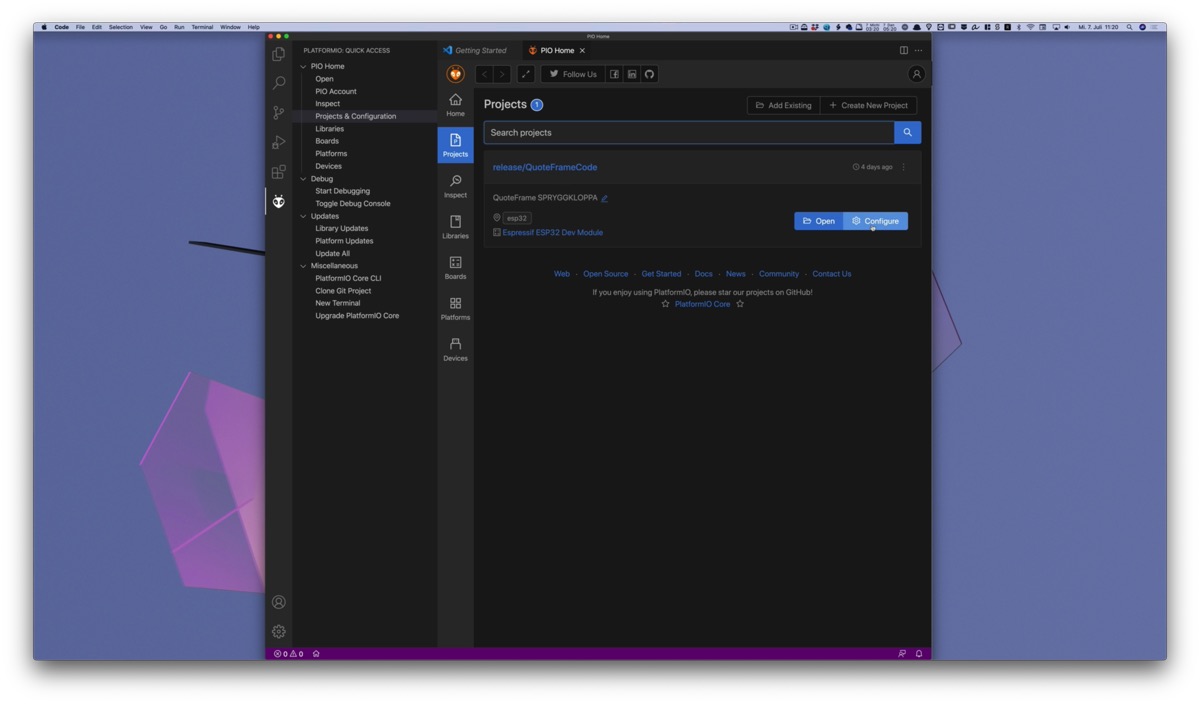
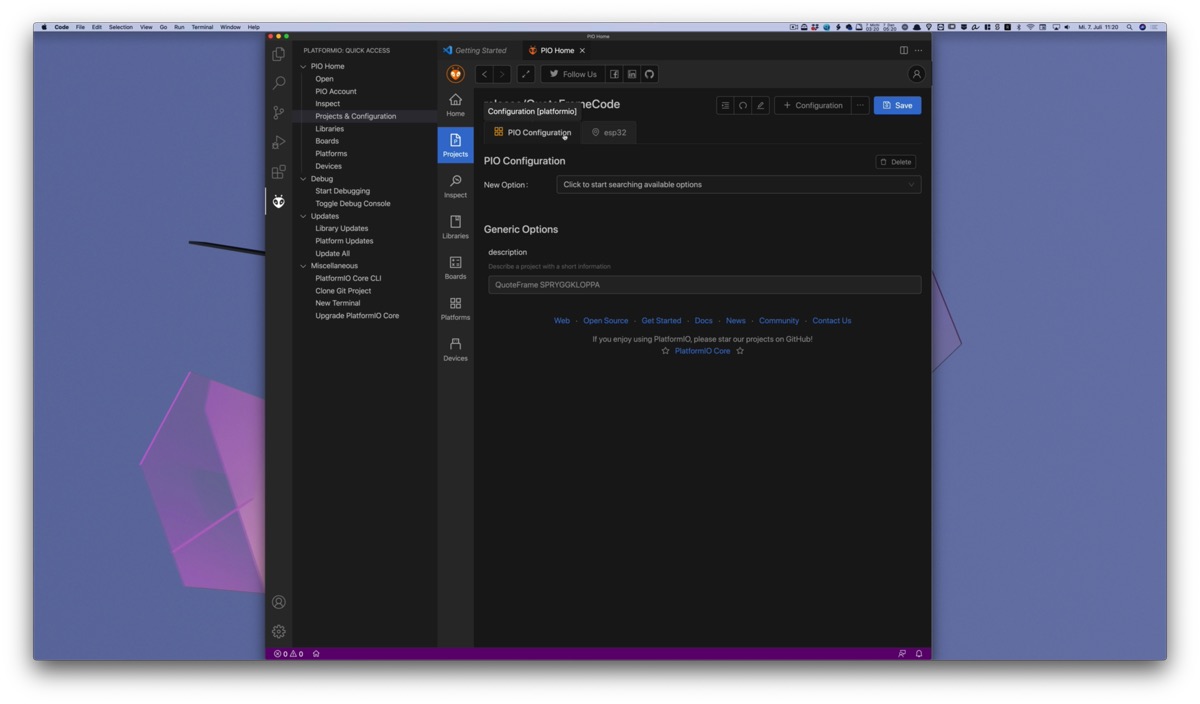
PIO Configuration: here you can make general project settings. I have only added a project description. You don't need to change anything here.
I created the actual configuration under the esp32 tab. Here we can set everything related to the microcontroller board and the port. In principle, you can create as many configuration tabs as you like with the + Configuration button. This is useful if, for example, you often work with different microcontrollers.
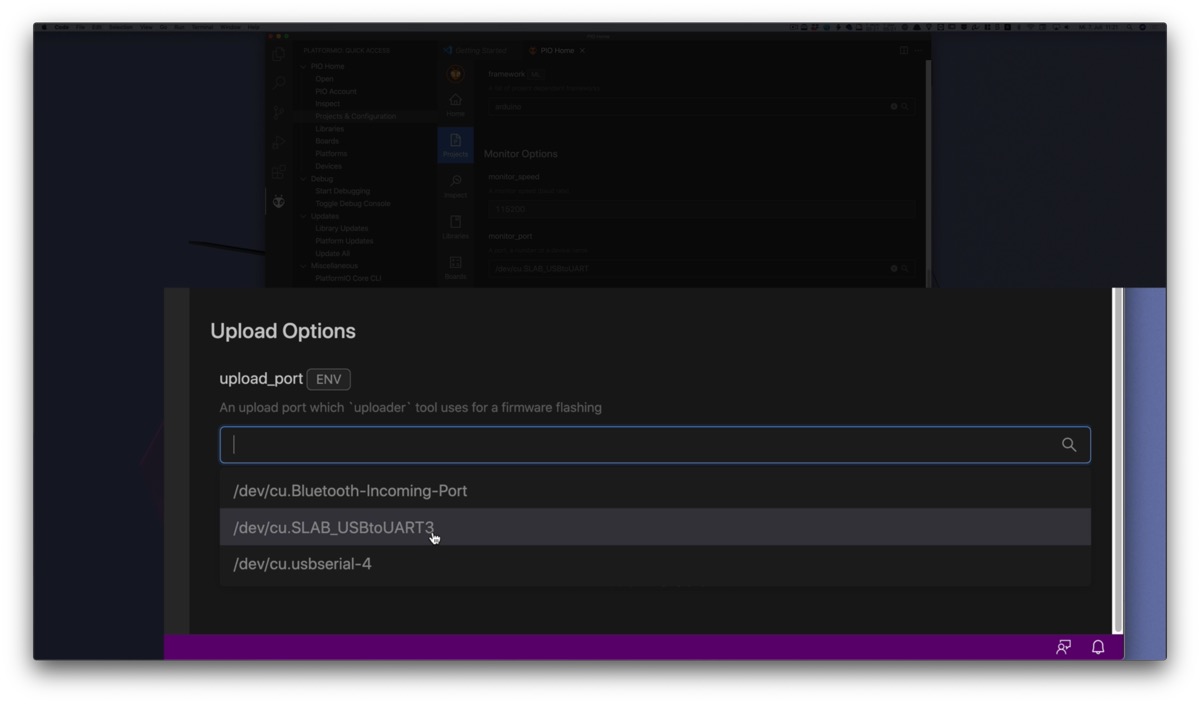
Activate the esp32 tab and scroll all the way down to the Upload Options. There is a setting for the upload_port. It probably still contains my setting /dev/cu.SLAB_USBtoUART. This is the typical USB port on the Mac for ESP32 microcontrollers.
To change it, first click on the cross to delete the entry. Then click on the empty field and you will get a selection of all USB devices PlatformIO can find.
If your board doesn't show up there or you don't know which port is the right one, have another look at my intro video about PlatformIO.
On my Mac it has always been this /dev/cu.SLAB_USBtoUART port so far. On Windows it will be a COM port.
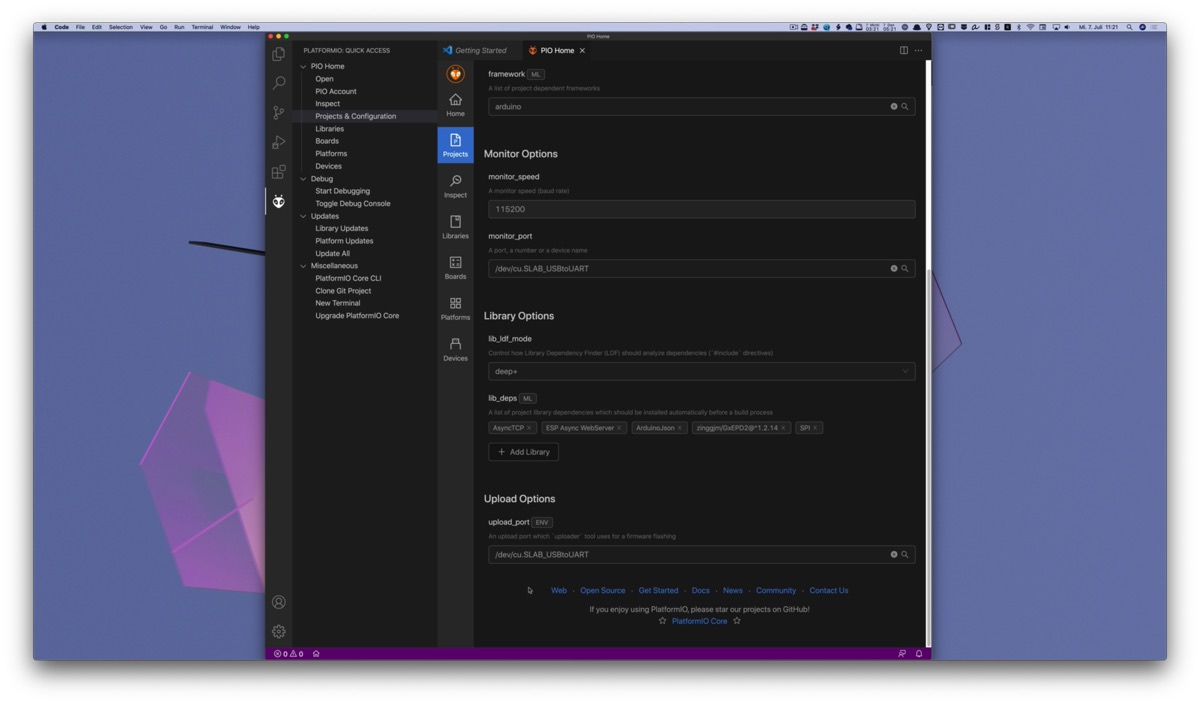
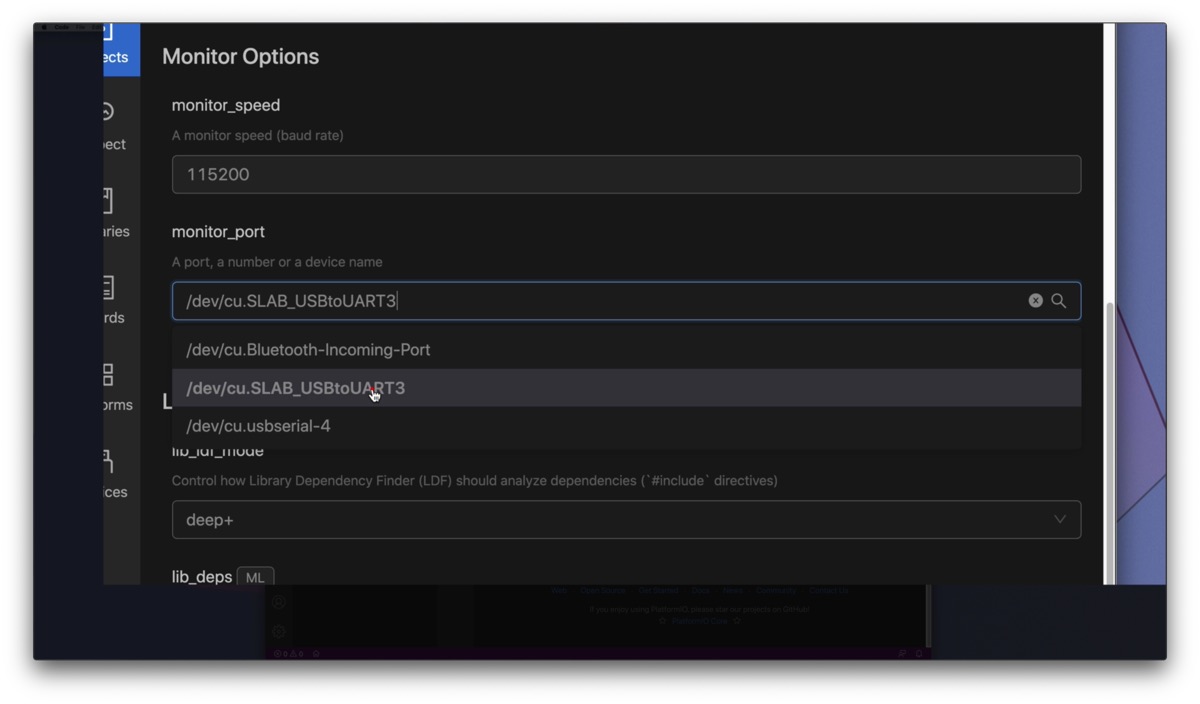
A bit further up, in the Monitor Options section, the monitor_port setting must be set to the same value as upload_port. The monitor port is needed for the serial output in the console, otherwise you won't see any error messages or debug output.
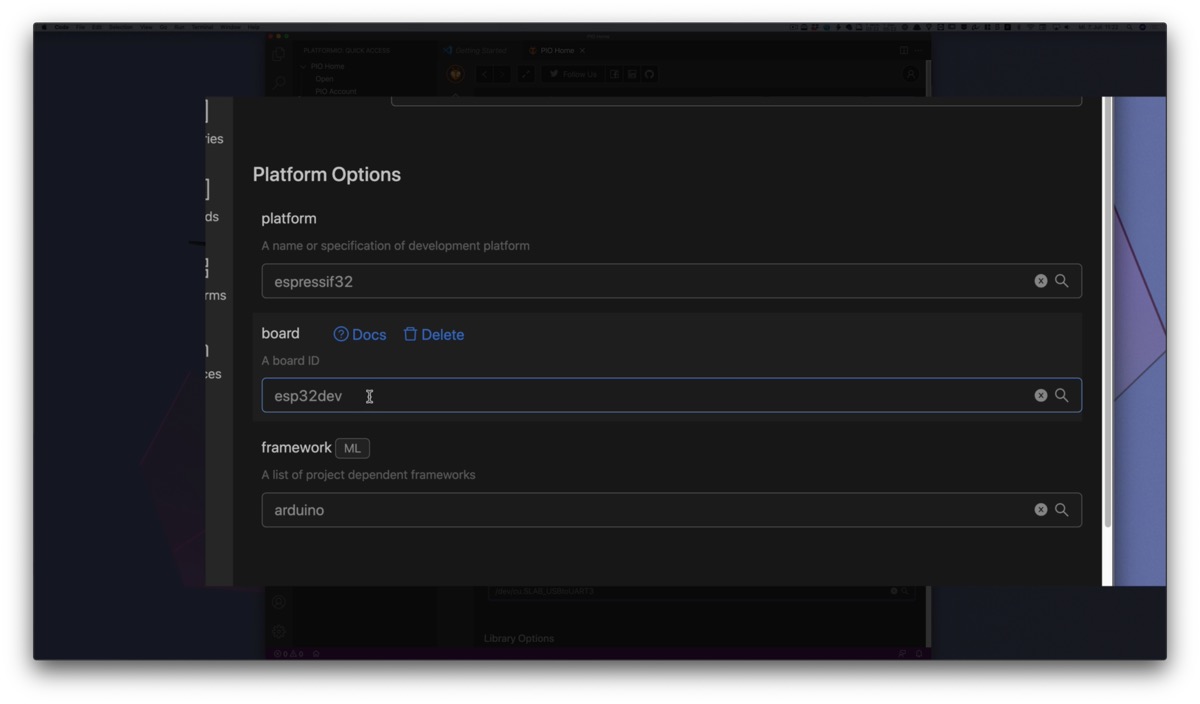
Finally, at the very top under Platform Options, set the correct board if necessary. I have set a generic esp32dev here. There is a good chance that this already works with your ESP32. If you have a special board, search the list and pick the matching one.
You usually don't have to find the exact board you are using. If it is an ESP32, esp32dev will probably work already.
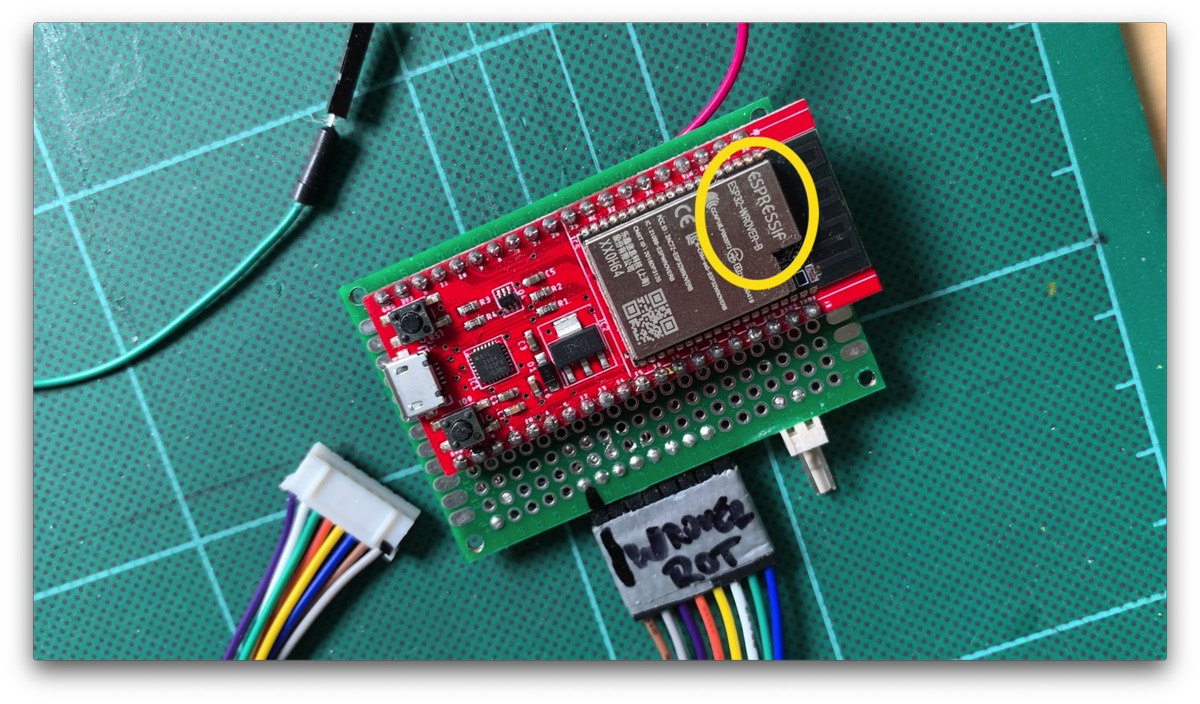
For example, I have a special ESP32 here called ePulse from the company ThingPulse, which is designed for low power consumption. At the time I wrote this tutorial, it was not in this list.
This ESP is based on the WROVER variant, as you can see on the Wi-Fi module. For boards like this I always use esp-wrover-kit as the board setting.
So you don't have to find your exact board manufacturer and model in the list. The generic defaults are usually enough. But if you do find your exact board in the list, then of course use that one.
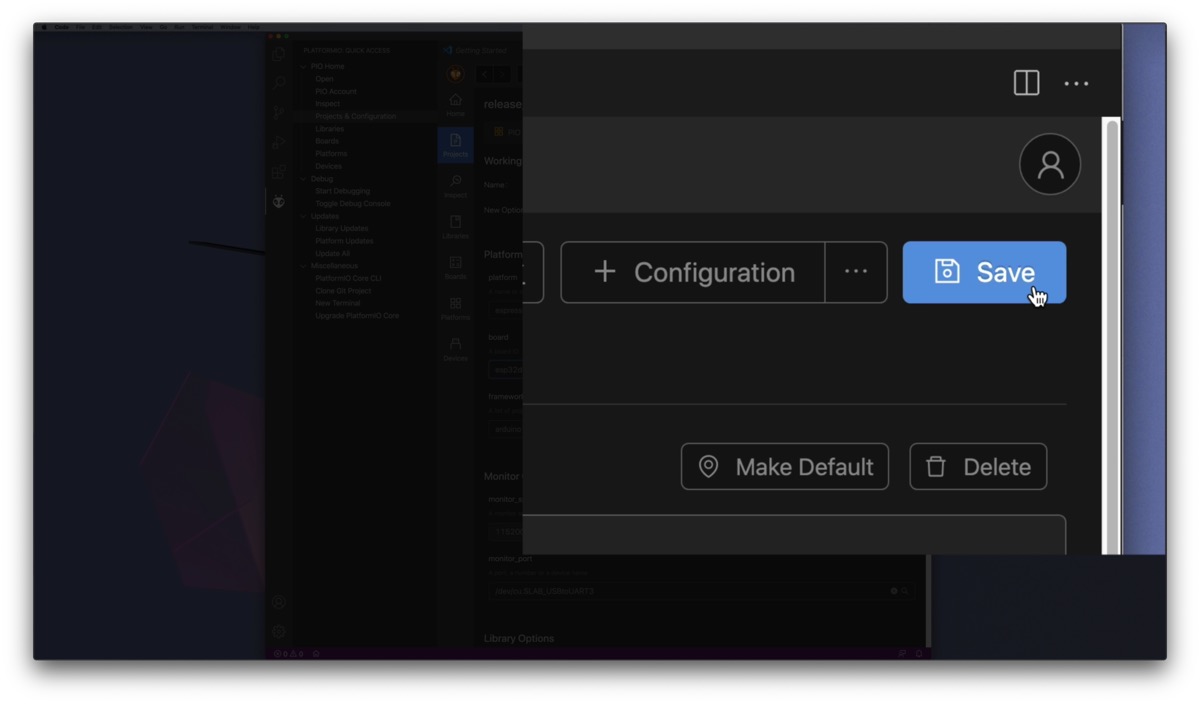
Very important: click on Save in the top right corner!
Step 11.3
Open and Upload the Project
Now that the configuration is complete, let's open the project.
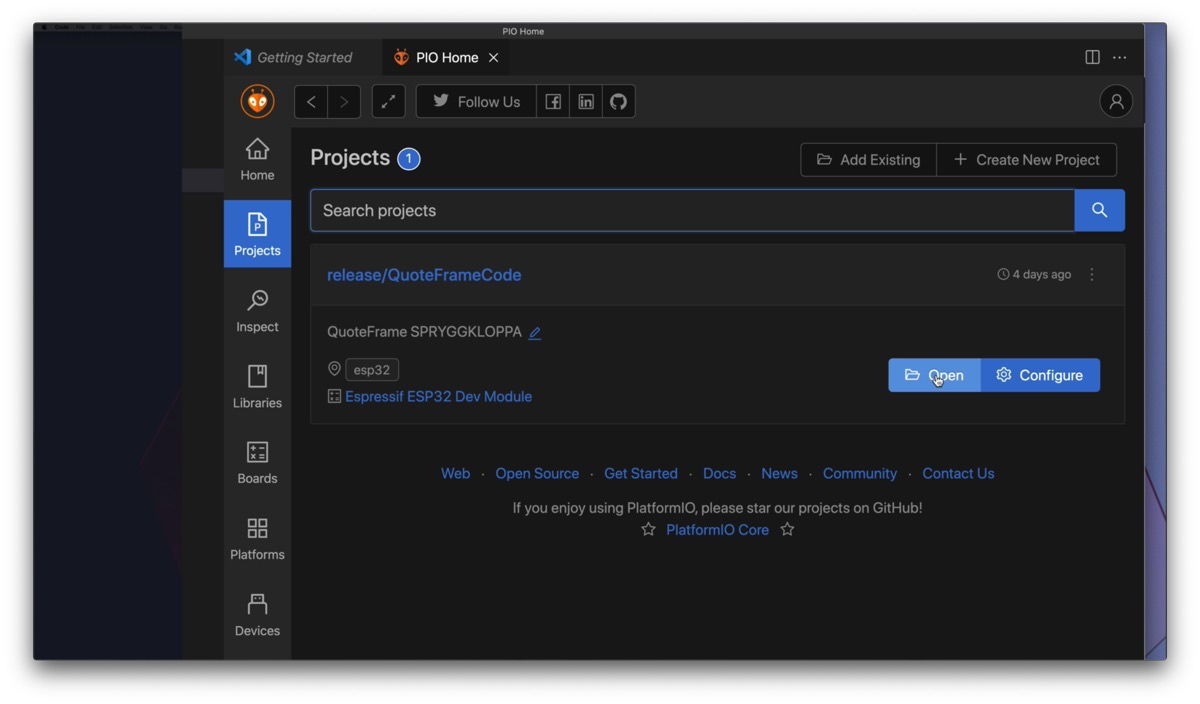
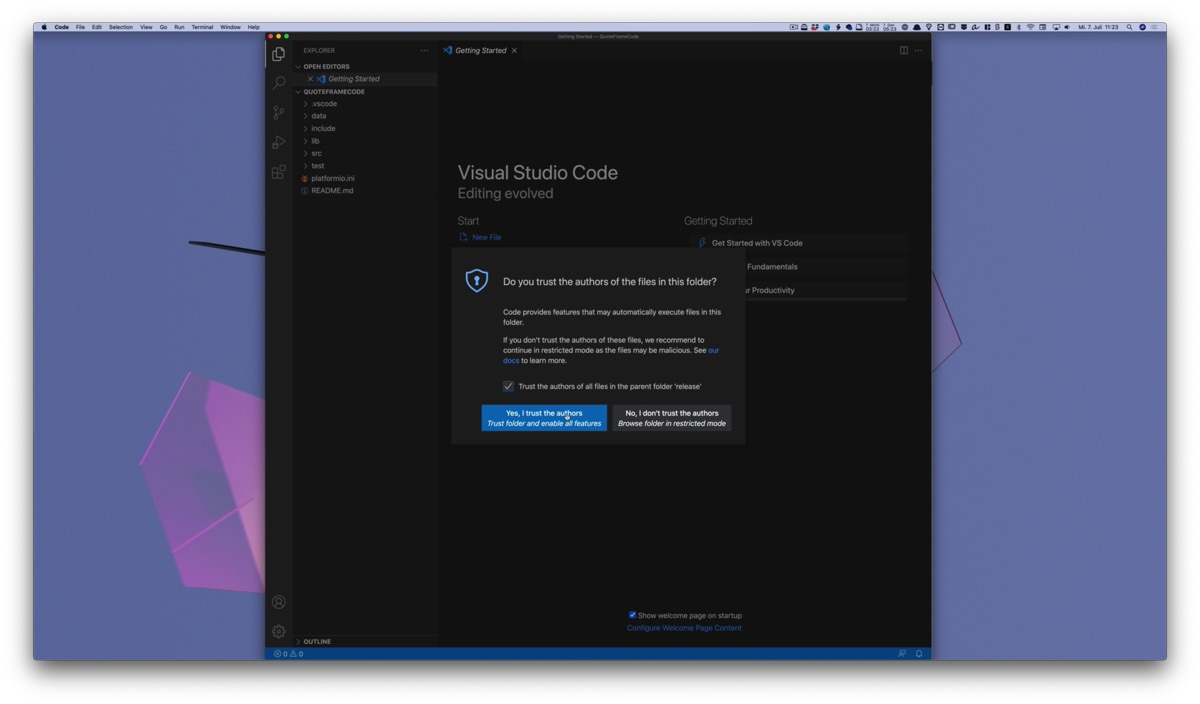
To do this, click on Projects to get to the project overview. Then click on Open. VS Code then restarts its window and opens the project. The explorer on the left should now show the directory structure of the project.
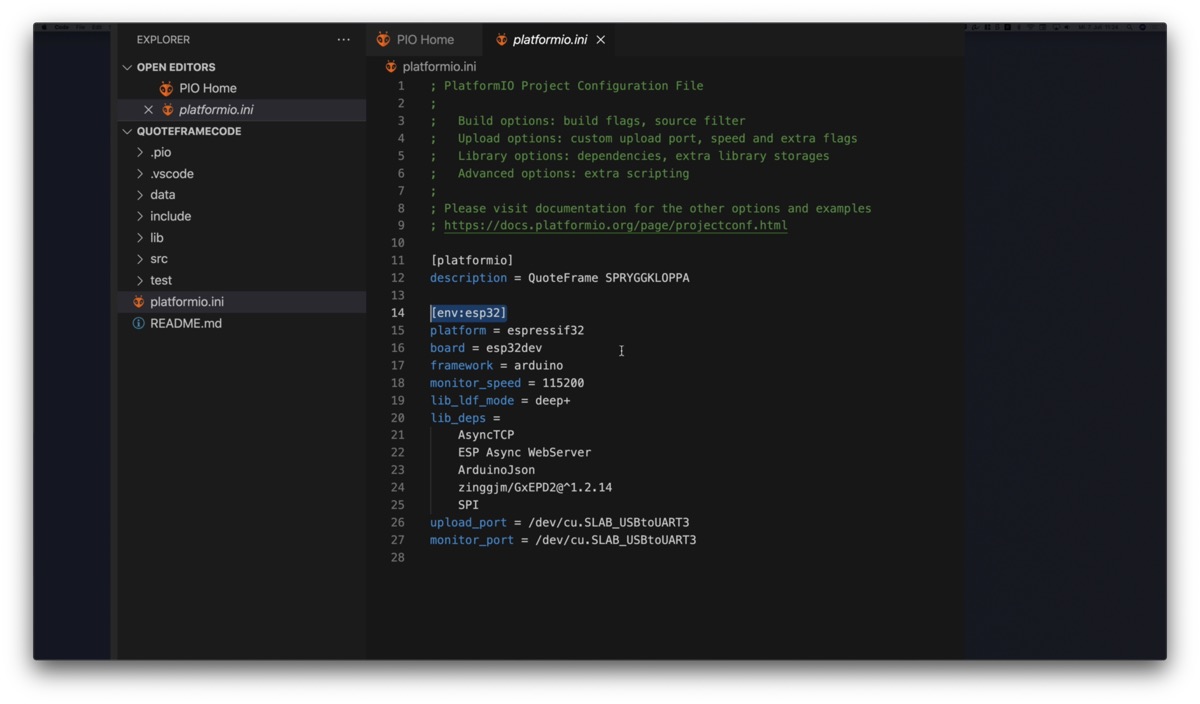
By the way: what we just changed in the settings is in the end nothing more than the platformio.ini file. In it you will find the settings of the esp32 tab and the board and port details you may have just adjusted.
Basically, you can also change everything by hand in this INI file. You will find the link to the documentation of this INI file, and everything you can configure there, at the top of the platformio.ini file itself. It's worth taking a look at it.
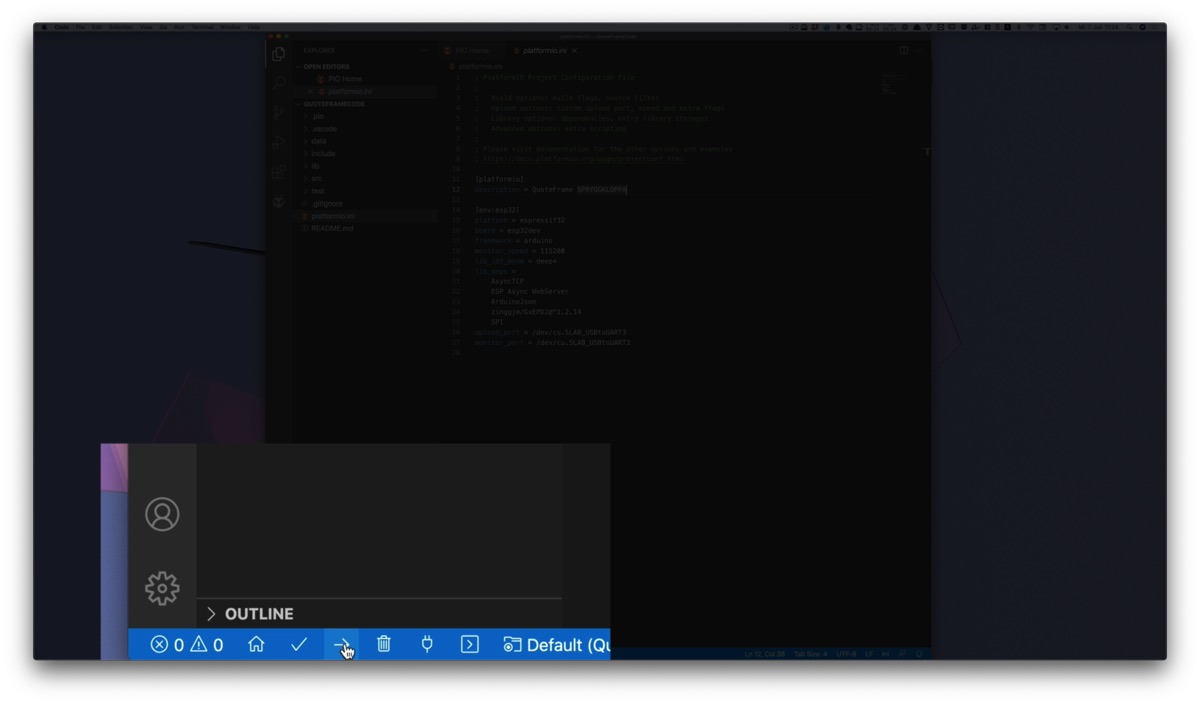
Now we can start the upload to the ESP via the arrow at the bottom.
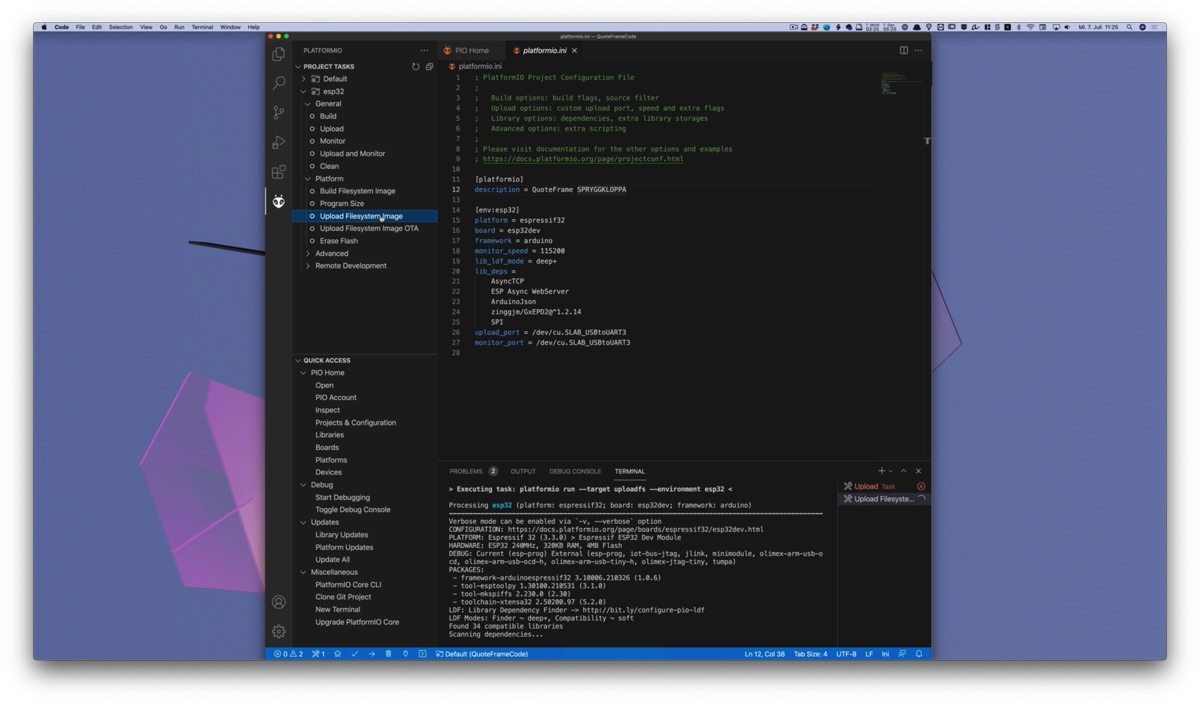
If that worked, the last thing we have to do is upload the data directory. It contains the HTML files for the web portal of the configuration page.
To do this, go back to the PlatformIO panel on the left, so click on the alien head. Since we now have a project open, there is an additional Project Tasks panel. There, under Project Tasks > esp32dev and then Platform, select Upload Filesystem Image. This uploads everything from the data directory to the ESP.
Now the firmware and all required files should be uploaded and we can put the frame into operation.
Step 12
Configuration Mode: Connect with Your Phone or Computer
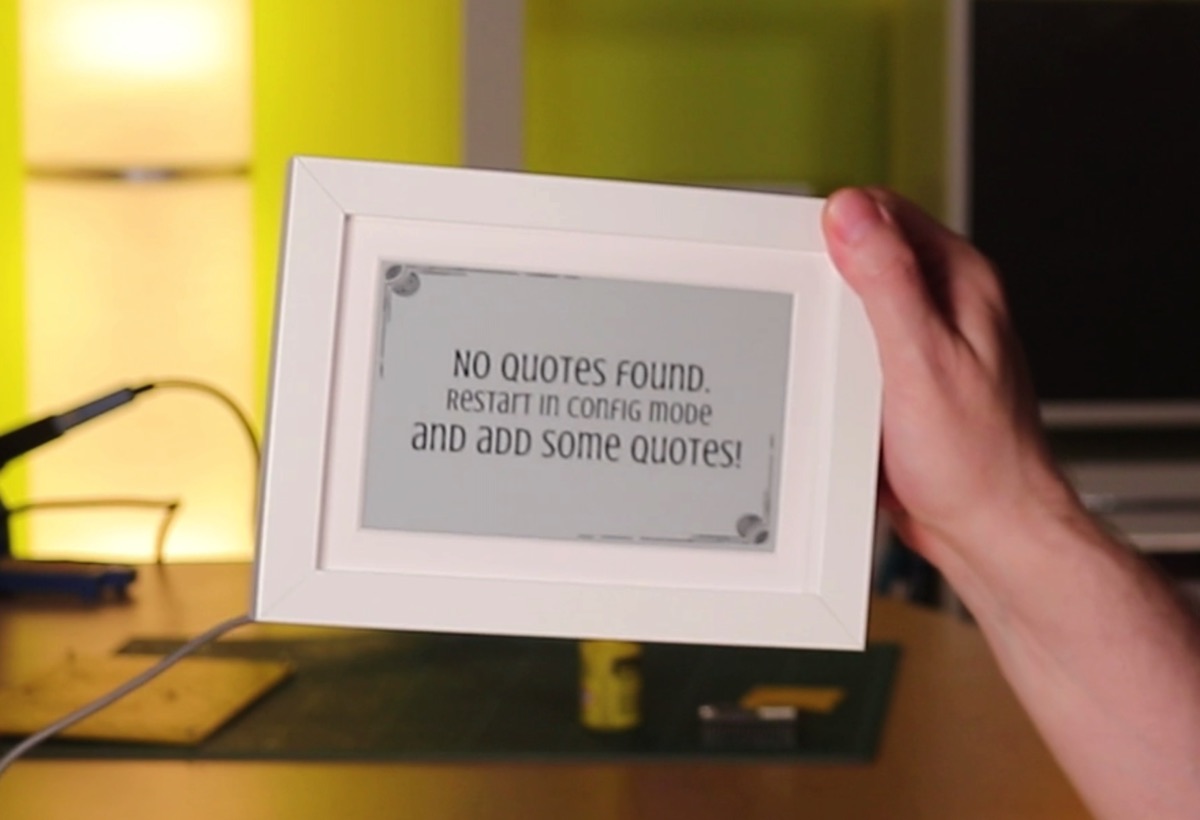
No quotes found, let's change that
The display should already show a first piece of information, namely that there are no quotes yet.
Let's change that.
Put the frame into configuration mode by touching the silver wire. The picture frame then restarts and creates a Wi-Fi access point.
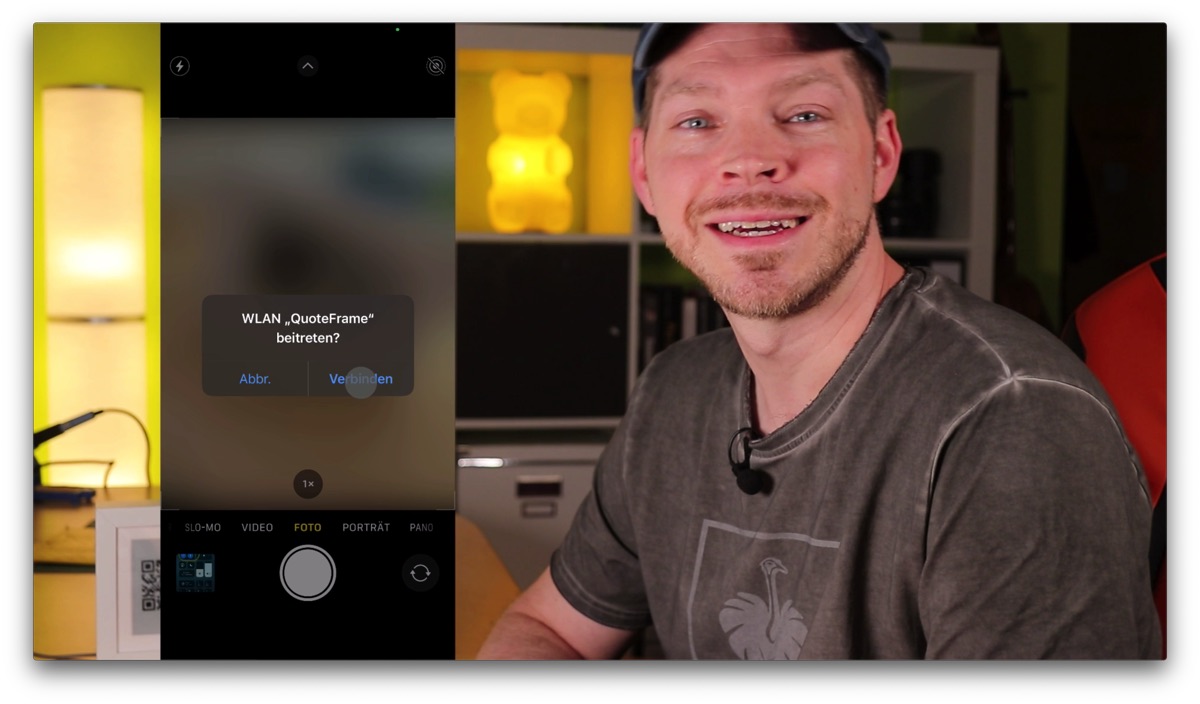
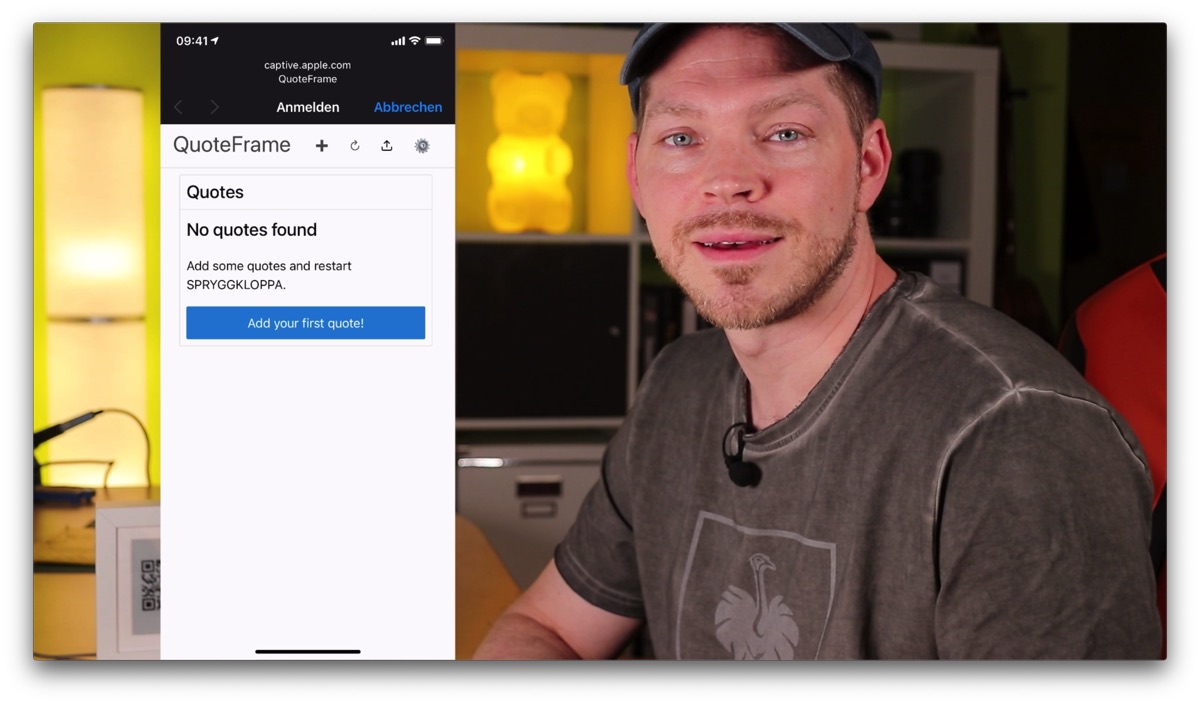
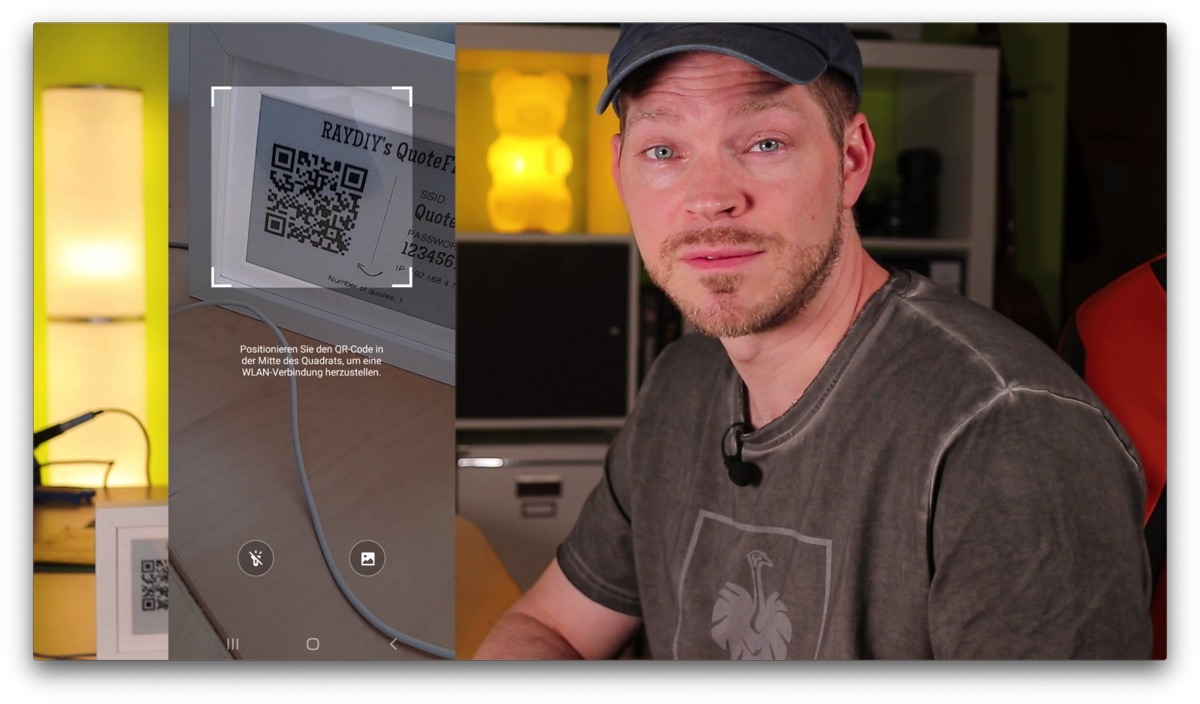
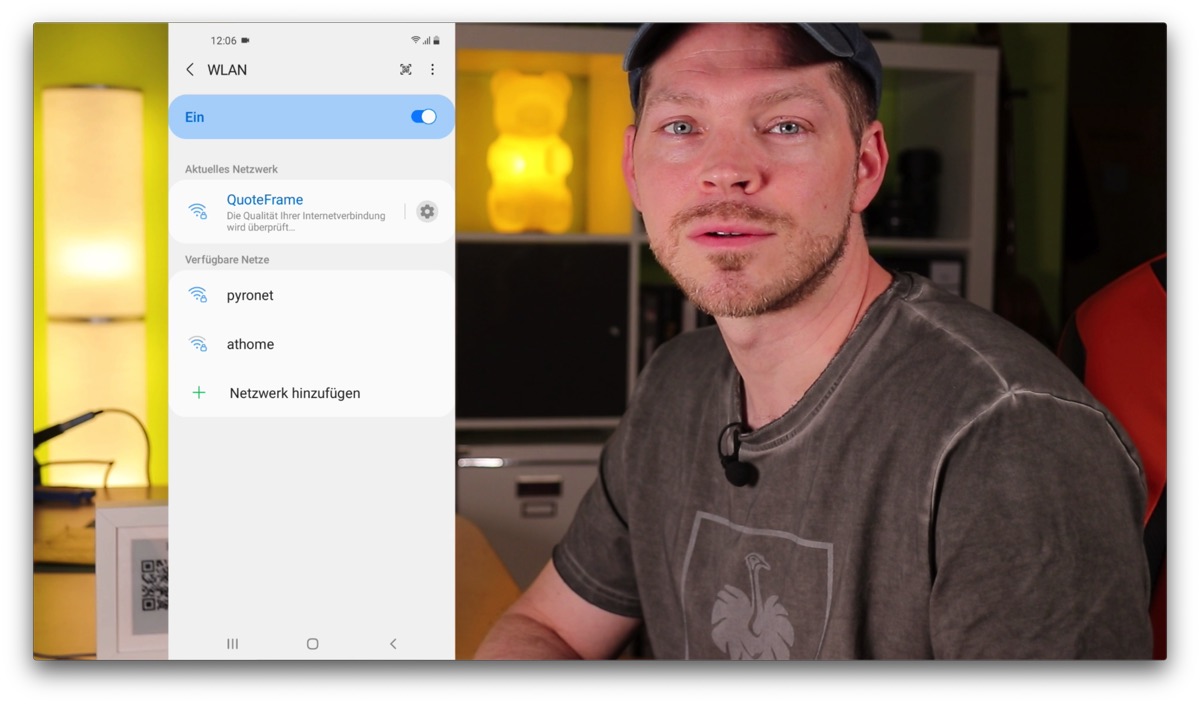
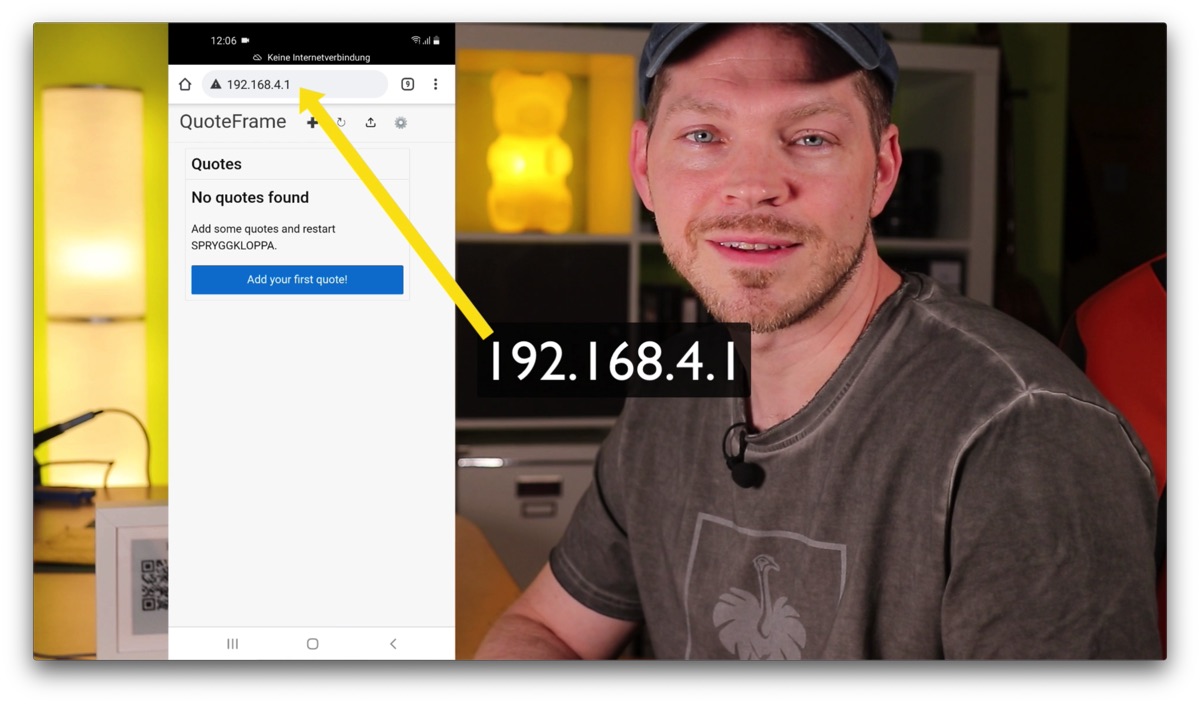
The display then shows the name of the Wi-Fi network, the password and the IP address of the frame in its network. It also shows a QR code with the Wi-Fi access data. Connect one of your devices to the frame's Wi-Fi access point. On iOS and macOS, this web portal should open automatically. Unfortunately, this never worked automatically on my Android device.
iOS
On iOS, simply open the camera and point it at the QR code. iOS asks if you want to connect, so you tap YES or Connect. However, you still have to open the Settings app and go to the Wi-Fi section. Only then does the portal open. Or you just go through the Wi-Fi settings right away.
Android
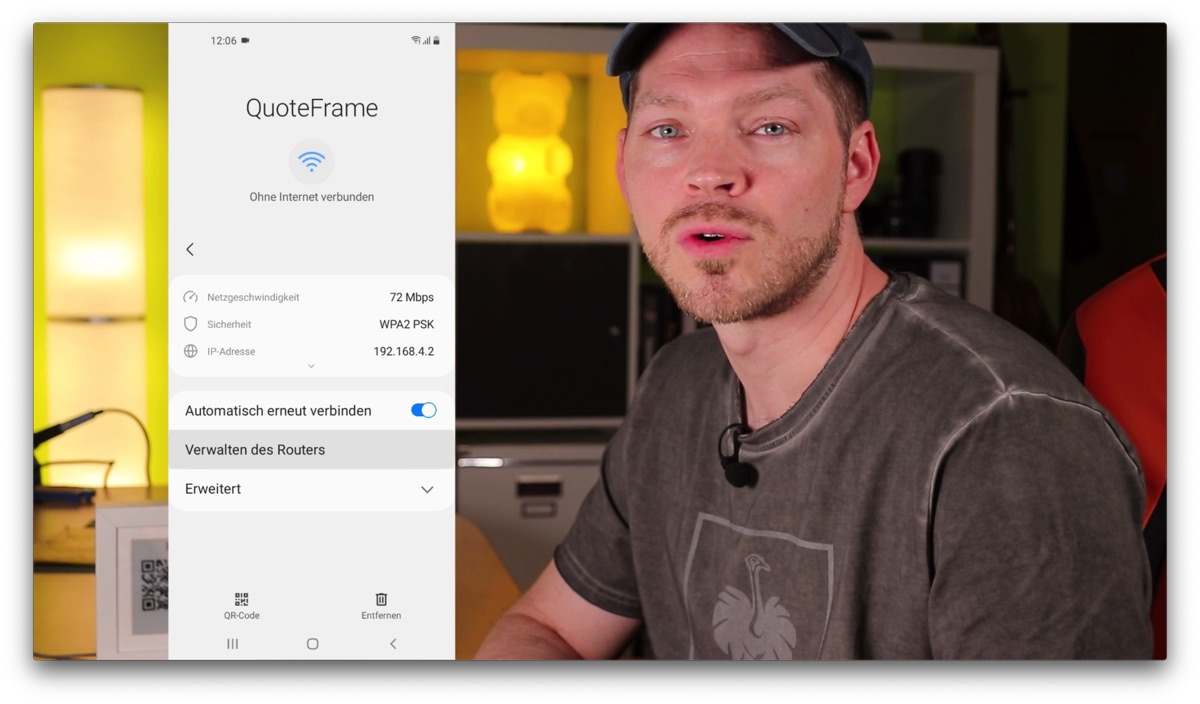
On my Android device it works like this: point the camera at the QR code, Android asks if you want to connect, and you tap YES. Next to the Wi-Fi entry I tapped the gear icon and then Manage router, after which the portal opened.
And If the Portal Doesn't Open Automatically?
Alternatively, after connecting to the QuoteFrame Wi-Fi, you can always open the IP address in your browser. That works in any case. The IP address is also shown on the display.
Computer
On a Mac or PC it basically works the same way: connect to the QuoteFrame Wi-Fi access point. And if nothing opens automatically, open the frame's IP address in your browser.
Step 13
Create Your First Quote
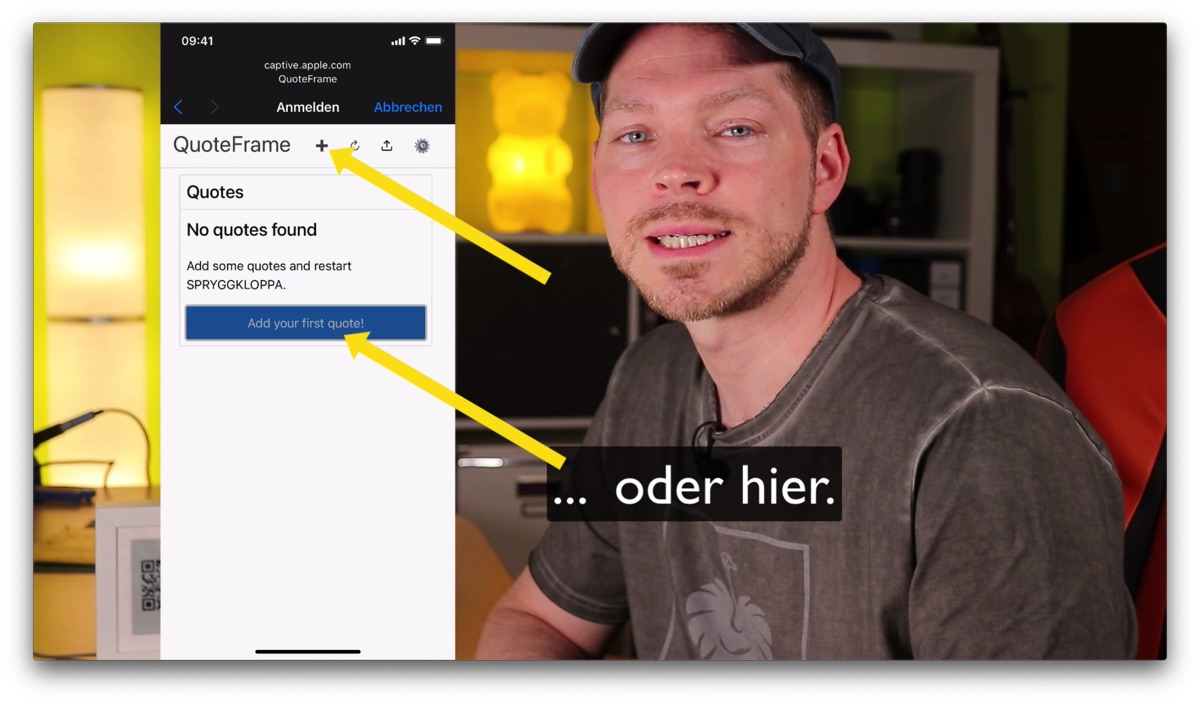
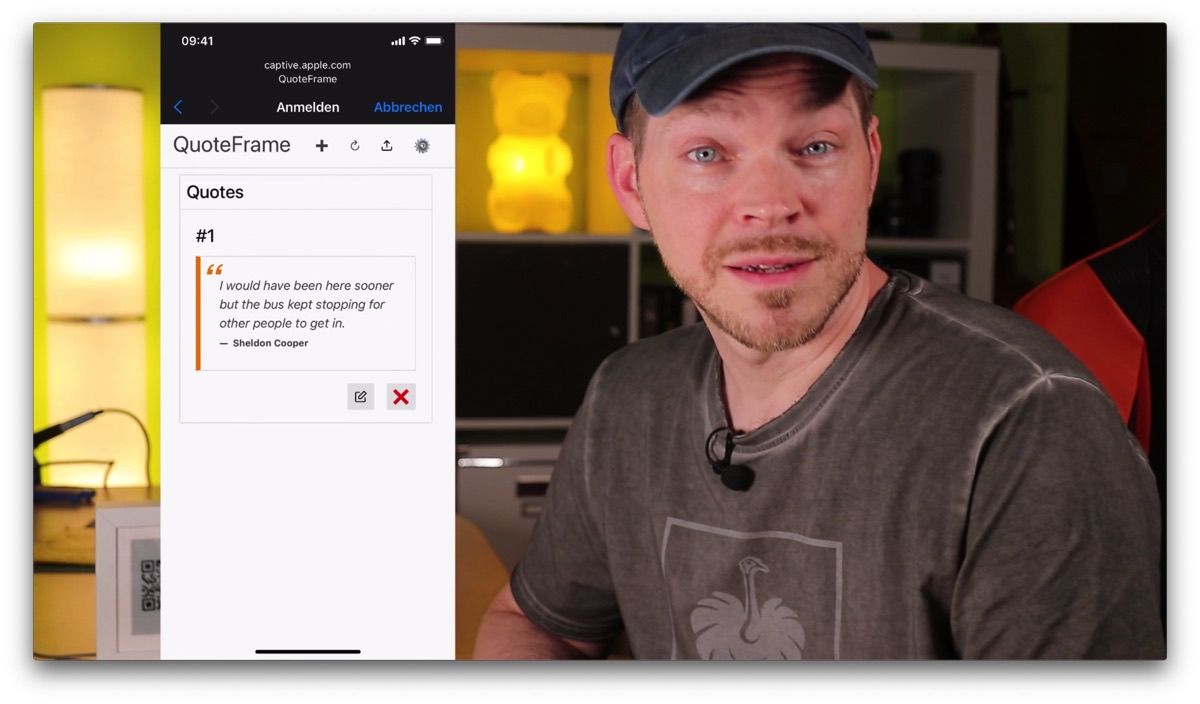
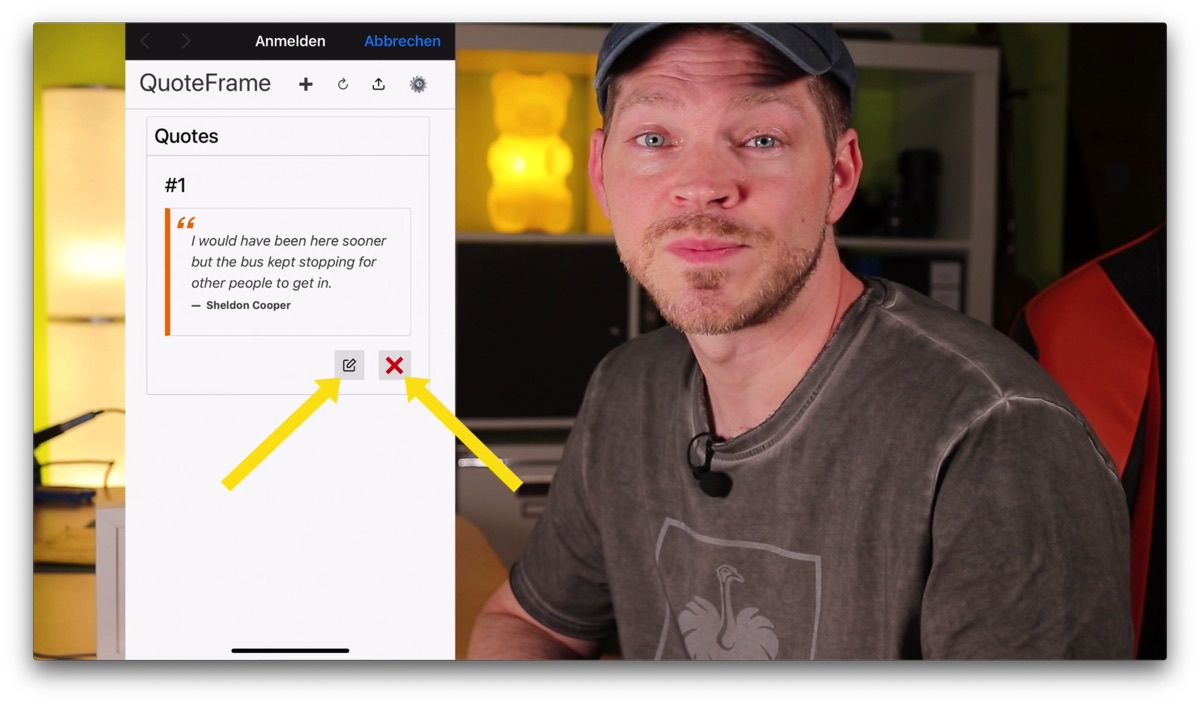
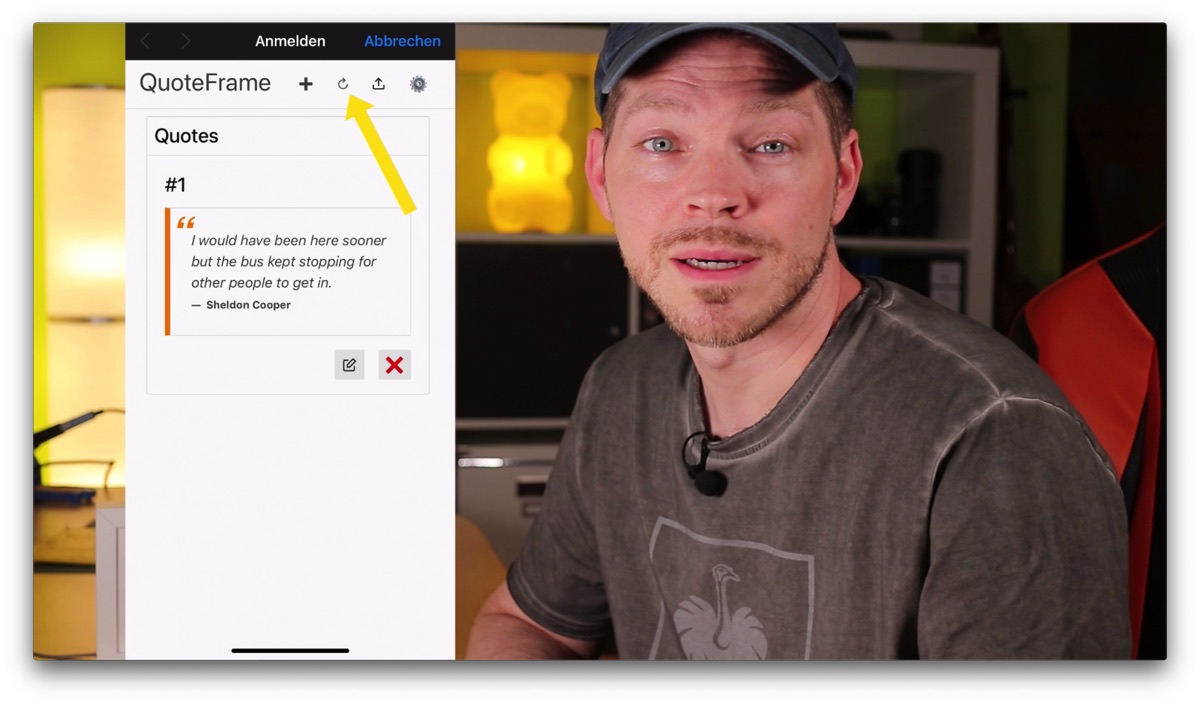
The start page of the portal lists all quotes right away. Below each quote there are two buttons for editing or deleting it.
Attention: the delete button works without a confirmation prompt. The quote is deleted immediately!
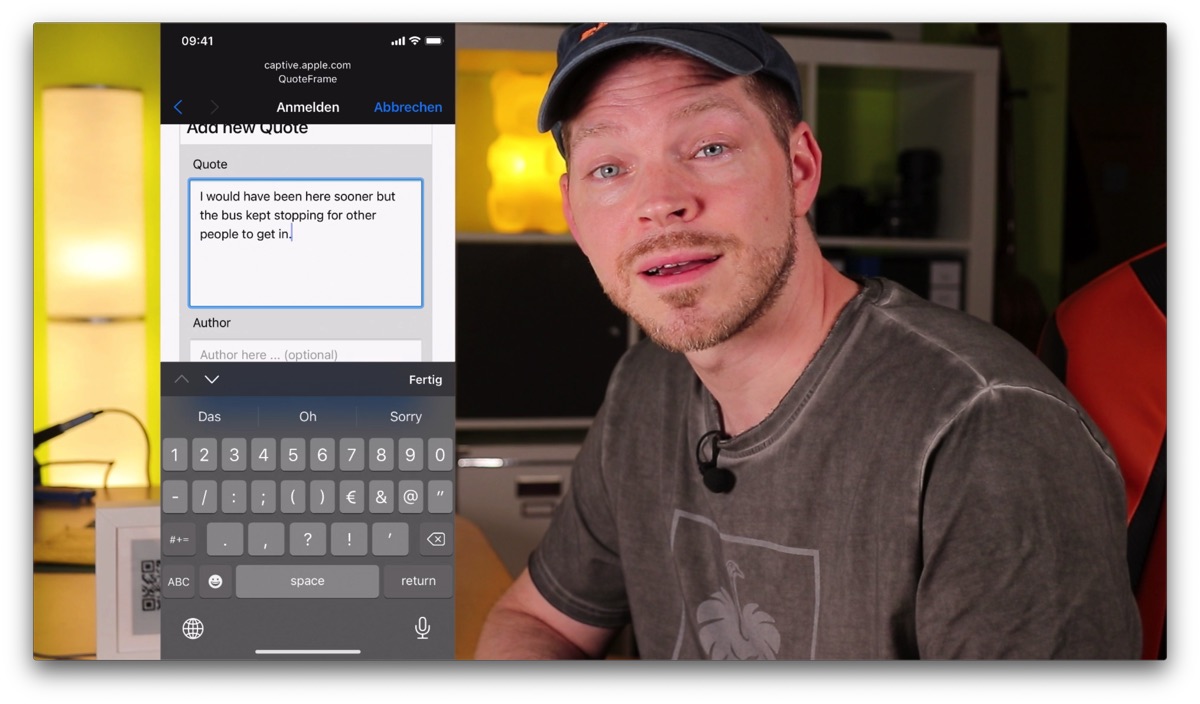
To create a new quote, click on the plus button at the top. Then fill in the text field for the new quote. Optionally, you can enter the author of the quote. Then click on Save.
Keep in mind that the font is currently limited to ASCII characters, i.e. unfortunately no umlauts or eszett. However, these are converted automatically if the software finds any.
Since an update to UTF-8 capable fonts, umlauts are displayed correctly.
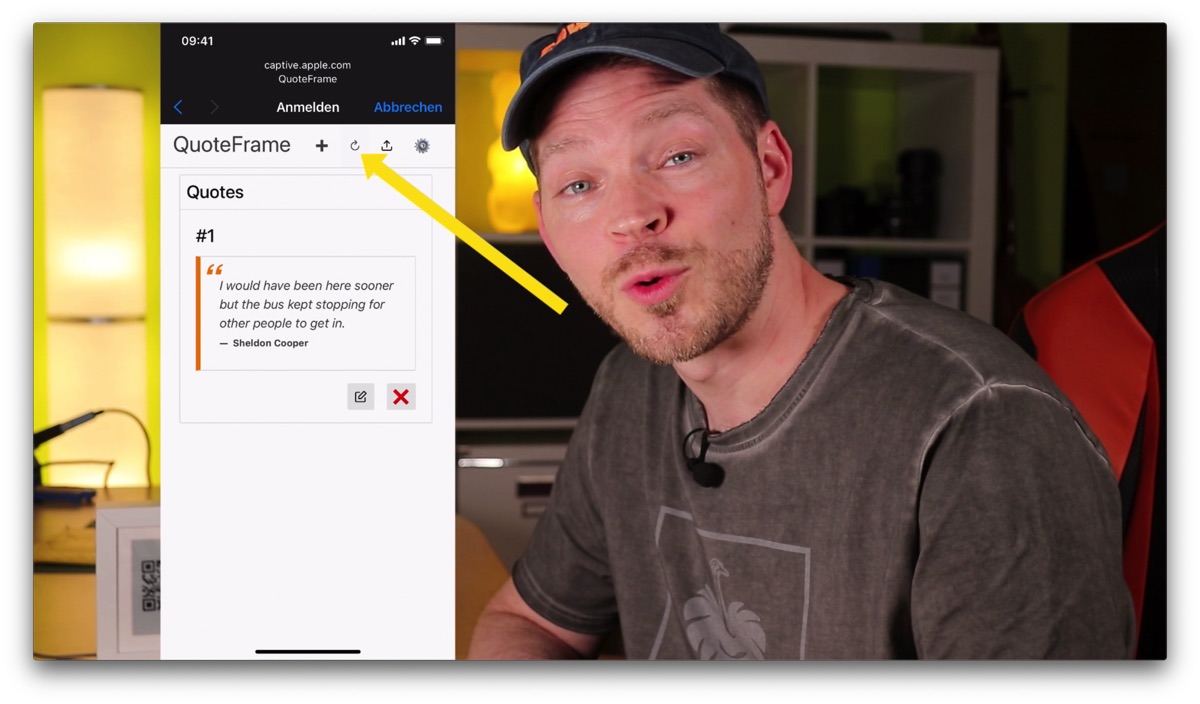
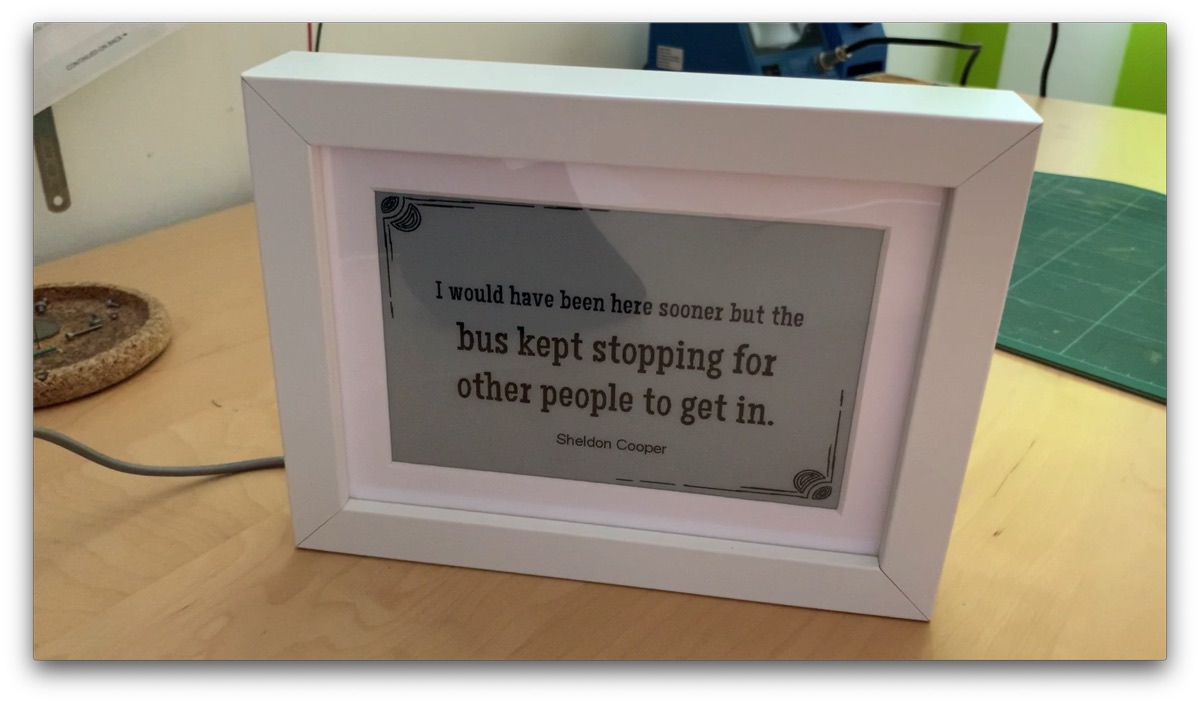
Once you have entered a new quote, click on the Restart button at the top, and the picture frame restarts in normal mode and should display your new quote.
Settings Options in Configuration Mode
The following functions are available in the web portal:
- Home: List of all quotes. Quotes can be edited or deleted here.
- Restart: Restarts the picture frame.
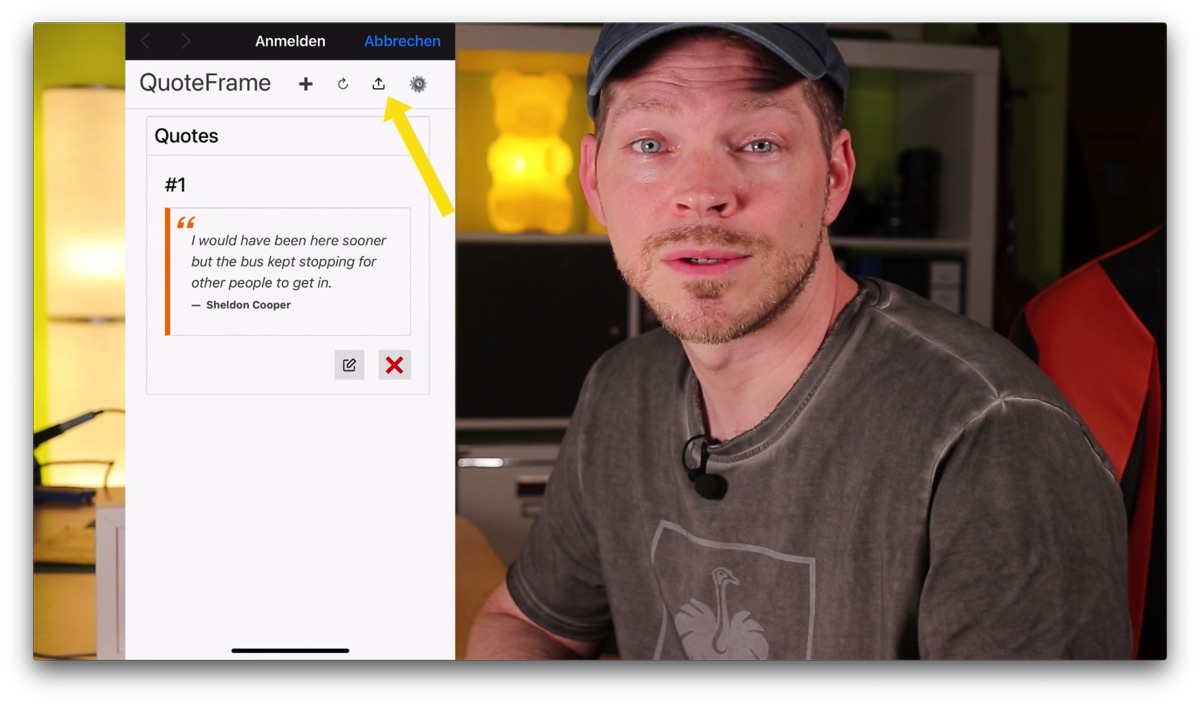
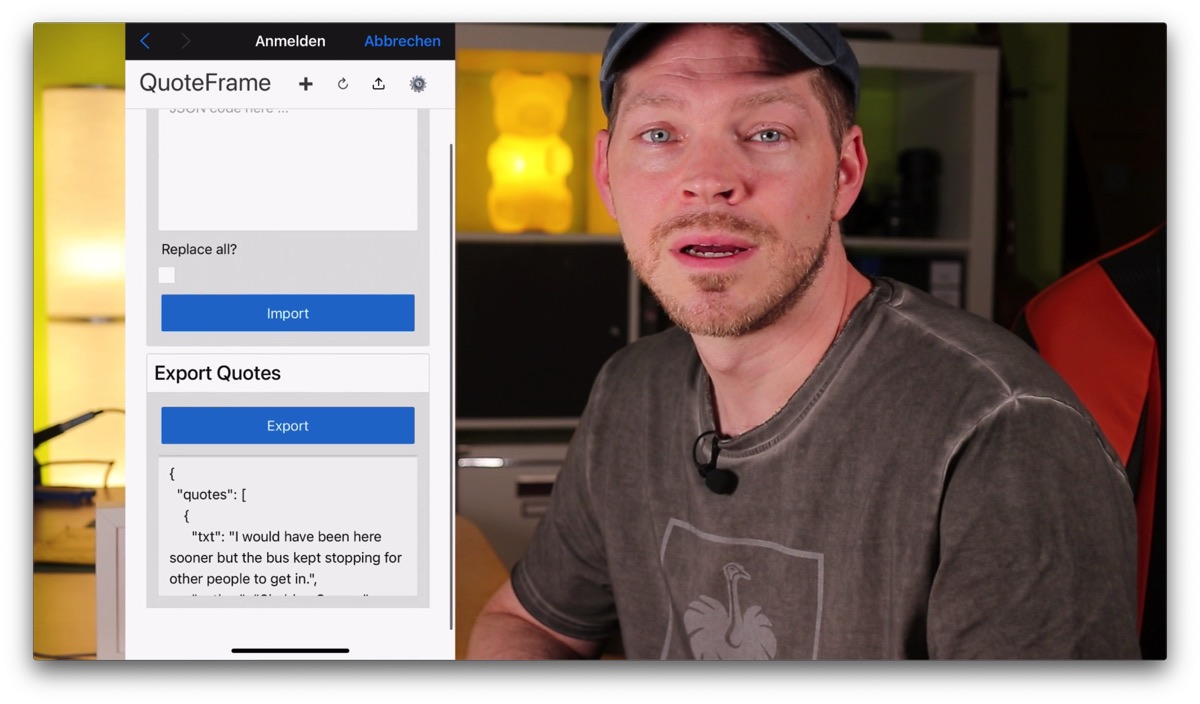
- Import/Export: Here you can export all quotes to a JSON format. And you can import quotes in the same JSON format. This lets you load lots of quotes onto the picture frame very quickly. The best thing to do is to create a few single quotes and then click on Export. Then you can see what the format has to look like. There is also an example further below. The count variable is currently not used and can always be set to 0.
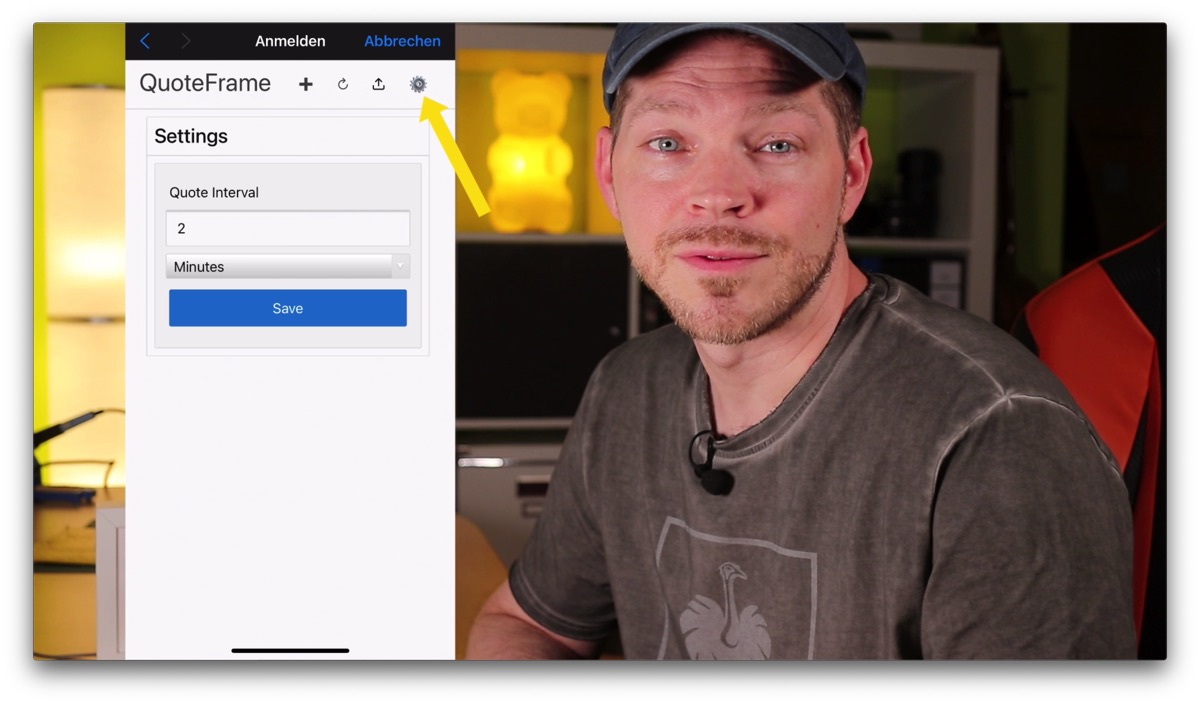
- Settings: Here you can change settings. Currently only how often the displayed quote should change.
{
  "quotes": [
    {
      "txt": "Always be yourself. Unless you can be Batman, then be Batman!",
      "author": "Tony Stark",
      "count": 0
    },
    {
      "txt": "Always code as if the guy who ends up maintaining your code will be a violent psychopath who knows where you live.",
      "author": "Martin Golding",
      "count": 0
    }
  ]
}
Keep in mind that power consumption is much higher in configuration mode, because of the Wi-Fi and the web server that is running.
If you want to enter a lot of quotes, it is best to use the import function with a JSON file. That is the fastest way and uses the least power. Or you connect the micro USB cable, then it doesn't matter anyway.
RAYDIY Newsletter
Subscribe now
and get a free eBook!Outro
So, that was the presentation of my SPRYGGKLOPPA quote frame project.
If you liked the article, please give me a thumbs up on the YouTube video, and feel free to subscribe to the channel.
Keep tinkering, stay healthy, and give away digital quote frames.
Until next time!
Bye 😉
Links & Product Recommendations
Links from the article, summarized for you
Product recommendations from this article
Related Links
RAYDIY Newsletter
Subscribe now
and get a free eBook!