ESP32 Cam + PlatformIO + VS Code
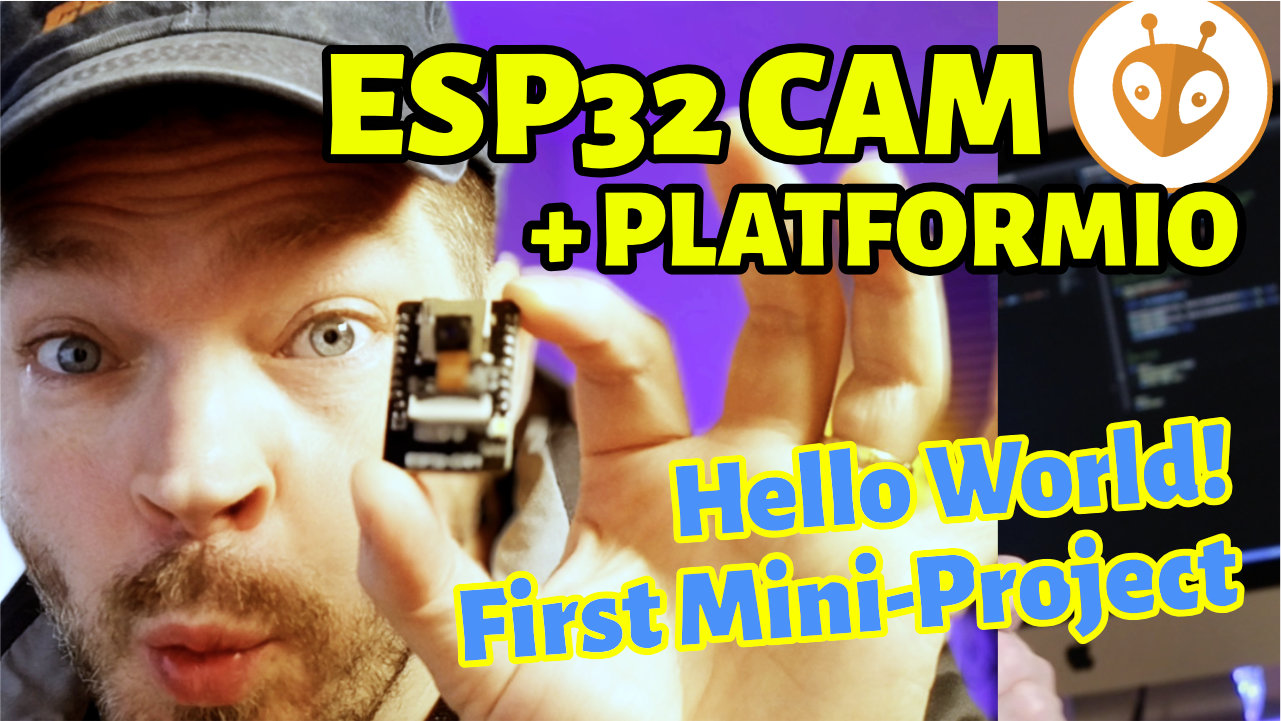
When you learn a new programming language, a “Hello World” as your first project is good practice. It simply prints the words “Hello World” on the screen.
Since microcontrollers (usually) have no screen for output, the blinking LED has established itself as the equivalent of Hello World.
The ESP32 Cam from AI Thinker has a built-in LED that serves as a flash. That's the one we'll make blink now.
This first ESP32 Cam tutorial is all about understanding how to upload code from PlatformIO & VS Code to the ESP32 Cam. That's why the code example is kept very simple. I'll cover more complex examples in future articles.
René Aye
Head of Short Circuits @ raydiy
Keeps his herd of microcontrollers supplied with power and lovingly crafted code.
RAYDIY Newsletter
Subscribe now
and get a free eBook!Prerequisites for This Tutorial
I assume that you have already programmed with the Arduino framework. You should be familiar with concepts like making LEDs light up on a microcontroller. That means you know what the setup() and loop() functions are for. And the functions pinMode(), digitalWrite() and delay() aren't new to you either.
I also assume that you have already installed PlatformIO and VS Code. If not, take a look at my introductory article on PlatformIO first and then come back here.
In this tutorial I'm using the ESP32 Cam model from AI Thinker. I also use an FTDI to connect it to the computer, plus a few jumper cables and a USB cable.
AZ Delivery ESP32 Cam*

Amazon Link*
*
This link is an affiliate link. As an Amazon Partner, I earn from qualified sales.
Connect the ESP32 Cam via FTDI
The ESP32 Cam model from AI Thinker is very widespread, but it has no USB port to connect it directly to a computer. That's why you need an additional FTDI. In my article about ESP32 Cam and FTDI you can read all about it and how to wire the FTDI correctly to the ESP32 Cam. I assume that you have wired the ESP32 Cam and the FTDI as shown at the end of that article.
We can now plug the USB cable into the FTDI and connect it to the computer.
Create a New Project in VS Code and PlatformIO
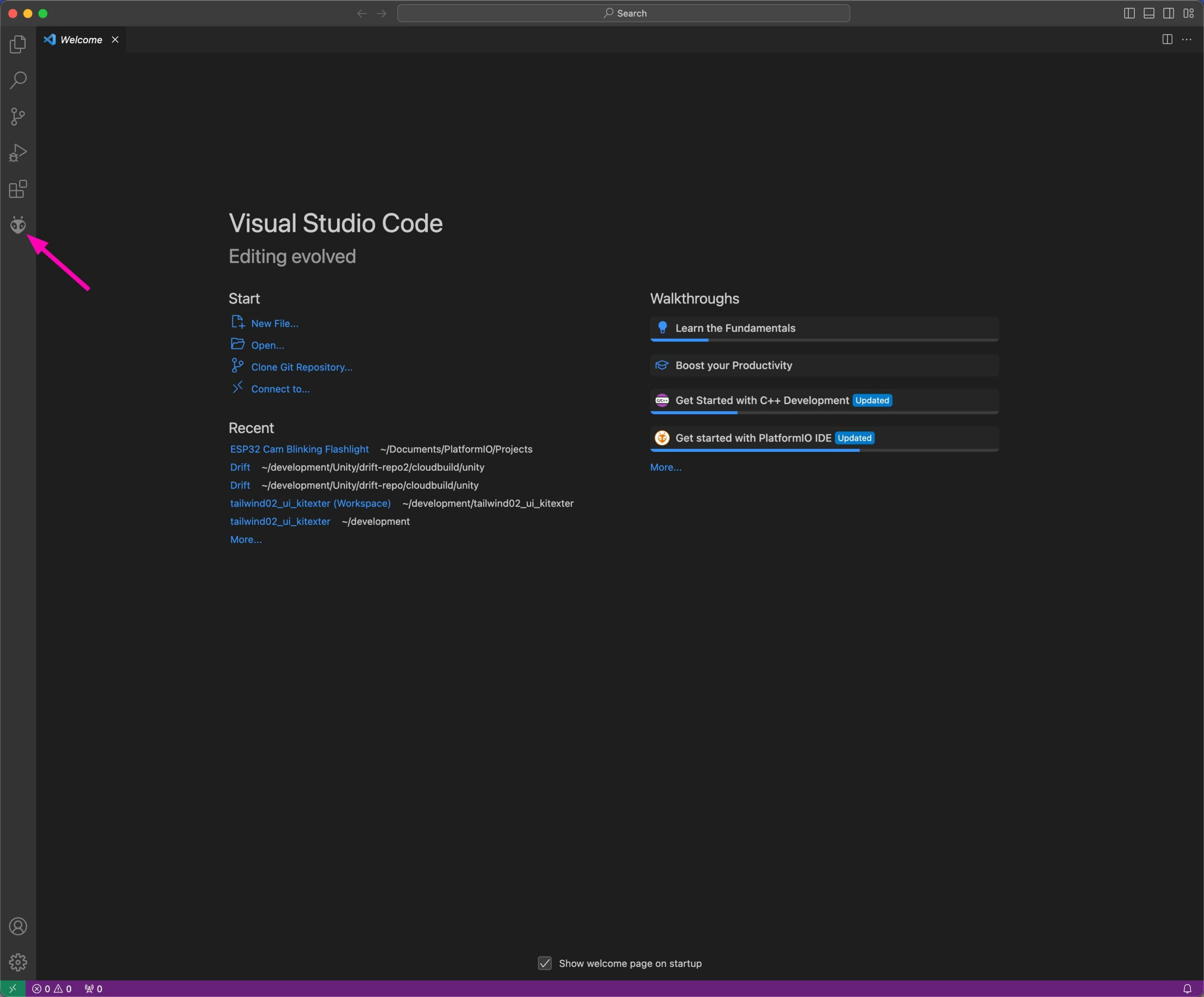
Now start PlatformIO by opening VS Code first. If your last project doesn't open automatically, the screen should look something like this:
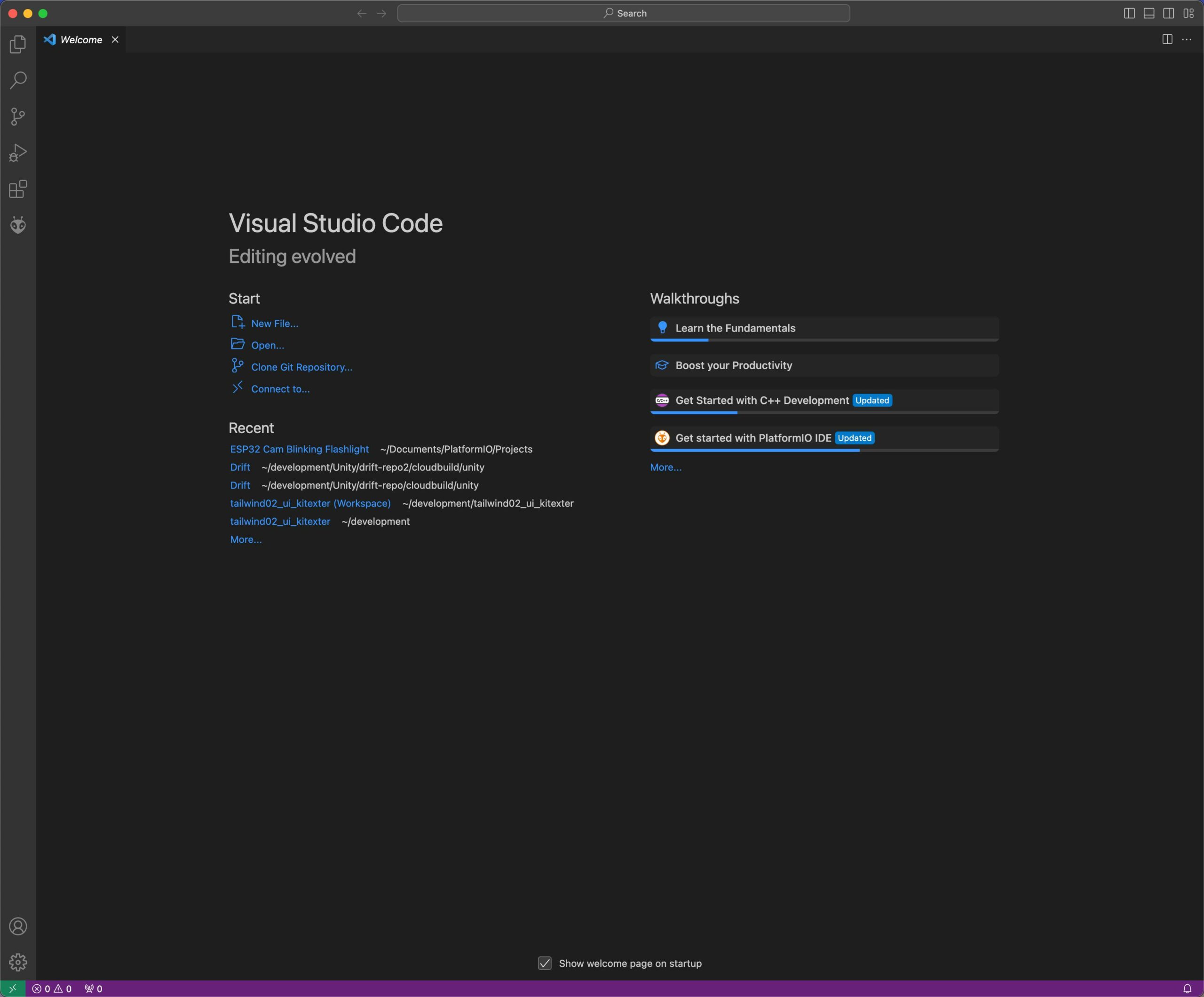
If your last project opens, you can open a fresh VS Code window from the menu at the top via File > New Window. You can then close the other window.
There are usually several ways to get to the area you want in PlatformIO. So if you prefer to click your way there differently, that's perfectly fine too.
To create a new project in PlatformIO, click the numbered items one after the other.
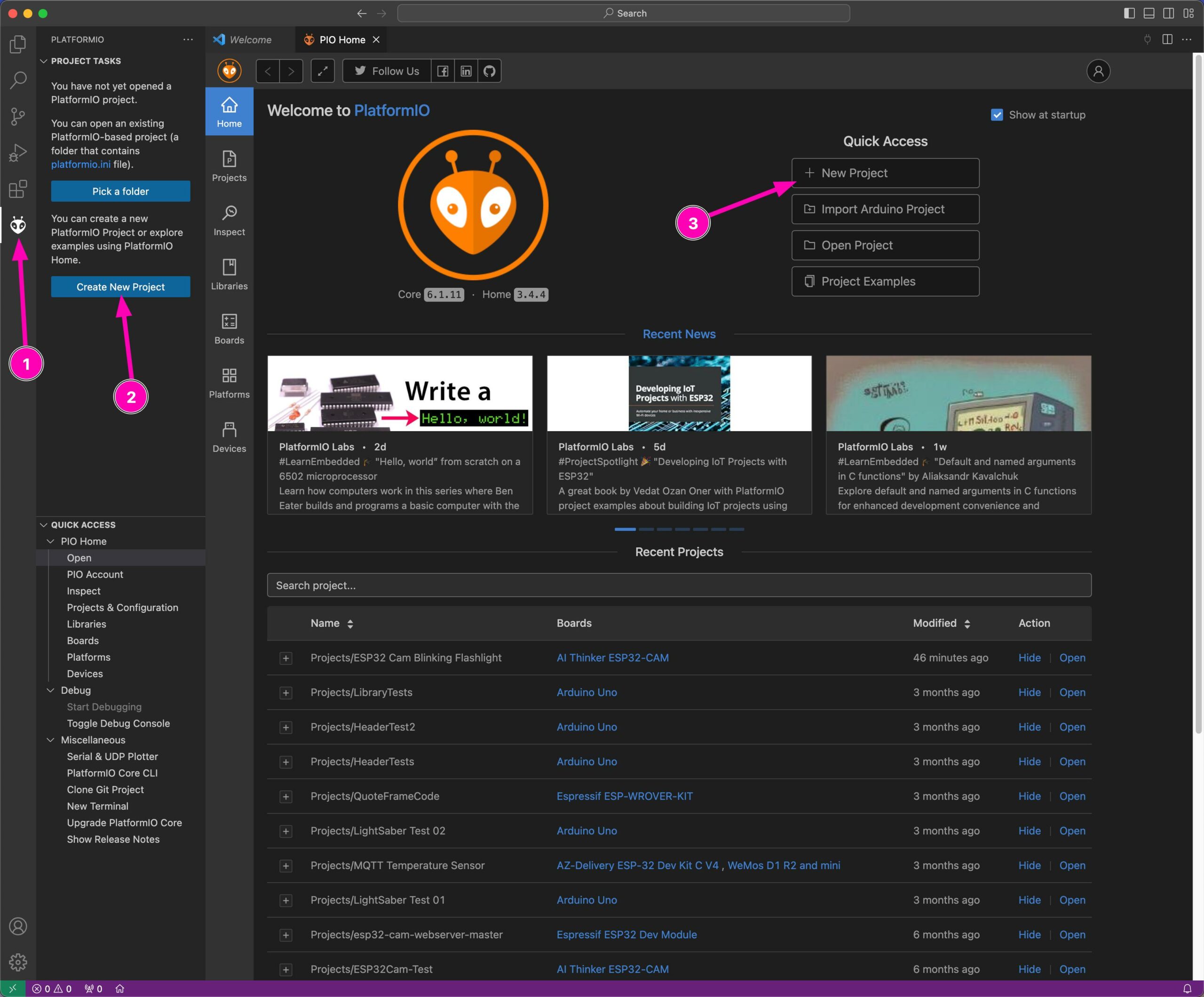
PlatformIO needs a few details for a new project. Use the following screenshot as a guide.
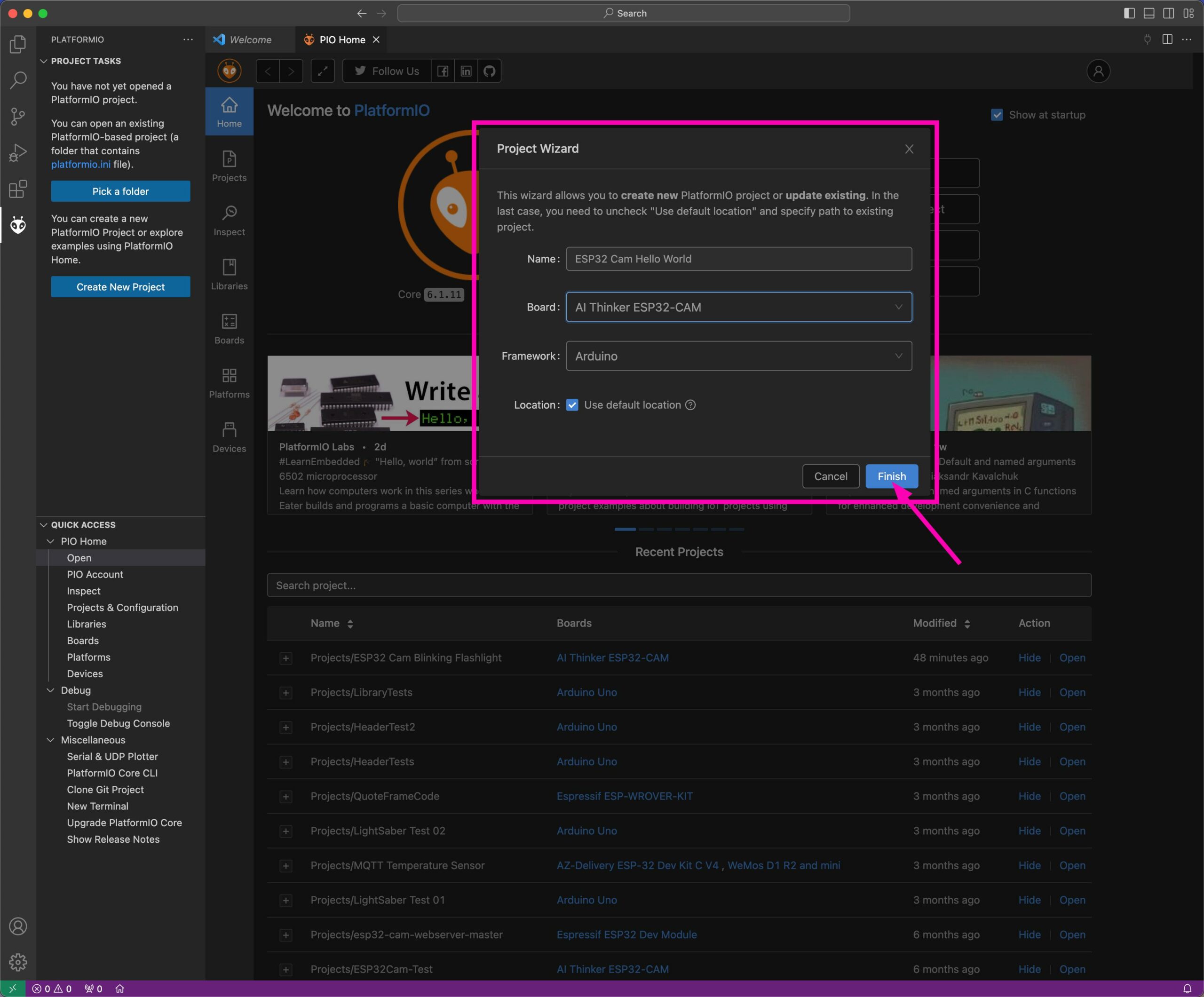
You can choose any name you like, but you should copy the settings for board and framework. I'd also simply leave Location at the default setting, so keep the box checked. Unless you already know what you're doing here.
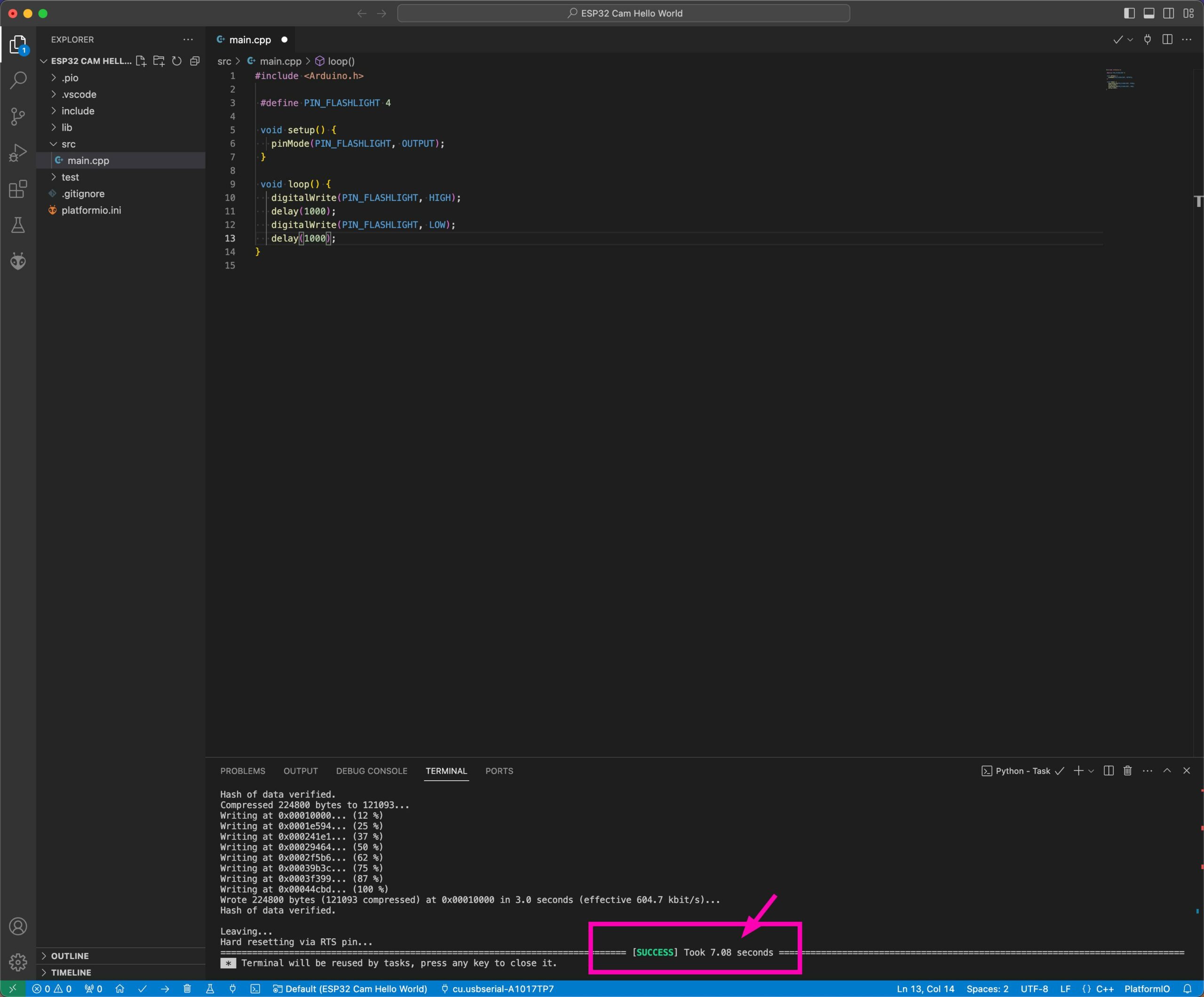
In the file explorer you'll find the current code in the file src/main.cpp. Click this file to open it in the editor. At first you'll see the default code that PlatformIO generates for every new project.
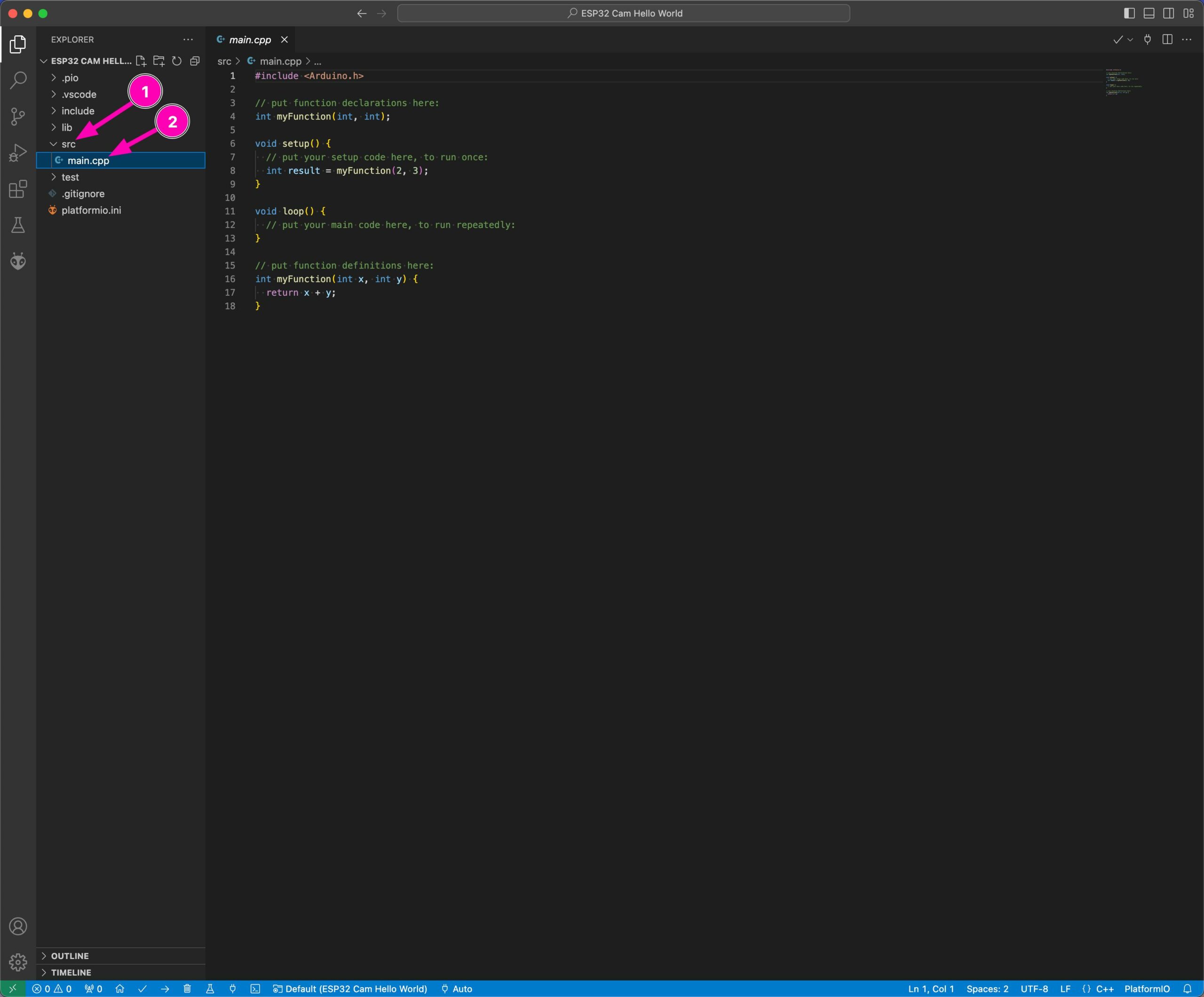
We now need to replace this default code with the following code:
#include <Arduino.h>

 #define PIN_FLASHLIGHT 4

 void setup() {
   pinMode(PIN_FLASHLIGHT, OUTPUT);
 }

 void loop() {
   digitalWrite(PIN_FLASHLIGHT, HIGH);
   delay(1000);
   digitalWrite(PIN_FLASHLIGHT, LOW);
   delay(1000);
}
Copy the code and paste it into the file.
At the top, a placeholder named PIN_FLASHLIGHT is created. When the code is compiled, this placeholder is replaced with the value 4.
In this case, 4 is the pin number of the ESP32 Cam's flash LED.
In the loop() function, the flash is now switched on and off for one second each.
WARNING: the flash LED is very bright!
FTDI FT232RL USB to TTL Adapter 3.3V + 5V*

Amazon Link*
*
This link is an affiliate link. As an Amazon Partner, I earn from qualified sales.
Check the Code for Errors
To check whether the code compiles without errors, you can use this checkmark icon in the blue status bar at the bottom (see the marking in the image, bottom left).
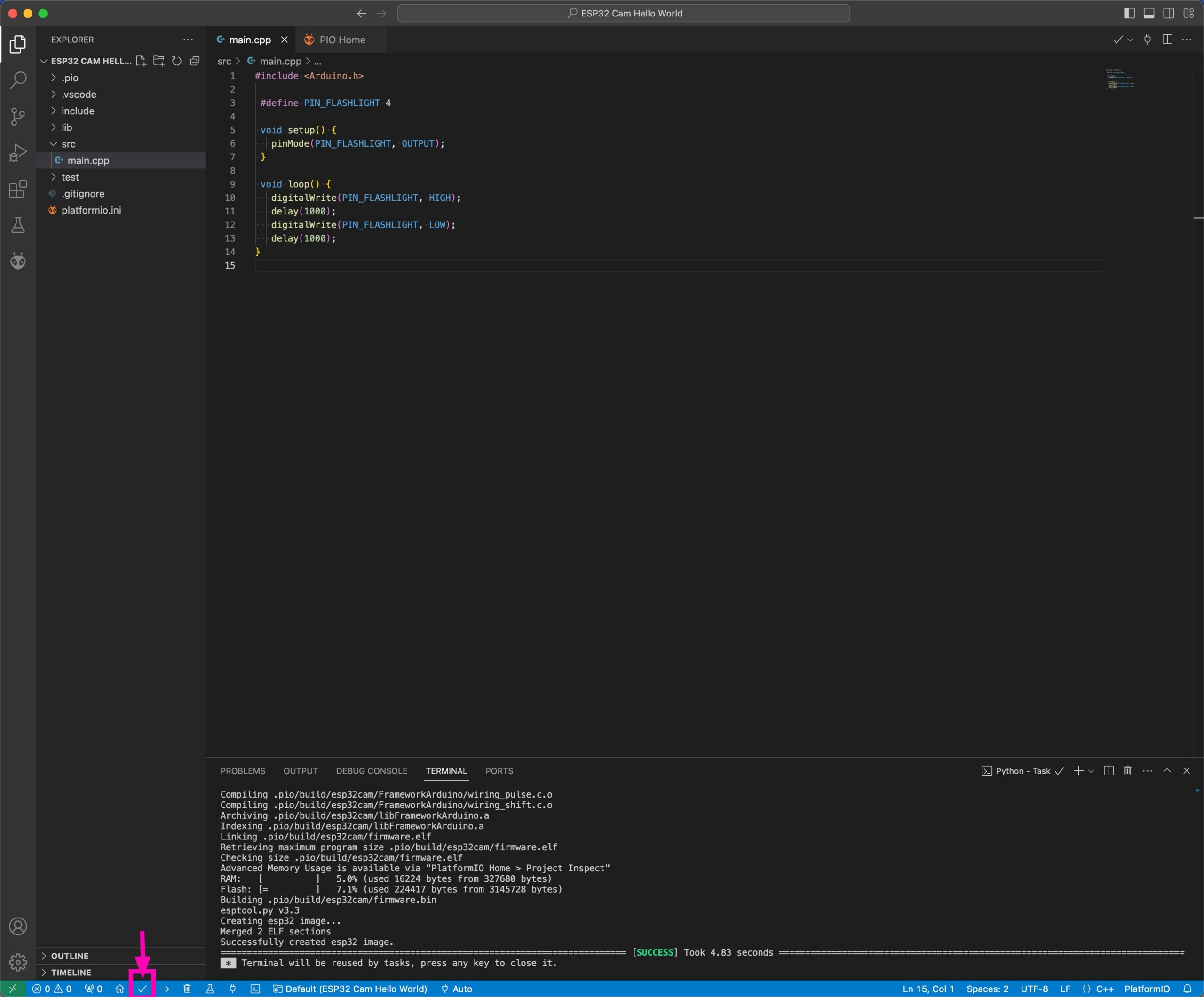
The first time, the required libraries are downloaded and compiled, so it takes a little longer.
If a success message appears in the console (as in the image above), the code compiles.
Before we upload the code to the board, let's first check whether PlatformIO has detected the FTDI.
Check FTDI and ESP32 Cam in the Device List
To do this, click the PlatformIO logo (the alien head) in the icon bar on the left and then open the list of detected devices via Devices. Either via the icon or from the Quick Access Menu.
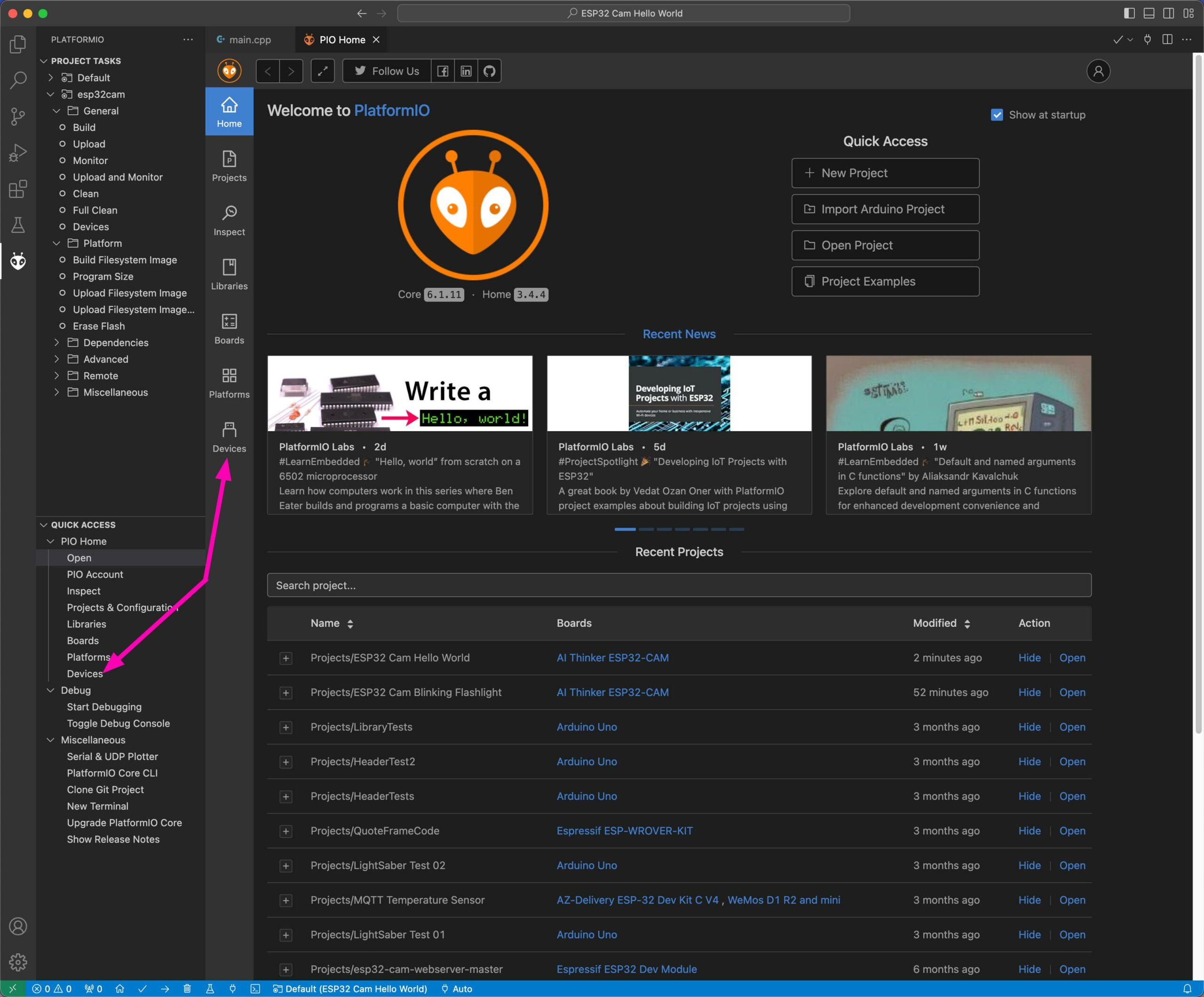
On a Mac, my FTDI shows up in the overview like this:
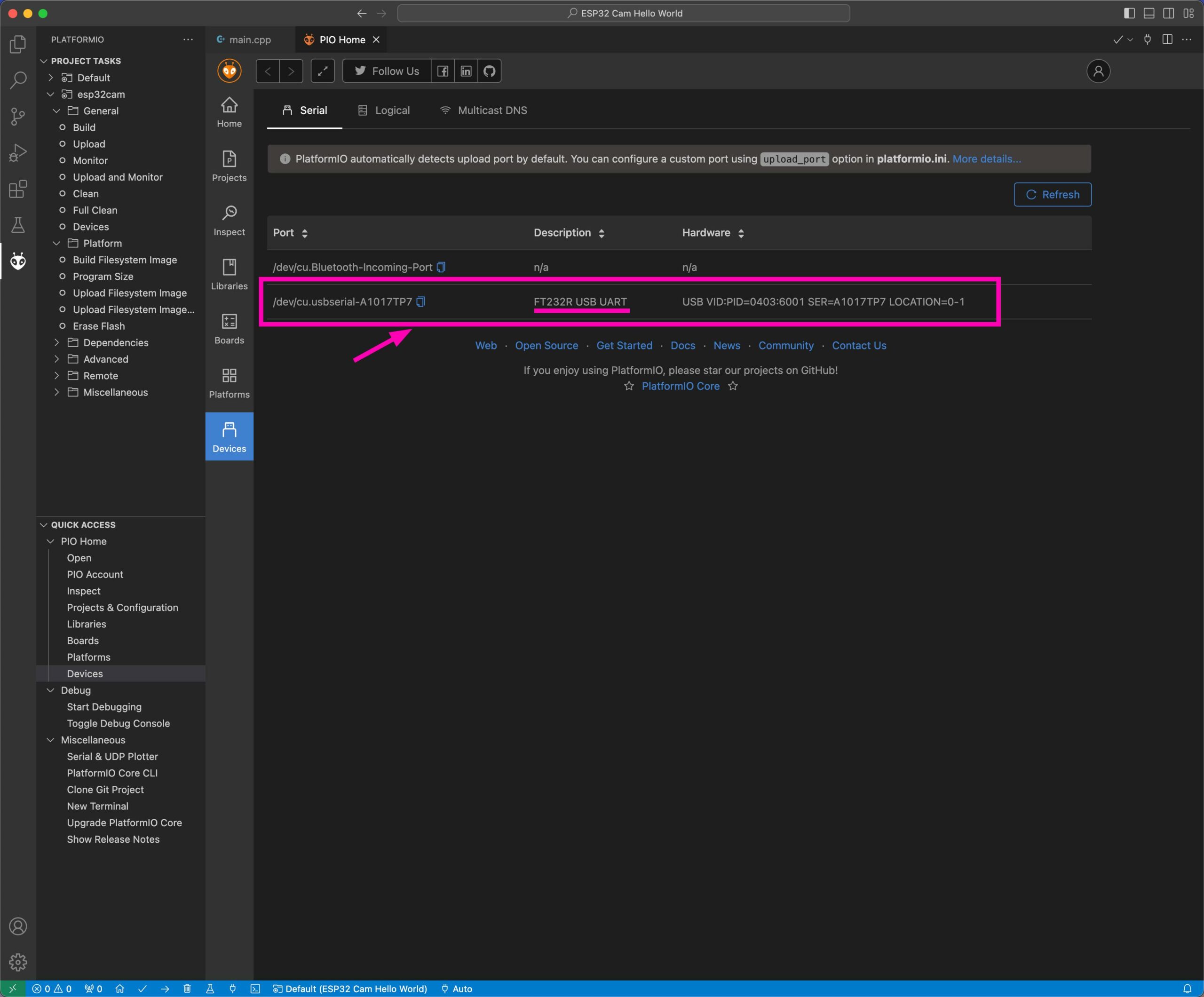
And on a Windows computer, a COM port will be shown in the Port column.
If your FTDI doesn't show up, click the Refresh button at the top right to reload the list of connected microcontrollers. If it still doesn't appear, check the notes on possible errors at the end of the article.
If your FTDI shows up in the device list, as in the image above, we can now upload the code.
Upload the Code to the ESP32 Cam
You can switch back to main.cpp, but it isn't really necessary. The code doesn't have to be open to upload it.
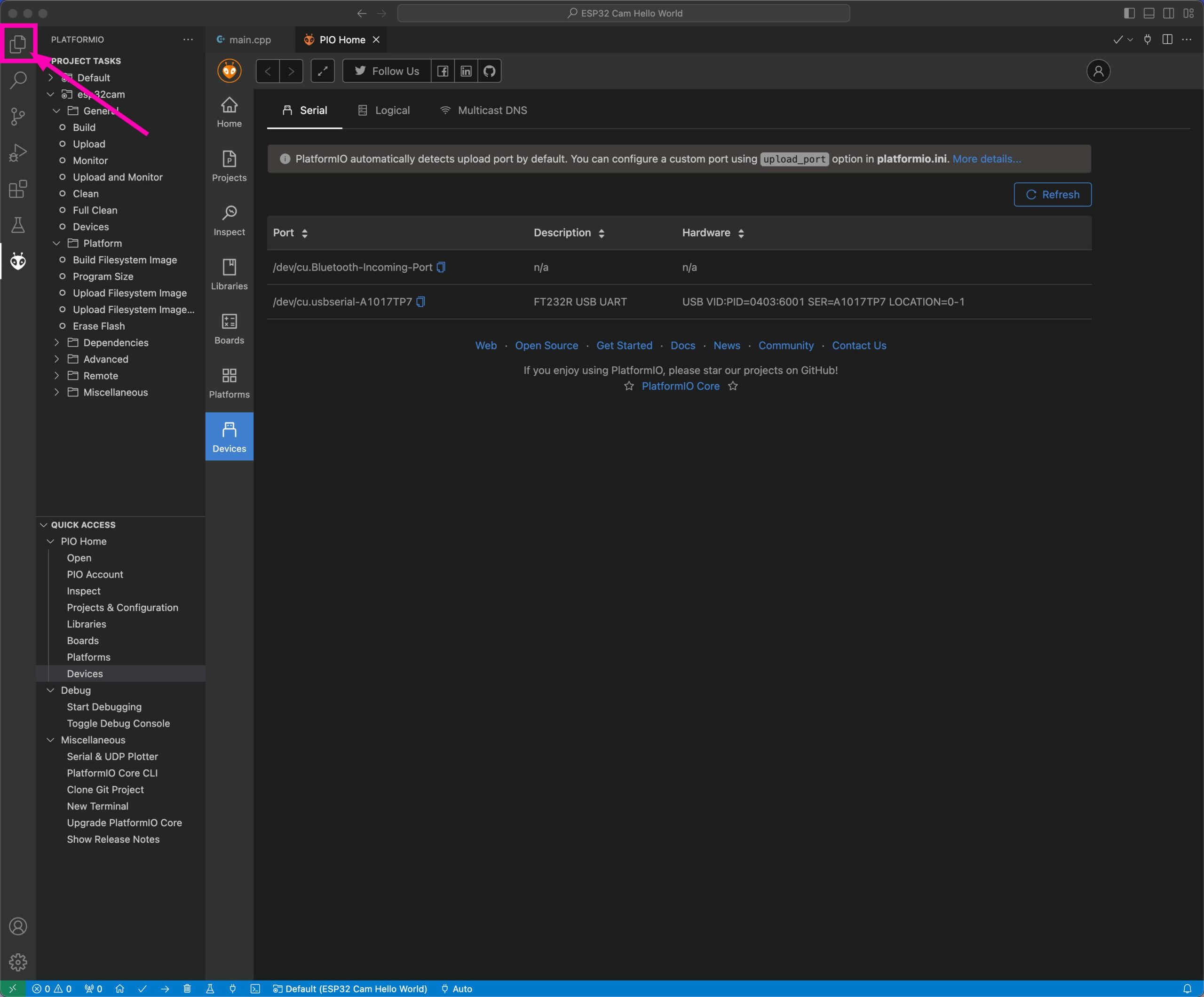
Down in the status bar next to the icons you can see which device is selected for the upload. If you have several microcontrollers connected, you can pick the right one here.
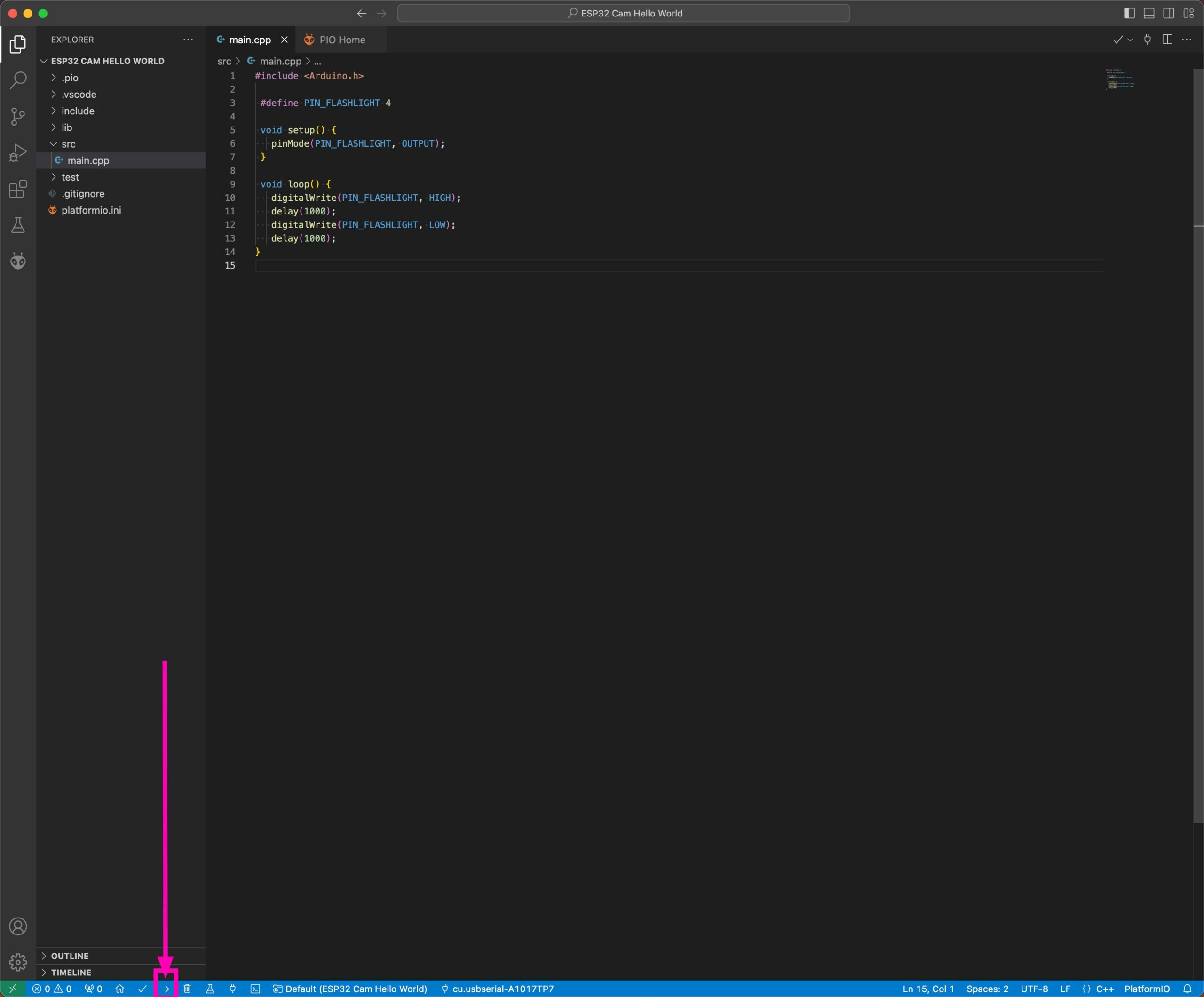
Now use the arrow icon in the blue status bar at the bottom to start the upload.
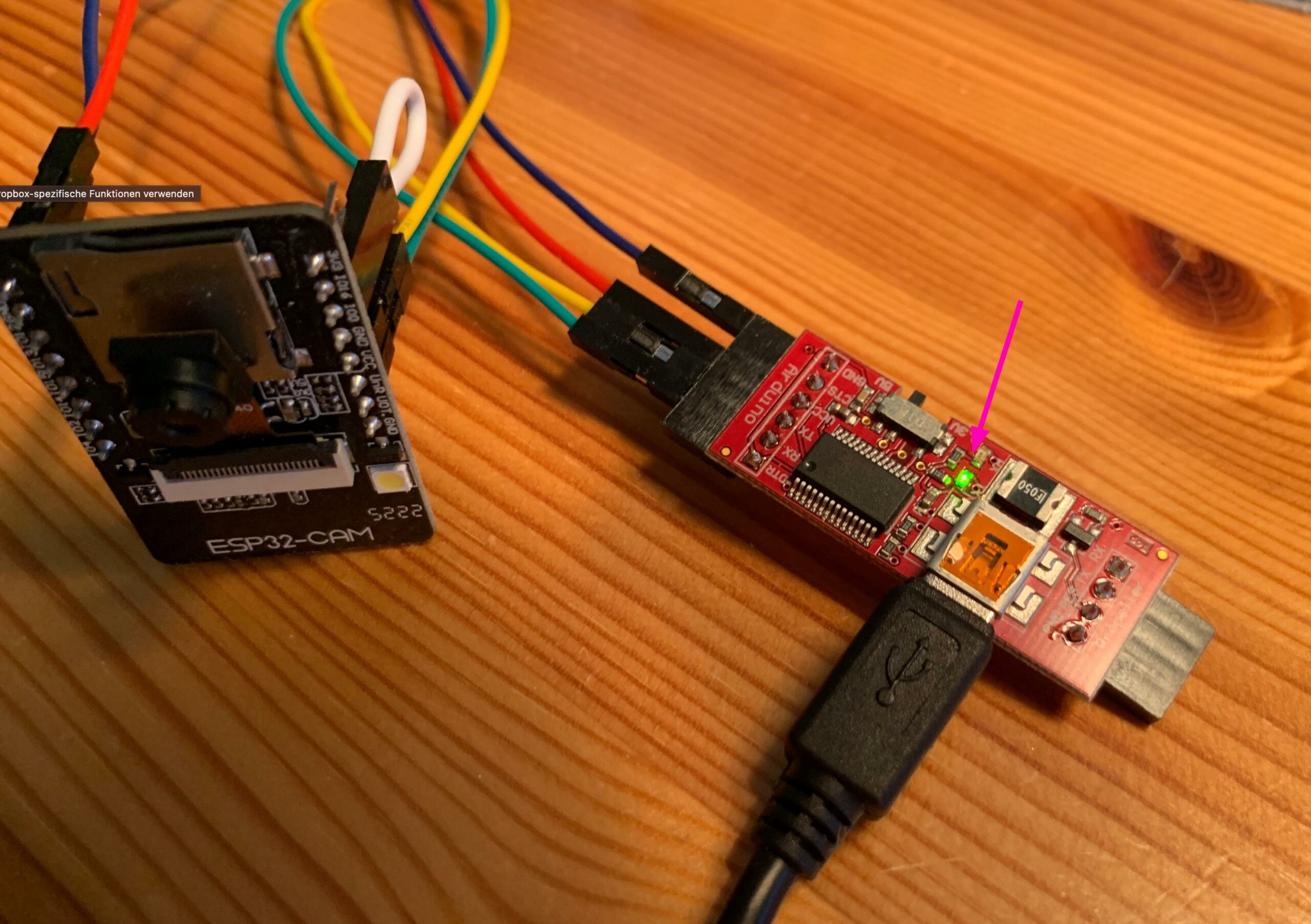
LEDs on the FTDI should now be blinking, signaling that the code is being transferred to the ESP32 Cam.
Once a success message appears in the VS Code console, the process is complete.
Run the Program on the ESP32 Cam
Since the ESP32-Cam is in boot mode, the ESP32 Cam can't restart automatically.
That's why you now need to remove the jumper for boot mode and press the reset button on the ESP32 Cam. After that, the new program should start right away and the flash should begin to blink.
If you're wondering what this jumper is all about and why you have to enable and disable boot mode manually, check out my article on ESP32 Cam and FTDI.
Outro
You've now learned how to upload code to the ESP32 Cam, which has no USB port, using PlatformIO, VS Code and an FTDI. The same principle applies to all microcontroller development boards without a USB port, such as the Arduino Pro Mini.
For now, we've only made the flash blink. But that means you managed to connect to the board and upload code to the ESP32 Cam.
In upcoming articles we'll look at how to take photos and videos with the ESP32 Cam, save them to the SD card and create a live video stream.
Possible Errors
If you run into error messages during this tutorial, here are a few tips that might help.
The FTDI or the FT232 chip doesn't show up in the device list
Possible solutions:
- Try connecting the FTDI before you start PlatformIO and VS Code
- Check whether the FTDI needs drivers, see also FTDI's documentation for your operating system: https://ftdichip.com/document/installation-guides/
- Restart your computer
The VS Code console shows an Upload Failed error instead of Upload Success
Possible solutions:
- Check whether your FTDI really shows up in the device list
- Check the wiring between the FTDI and the ESP32 Cam
- Make sure the FTDI is set to 5V
- Check whether the ESP32 Cam is in boot mode (jumper cable)
- After plugging in the jumper cable for boot mode, press the reset button on the ESP32 Cam board once more before you start the upload
AZ Delivery ESP32 Cam*
Amazon Link*
*
This link is an affiliate link. As an Amazon Partner, I earn from qualified sales.
Links & Product Recommendations
Product Recommendations From This Article
Links on the ESP32 Cam
ESP32 Cam + PlatformIO: Surveillance Camera with Live Video Stream via Webserver
ESP32 Cam Video Tutorial: How to Build a Surveillance Camera in a Few Steps and Stream the ...
ESP32 Cam FTDI – Here’s how to wire a microcontroller when it does not have a USB port
How can you flash your ESP32 Cam without a USB port? You will need what is known ...
ESP32 Cam – Discover the best boards: The ultimate list of 12 models – How to make the right choice for your project!
With this blog article, I am starting a series dedicated exclusively to the ESP32 Cam board. Here ...
RAYDIY Newsletter
Subscribe now
and get a free eBook!