

German video only, but you can use YouTube’s automatic translation and subtitling feature.
Screws can be pretty annoying sometimes. The right little screw is often not around in sufficient quantity.
On top of that, you have to keep turning them forever. And especially in the prototype phase, you end up removing your board with the microcontroller quite often. I have a neat solution for you, I call the whole thing:
PCB Clips.
Update: You no longer have to adjust the clips in FreeCAD or Fusion360 yourself. Enter your board’s dimensions in the PCB Clip Generator and download the matching clips right away, as STL files with the clip and its mirrored counterpart. It runs in your browser, nothing to install.
The FreeCAD and Fusion360 instructions below are still here for anyone who wants to modify the model itself.
The key facts summarized for you
How Do the PCB Clips Work
- Boards and microcontrollers can simply be clipped in for mounting, no screws needed.
- The PCB clips are printed on a 3D printer and glued in the right spot in your enclosure.
- PCB clips can be adjusted in FreeCAD or Fusion 360 to fit the exact size of your board. You only need to change three numbers in a table: the shorter side of the board, the thickness of the board, and the distance to the base or enclosure.
- Tall components on the board can be accounted for by entering the distance to the base or enclosure.
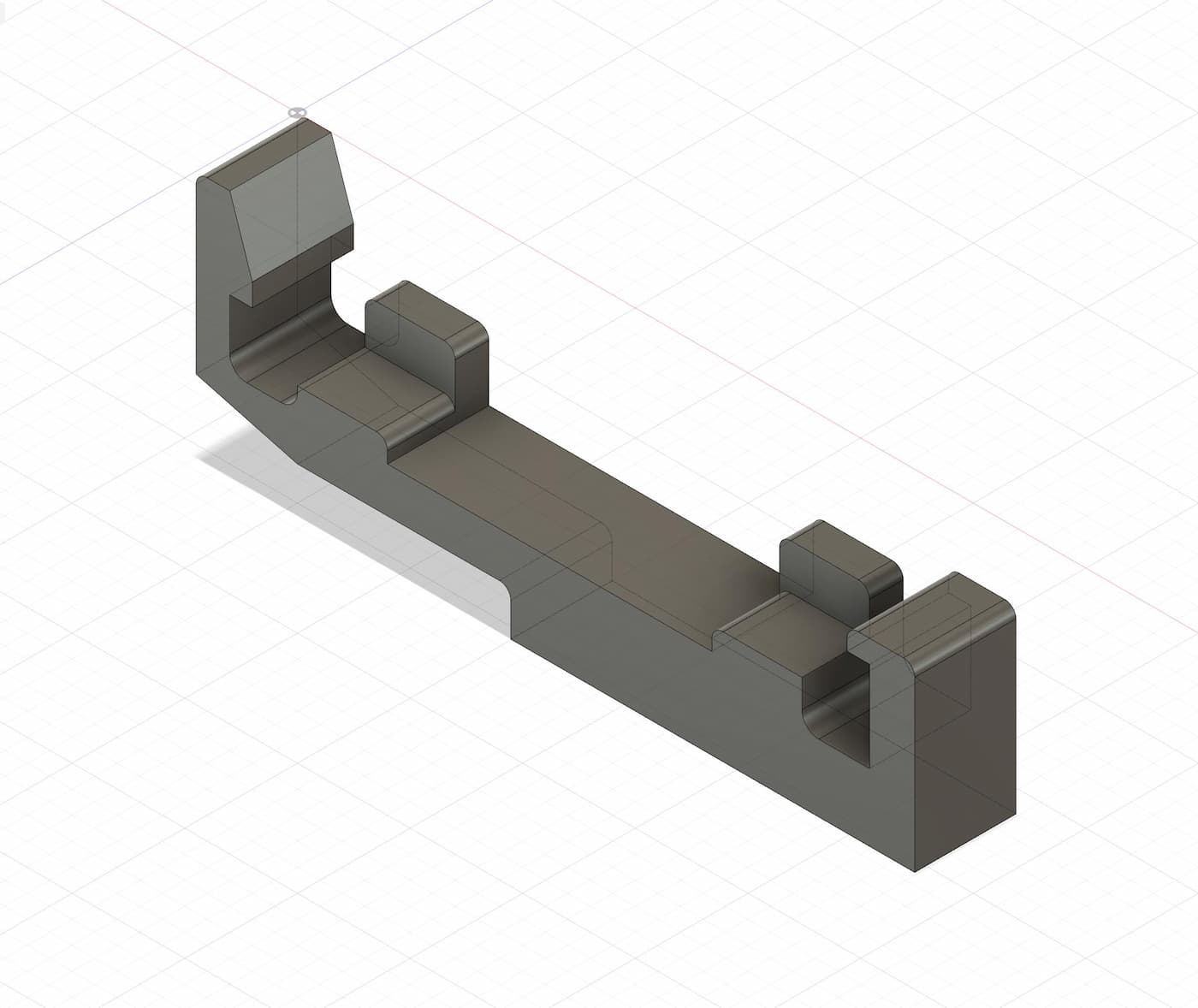
The PCB clip
Which Boards Can I Mount With These?
PCB stands for Printed Circuit Board. In this article I use it as a generic term for all boards that might come up in your project. Be it microcontrollers, self-etched boards, perfboards or even boards from the 3D printer.
Boards from the 3D printer? Yes, that works too: I made a video about it (in German).
Note: Components may be placed so awkwardly on a board that the PCB clips unfortunately can't be used. Also, I haven't tested the PCB clips with very large boards yet, only with microcontrollers like the ESP32 or similar models.
Let's take a look at how to bring the clips to the right size for your board and how to use them.
Customize PCB Clips in FreeCAD
The customization is done really quickly, since I built the CAD model parametrically. So you only need to adjust three numbers in a spreadsheet, done.
First, you need the length of one of the sides of the board. Usually this will be the narrower side.
Then you need the thickness of the board. For my boards I always measured 1.6 mm, which seems to be a standard.
If you use one of my 3D printed boards, for example, those are of course much thicker.
Finally, you need to check whether there are very tall components on the underside of the board. So we also need the minimum distance between the board and the bottom side of the clip, or the floor of the enclosure.
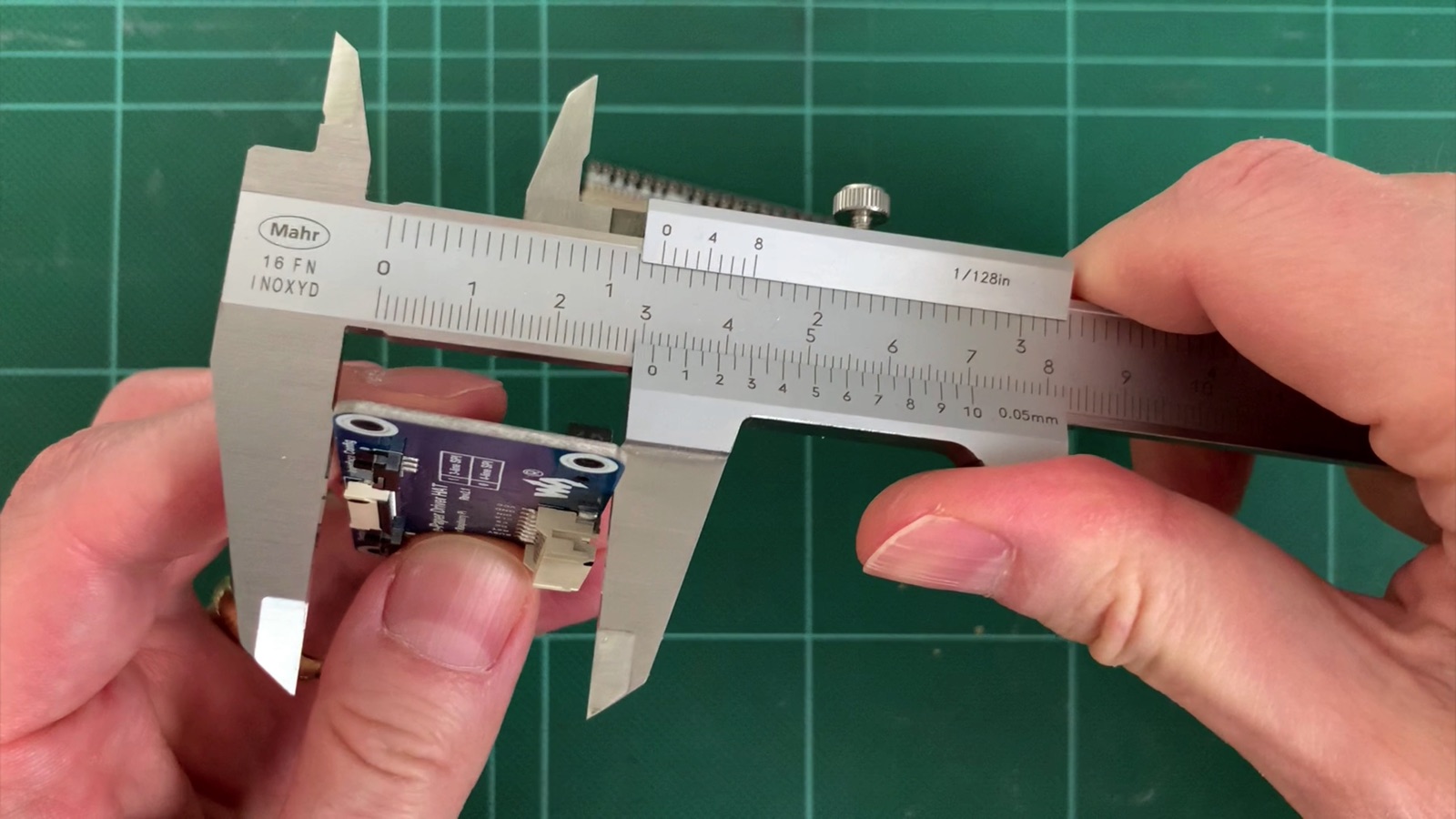
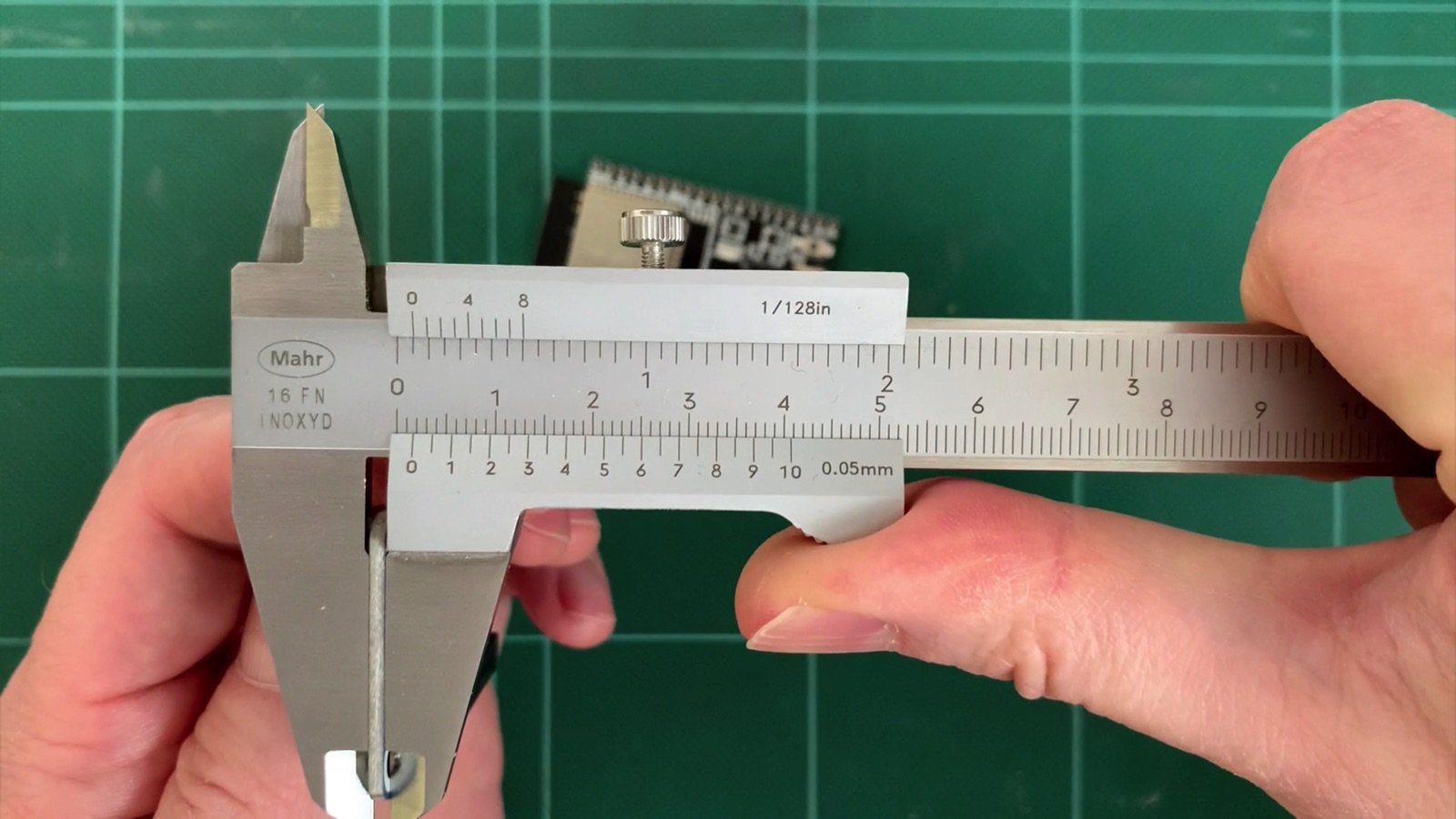
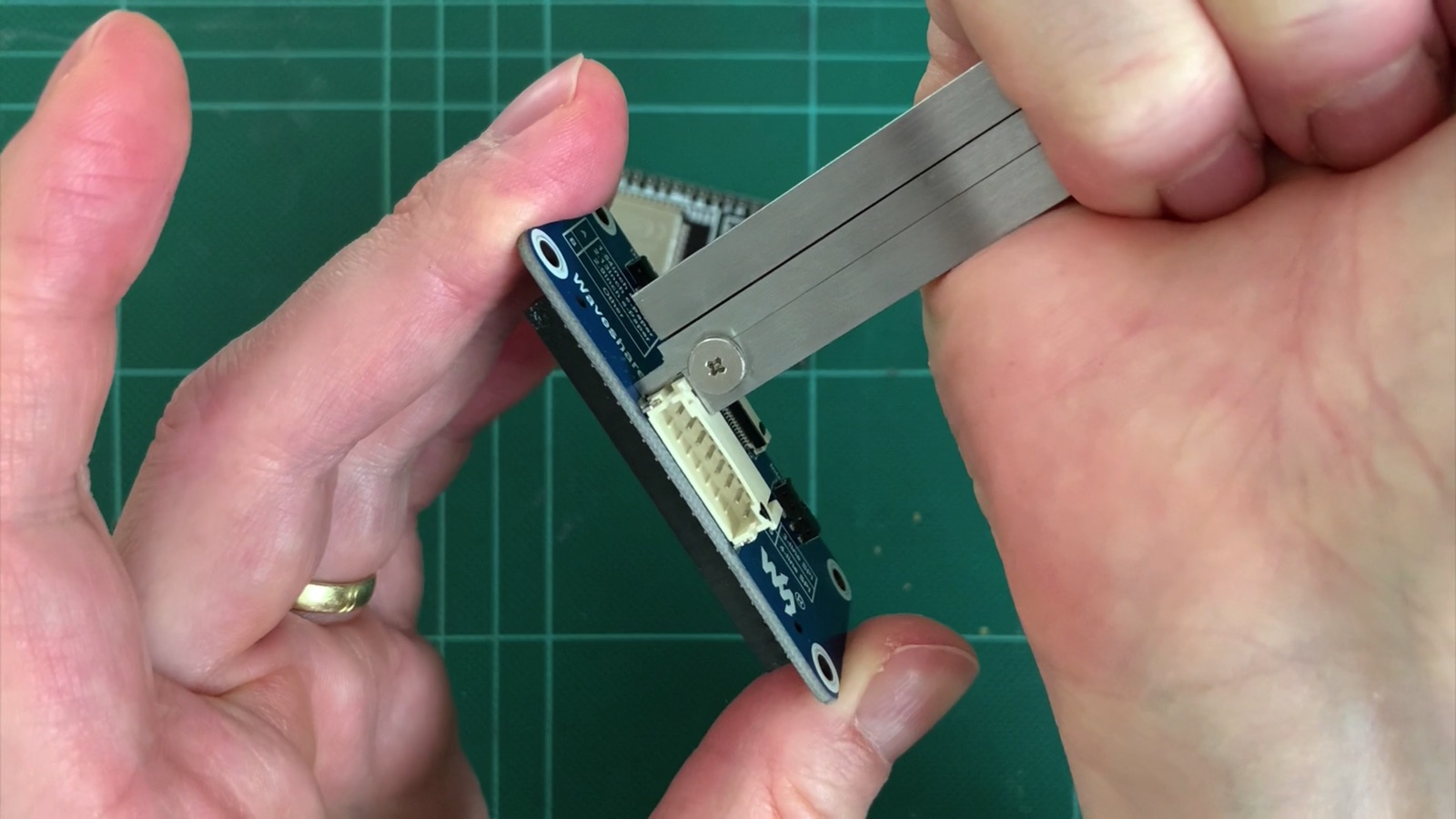
Distance to the base
Download the project file from GitHub and open it in FreeCAD.
Alternatively, you can download this ZIP file directly if you don't want to click your way through GitHub. For FreeCAD you need the file with the extension *.FCStd.
On the left in the Combo View there is a spreadsheet. Click on it once and the spreadsheet editor opens. It works much like an Excel file.
Now enter your values in the Value column:
| PCB Size |
The narrow side of the PCB |
| PCB Thickness |
The thickness of the PCB |
| Distance to Base |
The distance between the PCB and the underside where the clip is glued on. Increase it if, for example, there are large, tall components on the PCB. |
| Clip Thickness |
The thickness of the clip. Increase it for more stability, but the clip also gets stiffer. |
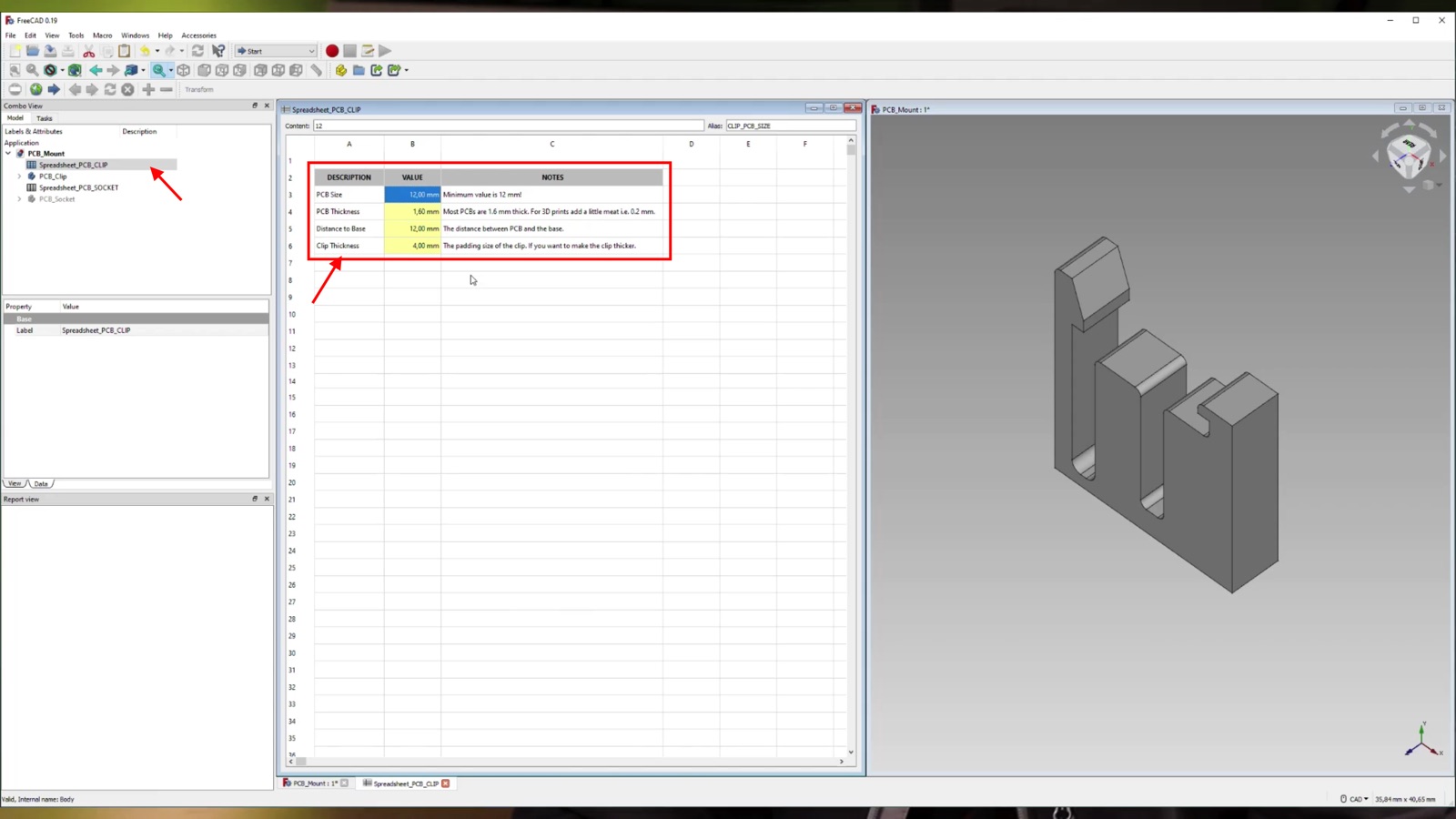
The dimensions need to be adjusted in the spreadsheet
By nature, no 3D printer prints with absolute precision. There is expansion, and how accurate the print turns out also depends on the slicer print profile you use.
I always add 0.4 mm to the PCB Size and the PCB Thickness. That still "clamps" quite well and isn't too "squishy". You may need to experiment a bit first to find out what works well for you. Luckily, the clips print quickly.
If you like, you can also adjust the thickness of the clip with the Clip Thickness value. I've had good experiences with 4 mm in PETG, though. The clip is still flexible enough but doesn't snap off right away.
Export PCB Clips From FreeCAD
To export the 3D file from FreeCAD for the 3D printer, click once on the PCB_Clip body in the Combo View. You should then see the clip with the new dimensions right away. For exporting, the body really has to be selected (blue highlighting) so that FreeCAD knows what to export.
Now go to File > Export and save an STL file. You can then open it in your slicer and send it to the 3D printer.
Customize PCB Clips in Fusion360
If you work with Fusion360, you can of course adjust the dimensions there as well. You'll also find a file for Fusion360 in the GitHub project.
Alternatively, you can download this ZIP file directly if you don't want to click your way through GitHub. For Fusion360 you need the file with the extension *.f3d.
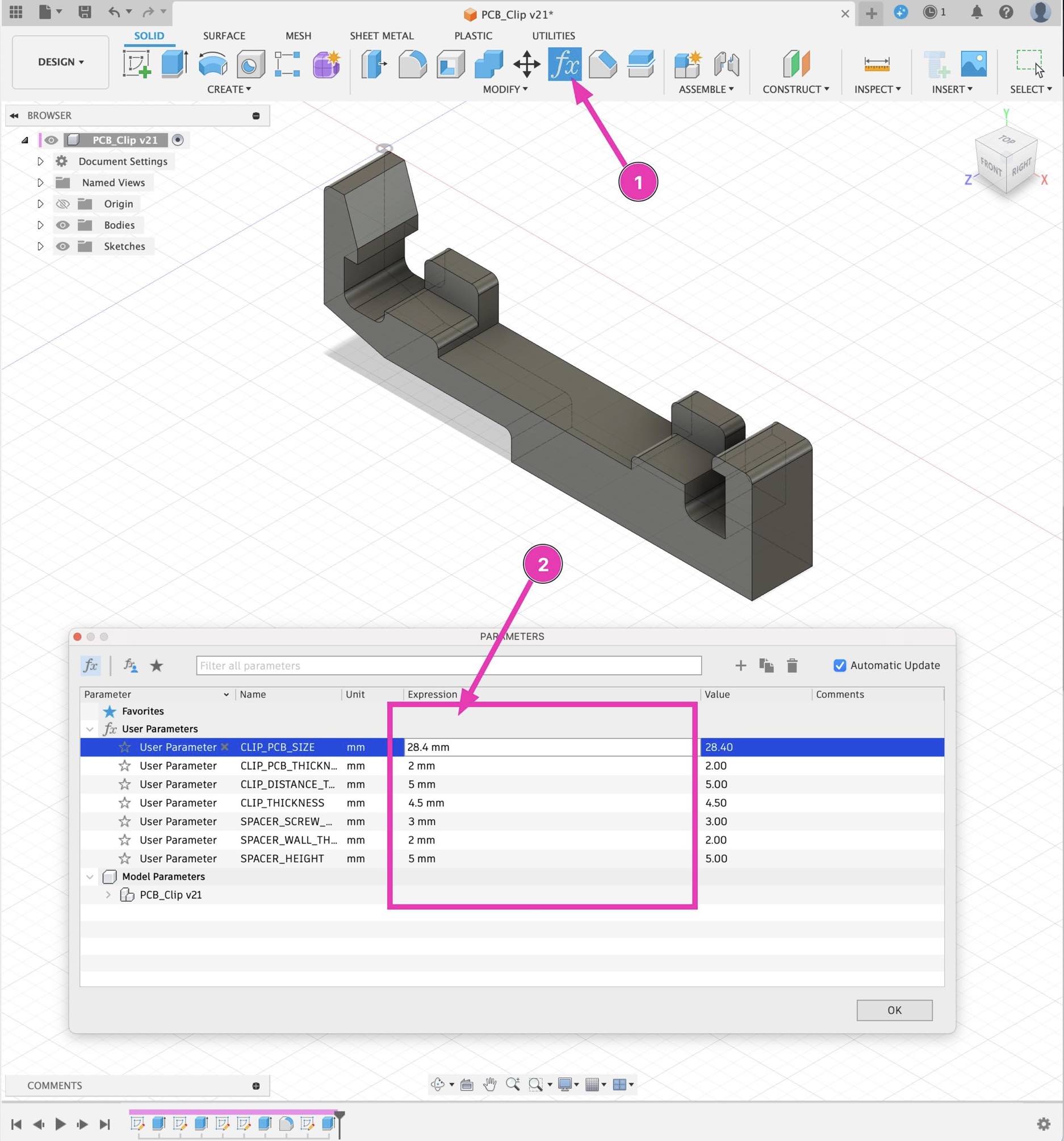
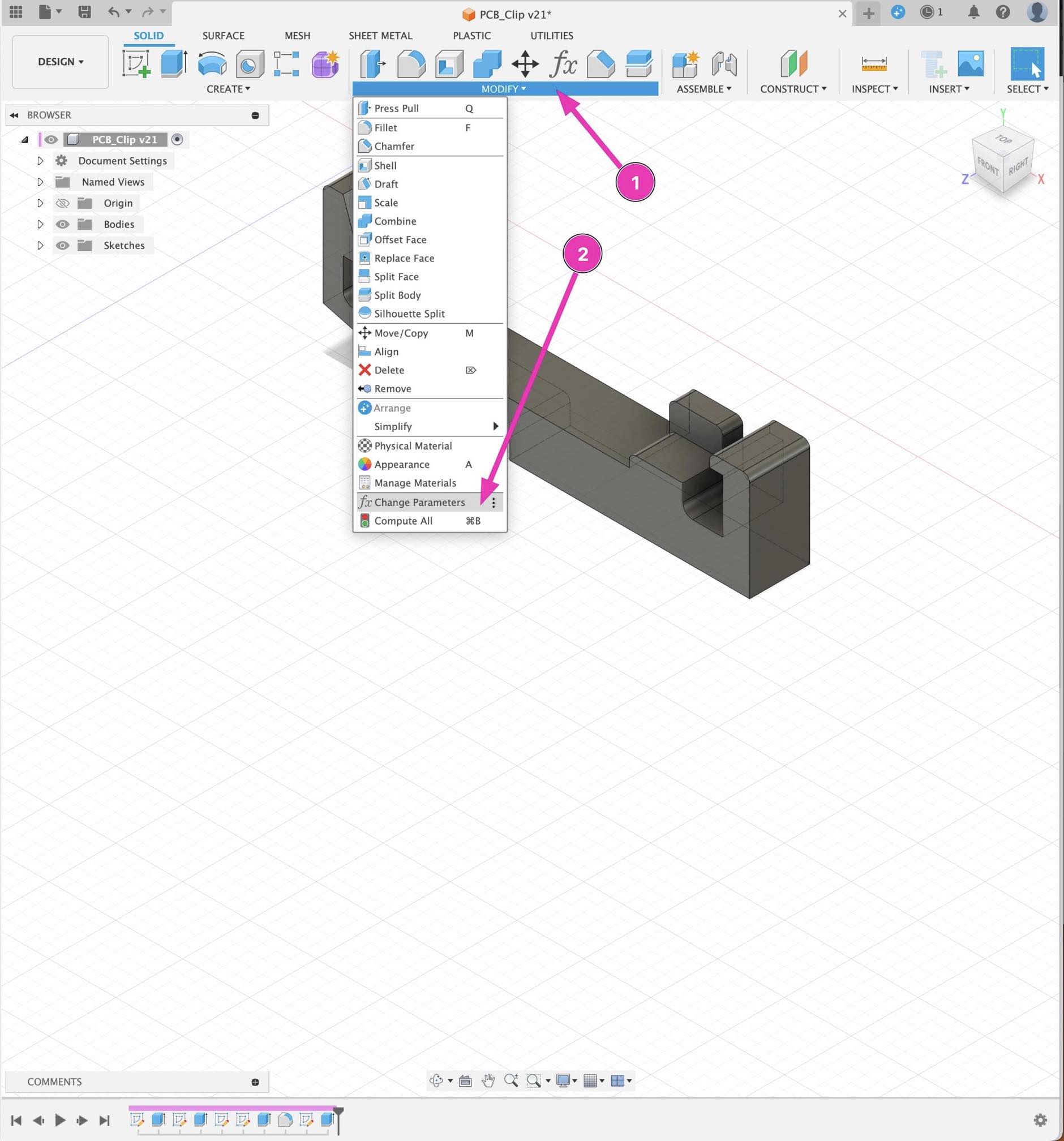
First, open the table with the parameters. To do this, click the fx symbol in the Modify menu area. The table with the parameters then opens. If the fx symbol isn't visible, take a look at the second screenshot below. It shows how to open the table anyway.
You can adjust the following values in the table:
| CLIP_PCB_SIZE |
The narrow side of the PCB |
| CLIP_PCB_THICKNESS |
The thickness of the PCB |
| CLIP_DISTANCE_TO_BASE |
The distance between the PCB and the underside where the clip is glued on. Increase it if, for example, there are large, tall components on the PCB. |
| CLIP_THICKNESS |
The thickness of the clip. Increase it for more stability, but the clip also gets stiffer. |
Export PCB Clips From Fusion360
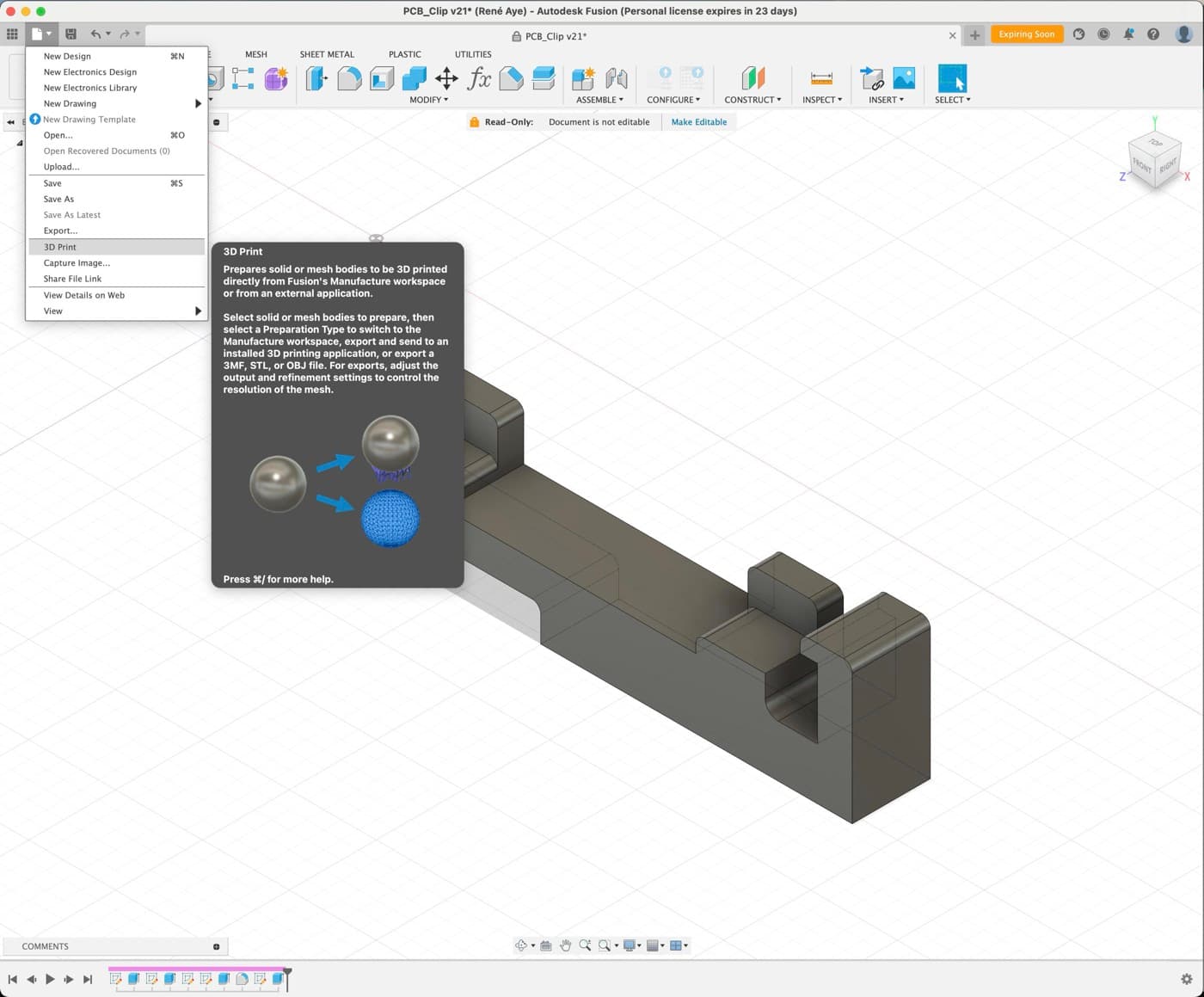
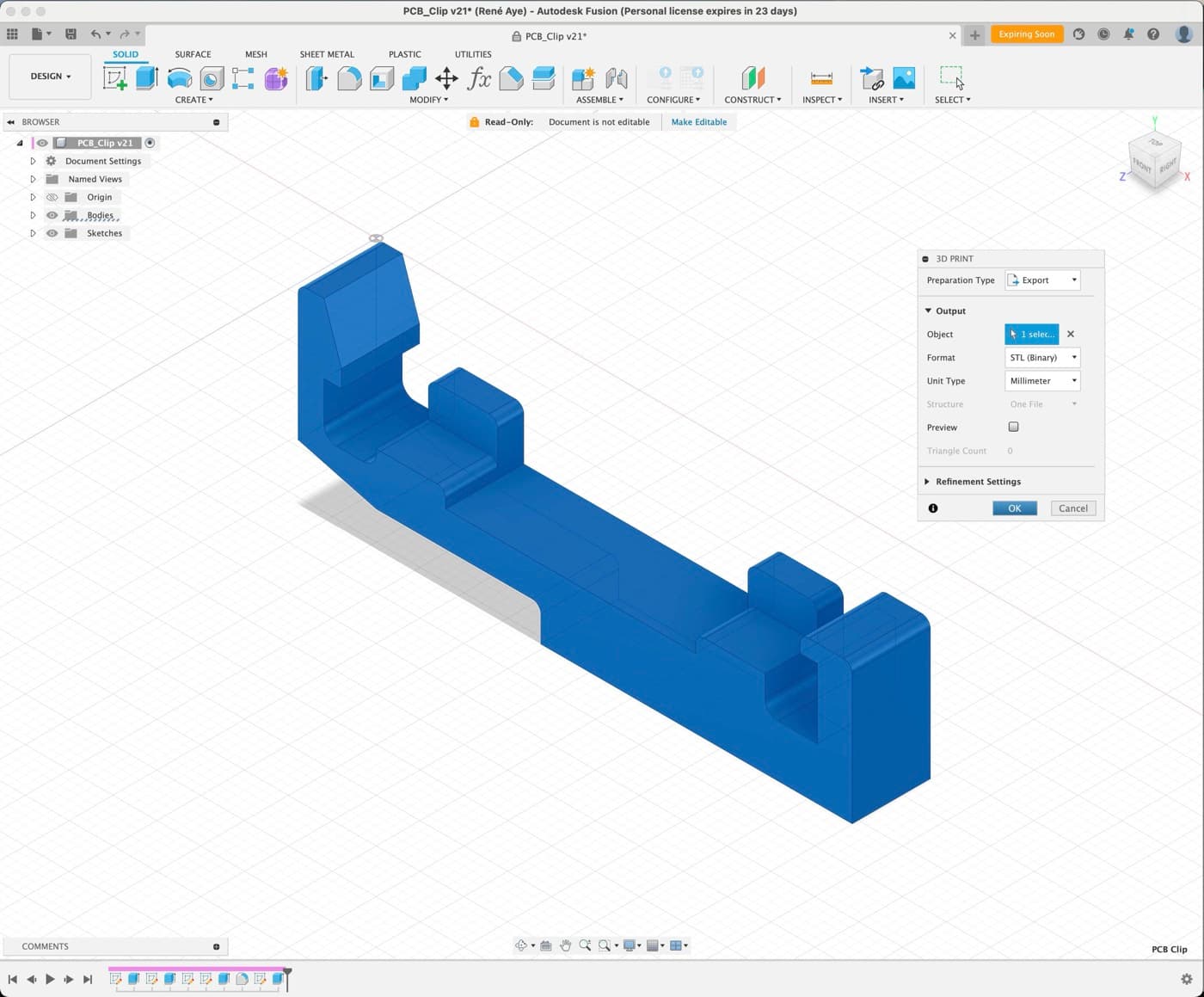
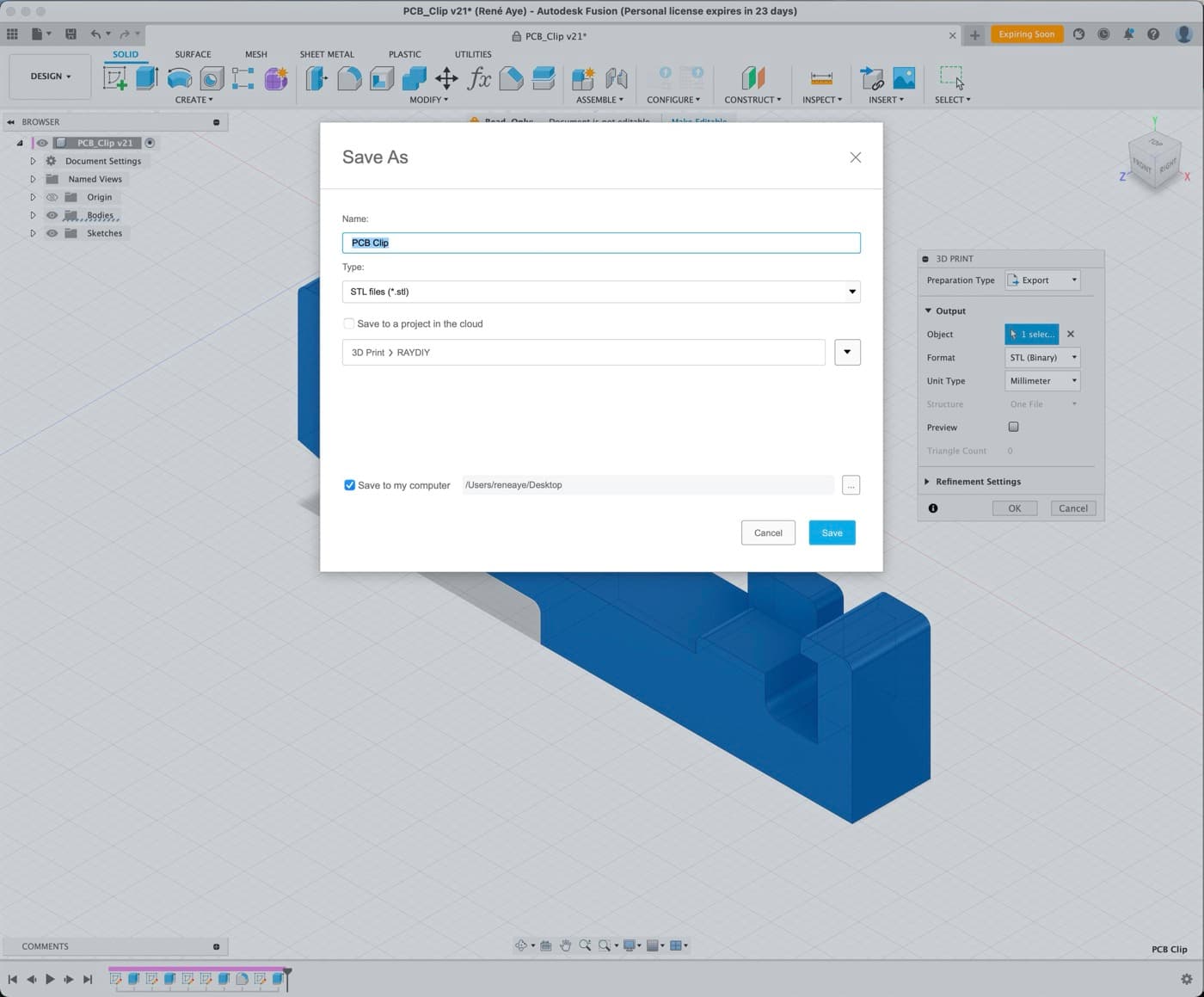
To export the 3D file from Fusion360 for the 3D printer, click File > 3D Print in the menu.
A window with the export settings then opens.
In this window, under Output > Object, click the button to select the object to export. In this case, that's the PCB clip (blue highlighting).
Then click OK at the bottom of the window, and a dialog opens where you choose the file name for saving the STL file.

René Aye
Head of Short Circuits @ raydiy
Keeps his herd of microcontrollers supplied with power and lovingly crafted code.
RAYDIY Newsletter
Subscribe now
and get a free eBook!Gluing the PCB Clips
After printing, you should first check whether everything fits. If everything looks good, leave the clips on the board and now glue the clips in place wherever you need them.
I like to use the superglue from Langlauf Schuhbedarf, I've had good experiences with it. Of course, you can also use epoxy or something similar. The main thing is that it holds well … kind of obvious when it comes to gluing …
And once the glue has dried (to be safe, let it dry overnight), simply clip the board out or back in as needed.
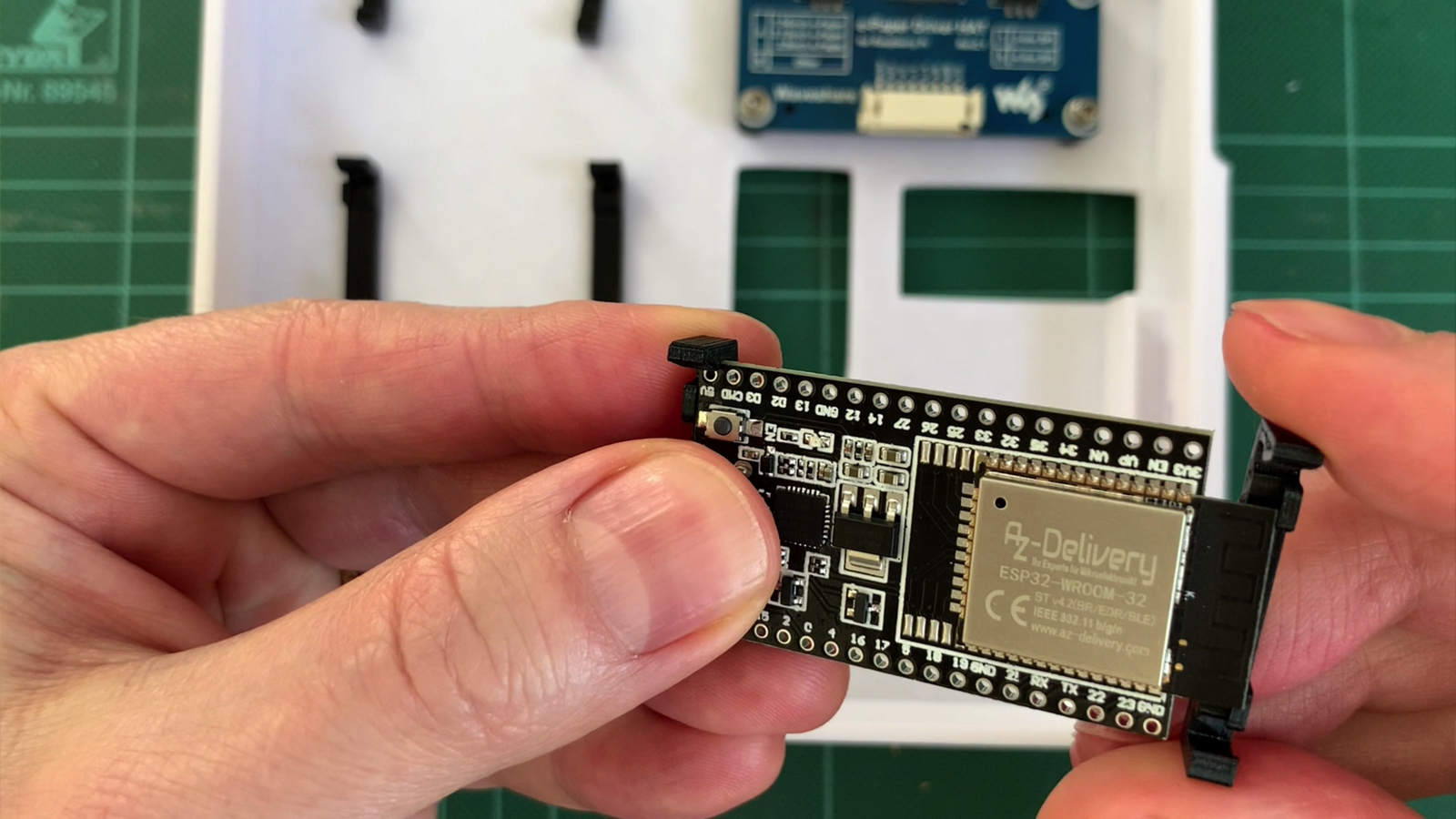
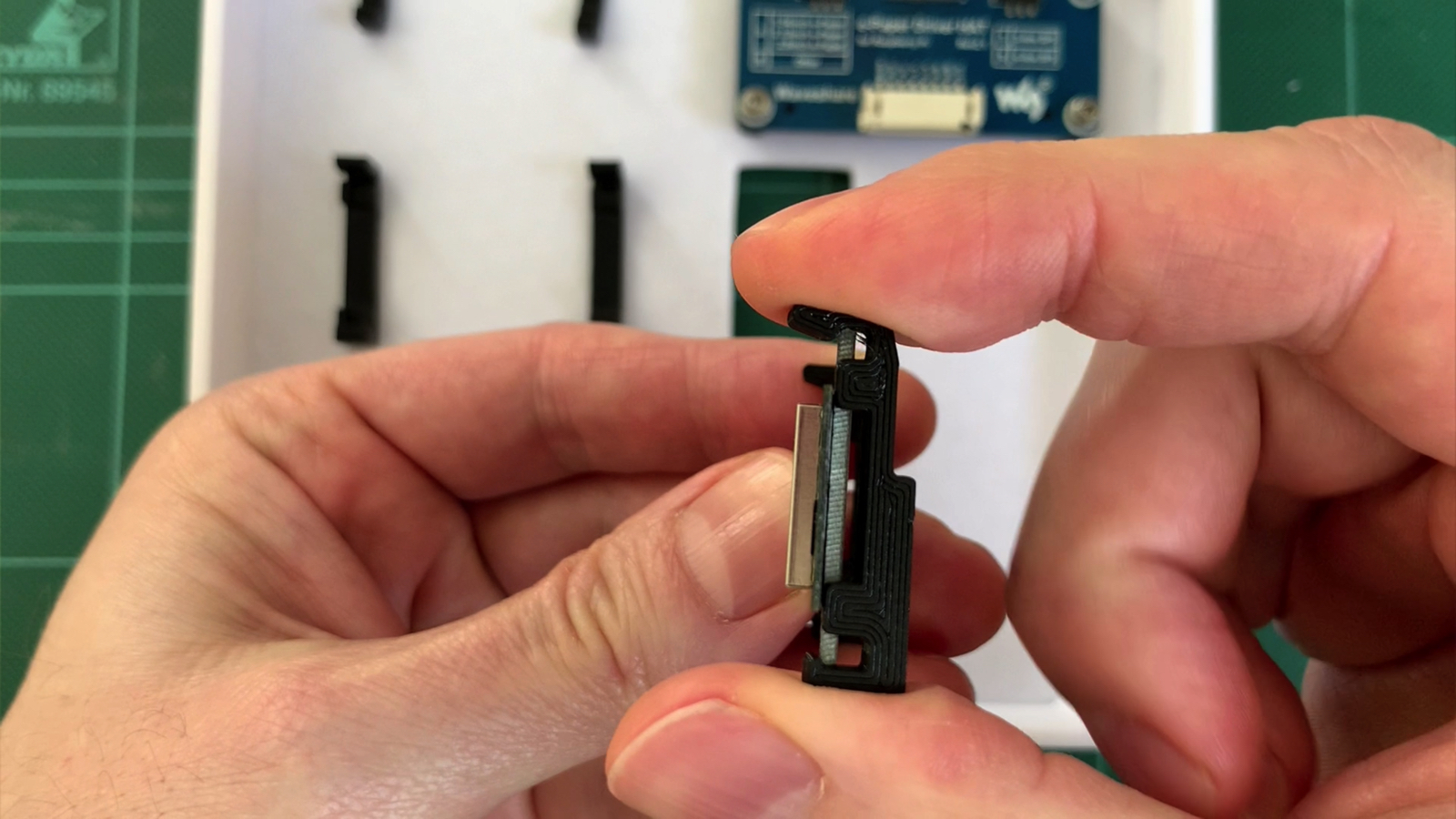
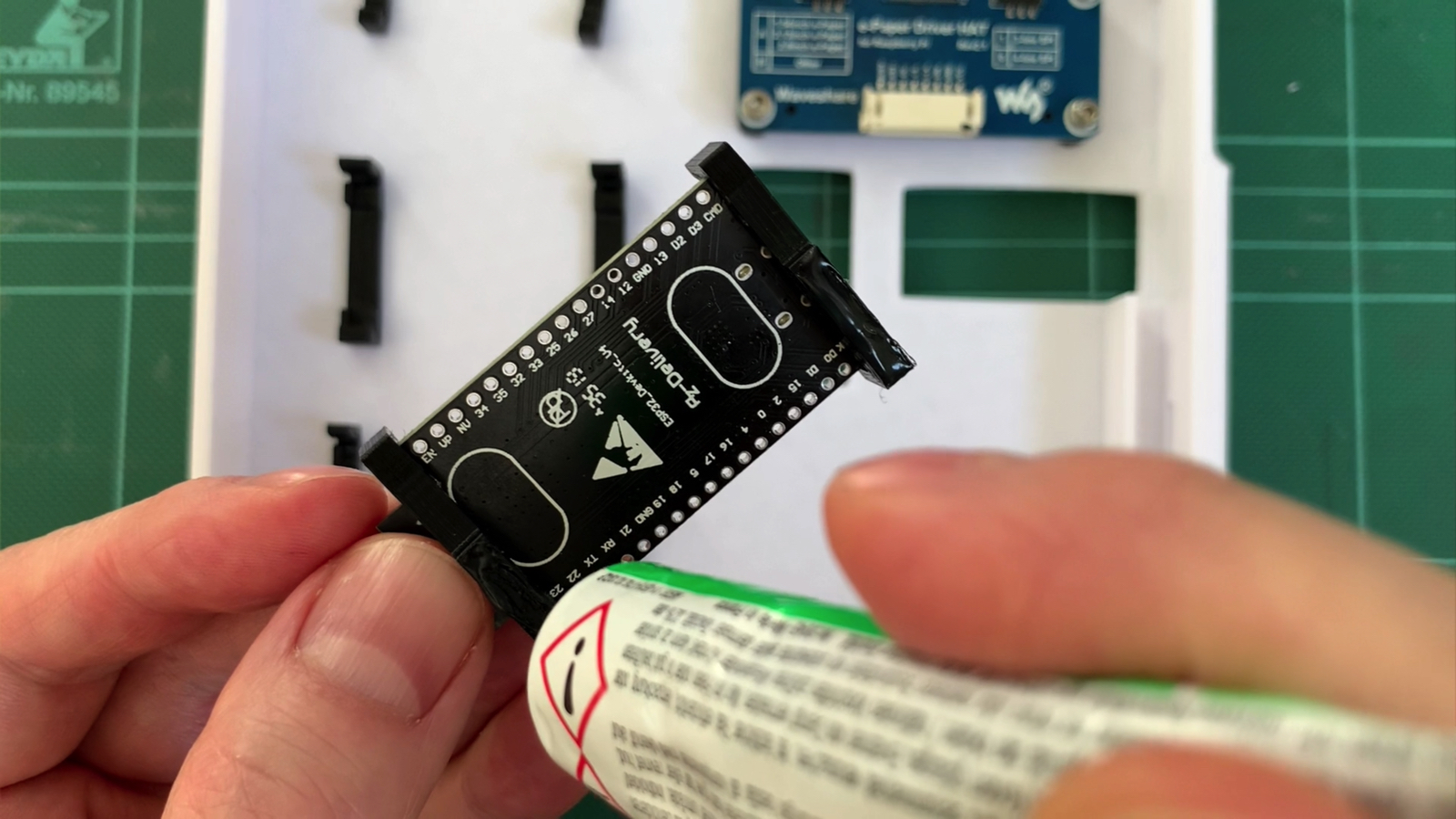
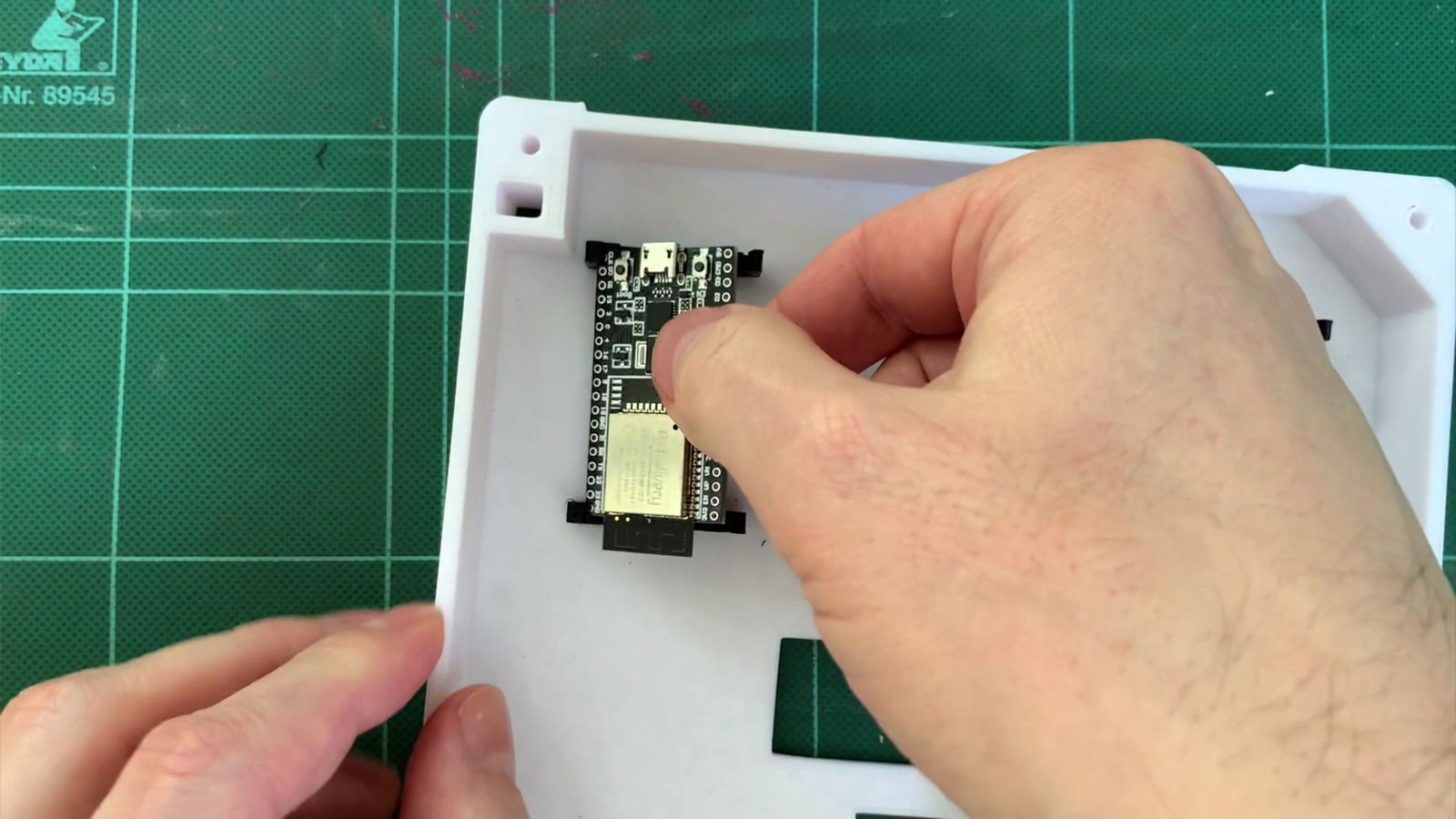
... clip in, done!
Top2Glue Super Glue Gel, Waterproof, Heat-Resistant, Flexible*

Amazon Link*
*
This link is an affiliate link. As an Amazon Partner, I earn from qualified sales.
Printing the PCB Clips
Of course, you need two PCB clips per board. However, the second clip has to be mirrored. One way to do this is to scale the object in the slicer to a value of -1 on a specific axis, in this case the Z axis.
Cura has a Mirror function for this, as the following screenshots show. After clicking the Mirror function, you have to choose the axis to mirror along. In the image, these are the thick blue arrows for the Z axis.
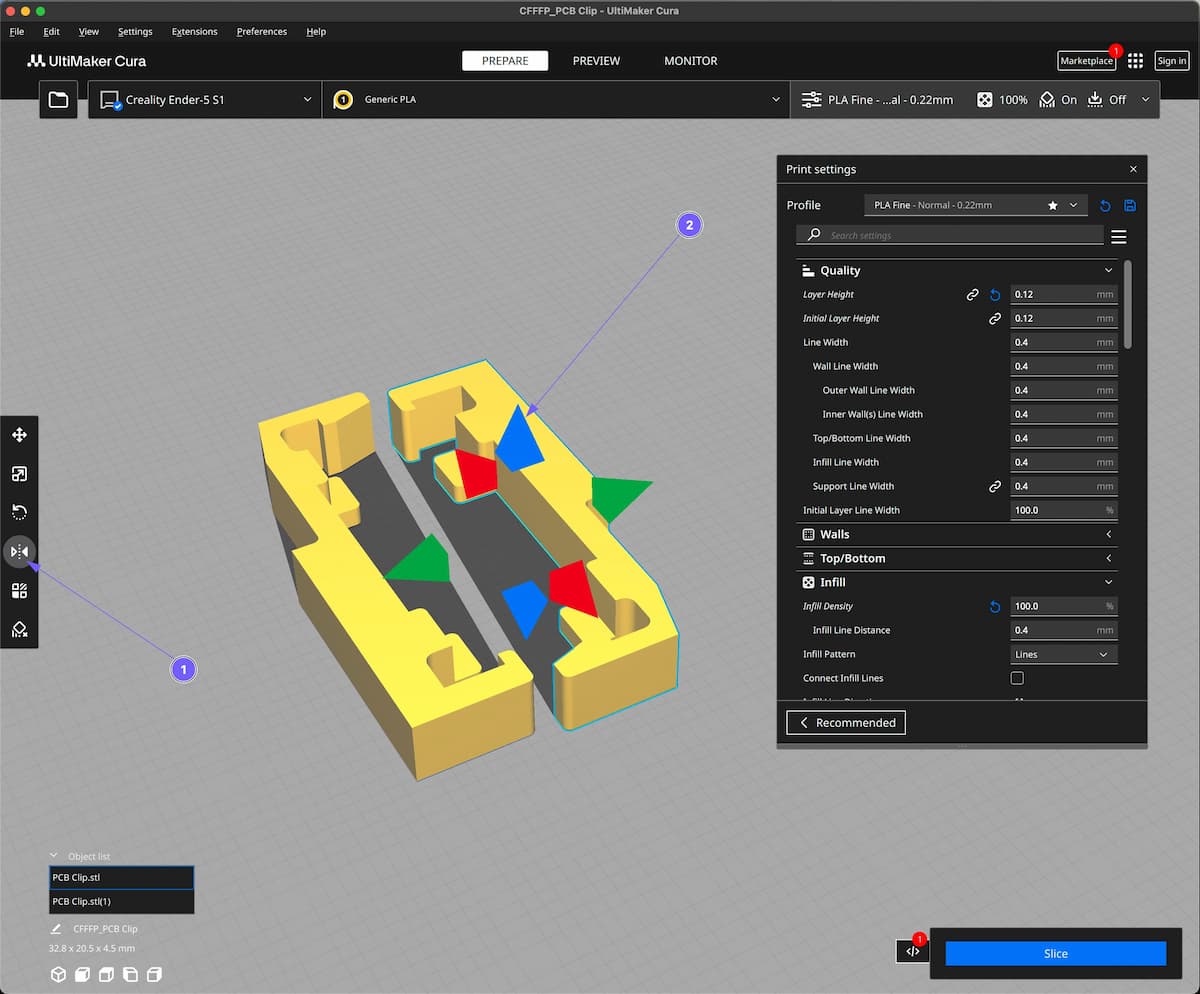
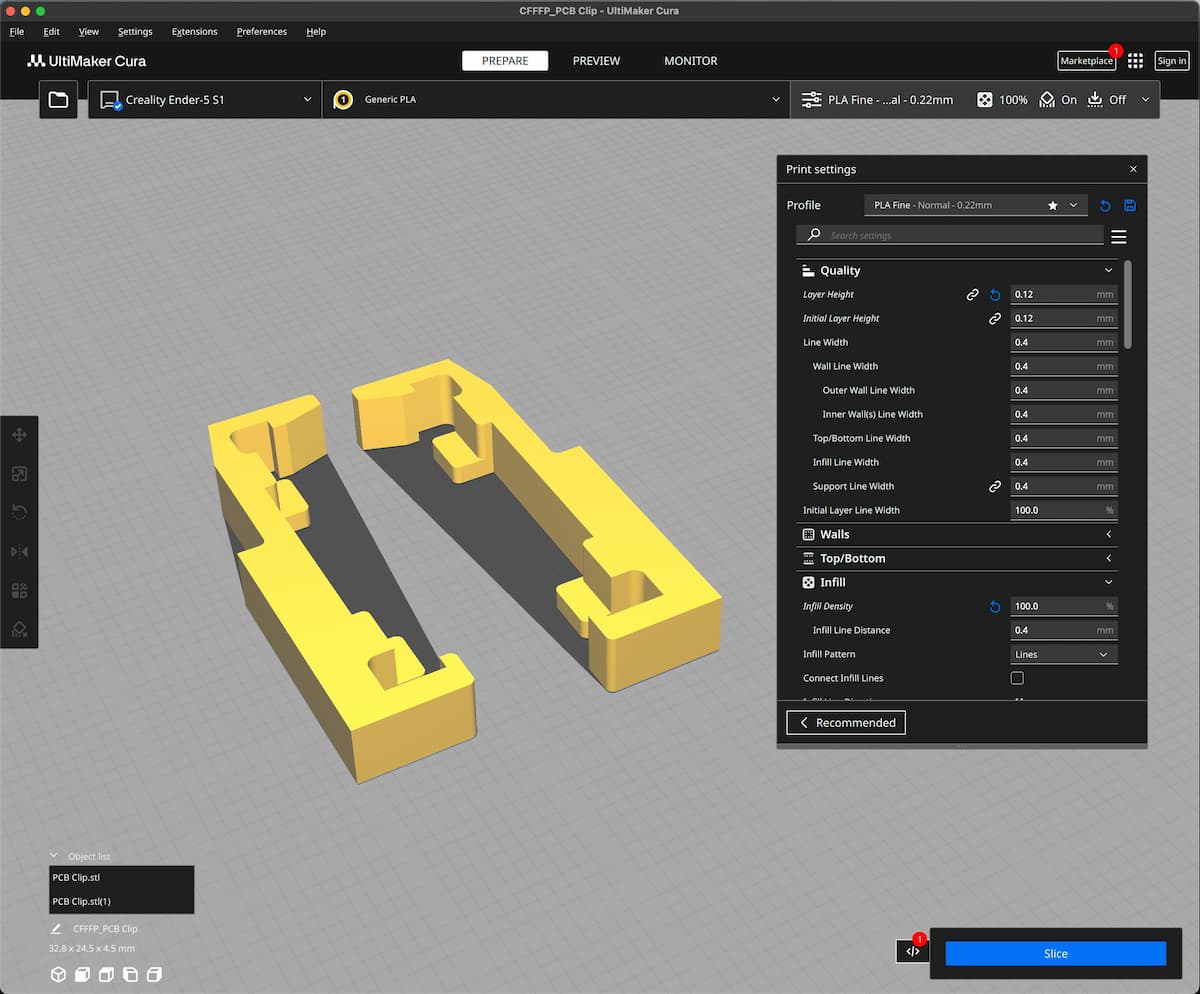
Mirrored and done
Tips on the Right Filament
One more word about the filament. Of course, you need a filament that doesn't break easily. So PLA is out of the question.
I recommend PLA+, PETG or nylon. They are fairly flexible, don't break that easily and aren't too demanding to print. My favorite is PLA+. The PLA+ from SUNLU works great in my Creality 3D printer.
ABS would probably work too, but it's more of the diva among filaments: it must not get too cold, so it's best printed only in a closed enclosure, otherwise it warps. Plus, it stinks in a pretty unhealthy way when heated.
Outro
That brings us to the end of this article. I hope some of you will give the PCB clips a try. Let me know in the comments whether it works or whether it causes problems.
If you like the idea of the clips, give the video a thumbs up on YouTube. If you enjoyed the video, feel free to subscribe to my YouTube channel and turn on notifications.
Keep tinkering, stay healthy, I'm off to shovel snow now.
Bye 😉
SUNLU PLA+ Filament, 1.75 mm*

Amazon Link*
*
This link is an affiliate link. As an Amazon Partner, I earn from qualified sales.
Links & Product Recommendations
Links from the article summarized for you
Product recommendations from this article
Related Links
RAYDIY Newsletter
Subscribe now
and get a free eBook!