
Everything you need to know about LED strips!
German video only, but you can use YouTube’s automatic translation and subtitling feature.
LED strips like NeoPixels or WS2812 are a rewarding DIY topic: they look really impressive and are fairly easy to hook up to an Arduino or ESP32. They also work well as room and accent lighting. With a bit more experience, you can even build displays or segment displays, for clocks for example.
This article answers the most important questions and covers as many basics as possible about LED strips with microcontrollers. Here are the topics we'll look at:
- What are LED strips?
- What types of LED strips are there?
- What are the differences between the various LED strips and their chips?
- How do you power LED strips?
- How do you calculate the power requirements of LEDs?
- Which Arduino LED libraries are there?
And of course we'll also build a small first project with Arduino and ESP. By the end, you'll have a solid understanding of LEDs and LED strips and how to control them with a microcontroller like the ESP32, ESP8266 or Arduino & Co.
What Are LED Strips?
An LED strip is a flexible, usually self-adhesive tape with LEDs mounted on its surface at regular intervals. Some LED strips can display RGB colors. Others are limited to a single color. There are also LED strips with different shades of white: cool white and warm white.
On top of that, there are LED strips where every single LED can be controlled. These are called individually addressable LEDs (more on that in a moment). With these strips you can create animations and color gradients. And there are LED strips where all LEDs always share the same color and brightness setting. With those, you can only animate an overall color change or the brightness.
LED strips go by many names: LED light strip, LED tape or LED ribbon, to name a few. Often people simply use the exact type designation, such as NeoPixel, WS2812, SK6812 etc. We'll get to the different types shortly.
Especially when you only need a few LEDs, or the LEDs are spread very unevenly across a project, individual LEDs tend to make more sense. Sometimes a combination of individual LEDs and LED strips is more practical, as in my clock project “Voltage Clock”.
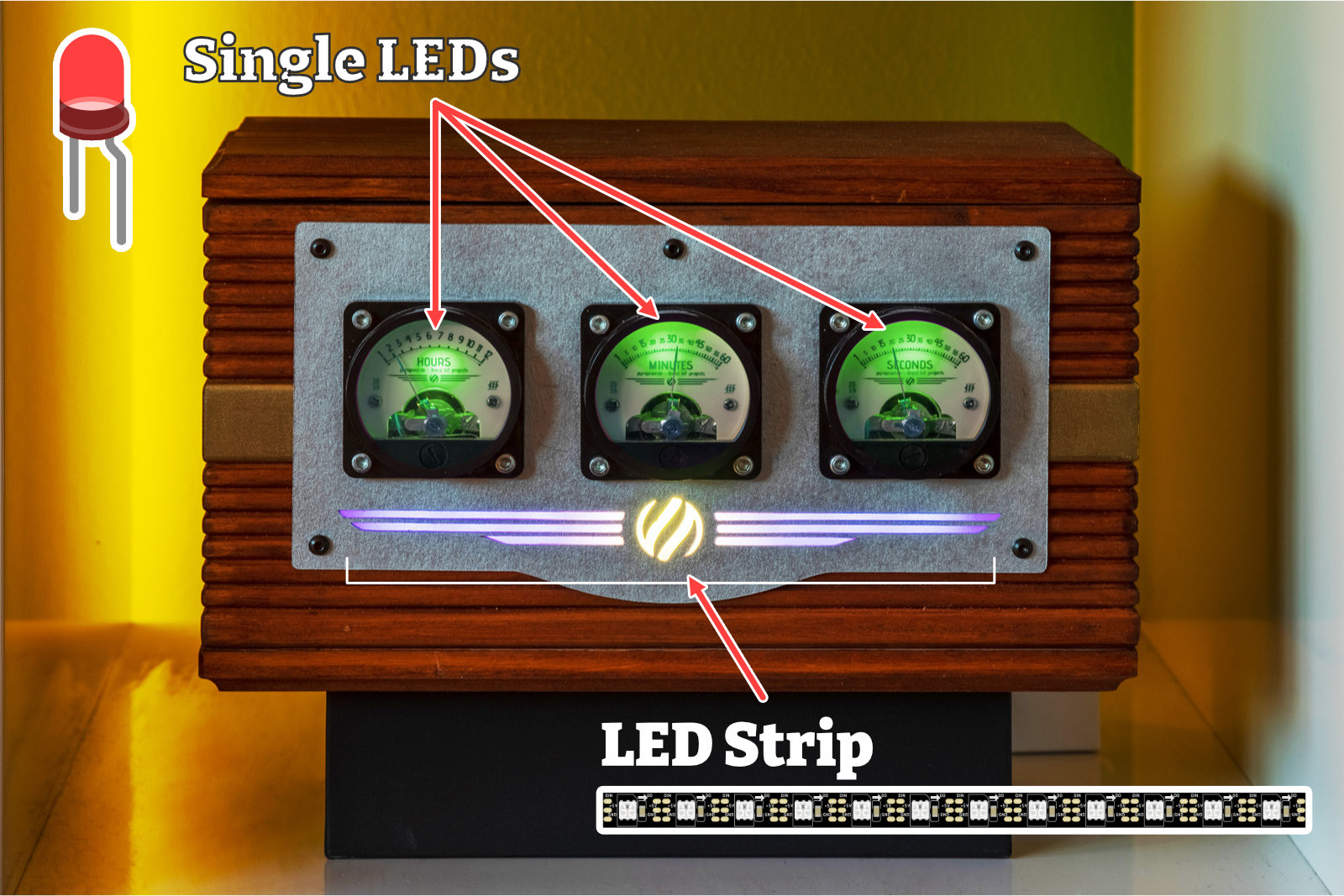
Individual LEDs are built into the time displays. At the bottom there's an LED strip: combined with diffuser paper (tracing paper, frosted paper, baking paper), it lets you create beautiful animated gradients.
Especially when you need a row or a matrix of LEDs, LED strips save you a lot of work.
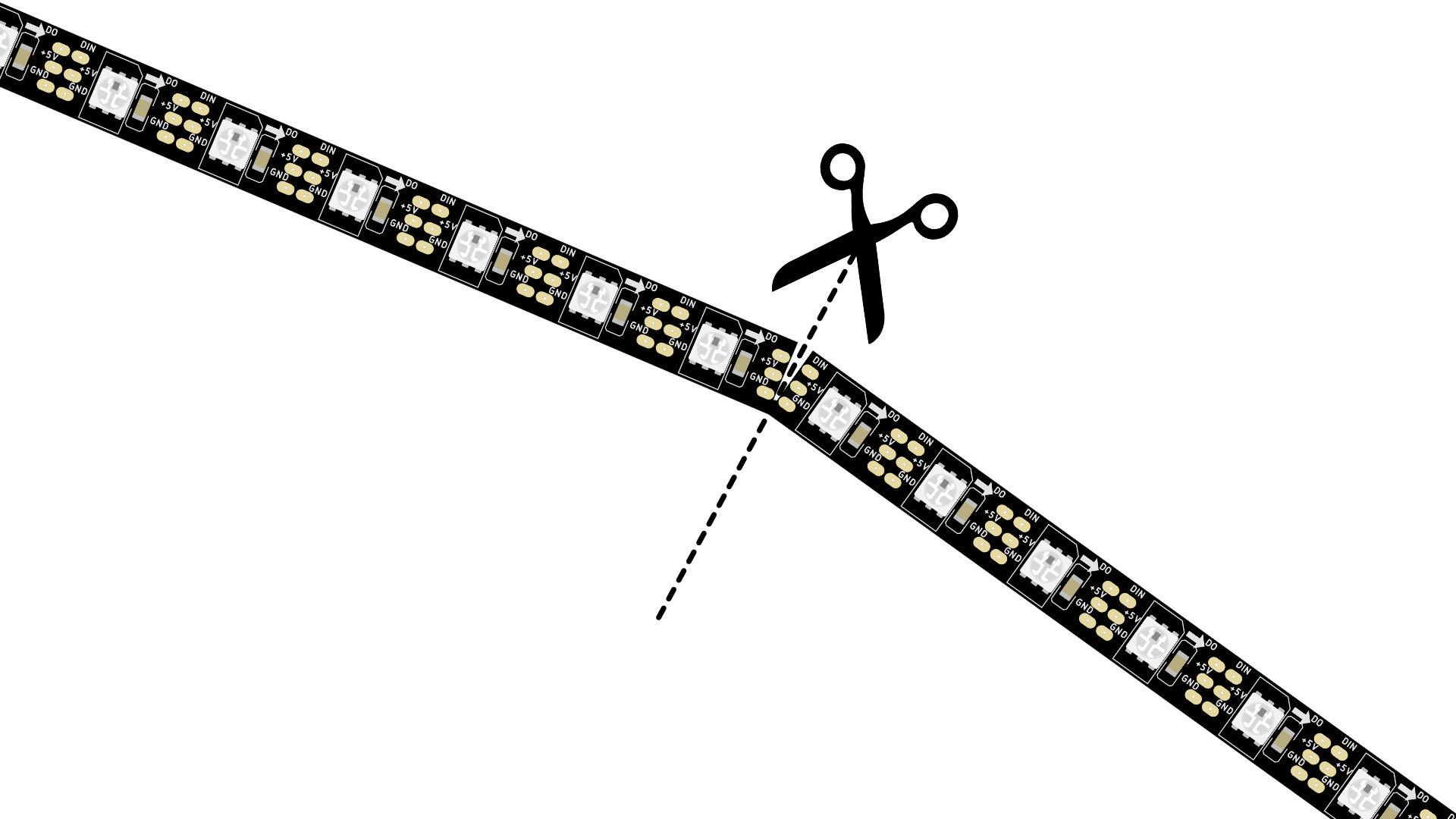
Between every LED on the strip there are so-called solder pads, which you can simply cut through the middle with scissors. Either to trim the strip to the right length or to arrange several strips in a matrix, for example. Afterwards, all you have to do is reconnect the strips with three wires.
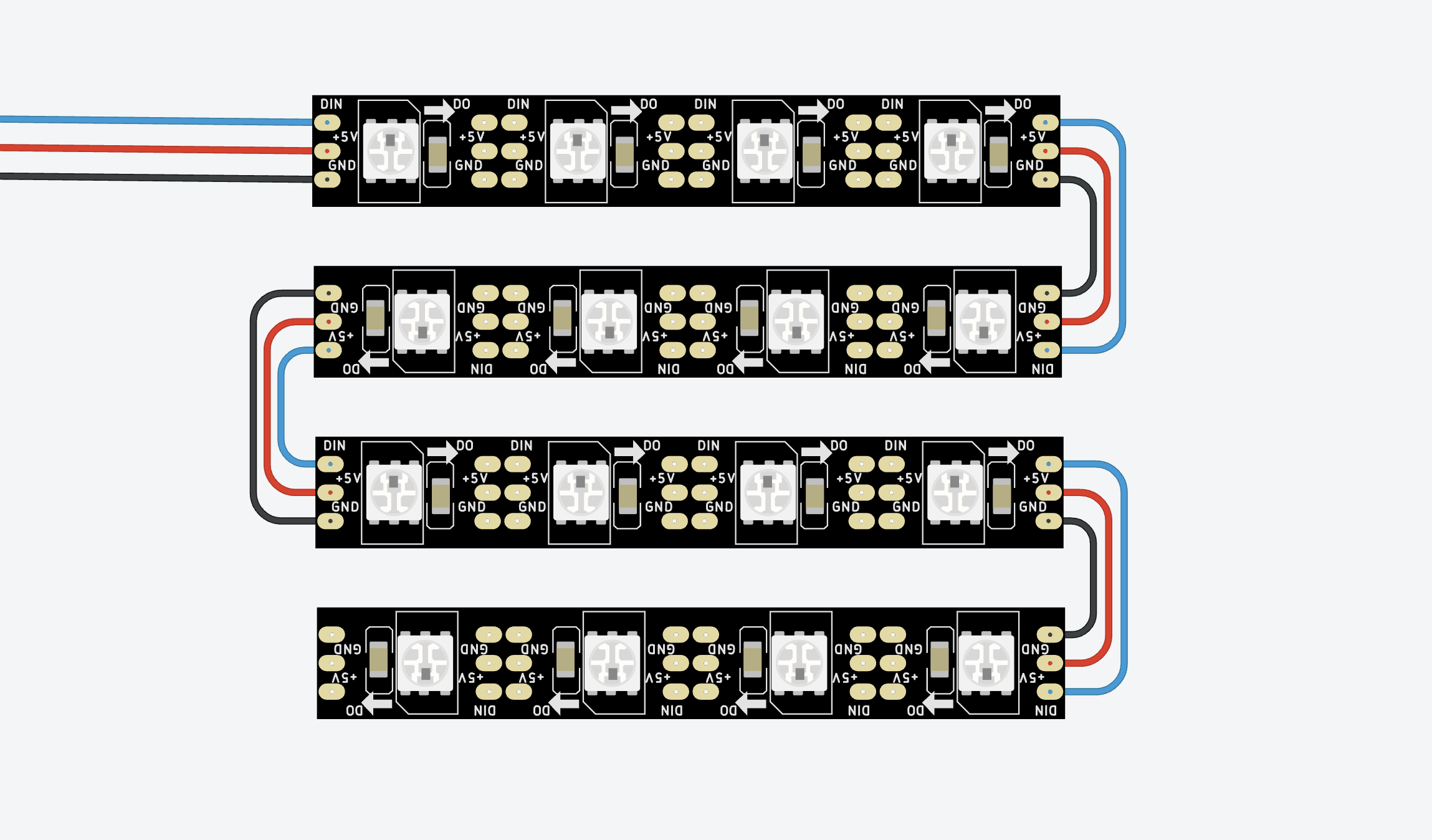
4×4 LED matrix: always pay attention to the arrows when soldering
That's much less effort than soldering every single LED together. Anyone who has ever built a 2D or even 3D matrix out of classic two-legged LEDs knows exactly what I mean.
Another advantage: if you want individually addressable LEDs, LED strips make the circuit much simpler. And individually addressable LEDs are what this article is all about.
What Does “Individually Addressable LEDs” Mean?
Let's take a row of 6 LEDs as an example. LED no. 3 lights up red. And LED no. 5 lights up green, but only at half intensity. Individually addressable means: we can control every single LED, how bright it should be and in which color it should light up. The “address” in this example would simply be the number of the LED, in this case 3 and 5.
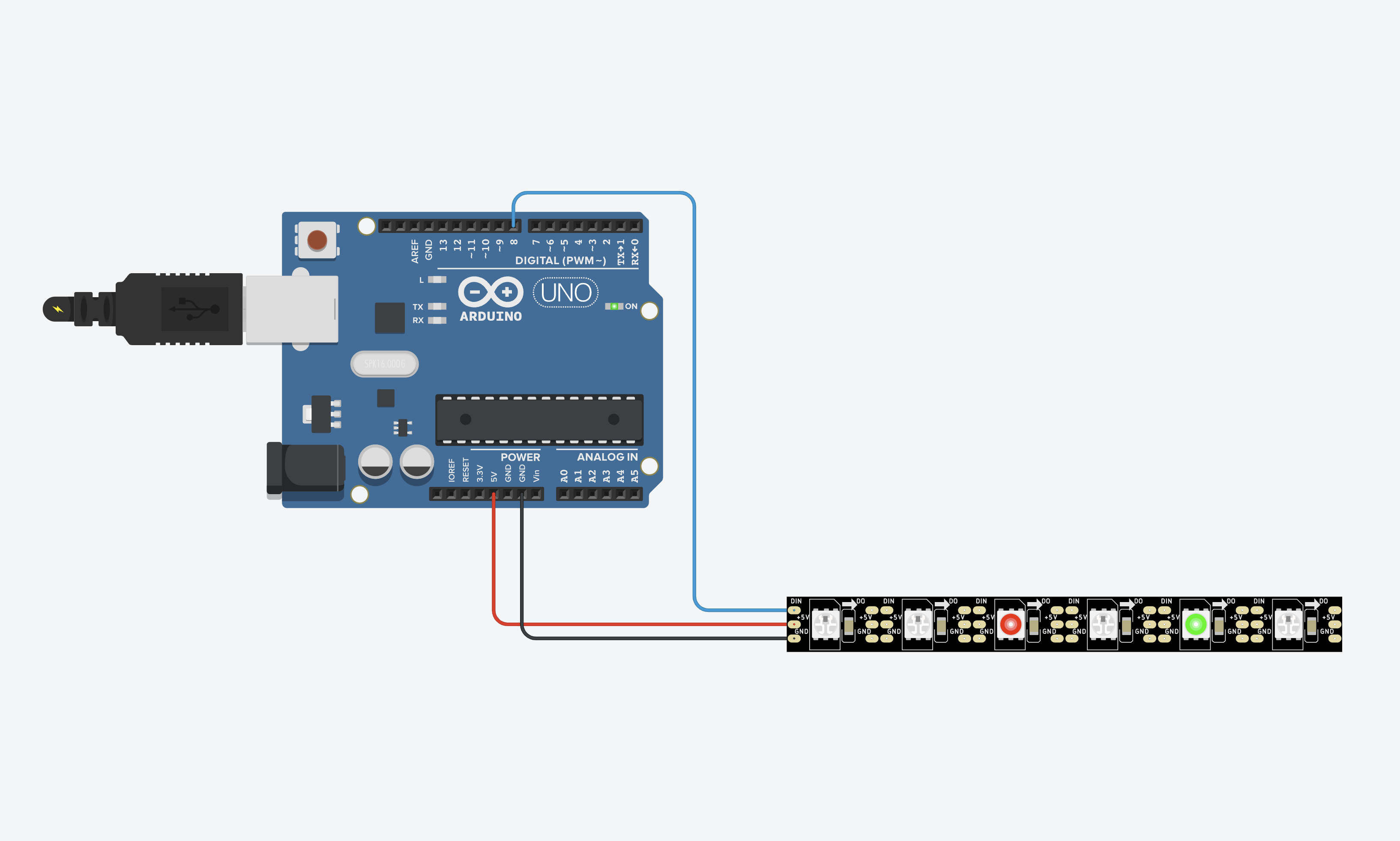
Individually addressable means: each LED in the strip can be controlled individually.
LED Strips Are Very Easy to Connect
To control classic single-color two-legged LEDs with an Arduino or ESP, we have to wire each LED to its own pin on the microcontroller. If we want to control 64 LEDs, we quickly hit the limits of the microcontroller, because hardly any microcontroller has that many pins. An Arduino UNO, for example, has 20 digital pins. On top of that, LED projects quickly grow beyond 64 LEDs. And we're not even using RGB LEDs here, just single-color LEDs. RGB LEDs need one pin per color.
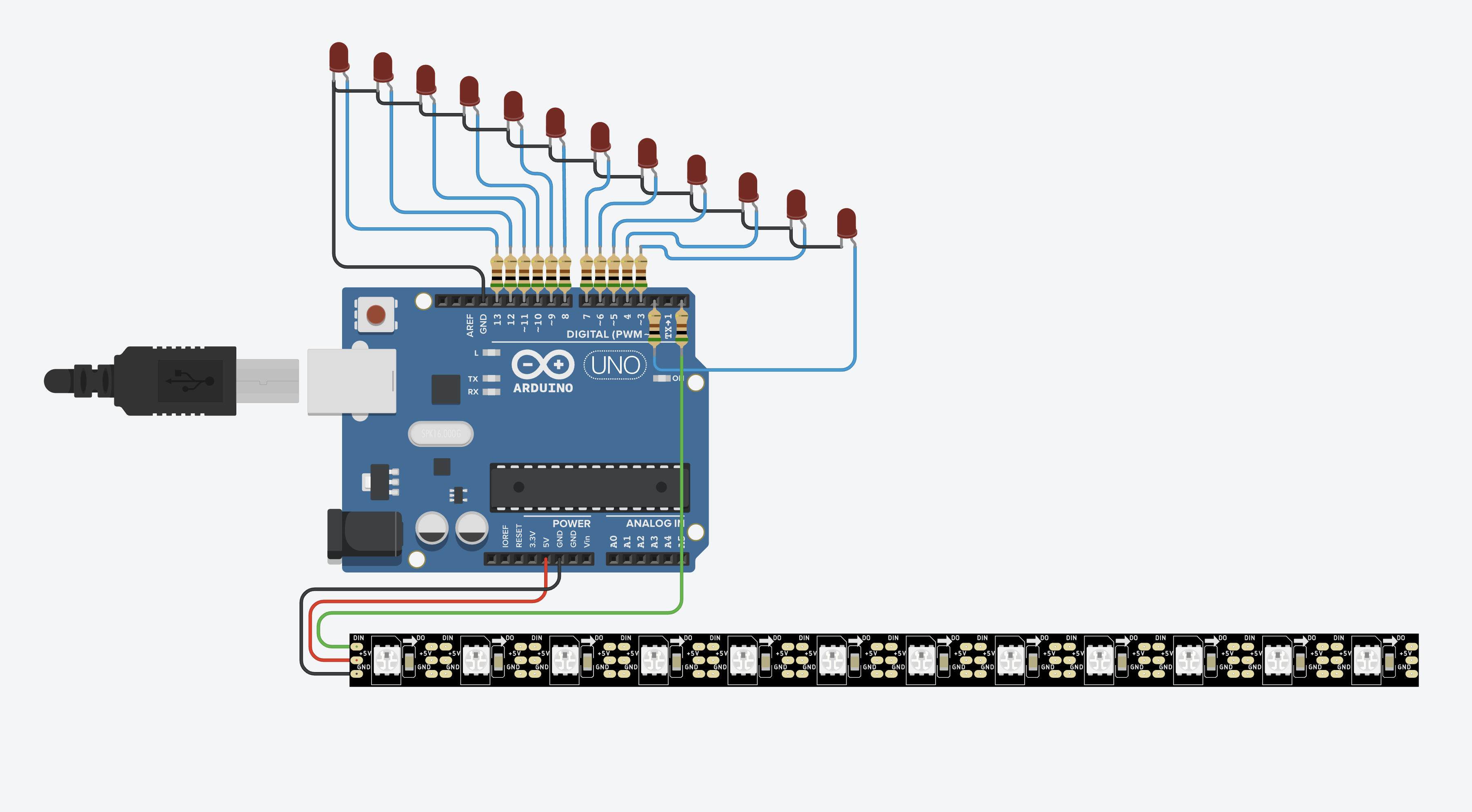
12 individual LEDs vs. an LED strip: with individual LEDs, things quickly get messy and you run out of free pins on the microcontroller. With the LED strip, we only need one data line (plus power and ground).
So some really clever people came up with techniques like multiplexing and Charlieplexing. They let you get by with fewer microcontroller pins. But building an LED matrix with these techniques is still a lot more work than the LED strip approach.
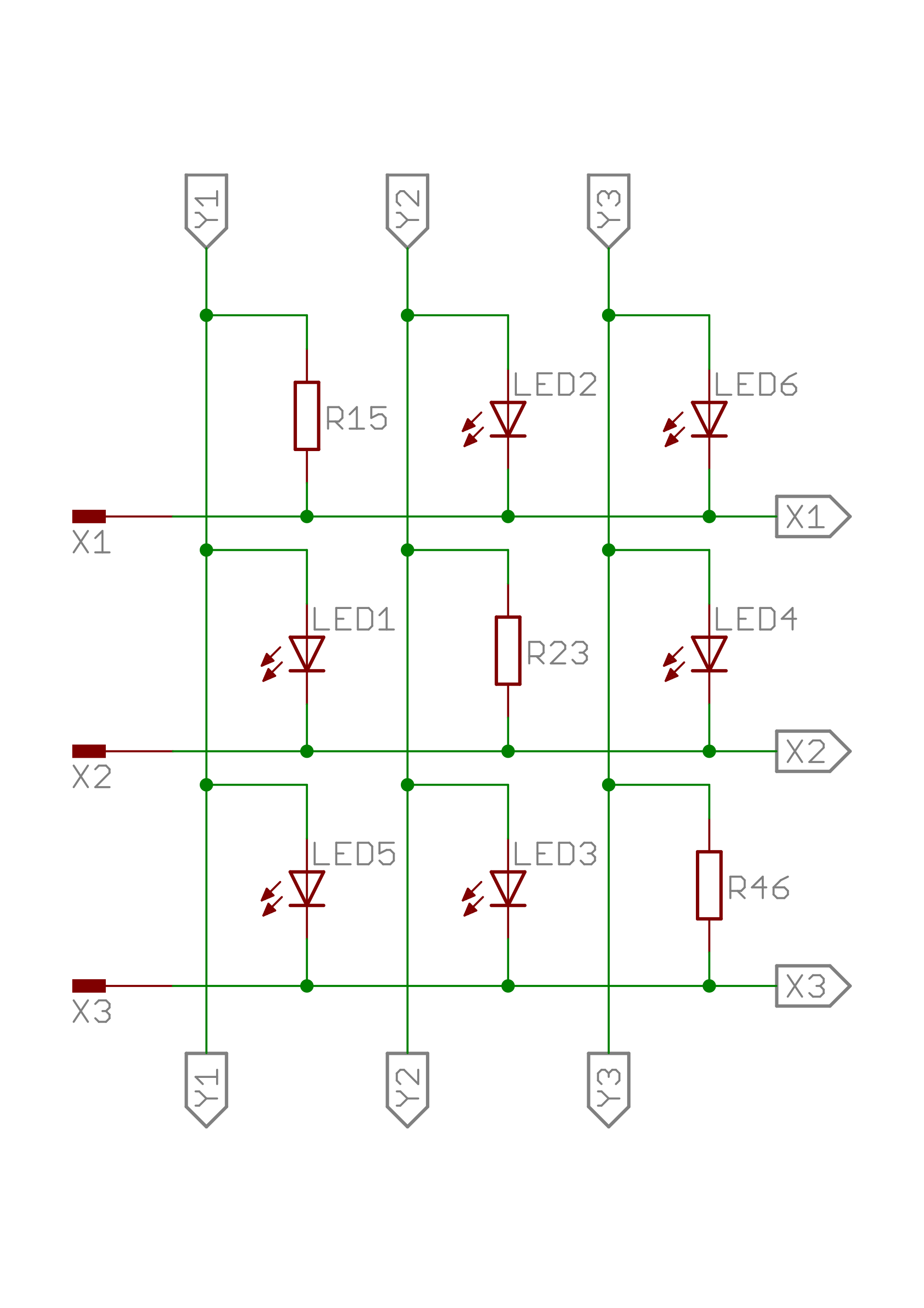
The picture shows a circuit for a 3×2 LED matrix: lots of soldering required!
I won't go any deeper into multiplexing and Charlieplexing in this article. But here's a nice article about it.
The LED strips we want to use all need just one pin for the data line. Plus, of course, a connection to the power supply and to ground.

René Aye
Head of Short Circuits @ raydiy
Keeps his herd of microcontrollers supplied with power and lovingly crafted code.
RAYDIY Newsletter
Subscribe now
and get a free eBook!How Do LED Strips Differ in General?
First, let's briefly go over the more general differences between LED strips. To start with, LED strips can be divided into analog and digital LED strips.
Analog and Digital LED Strips
An analog LED strip would be, for example, the classic Christmas tree string lights. OK, not exactly a “strip”, but the design is basically the same: a row of bulbs or LEDs wired in series without any additional electronics.
But there are also analog LED strips that look very similar to digital LED strips. With analog LED strips, the color and brightness of the LEDs are fixed. And you can't address individual LEDs either. Basically, you can only switch these strips on or off.
This article is only about digital LED strips. These use additional IC chips. Also, this article only covers LED strips where every single LED can be controlled via a data line.
Number of LEDs per Meter
LED strips differ in the number of LEDs per meter, which is more or less the equivalent of screen resolution: the more LEDs per meter, the higher the resolution. Here's a list of common values:
- 144 LEDs/m
- 100 LEDs/m
- 90 LEDs/m
- 60 LEDs/m
- 30 LEDs/m
LED strips with 144 LEDs per meter are pretty much the Retina display of LED strips 🙂
IP Protection Classes
LED strips differ in their so-called IP protection class. The IP protection class indicates how well the LED strips are protected against the ingress of particles and water. If you want to use LED strips outdoors, make sure to pick an appropriate protection class.
- IP 30: no protection against water
- IP 65: coated with silicone, which makes them a bit harder to cut and solder. Cutting will most likely break the protection, dropping it down to IP 30.
- IP 67: encased in a solid silicone sleeve
Here's a table showing what the two digits of the IP protection class mean:
Base Material Color
The base material comes in white and black. Sometimes you want the area around the LED to reflect as much light as possible (e.g. with individually shielded LEDs in an LED matrix with a light diffuser). In that case, white base material might be the better choice. Or maybe you want to stick the strip directly onto a black wall, in which case black base material might be more suitable.
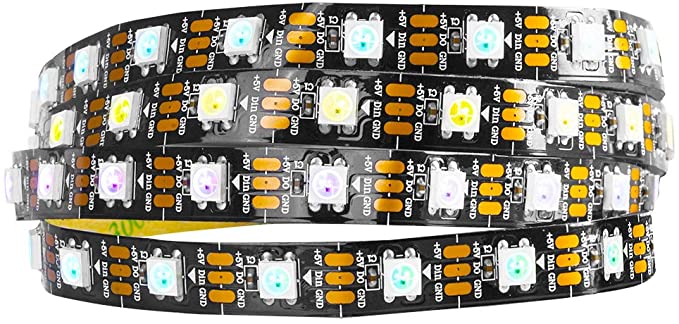
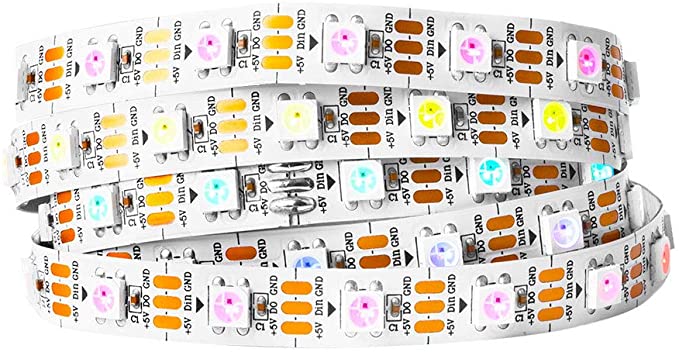
White base material
What Are the Differences Between the Various Types of LED Strips?
To understand what the different types of LED strips are all about, we first need to take a look at how LEDs work.
How Is a Single-Color LED Constructed?
An LED has one long leg and one shorter leg. The longer leg, often drawn with a bend in diagrams, leads to the so-called anode. The shorter leg leads to the cathode.
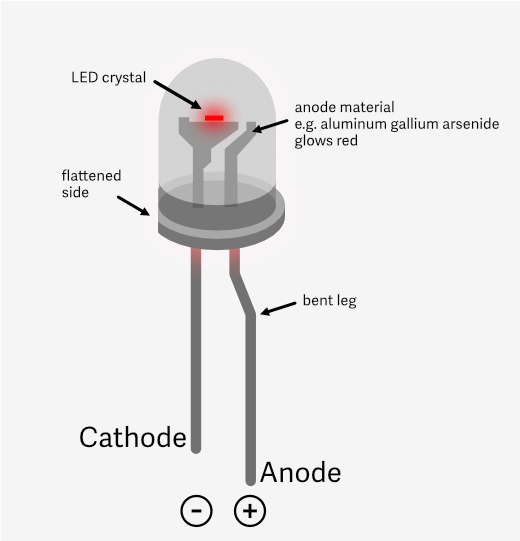
Structure of a single-color LED with two legs
The LED housing is often flattened on the cathode side, which is helpful when you can no longer tell which leg is the longer one.
The cathode body in the head of the LED is larger because its upper end is shaped like a cup. This cup holds the LED crystal, which is what actually produces the light.
The color of the light is determined, among other things, by the material of the anode. These materials are commonly used:
- Red: aluminum gallium arsenide (AlGaAs)
- Green: gallium phosphide (GaP)
- Yellow: gallium arsenide phosphide (GaAsP)
- Blue: indium gallium nitride (InGaN)
To make a single-color LED light up, you connect the cathode to the negative terminal of a battery and the anode to the positive terminal. That's how the throwies in this YouTube Short work.
So with a microcontroller, you would connect the cathode to ground and the anode to a pin. Nothing new so far.
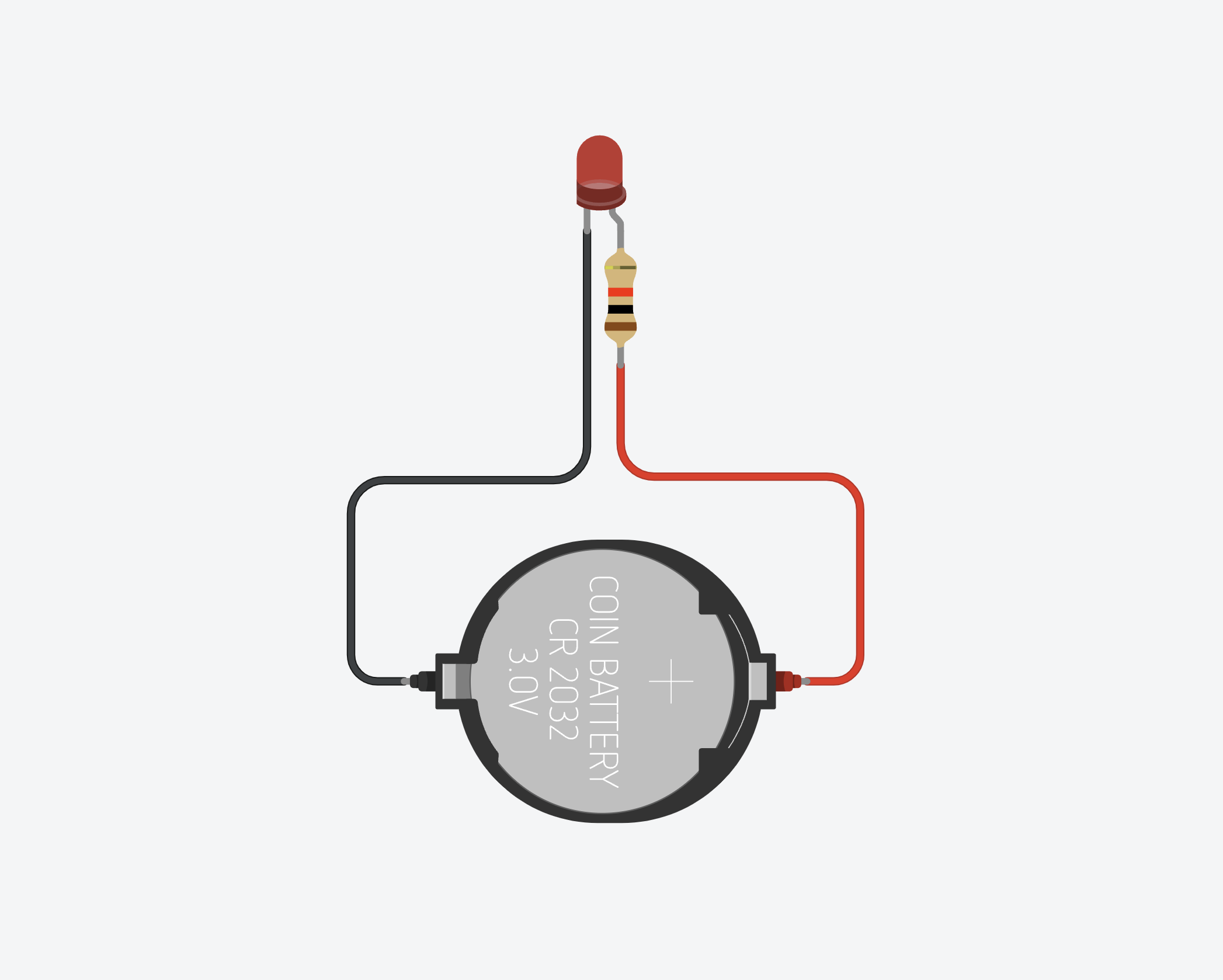
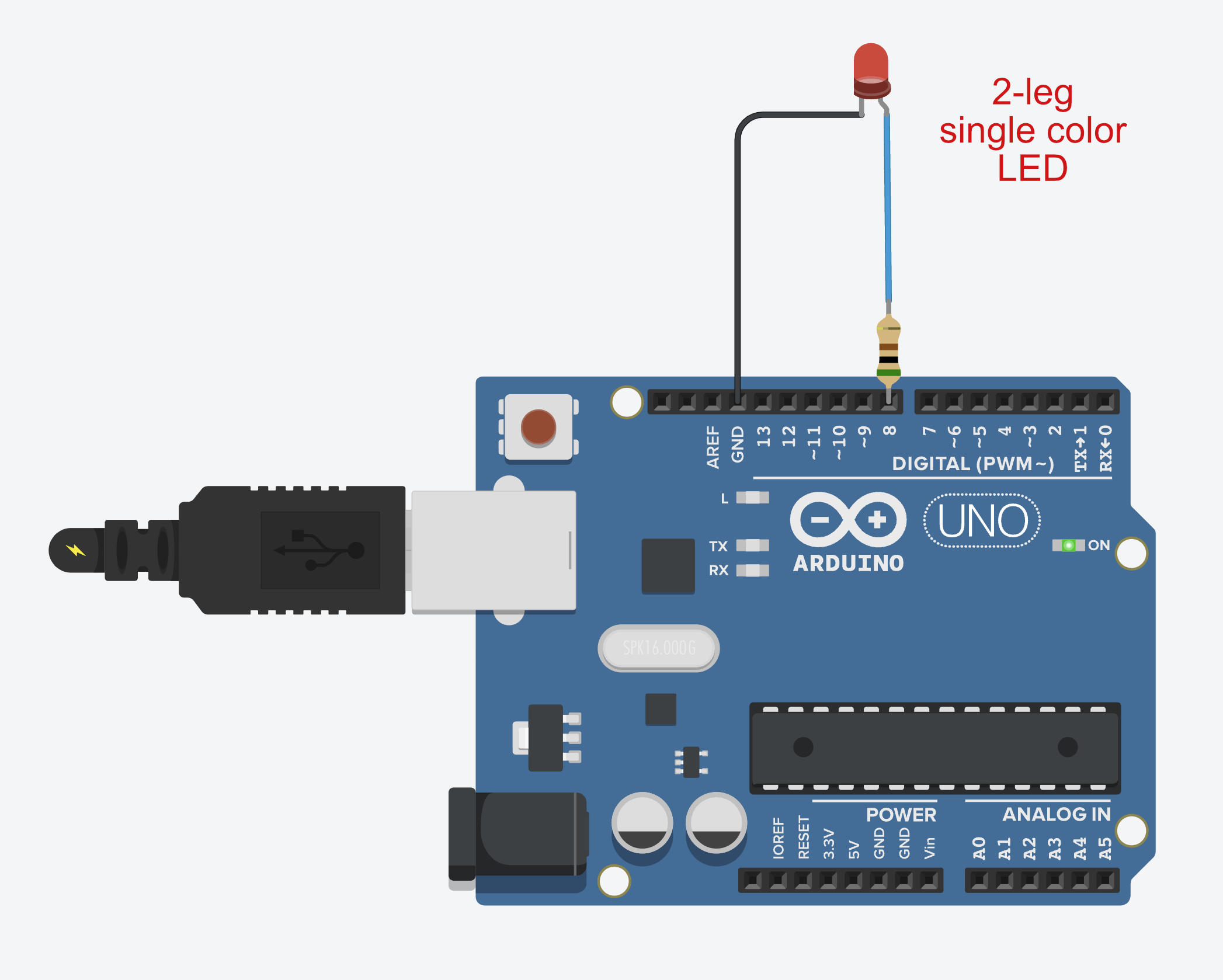
The classic Hello World setup with a two-legged LED: usually the very first Arduino project you build.
How Is an RGB LED Constructed?
Now let's look at a classic RGB LED. A classic RGB LED is basically 3 LEDs in one, for the three primary colors red, green and blue. That's why it has four legs: three for the colors and one to close the circuit.
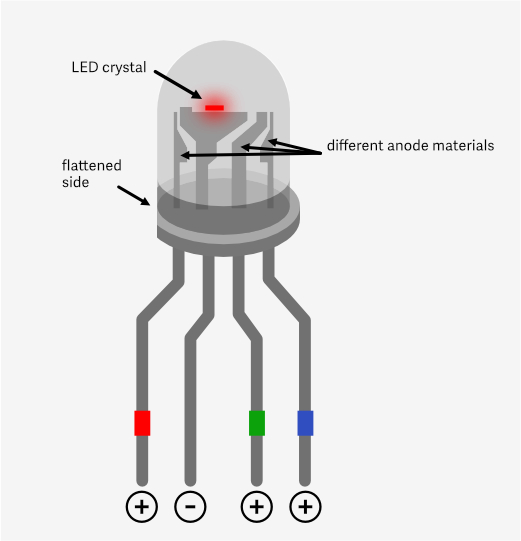
Structure of an RGB LED: the colors come from different anode materials.
By the way, there are two variants for the fourth leg: either it's the cathode and has to be connected to ground, or it's the anode and has to be connected to the 5V out pin. That's not really relevant for LED strips, though, since they always use the same connection scheme. More on that later.
So each individual color LED inside a classic RGB LED needs its own pin and wire. With 30 RGB LEDs, you would need 90 pins plus the power supply. That makes 91 pins in total!
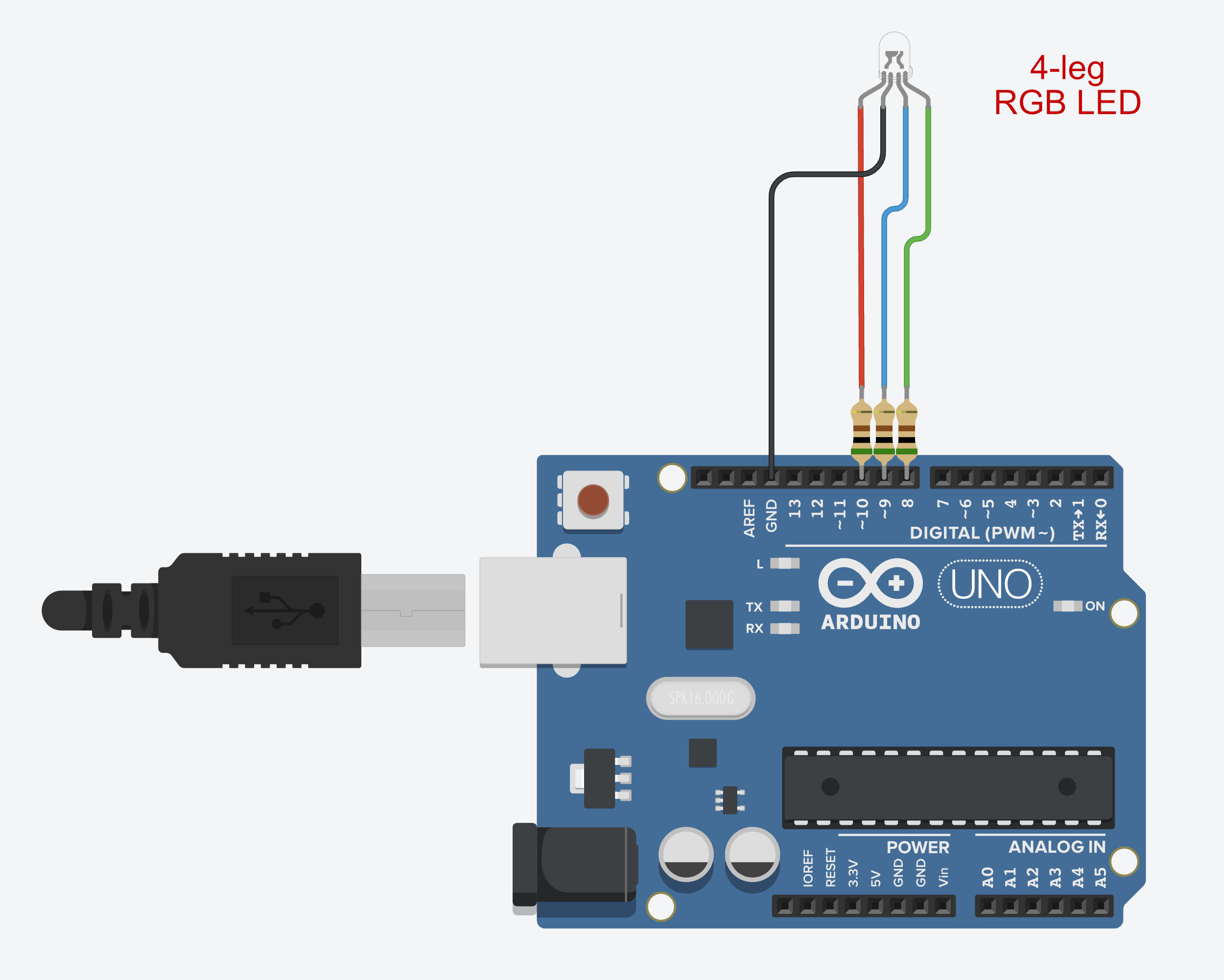
An RGB LED needs 3 wires plus power
There are several ways to solve this problem, multiplexing and Charlieplexing being the keywords (see introduction). Our LED strips solve it a bit differently.
The strips manage to send everything over just one data line. And still every LED can be controlled individually.
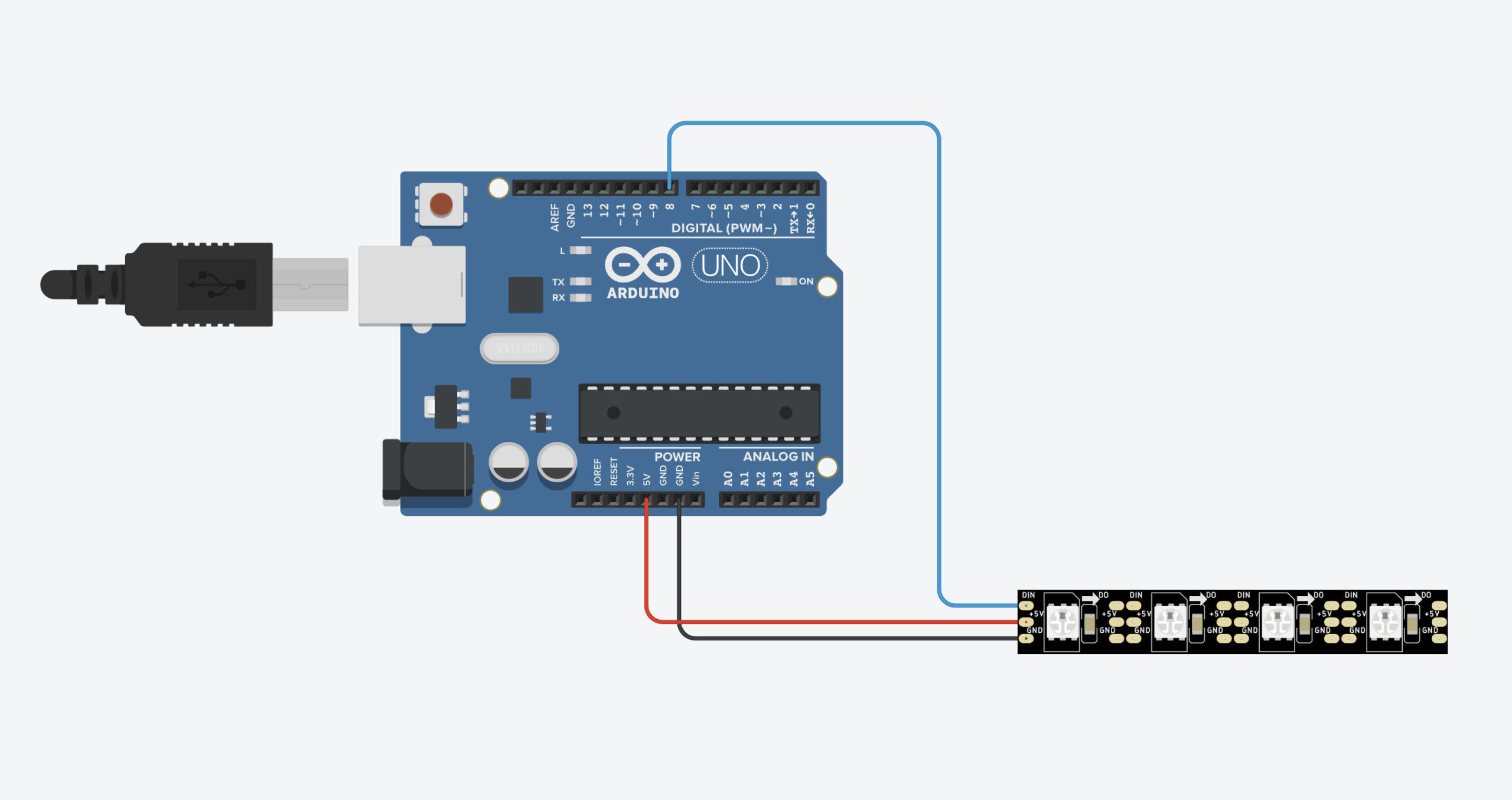
Only one data line is needed to control every single LED.
How LED Strips Work
How do the strips manage to drive all the LEDs in multiple colors with just one data line? The answer lies in the additional chips used on the strips.
If we zoom in on a single LED element of an LED strip, we can see that it actually contains 3 LEDs as well, plus an additional chip. This chip solves the problem of all those wires and takes care of driving the three color LEDs.
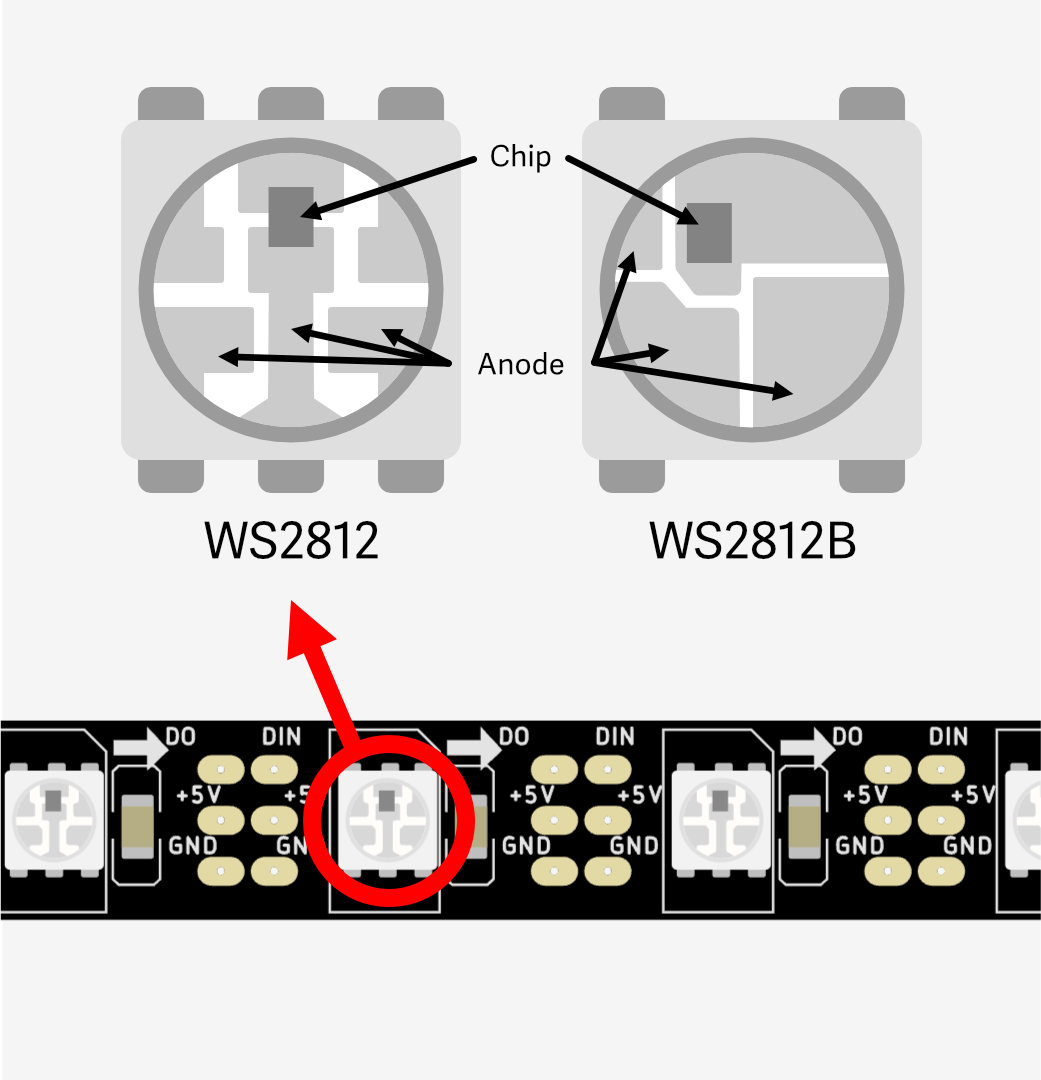
Left: the WS2812 element with 6 pins. Right: the newer WS2812B element with 4 pins.
Basically, it works like this: you create one big data packet. This data packet contains the color for every single LED in the entire strip. The whole packet is then sent straight into the LED strip via the data line.
The chip in the first LED takes the first color value from the data packet and sets its LED accordingly. Now here's the clever trick: the chip then cuts off that first color value and passes the rest of the data packet on to the next LED. There the whole thing starts over again, until the last LED finally receives the last color value. So the data packet gets smaller and smaller with every LED.
Now, the various chips differ slightly (see the WS2812 vs. WS2812B picture above) in how they process the data. When we want to program LED strips, we use an LED library that takes care of the complicated job of building the data packets for us. Some chip types work identically, others unfortunately don't. For a chip type to be supported, the developer has to adapt the LED library.
The developers of these LED libraries sometimes haven't managed (or simply aren't interested) to add every chip type yet. So it can happen that a particular LED library can't be used with a certain type of LED strip.
All the LED strips I'm about to introduce work on the same principle:
There is a data line that you use to control the LEDs. Each LED usually contains 3 individual LEDs: one for red, one for green and one for blue. The so-called RGBW variants have an additional fourth LED for pure white.
You'll often see a number like 5050 on LED strips. This refers to the size of the housing of an LED element. With 5050, the housing measures 5 × 5 mm. There are also smaller formats, such as 3528, but 5050 is probably the most common size for LED strips.
What Types of LED Strips Are There?
Here is a selection of widely used LED strip types that you can control with microcontrollers.


Why Do LEDs Flicker to the Eye and on Video?
WS2812B LED strips flicker because they are driven with pulse width modulation (PWM). PWM is a way of controlling the brightness of LEDs by switching them on and off very quickly. Brightness is controlled by changing how long the LED stays on relative to the total length of a cycle.
If the cycle is very short, the human eye can no longer perceive the flicker. The frequency above which flicker is no longer visible to the human eye is called the critical frequency. It varies from person to person, though, and usually lies between 50 Hz and 90 Hz. Some people are certainly more sensitive than that. Flicker is also more noticeable in your peripheral vision than when you look straight into the light.
For video, the critical frequency is different, because cameras work differently from the human eye. Cameras usually need a higher PWM frequency to keep flicker out of the footage. So if you want to build LED lighting for your videos, you can play it safe and use an LED strip that runs above the 430 Hz of the WS2812B & co., such as the SK6812. If you also want to shoot slow motion, the frequency should be as high as possible. In that case I would go with the SK9822 or APA102.
Power Supply
When to Use 12 Volt and When to Use 5 Volt LED Strips?
12 volts (or even more) is a good choice for running longer LED strips, because color shift is less of a problem. And if you need to inject power at several points, you'll need fewer injection points. (See the section on voltage drop and color shift further below.)
For smaller projects such as clocks, signs, costumes etc., where the wires aren't that long and the LED count isn't that high, I would go with 5 volts, especially if you use microcontrollers that can't handle 12 volts, such as ESP dev boards. The Arduino UNO can handle 12 volts directly thanks to its built-in voltage regulator.
How Do You Calculate the Power Consumption of LEDs?
Power supply is an extremely important topic. The power supply has to deliver enough amps to light up all the LEDs. Here I'll show you how to calculate the required current in advance.
As a rule of thumb, you calculate 20 mA of current per LED at full intensity. That's the worst case! It already includes a bit of headroom. That makes sense, too, because you shouldn't run a power supply at 100 % load continuously, i.e. permanently draw the maximum amperage. Otherwise you risk heat damage.
Our RGB LEDs have a separate LED for each color. So when all colors are on, one LED can draw 60 mA. That's the case when the strip is supposed to glow white, because all colors are switched on at the same intensity to mix a white tone.
So white draws the most current. The exception is the SK 6812 LED strip: it has an extra LED for white, so white only draws 20 mA here.
A WORD OF CAUTION: when programming, the color channels for red, green, blue and, in this case, white are controlled individually. So you could program it to switch on all four LEDs at once. That would even be 80 mA per LED. I can't think of a sensible scenario for that, though.
Here are a few example calculations with RGB LEDs:
30 RGB LEDs: 30 × 60 mA = 1800 mA.
60 RGB LEDs: 60 × 60 mA = 3600 mA
144 RGB LEDs: 144 × 60 mA = 8640 mA
You quickly reach an amperage that calls for bigger power supplies. But again: this is a worst-case calculation. To get there, you would have to light up all LEDs in white at full intensity. Most of the time it doesn't even make sense to have all LEDs lit all the time. There's more on this in the section Tips for Saving Power.
By the way: when the Arduino Uno is powered via USB, its 5V output can still deliver around 400 mA. So without an additional power source, you should connect an LED strip with no more than 6 RGB LEDs. That would be at most 360 mA. This only applies to the Arduino UNO; other Arduino models may differ. It's best to use an external power supply right from the start.
A Little More Current Is Better
The amperage can safely be higher than what you need. The loads in the circuit only draw the current they actually need. It's even better if the power supply can deliver more amps than required, because then you won't run into heat problems. As I said, you shouldn't load a power supply to 100 % continuously. 75 % is a good rule of thumb.
WS2812B 60 LEDs/m*

Amazon Link*
*
This link is an affiliate link. As an Amazon Partner, I earn from qualified sales.
What Power Supplies Are There?
Here I've put together an overview of common power supplies for LED strip projects.
Wall Adapters (aka Wall Warts)
The famous “wall warts” are easy to find with 5 volts and up to 4 amps. You probably even have a few of these 5 volt power supplies lying around at home. USB chargers for phones usually supply 5 volts because of the USB specification, and most of them deliver around 2 amps. Check the technical specs to see whether the power supply outputs 5 volts and how many amps it provides.
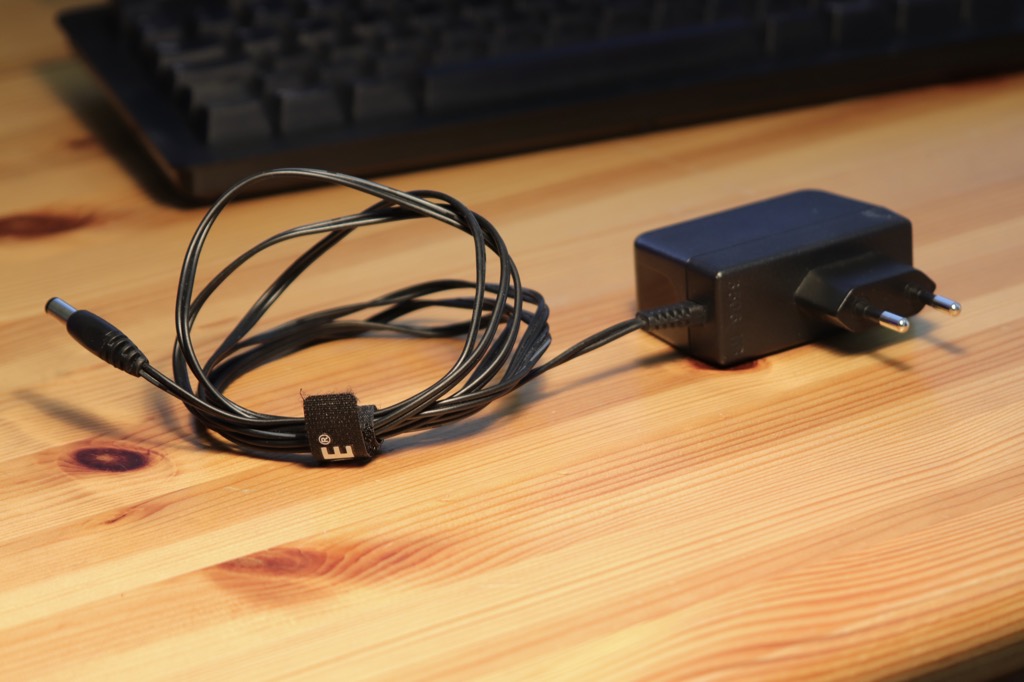
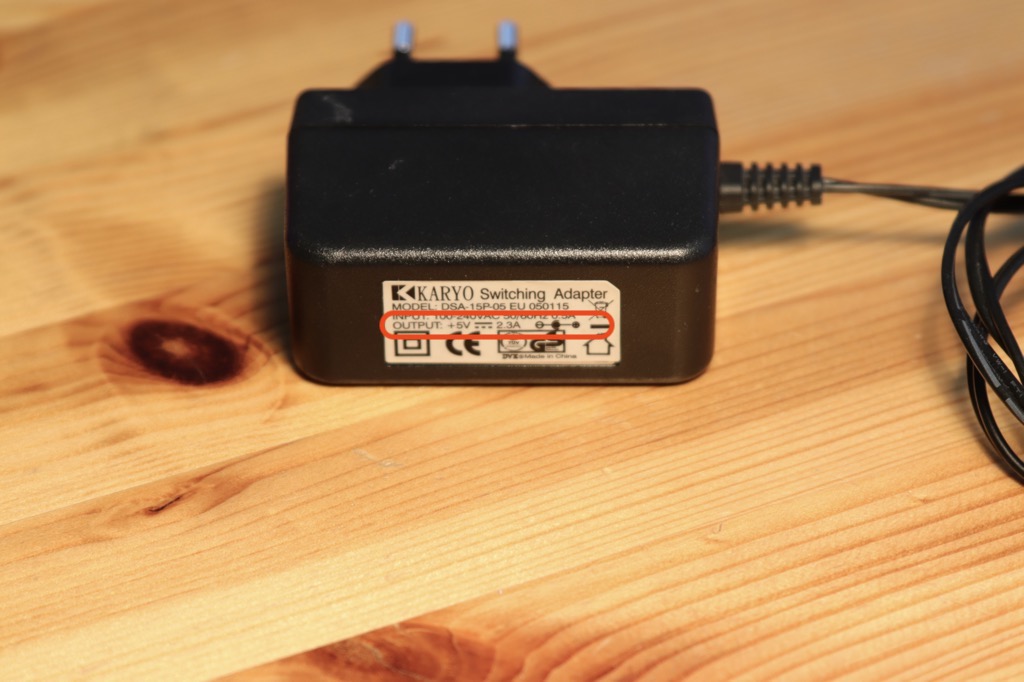
Always check the specs: 5V at 2.3A
I've had good experiences with power supplies from Leicke (Amazon link*). Also have a look at your phone chargers. If it has a USB plug, it supplies 5V as well. That said, these phone chargers aren't exactly known for their high quality.
LEICKE 5V 4A Micro-USB Wall Adapter*

Amazon Link*
*
This link is an affiliate link. As an Amazon Partner, I earn from qualified sales.
Laptop Power Supplies (aka Power Bricks)
Power supplies like the ones used for laptops are the next size up. You can easily find them with 10 or 15 amps. The latter may already have a built-in fan, though.
Here, too, I can recommend Leicke, for example this 5V power supply with 10 amps (Amazon link*).
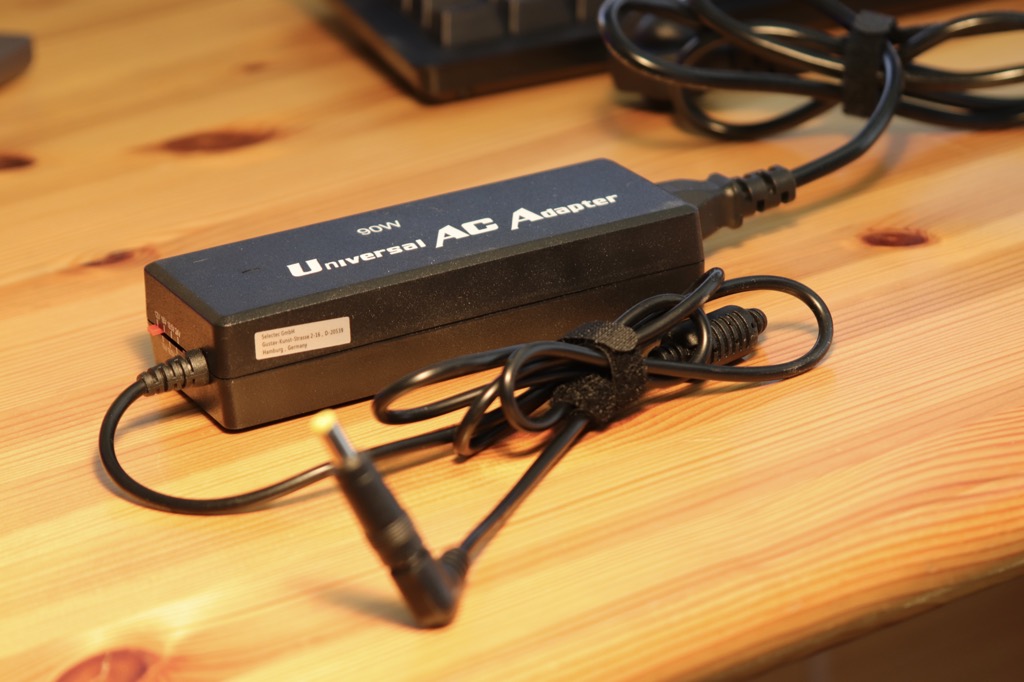
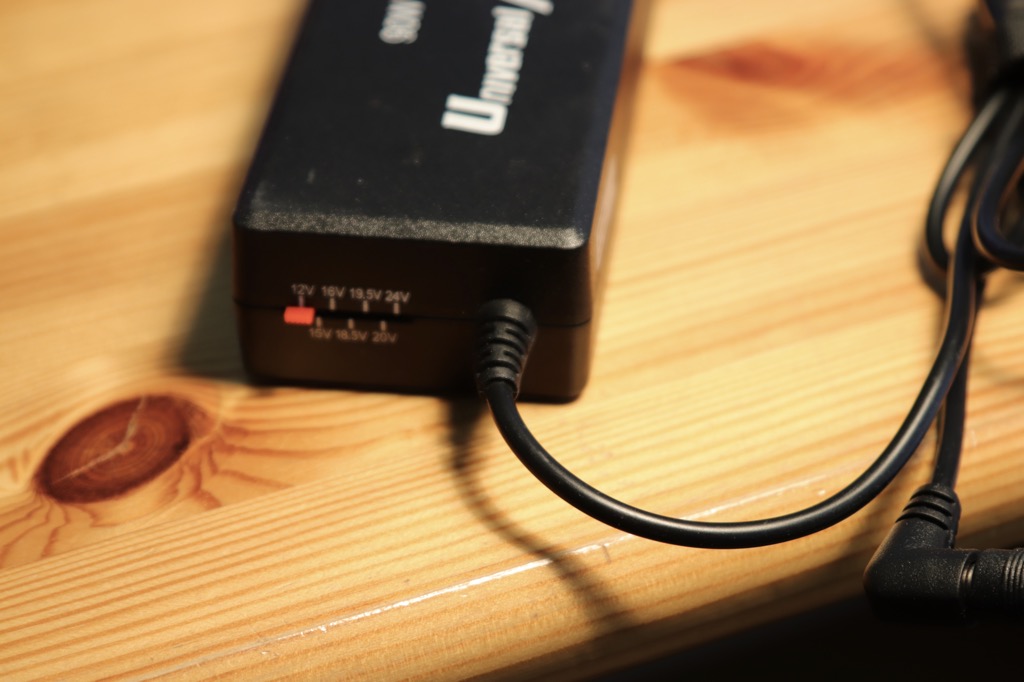
Voltage adjustable from 12V to 24V
Industrial Power Supplies (aka Frame Style)
The next “escalation level” is power supplies in a perforated metal case. These units are available with up to 70 amps. If you work with currents that high, though, you should definitely add extra fuses. If something burns out under that much load, ideally it should only be a fuse. I'll show you later where to put fuses when we get to the circuit.
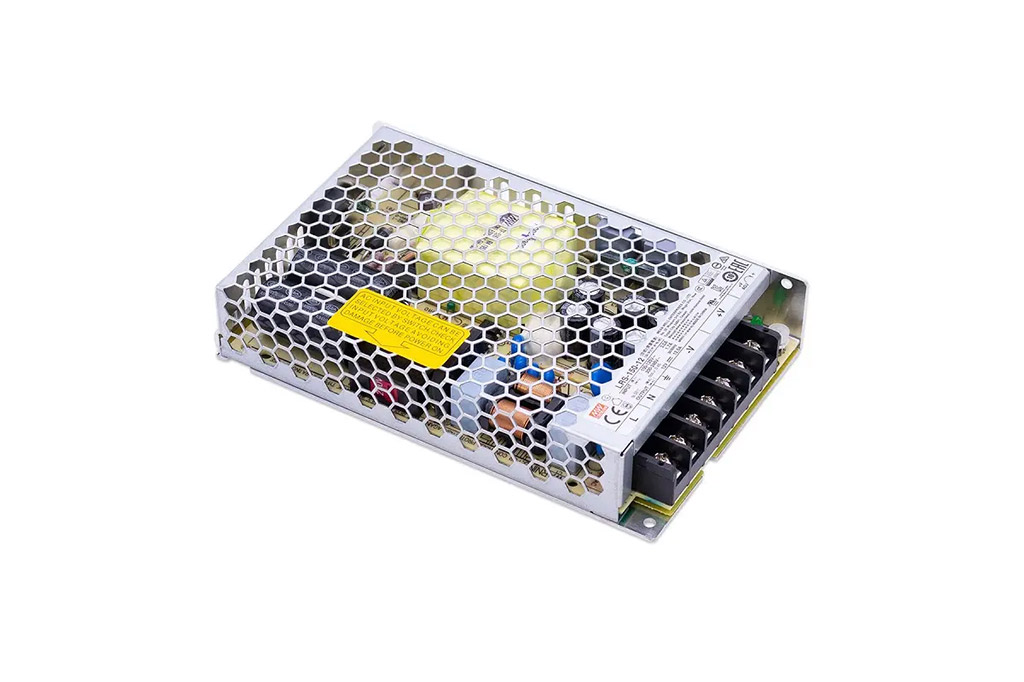
LEICKE 5V 10A Laptop Power Supply*

Amazon Link*
*
This link is an affiliate link. As an Amazon Partner, I earn from qualified sales.
ATX Computer Power Supplies
If you have an ATX computer power supply, that's a common solution too. They are often even designed for quiet operation, which usually isn't a priority for industrial power supplies.
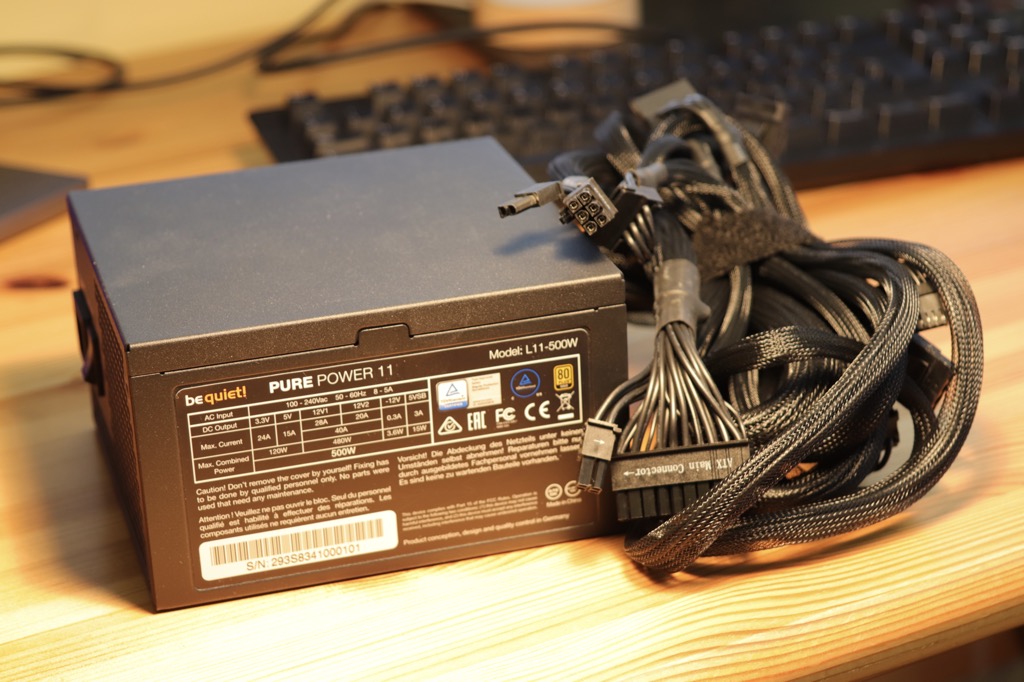
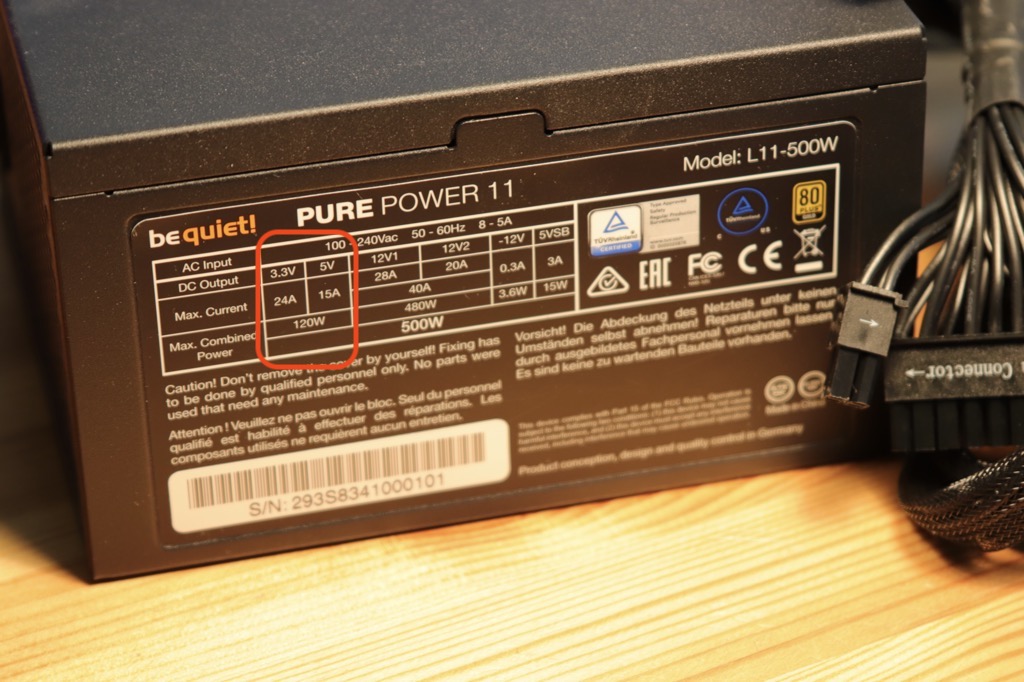
This one provides 3.3V/24A or 5V/15A!
ATX power supplies have three output voltage rails:
- 3.3 volts (orange wires)
- 5 volts (red wires)
- 12 volts (yellow wires)
The black wires are always ground. Of course, that doesn't help much when the witty product designers make every wire black, as on my bequiet! power supply. Luckily, I have an article + video on powering Arduino, ESP32 & co. with ATX power supplies. There you'll also find a pinout for this Molex connector.
be quiet! Pure Power 11 500W PC Power Supply*

Amazon Link*
*
This link is an affiliate link. As an Amazon Partner, I earn from qualified sales.
Built-in Power Supplies (aka LED Power Supplies)
If you're building something with a case or frame, I find built-in power supplies like these very handy. They are often sold as “LED power supplies”. With these, however, you have to take care of the 230V mains connection yourself. That may put some people off, since the power supply types above already have this solved. Personally, though, I find it fairly easy to build a power supply with one of these.
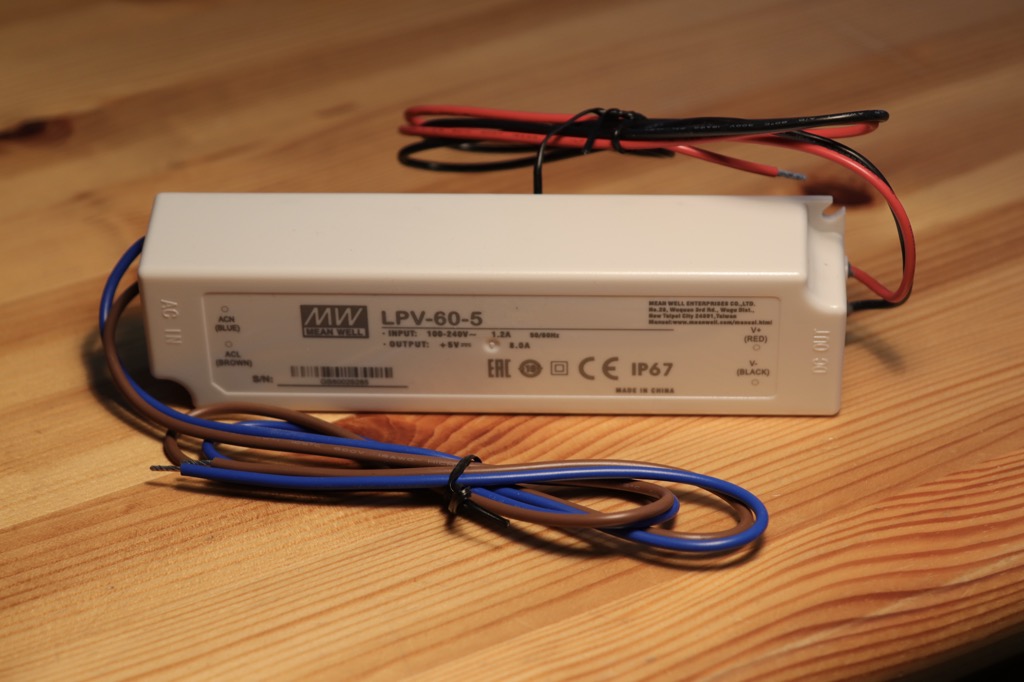
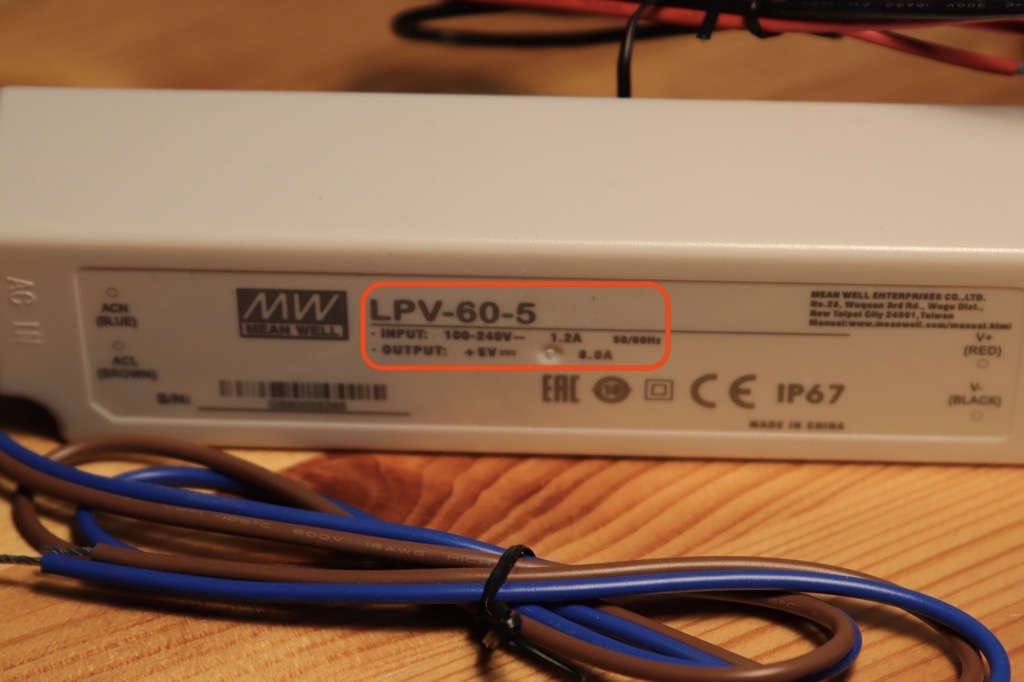
This model delivers 5V at 8A
I've had good experiences with these Mean Well power supplies. While cheaper products like to emit an audible coil whine, my Mean Well models have always been nice and silent. They come in various power ratings, for example 5V with 12A (Amazon link*) or 5V with 8A (Amazon link*).
One more reminder: I'm not an electrician! And maybe you aren't either. Don't blindly believe what I or anyone else says! Always think things through yourself before you work with high currents and voltages. Safety first! If you're unsure, ask, preferably a professional.
How Can I Save Power in LED Projects?
Here are a few important tips for saving power and significantly reducing the amperage you need:
Use Fewer LEDs
As obvious as it sounds: think about whether you really need an LED density of 144 LEDs per meter. Wouldn't 60 or 30 LEDs per meter be enough? That reduces power consumption significantly! I showed you above how to calculate the power you need.
Don't Light All LEDs at Once, and Not in White
Okay, depending on the goal of your project, this may not be an option. A homemade video light is supposed to shine as bright and as white as possible. But with animated LED strips in particular, usually not all LEDs are lit at the same time. And most likely they won't all be white either, but some other color. So the typical animated, colorful LED strip will naturally need far fewer amps.
MeanWell 5V 8A LED Power Supply*

Amazon Link*
*
This link is an affiliate link. As an Amazon Partner, I earn from qualified sales.
MeanWell 5V 12A LED Power Supply*

Amazon Link*
*
This link is an affiliate link. As an Amazon Partner, I earn from qualified sales.
Turn Down the LED Intensity
This is the most important and most effective tip: there's no point in running the LEDs at full intensity. You always set the intensity of each LED together with its color value.
The color value consists of three numbers: one for the red LED, one for the green and one for the blue LED. Each number is a value between 0 and 255 and sets the intensity at which the LED should shine. At 0 the LED is off, and at 255 it shines at its brightest (= highest intensity).
Pure red at the highest intensity has the RGB color value 255,0,0.
Pure red at half intensity has the RGB color value 127,0,0.
In practice, it turns out you don't need 255. That's very bright! Even if you set the intensity to 127, you can barely tell the difference from full intensity.
I ran a test with an 8×8 = 64 LED matrix, measuring the power draw with a TP-Link HS110 smart plug. Unfortunately it's no longer made, but there is a successor, the Tapo P110 (Amazon link**).
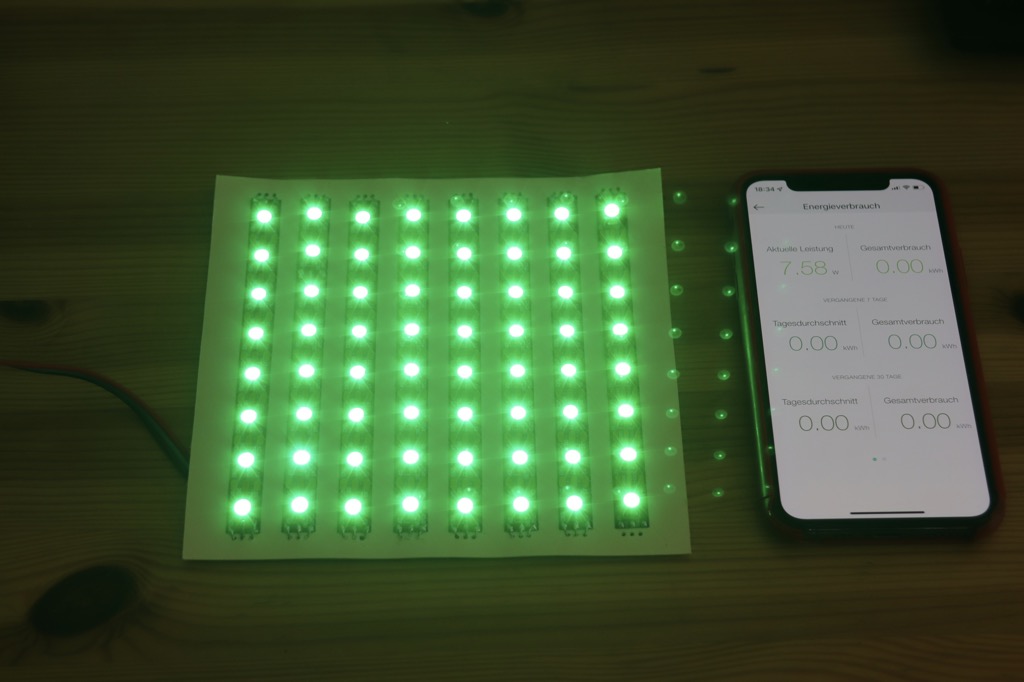
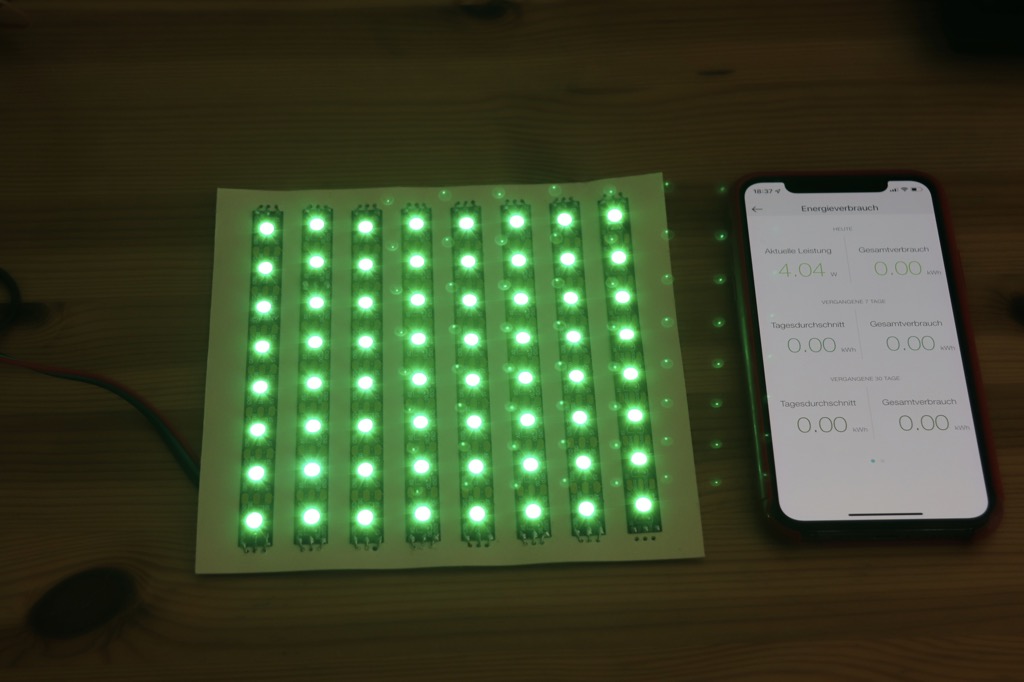
Intensity 127
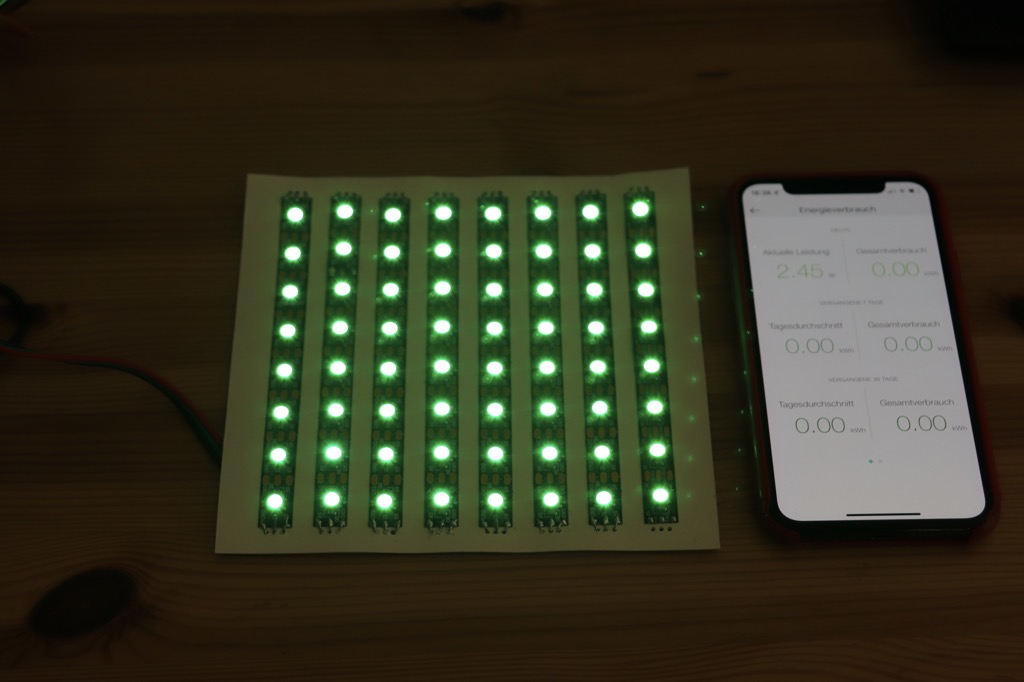
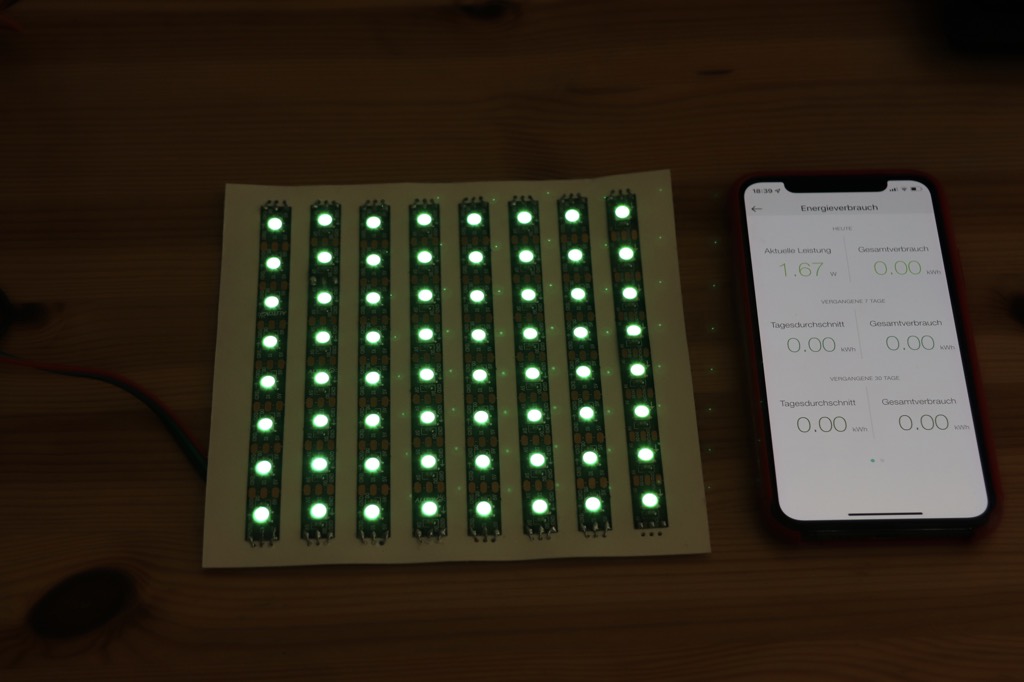
Intensity 31
I have to admit, the difference looks more dramatic in the photos. That's probably down to the camera settings, too. But the numbers nicely show how much you can save by lowering the intensity:
- Intensity 255: 7.68 W = 1.52 A
- Intensity 127: 4.04 W = 0.81 A
- Intensity 63: 2.45 W = 0.5 A
- Intensity 31: 1.67 W = 0.34 A
The nice part: our perception works in our favor here, because we don't perceive differences in brightness linearly. Our eyes are specialized for daylight (to hunt prey) and for darkness (so we don't become prey ourselves). In other words, they are tuned to the extremes, bright and dark, and that's where we notice differences best. Perceiving brightness between those extremes apparently didn't matter much for survival.
When we set the LEDs to half intensity (127), we don't perceive them as half as bright. To our eyes they look much brighter. From what I've read, the ratio is closer to 5:1 than 2:1, meaning an intensity value of 50 looks roughly half as bright as 255.
Just try it out and see which brightness value is still bright enough for you.
NERD-BOX: What Is Gamma Correction?
Controlling the brightness of light along a curve instead of linearly is called gamma correction. You've probably heard of it. The technique is used in every TV and monitor.
But why, actually? Does it really matter how bright or dark we perceive the overall picture on a monitor?
It's more complicated than what I've shown here for white alone: our eyes perceive the brightness of red, green and blue differently. So basically, each color has its own gamma curve.
If a monitor used the same gamma curve for all colors, the mixed color we see would look off.
We perceive green as 3x brighter than red and 10x brighter than blue. Gamma correction compensates for this, which is why our TVs and monitors don't all have a color cast.
So if you really want to, you could run the color values for your LED strip through gamma correction as well. But I think that would be overkill for most projects.
If you want to dig deeper: here's a great article on Hackaday.
How Do You Wire Up an LED Project?
Now let's get to building the circuit. How do we connect an LED strip to a microcontroller like an Arduino or ESP?
Most LED strips already come with a so-called JST connector soldered on. I find them handy because you can quickly connect or disconnect a strip. I made myself a simple adapter from JST to three separate Dupont connectors: just cut three jumper wires, solder them on and cover the joints with heat shrink tubing. That makes it really easy to connect the LED strip to a breadboard or directly to the microcontroller.
I simply "borrowed" the JST socket from an LED strip. Usually there's a JST plug soldered to one end and a JST socket to the other.
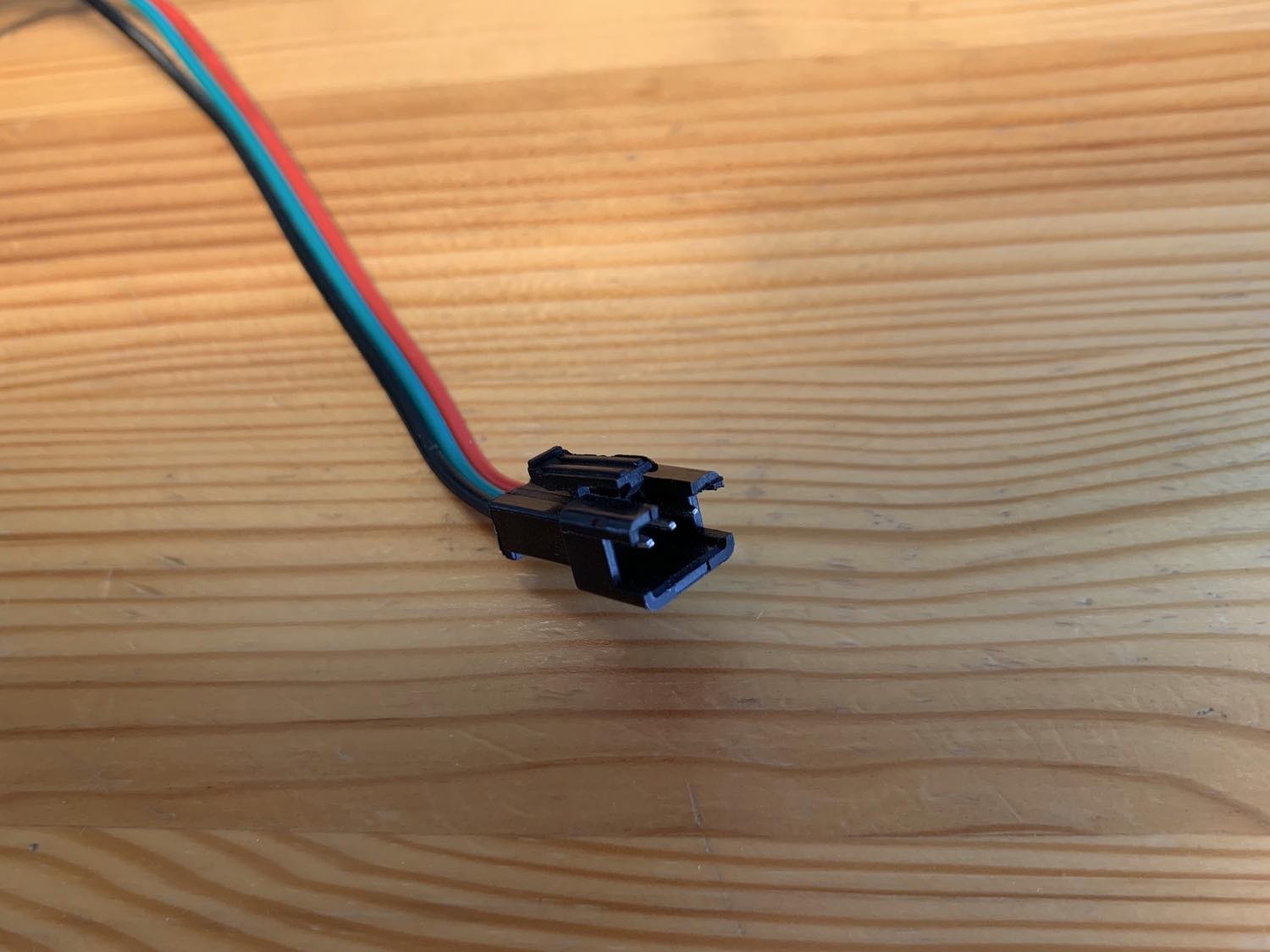
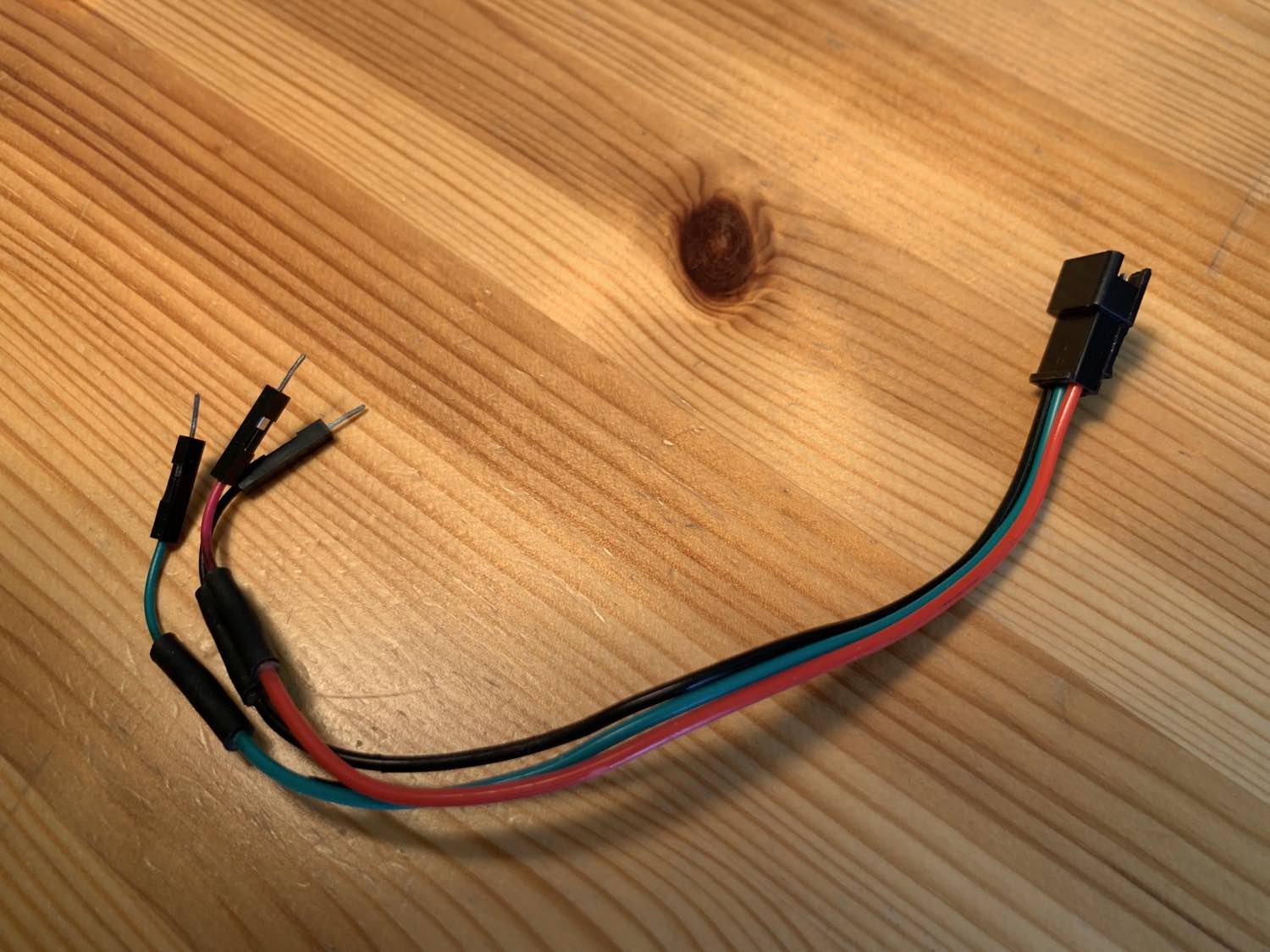
A JST-to-Dupont adapter for LED strips
To start with, the setup is pretty simple. Let's look at an LED strip with 6 LEDs that we connect directly to an Arduino powered via USB:
You need to pick a pin to connect to the data line of the LED strip. On the strip, the data line is usually labeled DIN. In addition, GND goes to ground and 5V gets 5 volts.
We can also add a resistor to the data line, right before the LEDs. It does two jobs: first, it protects the first LED from too much current, which can occur when you switch on the power supply, for example (a current spike). Second, it helps keep the signal "cleaner". For smaller projects (<50 cm of cable) you can leave the resistor out. See also the next NERD-BOX.
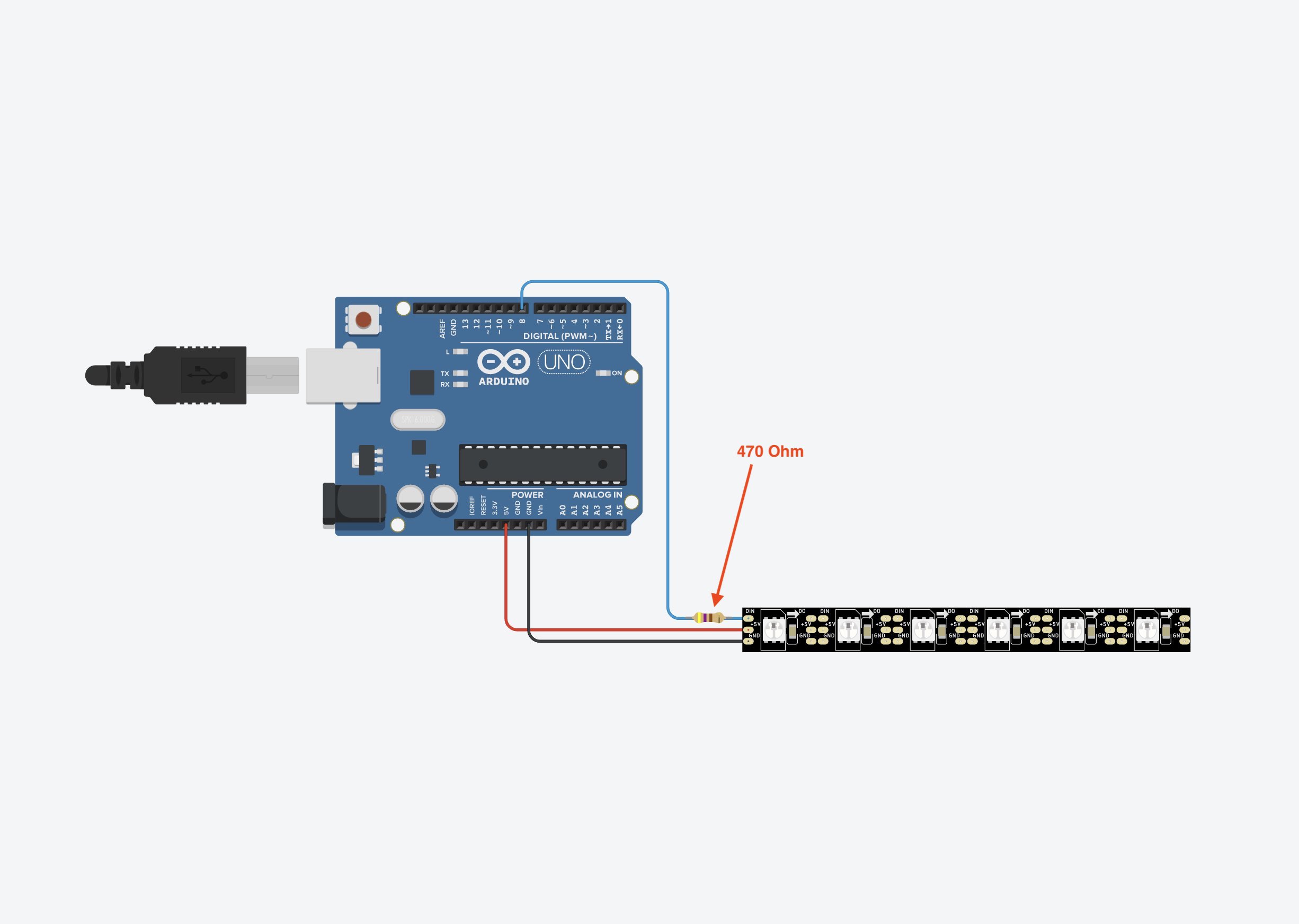
We can also add a resistor to the data line, right before the LEDs. It does two jobs: first, it protects the first LED from too much current, which can occur when you switch on the power supply, for example (a current spike). Second, it helps keep the signal "cleaner". For smaller projects (<50 cm of cable) you can leave the resistor out. See also the next NERD-BOX.
NERD-BOX: Current Protection and Clean Signals with the Right Resistor
As mentioned earlier, the RGB color values are converted into bits, that is, zeros and ones, before they are pushed into the data line of the LED strip.
Why, though? Why do computers always turn everything into 0s and 1s? Because a computer runs on electricity, and zeros and ones translate very easily into power off and power on.
The signal, all those zeros and ones in the form of power on and power off, races through the wire so fast that it needs to be as "clean" as possible. Clean here means that the difference between power off (LOW) and power on (HIGH) has to be clearly recognizable.
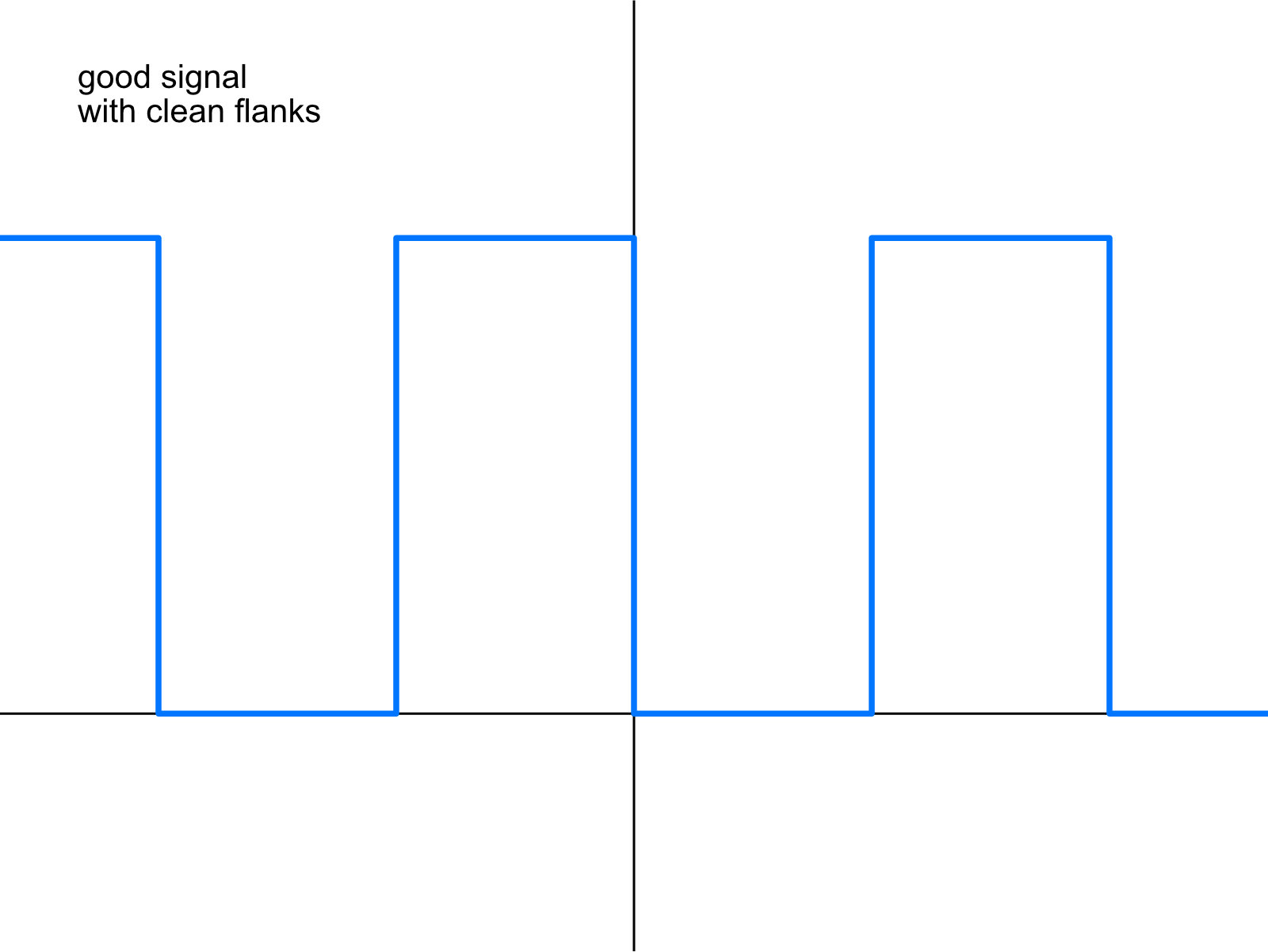
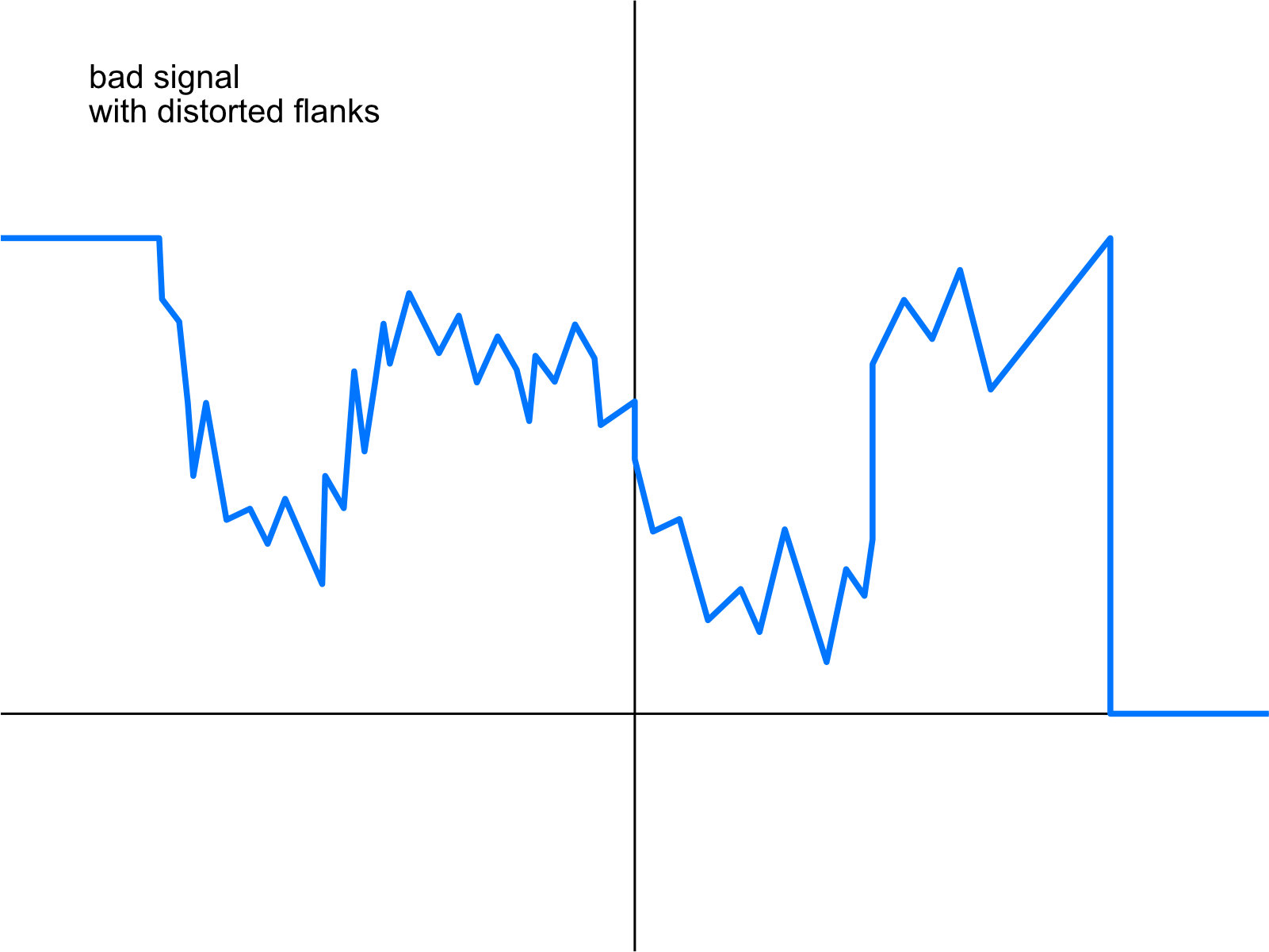
noisy signal
If interference gets into the wires, the signal gets distorted and is no longer as clean. In the worst case, the chip on the LED strip can no longer tell for sure whether it just received a HIGH or a LOW.
The longer a cable is, the more prone it is to interference. On the QuinLED website, the author ran some tests. They show that you can expect flickering with cables of 10 to 15 m or more, though it can start as early as 5 m.
Depending on the cable length, you also need to adjust the resistor. The famous Adafruit NeoPixel Überguide uses a 300 to 500 ohm resistor, such as 470 ohms. That works for short cable runs of up to 50 cm.
QuinLED has done a lot of testing on this. According to their results, anything from no resistor at all up to 500 ohms works for runs of up to 50 cm. From about 5 m on, effects can appear that you can then get under control with smaller resistors and/or different cable configurations. So far, though, none of my projects has had cable runs long enough for me to run into these problems.
If we want to use an external power supply instead, to drive a longer LED strip, we have to wire things a little differently. We want to power both the Arduino UNO and the LED strip from one and the same power supply. Two power supplies would work too, of course, but it's more elegant to run both from a single one.
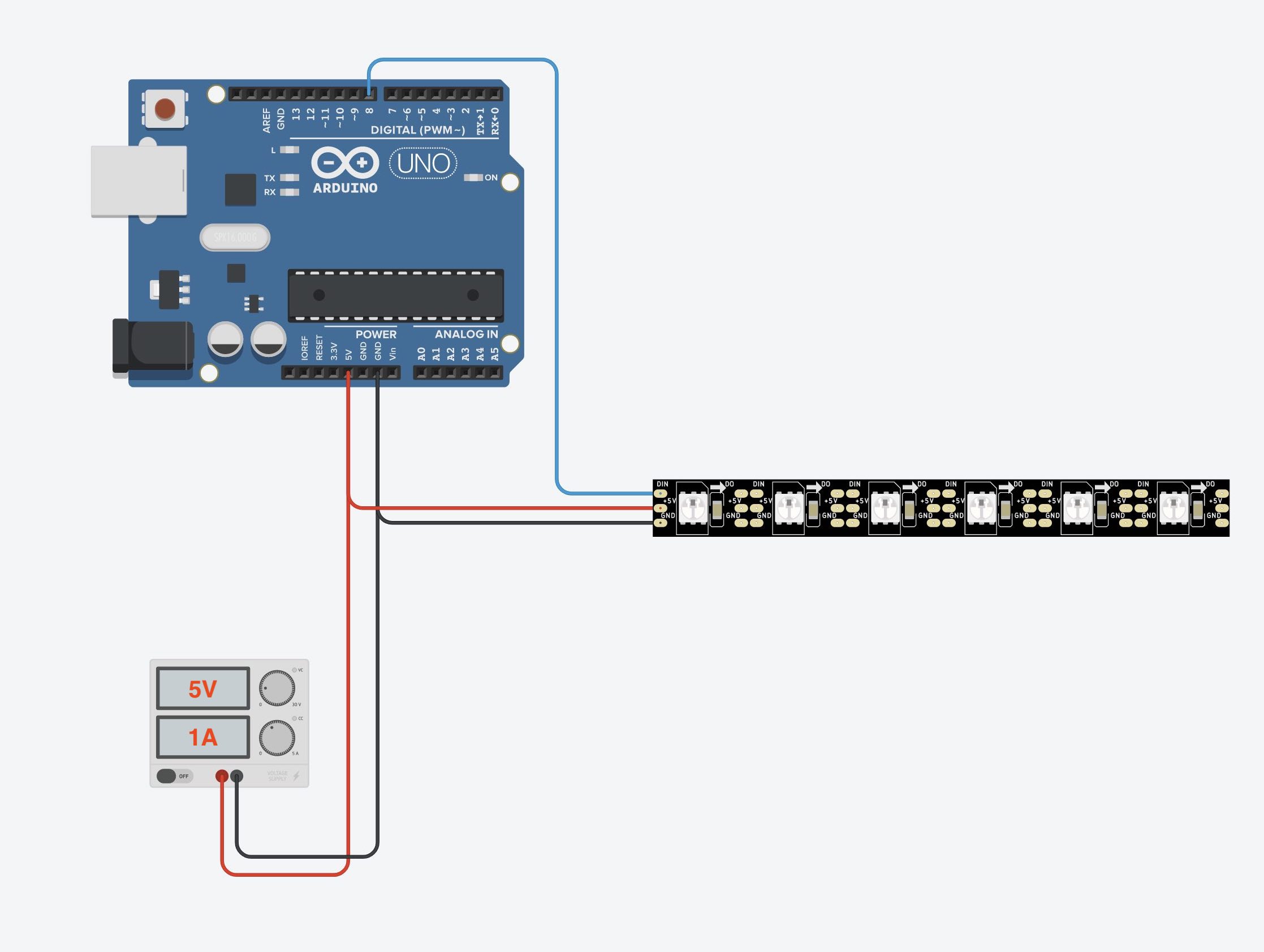
You will often also come across circuits that include an additional capacitor. It is supposed to bring some extra benefits, although opinions online differ a bit:
- When the brightness of many LEDs changes suddenly, the capacitor can cover this brief spike in current demand and take some load off the power supply.
- The capacitor can filter out current spikes and dips and so keep the signal cleaner.
Both sound plausible. As a rule of thumb: the more LEDs you use and the thinner your wires, the more sense a capacitor makes.
So if you run into color problems or flickering, give a capacitor a try.
Is the capacitor absolutely necessary?
No. Nothing will break or burn out right away. At worst, you'll get flickering or wrong colors.
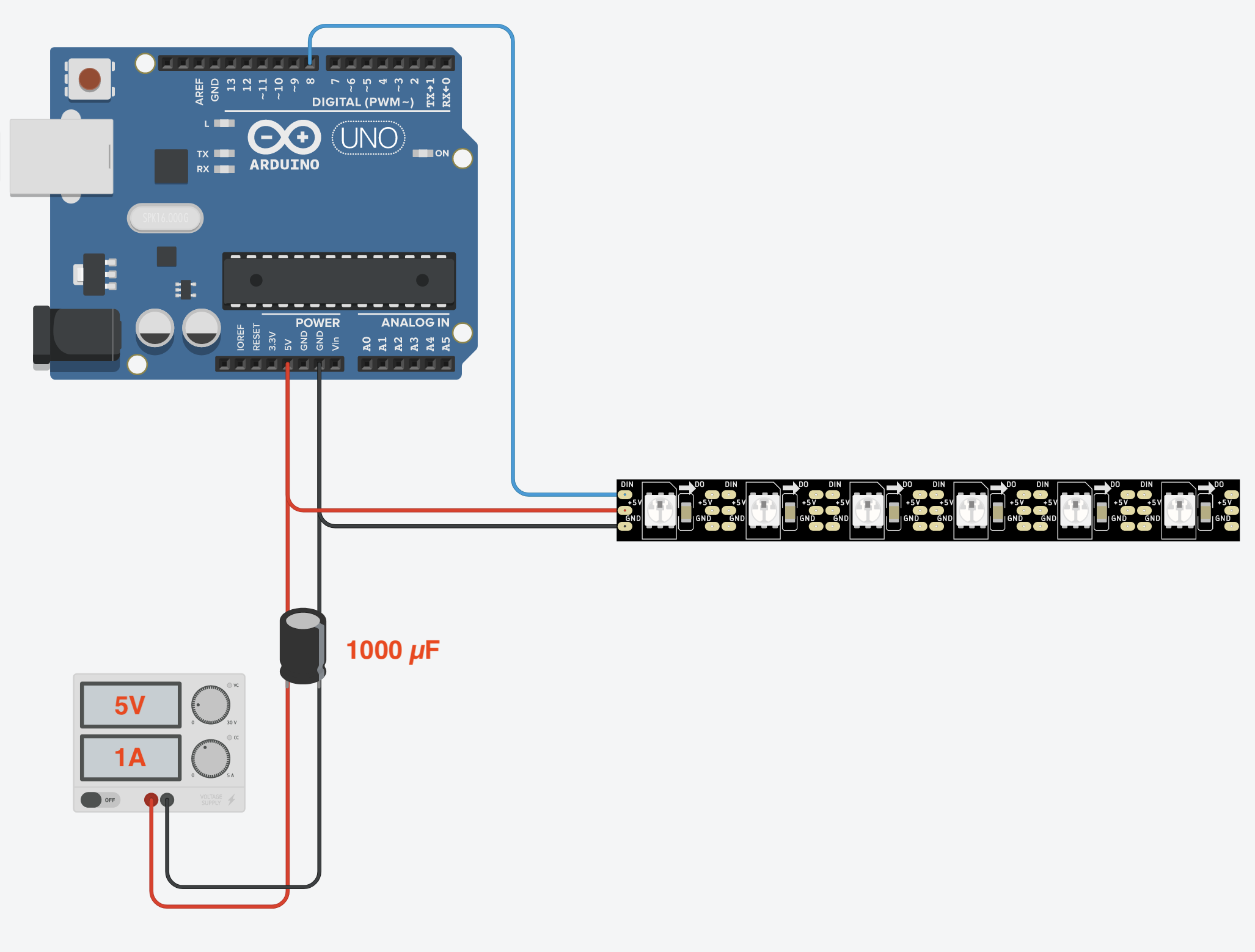
Once you work with really big power supplies (150/200 W continuous output), additional fuses make sense at the latest, so that they are the first thing to blow if something goes wrong. Put one in every 5 volt line, as close to the power supply as possible:
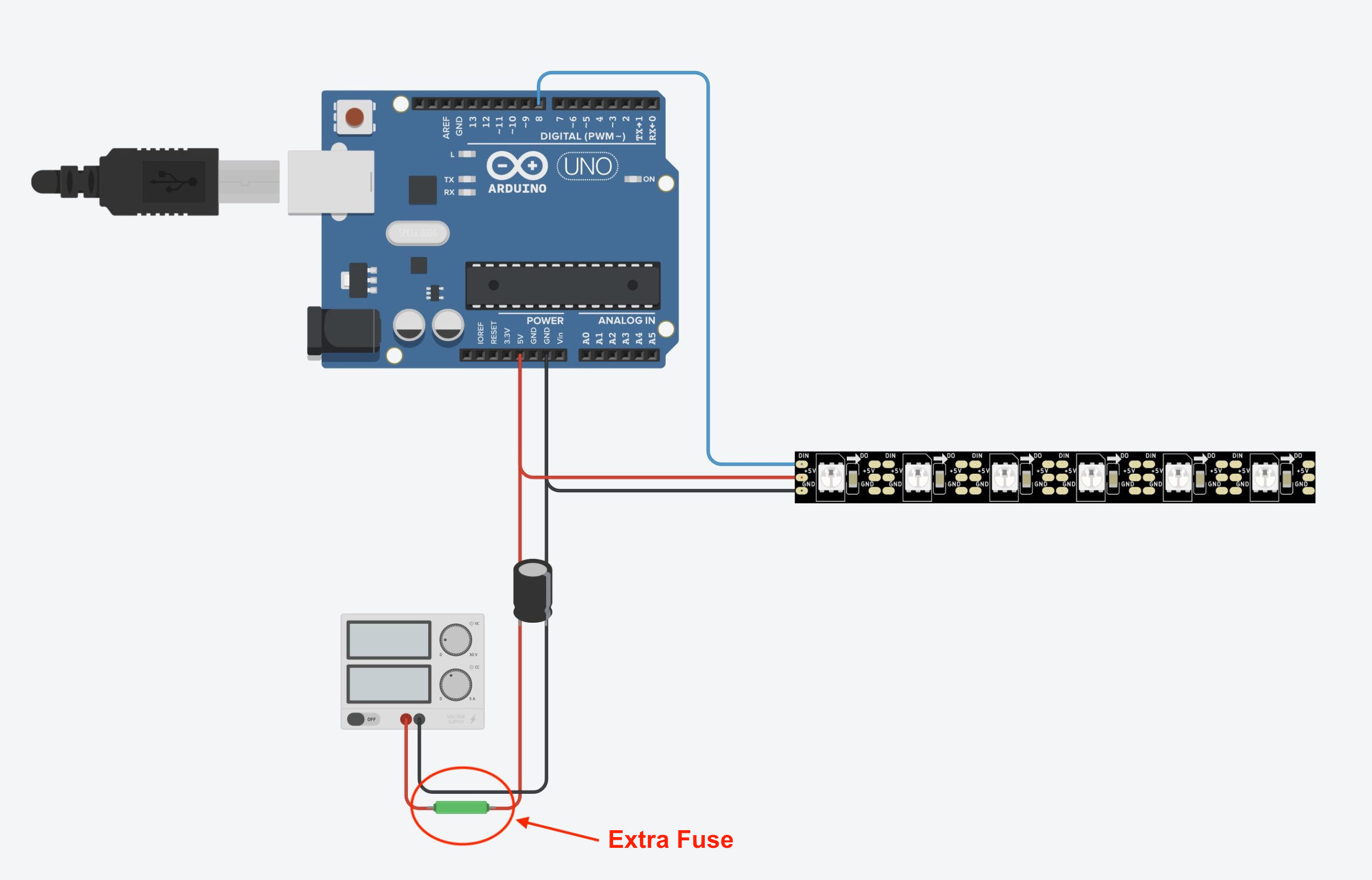
Classic automotive blade fuses are handy for this, for example (Amazon link*). They are easy to mount with automotive fuse holders (Amazon link*) befestigen.
First, you need to work out the maximum power your LED strip will draw. Let's say a strip with 150 RGB LEDs has a worst-case current draw of:
150 × 60 mA = 9,000 mA
Now pick a fuse with a higher amp rating, such as 10 amps. It's a trade-off: if the fuse rating is too close to the expected current, a small current spike could blow the fuse even though everything is fine.
If the fuse rating is too far above it, the fuse may blow too late.
Since we're already calculating with a rather unrealistic worst-case scenario, actually reaching 10 amps is pretty unlikely. So I'd start with a 10 amp fuse here. Worst case, the fuse blows, and that's exactly what it's there for.
TP-Link Tapo Smart Wi-Fi Plug*

Amazon Link*
*
This link is an affiliate link. As an Amazon Partner, I earn from qualified sales.
Color Shift Caused by Voltage Drop
Now let's get to one of the biggest problems with LED strips: the color shift caused by voltage drop.
Every LED on the strip draws current. On top of that, the components and traces on the strip have their own resistance. Depending on the length of the strip, too little voltage reaches the LEDs at the far end. As a result, the color of the light shifts toward the end of the strip.
You can see the effect clearly in the following pictures. The color should actually be the same white everywhere, just like on the right side of the strip, where the power is fed in.
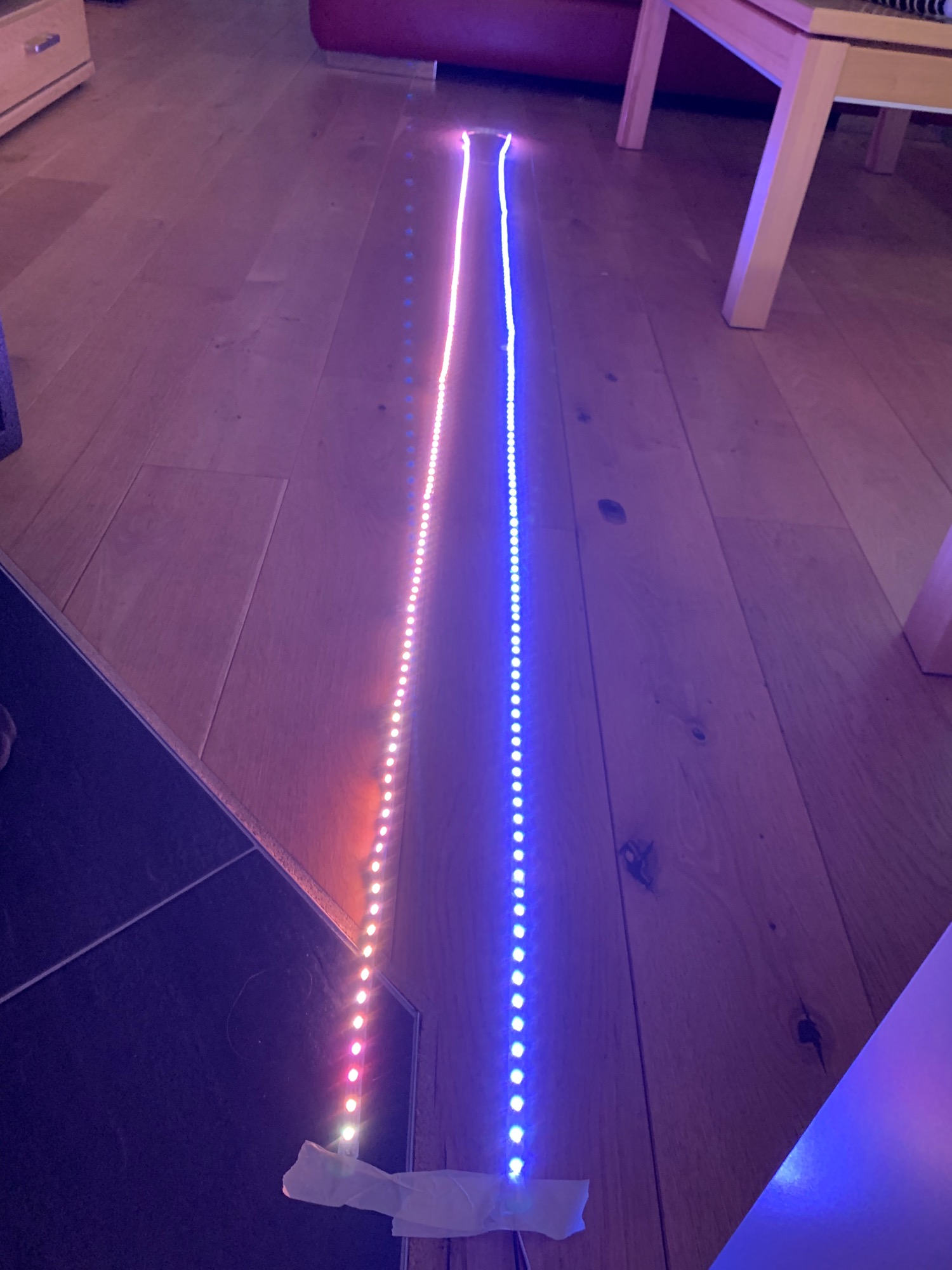
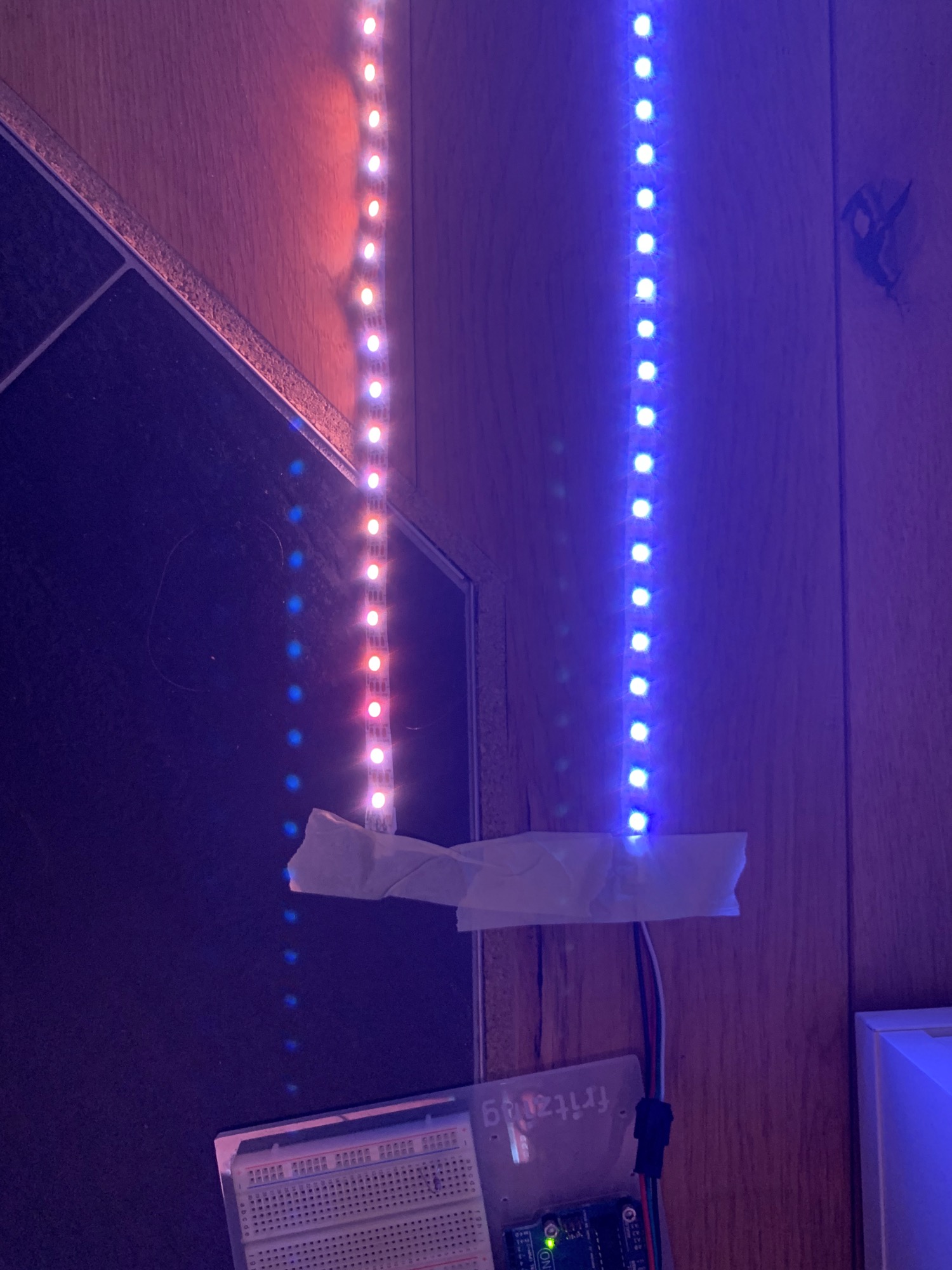
The color should actually be the same everywhere, like the bluish white on the right.
With a 12 volt strip the effect is less pronounced because more voltage is available, so the strip can be longer before the color shift kicks in here as well.
Why Do Cheap LED Strips Make the Color Shift Worse?
You may remember this from physics class: the thinner the wire, the higher its resistance.
To keep production costs down, manufacturers of cheap LED strips skimp on materials. Among other things, they use less copper in the traces. Less copper effectively means a thinner conductor, which in turn means that cheap strips have a higher resistance and the voltage drop sets in earlier.
So the question is: what counts as a cheap LED strip? Prices have actually risen so much (chip crisis, container crisis, and surely the Covid crisis and the Ukraine crisis too) that it feels like there are no cheap offers left at all. Since I've had good experiences with strips from BTF-Lighting (Amazon link*), I would use this manufacturer's prices as a benchmark.
How Do You Fix Color Shift on LED Strips?
So how do we fix the color shift caused by voltage drop? There are two common methods to get it under control:
Reduce the brightness
Lowering the brightness of the LEDs often solves the problem on its own, depending on the length of the LED strip.
On my 300 LED strip, the effect started at an intensity of 128. At an intensity of 64, I couldn't see any color shift. However, the LEDs at the end of the strip became less stable and started to flicker. At least in my peripheral vision, the flickering was noticeable.
With very long strips, though, the LEDs would probably get too dark. Then only the next option will do, which takes a bit more effort: power injection.
What Is Power Injection?
We now know the basics of building a circuit with a microcontroller and an LED strip. With power injection, power is fed into the LED strip not just at the beginning, but at several points along it.
One way to do this is to run a long cable parallel to the strip and feed power in at regular intervals. Often (depending on the length of the LED strip) it's enough to simply feed power into the end of the strip as well, as shown in the following diagram:
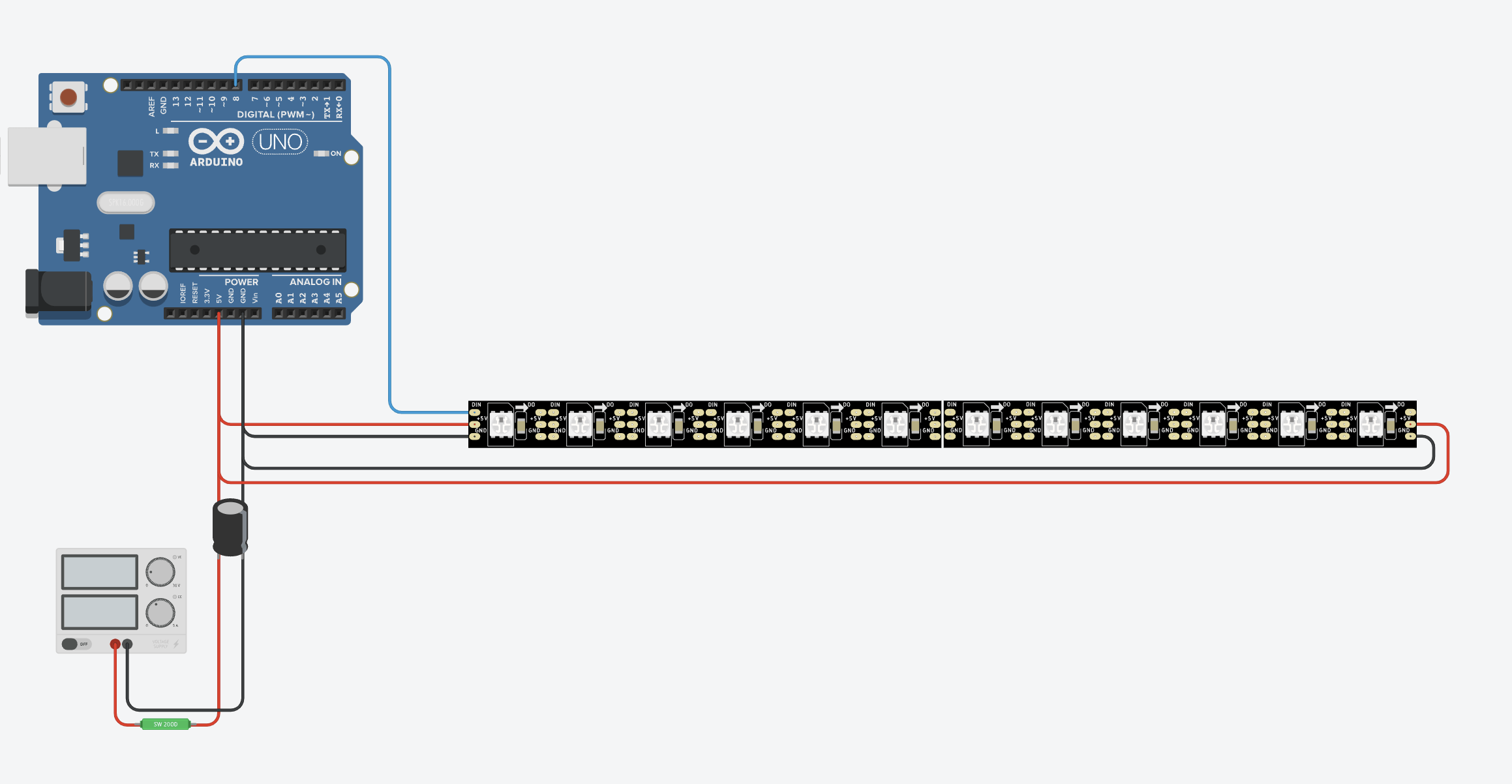
Power injection at the beginning and end of the LED strip
If the brightness still drops in the middle, you should feed power into the strip at several points, not just at the end. Sometimes it also helps to connect the power in the middle of the strip instead of at the beginning or end.
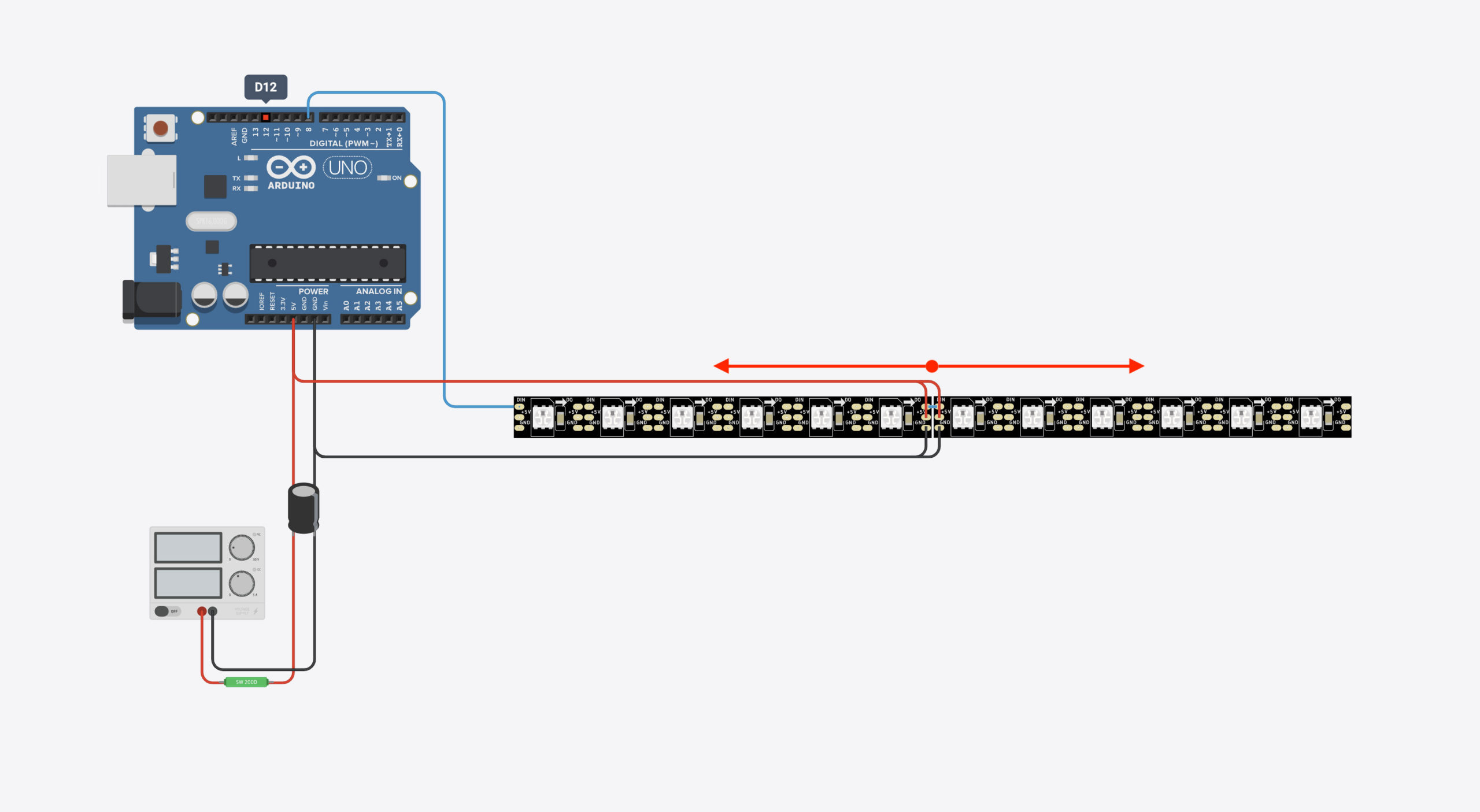
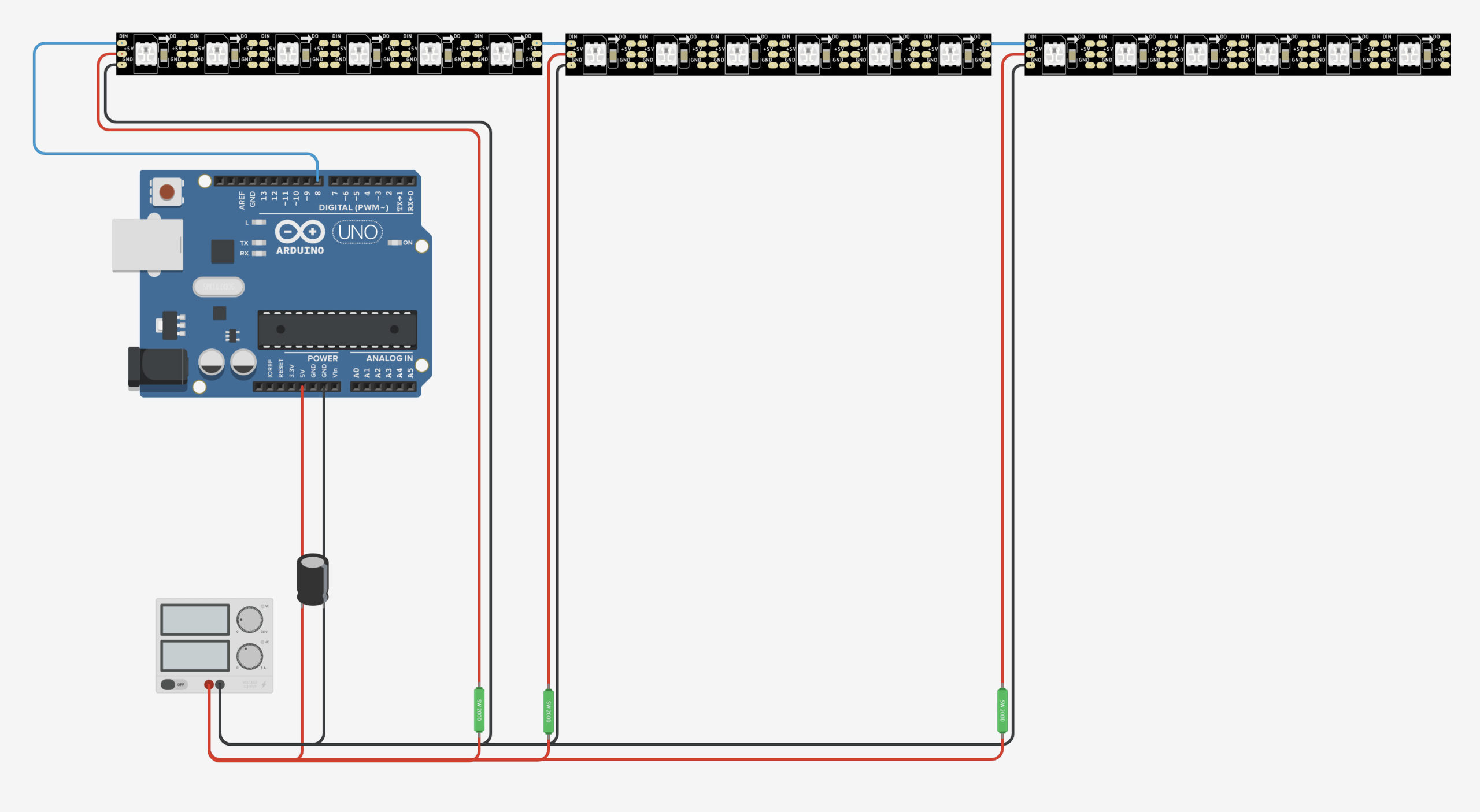
Power fed in at several points
ATTENTION: I measured the power consumption with and without power injection. As you can see, additional power injection draws more power (the brightness has to come from somewhere). Keep this in mind if you plan to work with very long strips and power injection.
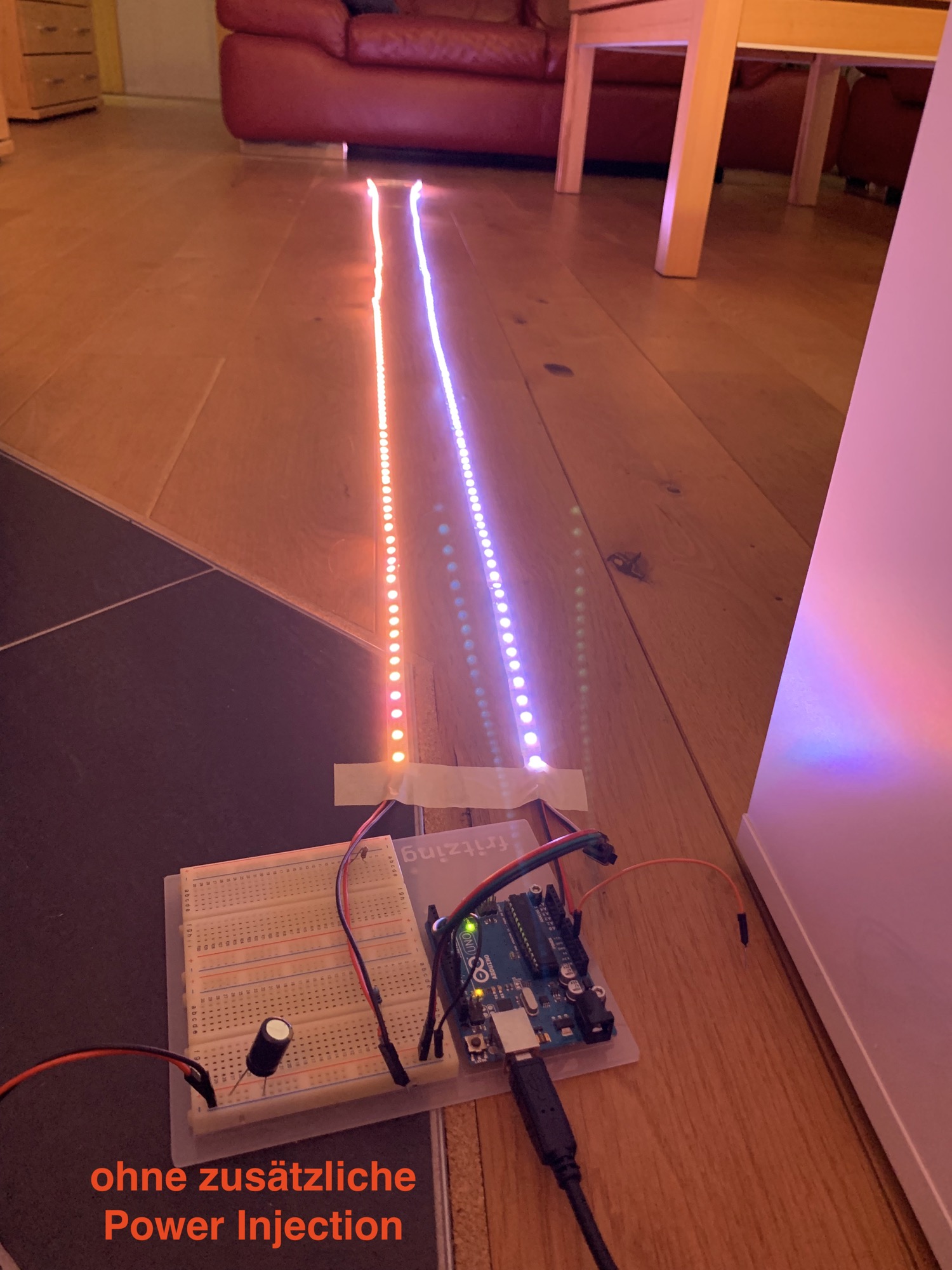
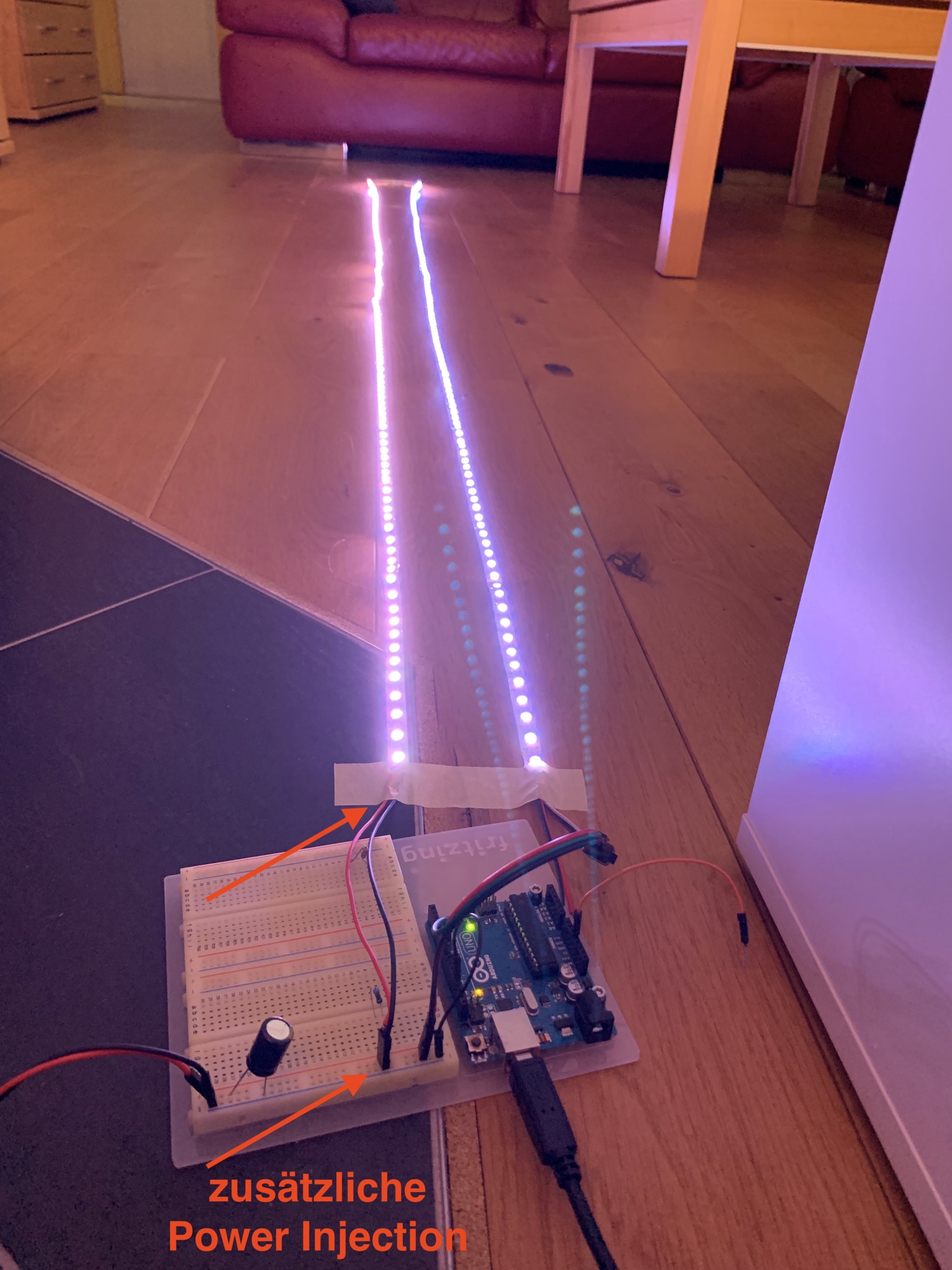
With power injection
Practical Tips for LED Strips
- Start with a few LEDs at low intensity and work your way up to 80 % of the power supply's maximum output. Check the power draw with a meter, for example a plug-in power meter like the TAPO P110 mentioned above (Amazon link*). This gives you a much better and safer feel for how much power your projects actually need.
- Even if these rules of thumb usually hold, check the specs of your power supply first anyway. Think again about whether it makes sense for your application (single colors/LEDs vs. all LEDs at full power on white)! Especially if you're working with very long LED strips or large power supplies. If in doubt, measure!
- If you're a beginner, start with smaller projects like decorative strips, PC case lighting or small matrix displays. Don't jump straight into 150 meters of Christmas lights: the current required is immense, especially with 5V LED strips (12V or 24V LED strips make more sense here). If you want to do the latter, be sure to get help from a professional.
More tips:
- 5V strips under 3m or 100 LEDs don't need power injection.
- 12V strips under 8m or 240 LEDs don't need power injection.
- Up to 150 LEDs: your phone charger might still be enough (check the amp rating!).
- 150 to 300 LEDs: here I would aim for a 7 or 8 amp power supply.
- The wires you use for power injection must not be too thin: no thinner than 22 AWG for small projects. Otherwise the wires get too hot and can burn through. The longer the wires and the more LEDs you use, the thicker the wires need to be.
- If the power supply is rated above 100 watts, you're better off installing a fuse in each power branch that goes to the LED strip.
- Place the fuses as close to the power supply as possible. The fuse rating must be slightly higher than the expected maximum current draw. Example: if you expect a maximum of 4.5 amps, use at least a 5 amp fuse.
ESP32 and Other 3.3 Volt Microcontrollers
Now, I really like the ESP32, and it runs on 3.3 volts. LED strips, however, run on 5 volts. Does that even work?
Strictly speaking, you'd have to raise the 3.3 volt signal to 5 volts with a logic level shifter.
In my projects, it has always worked without one so far. Apparently there's a tolerance range, and I've always been within it.
I can imagine, though, that problems start beyond a certain strip length, such as flickering LEDs, wrong colors and so on. In that case, once everything else has been ruled out, try a logic level shifter like the 74AHCT125. It converts the ESP's 3 volt data signal into a 5 volt signal.
What LED Libraries Are Available?
We've covered the hardware. Now let's move on to the software: the LED libraries.
To actually work with the LED strips, there are libraries we can use. Without them, we'd have to use bit operators to put everything in the right order ourselves and send the signal through the data line at a specific frequency. These libraries take care of all that super-nerdy stuff for us, so all we have to do is specify which LED should light up in which color.
There are three de facto standard libraries:
WLED is another interesting option. However, this library is more of a package with ready-made animations and effects, plus an app for controlling the LEDs. If, for example, you want to build animated ambient lighting and get results fast, WLED is pretty cool. If you want to program your own animations or, say, your own matrix display, WLED isn't the right fit.
Beyond that, choosing the right library also comes down to whether your LED strip, or rather its chip type, is supported at all. WS 2812B is pretty much the no-brainer: it's supported by every library. With the SK 6812 and its extra LED for pure white, things get trickier. FastLED, for example, can't handle the SK 6812. So if you want to use anything other than the WS 2812B, check which library is actually compatible.
Code Examples for Programming LED Strips
Now let's take a quick side-by-side look at how to work with these three libraries. I'm using a short piece of code that does the same thing every time: on an LED strip with 30 LEDs, it sets the first LED to red and the last LED to blue. The code is compatible with PlatformIO and Visual Studio Code.
If you've never worked with PlatformIO and VS Code before, I recommend starting with this article or video: Arduino IDE vs. PlatformIO and VS Code. It covers the essential basics. The code should also run in the Arduino IDE, in which case you can leave out the first line. The Arduino IDE includes the Arduino.h library automatically in the background.
Code Example Adafruit Neopixel
Here's what the code looks like with Adafruit's Neopixel Library:
/* Minimal Example with Adafruit's Neopixel Library
 * Link: https://github.com/adafruit/Adafruit_NeoPixel
 */

#include <Arduino.h>
#include <Adafruit_NeoPixel.h>
#ifdef __AVR__
  #include <avr/power.h>
#endif

#define PIN 8
#define PIXELCOUNT 30

Adafruit_NeoPixel strip = Adafruit_NeoPixel(PIXELCOUNT, PIN, NEO_RGB + NEO_KHZ800);

void setup() {
  strip.begin();
  strip.setBrightness(50);             // set the maximum LED intensity down to 50
  strip.show();                        // Initialize all pixels to 'off'

  delay(2000);                         // wait two seconds

  strip.setPixelColor(0, 255,0,0);     // color the first LED in red
  strip.setPixelColor(29, 0,0,255);    // color the last LED in blue
  strip.show();                        // send the new color settings to the stripe
}

void loop() {}
Code Example FastLED
Here's what the code looks like with the FastLED Library:
/* Minimal Example with Daniel Garcia's and Mark Kriegsman's FastLED Library
 * Link: https://github.com/FastLED/FastLED
 * Web: http://fastled.io/
 */

#include <Arduino.h>
#include <FastLED.h>

#define PIN 8
#define PIXELCOUNT 30

CRGB leds[PIXELCOUNT];                         // Define the array of leds

void setup() {
  FastLED.addLeds<WS2812B, PIN, RGB>(leds, PIXELCOUNT);

  delay(2000);                                 // wait two seconds

  leds[0].setRGB( 255, 0, 0);                  // color the first LED in red
  leds[29].setRGB( 0, 0, 0);                   // color the last LED in blue
  FastLED.show();                              // send the new color settings to the stripe
}

void loop() {}
Code Example NeoPixelBus
And here's what the code looks like with the NeopixelBus Library:
/* Minimal Example with Makuna's NeopixelBus Library
 * Link: https://github.com/Makuna/NeoPixelBus
 */

#include <Arduino.h>
#include <NeoPixelBus.h>

#define PIN 8
#define PIXELCOUNT 30

NeoPixelBus<NeoGrbFeature, Neo800KbpsMethod> strip(PIXELCOUNT, PIN);

void setup() {
  strip.Begin();
  strip.Show();                                // Initialize all pixels to 'off'

  delay(2000);                                 // wait two seconds

  strip.SetPixelColor(RgbColor(0, 255,0,0));   // color the first LED in red
  strip.SetPixelColor(RgbColor(29, 0,0,255));  // color the last LED in blue
  strip.Show();                                // send the new color settings to the stripe
}

void loop() {}
Overall, NeopixelBus is a bit more complicated to set up. In particular, you have to keep in mind the different setups for certain microcontrollers. On the ESP8266, for example, you can't freely choose the data pin; a fixed pin is assigned instead. You'll need to check the documentation here, but that's something you should do with any of these libraries.
Outro
And that brings us “already” to the end of this LED Strip Ultra Guide. The goal was to write an introductory article on LED strips that's as comprehensive as possible, without claiming to cover everything, of course. If something important is missing, let me know. I'll be happy to add it.
Links
Here are all the links from the article in one place:
Product recommendations from this article:
BTF-Lighting 5m WS2812B 60 LEDs/m*
Amazon Link*
*
This link is an affiliate link. As an Amazon Partner, I earn from qualified sales.