The Arduino can't do anything and it's way too expensive! In this article I'll tell you what my favorite alternative is and why we still love the Arduino anyway. I'll also show you how to upload a program to an Arduino UNO and to an ESP32 in the Arduino IDE.
The key facts summarized for you
Differences and Similarities Between Arduino and ESP32
- The Arduino UNO is a microcontroller based on an Atmel processor with a 16 MHz clock speed and 32 KB of memory.
- The ESP32 is made by Espressif. Its processor runs at 160 or 240 MHz. Memory between 4 and 16 MB is common. Bluetooth and WiFi are built in as well.
- Simple programs are written the same way for Arduino and ESP32. With more advanced features, there are differences in the code.
- Both microcontrollers can be used with the Arduino IDE as well as with PlatformIO + VS Code.

René Aye
Head of Short Circuits @ raydiy
Keeps his herd of microcontrollers supplied with power and lovingly crafted code.
RAYDIY Newsletter
Subscribe now
and get a free eBook!Why We Still Love the Arduino!
Ok, if I claim that the Arduino can't do anything, that's of course completely exaggerated. It's just that, compared to other microcontrollers, the Arduino has become comparatively expensive. The widely used Arduino UNO has no WiFi and no Bluetooth, while the ESP32, for example (my favorite alternative to the Arduino), comes with WiFi and Bluetooth.
To be fair, the Arduino UNO has also been around a few years longer than the ESP32.
However, if we pick an Arduino model for comparison that has similar features to the ESP32, the price difference is very clear, as you can easily see in the small comparison table below.
Before we take a look at the devices, here's a quick explanation of why we still have to love the Arduino! What the Arduino team built was simply an excellent complete package. A simple microcontroller, comparatively cheap at the time, together with a development environment that is easy to use. And on top of that, a framework that isn't overly complicated.
This complete package eventually led to lots of people suddenly getting started with microcontroller programming, and it has now become completely normal among electronics hobbyists and in schools as well.
Arduino UNO
Here we have an older Arduino UNO. This model should even predate the Arduino UNO R3. The current model is the Arduino UNO R4.
You can see the ATMEL processor here. Sensors, LEDs or other components on the breadboard are connected via the pin headers and cables. The Arduino UNO R4 no longer has an ATMEL processor. Instead, a Renesas RA4M1 microprocessor running at 48 MHz does the work, and there are now 256 KB of flash memory. Even so, the code has remained compatible with its predecessors.
The whole thing is powered via USB. This Arduino UNO has a USB Type-B connector for connecting to the computer and for power supply. Alternatively, you can power the board with a power supply via a barrel jack. Or you can power the Arduino UNO via a specific pin.
I've written a separate article about all the ways to power the Arduino and ESP32:
Arduino UNO R4*
![Arduino UNO R4 Minima [ABX00080] - Entwicklungsboard mit ARM Cortex-M4 Mikrocontroller, ideal f�r IoT-Projekte, Automatisierung und Anwendungen mit Arduino IDE.](https://raydiy.de/wp-content/plugins/aawp/public/image.php?url=YUhSMGNITTZMeTl0TG0xbFpHbGhMV0Z0WVhwdmJpNWpiMjB2YVcxaFoyVnpMMGt2TkRGQlJpMVFhVEY1YTB3dWFuQm58MTc5MzI0ODI4Nw=)
Amazon Link*
*
This link is an affiliate link. As an Amazon Partner, I earn from qualified sales.
ESP32 & ESP8266
In comparison, here we have an ESP32 and an ESP8266. You can see right away that they are much smaller. The components for WiFi, Bluetooth and the microcontroller are hidden under the metal lid (on the ESP8266 without Bluetooth).
Thanks to the pin headers, the ESP can be used on a breadboard. That way you can connect the ESP's pins to components without a soldering iron. The component with the angular squiggly line at one end is the WiFi antenna.
These boards are powered and connected to the computer via Micro-USB. But you can also power the board via the 3 volt pin. In a separate article I explain how to run the ESP on batteries.
Comparison Arduino UNO vs ESP
Now that we have an overview of the Arduino and ESP hardware, let's take a look at the “inner values”.
In the table I've listed which features the different Arduino boards and the ESP8266 and ESP32 have. Of course I haven't listed every Arduino board, since there are lots of different ones by now. So I simply picked the classic Arduino UNO and Arduino Nano.
I also added another Arduino that comes close to the ESP boards in terms of features: the Arduino MKR WiFi 1010, which also has WiFi and Bluetooth.
Let's look at the values.
WiFi and Bluetooth
We can quickly see that only the Arduino MKR WiFi 1010 and the ESP32 have these. The ESP8266 has WiFi but no Bluetooth.
Memory
This is where it gets interesting, but also complicated! Memory matters when it comes to the maximum size of the program you can load onto the microcontroller. As soon as your programs get bigger, memory is immensely important. In principle, the architecture of the ESPs is different from that of the Arduino UNO.
On the Arduino UNO, the memory where the program is stored and the working memory for calculations and variables are strictly separated. On the ESPs, the memory areas are not strictly separated and everything can be configured dynamically. That's why there isn't one fixed value for program memory or working memory here.
Overall, though, you can say: the ESPs generally have more memory, both for programs and for volatile working memory.
GPIO
This is the number of pins on each board. What you need to know here: you can't use every pin freely. Some are blocked for internal processes. Some are meant for power supply. However, this applies to all microcontroller boards. So the general tendency is still right that the ESP32 has more pins than the ESP8266 or the Arduino MKR.
CPU
Here we can see which processor has the highest clock speed. The higher the clock speed, the faster calculations can be performed. A special feature of the ESPs: depending on the model, they have a dual core processor and can therefore run two processes in parallel.
Operating Voltage
Also interesting: this isn't the power supply for the board, but basically how much voltage comes out of the pins and powers the sensors, LEDs or other components. This used to be more complicated, because back then there were usually only 5 volt compatible components, and you had to work with level shifters whenever you used a 3.3 volt board. Today this is no longer a problem. You can get most components for 3.3 volt boards.
Price
Here you can see pretty quickly: the ESP32 has the best features and a comparatively low price compared to an Arduino board with similar features.
Interim Conclusion
Arduino UNO or Arduino Nano? Actually, there's no reason to use the UNO. The UNO and Nano are practically the same hardware. Both can do the same things and the Nano is a bit cheaper. The only exception: if you want to use shields built in the Arduino UNO form factor, they will of course only fit on the Arduino UNO.
Also, working with the Nano is probably more "fiddly" because it's smaller than the Arduino UNO. The UNO's pins are easy to reach with jumper wires.
And which ESP should you use? The ESP32 also has Bluetooth, is a bit faster and has faster WiFi. If you want to be on the safe side, just go with the ESP32.
Personally, I once had bad luck with the ESP8266: I bought a set of 5, but couldn't use any of them. Uploading the code always aborted. Maybe I fell for cheap knockoffs. So I've happily stuck with the ESP32.
Arduino and ESP32 Hands-On Comparison
After the feature comparison, let's now do a little hands-on comparison. Let's take a look at how to connect the microcontrollers and how to upload a first program to the Arduino UNO and the ESP32. For this we'll use the Arduino development environment, also called the Arduino IDE.
To connect, simply plug the USB Type-B connector into the Arduino board and the USB Type-A end into the computer. Some of the LEDs on the board should start blinking right away.
We start the Arduino IDE. There we create a new sketch and save it first. For the comparison we'll use a simple blinky code, basically the “Hello World” of microcontrollers.
int LED = 4;

void setup()
{
    pinMode(LED, OUTPUT);
}

void loop()
{
    digitalWrite(LED, HIGH);
    delay(10);
    digitalWrite(LED, LOW);
    delay(250);
}
In the code, we first define pin 4 to control the LED. So our LED has to be connected to pin 4.
In the setup() method, we specify that pin 4 should only output power. The pin should not listen for input, like with a switch, for example.
And in the loop() method we set pin 4 alternately to HIGH and LOW, i.e. the LED is switched on and off. Between HIGH and LOW we add a few delays, because otherwise we wouldn't even see the LED switching on and off.
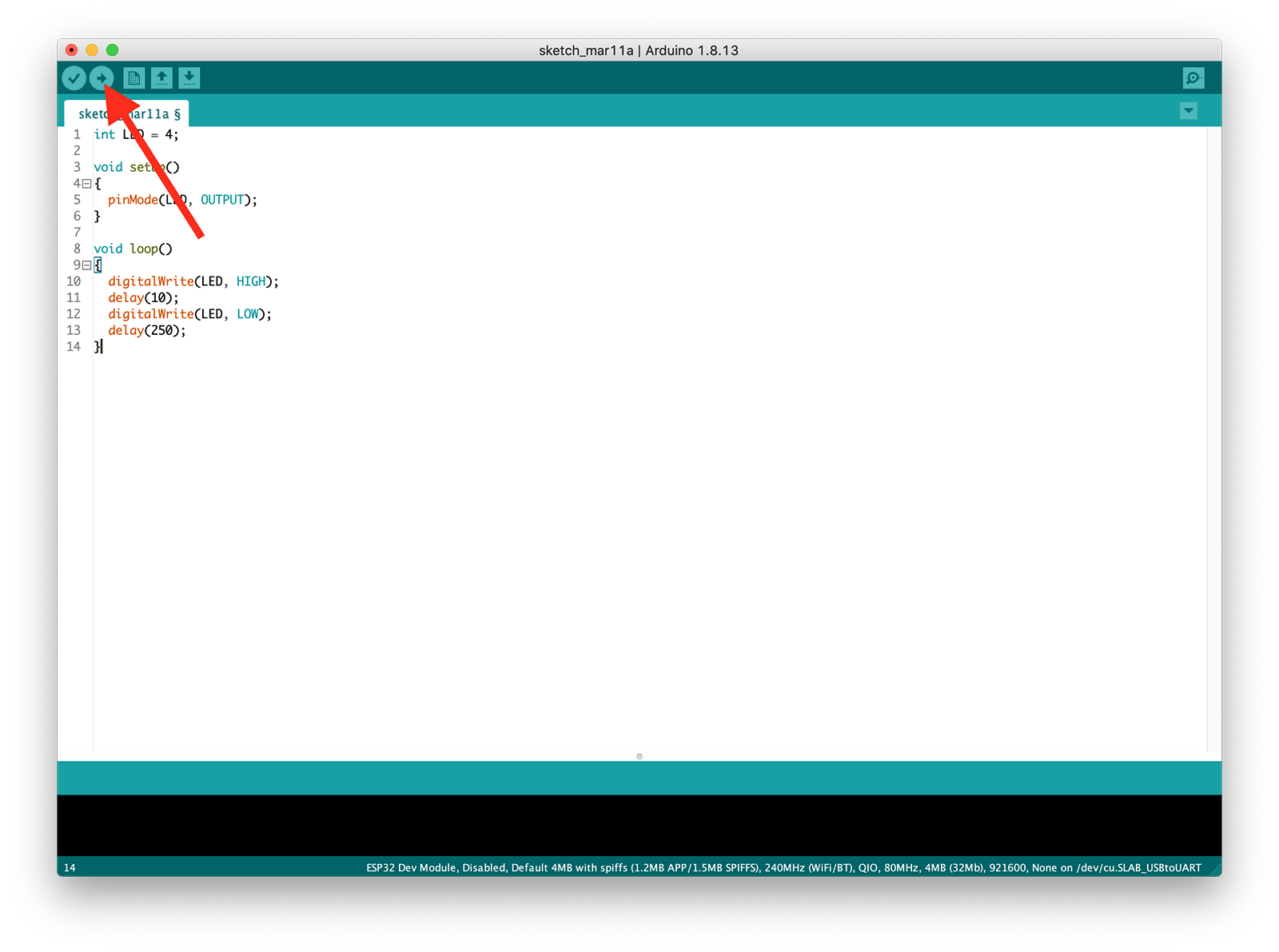
The arrow button uploads the code to the microcontroller
The button with the arrow finally uploads the program to the microcontroller. If everything worked, a corresponding message appears in the console at the end. Our LED is now blinking.
Now let's do the same thing again with the ESP32. First we disconnect the Arduino, and then we need a micro USB cable to connect the ESP to the computer and power it. We also need to rewire the cables on the breadboard so that the LED is now connected to pin 4 of the ESP. And of course we also need to connect Ground.
When you use the ESPs in the Arduino IDE for the first time, you first have to add them to the so-called board manager, so that the Arduino IDE can address the ESPs correctly. For this, the menu under Arduino > Settings has the field Additional Board Manager URLs. Here we need to add two addresses. One address for the ESP32 boards and one address for the ESP8266 boards.
Then enter both URLs in the field, separated by a comma:
https://espressif.github.io/arduino-esp32/package_esp32_index.json,https://arduino.esp8266.com/stable/package_esp8266com_index.json
Note: The screenshot below still shows the old ESP32 address from Espressif (dl.espressif.com). Use the current address above.
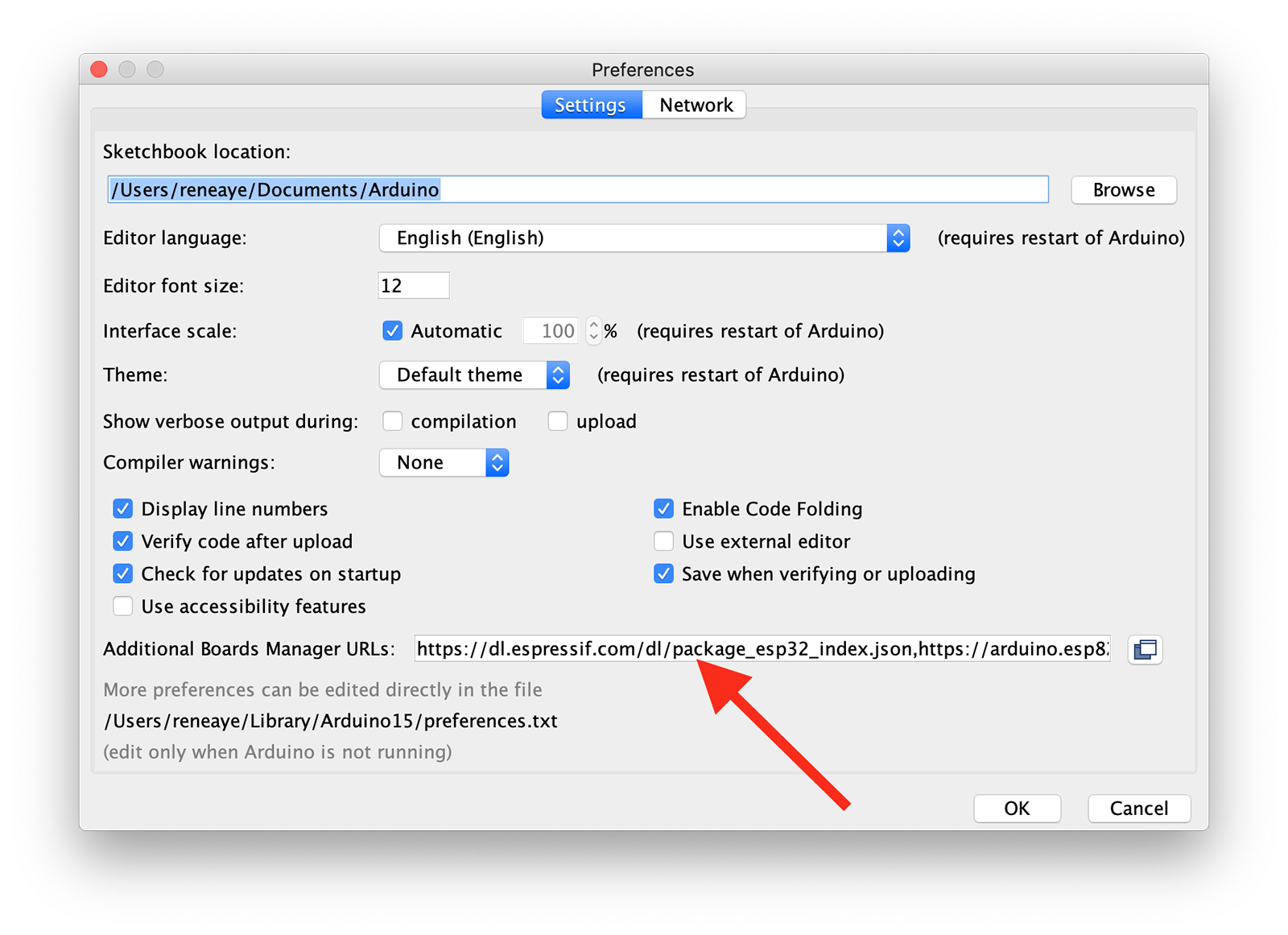
This is where you enter the two URLs (the screenshot still shows the old ESP32 address).
Confirm with OK, and various ESP boards are then available in the menu under Tools > Board.
We also need to make sure the correct USB port is selected. On Mac OS this is usually SLAB_USBtoUART, and on Windows it's a COM port.
If we now upload the code to the microcontroller, the LED should blink again, but this time controlled by the ESP32.
ESP32 DevKit C by AZ-Delivery*

Amazon Link*
*
This link is an affiliate link. As an Amazon Partner, I earn from qualified sales.
Conclusion
As you can see, you only need to add the ESPs to the board manager once. After that, programming works exactly the same way as with an Arduino.
What you should also know: because we uploaded the program via the Arduino IDE, we also put the Arduino framework onto the ESP. This means we are now using the Arduino framework on the ESP. The manufacturer Espressif offers its own framework called ESP-IDF. But since the Arduino framework is so popular, it was ported to the ESPs.
By the way, I hardly ever develop in the Arduino IDE anymore, because the development environment doesn't offer me enough features. And with larger projects, things quickly get messy. I wrote an article about which alternative IDE I use and how to upload programs to the Arduino and ESP with it.
But of course we love the Arduino IDE dearly too 😉
Links & Product Recommendations
Product recommendations from this article
Related Links
RAYDIY Newsletter
Subscribe now
and get a free eBook!